
Importing and exporting documents in Docs
- Reading
- 2 mins
- Category
- Using Proton Drive
With Docs, you can open and edit various files stored in your Proton Drive, such as .docx, .txt, .md, and .html. You can also download documents from Docs as .docx, .html, .txt, .md, and .pdf files.
This article explains how to open documents with Docs in Proton Drive and export them. Learn how to upload documents to Proton Drive here.
Open an existing document in Docs
To open and edit a document in your Proton Drive, select the .docx file and click on the ⋮ menu. Then click the Open in Docs option in the dropdown menu.

You will now be able to edit the document within Docs in Proton Drive.

For a detailed rundown of the various editing and formatting options available read our guide to creating and editing documents in Docs.
Another way to edit a document is by double clicking the document in your My files folder.
You will be able to preview the file within Proton Drive and have the option of editing the file by clicking on the Open in Docs button.

Note: When you edit an existing document in Docs, a new copy of the file will be created with the same name (only the format will be different). You can rename this new copy of the file, and it will be saved automatically and visible within My files.
Downloading documents in Docs
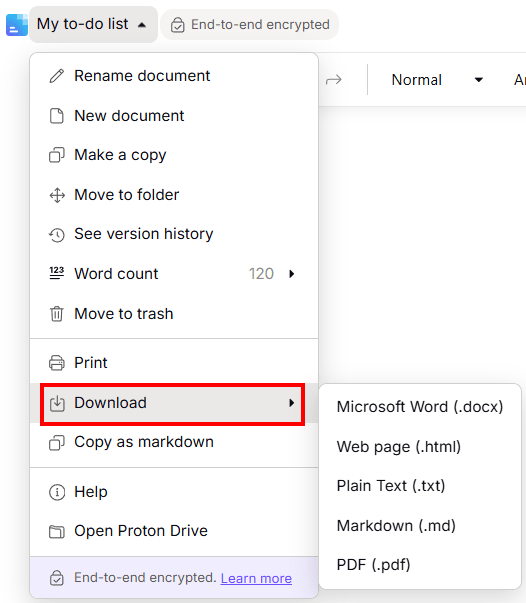
You can download documents to your device in various file formats.
First, click on the Docs icon  in the top left corner. Then choose Download from the dropdown options and select your desired format.
Moving Docs files outside the synced Proton Drive folder
On the Windows and macOS apps, a Doc is represented locally only as a small placeholder file, so it is not the actual document. Double-clicking it opens your browser and takes you to the file at docs.proton.me(new window). You cannot access the document’s real content directly from File Explorer or Finder.
Because of this, moving or copying a Doc out of the Proton Drive folder that is being synced on your device will not create a usable copy. The placeholder left behind becomes an empty (0 byte) file, and the actual document is moved to Trash in Proton Drive (at drive.proton.me(new window)).
To keep a working copy of a document outside Proton Drive, use the Download option instead of moving or copying the file with File Explorer or Finder.