
How to configure the VPN browser extension through MDM
- Luetaan
- 2 min
- Kategoria
- Proton VPN for Business
As a Proton VPN for Business administrator, you can configure the Proton VPN browser extension(uusi ikkuna) for Chrome (and other Chromium-based browsers, such as Vivaldi, Brave, and Microsoft Edge) for your organization users via your mobile device management (MDM) platform. Firefox-based browsers are not currently supported.
How to configure the browser extension
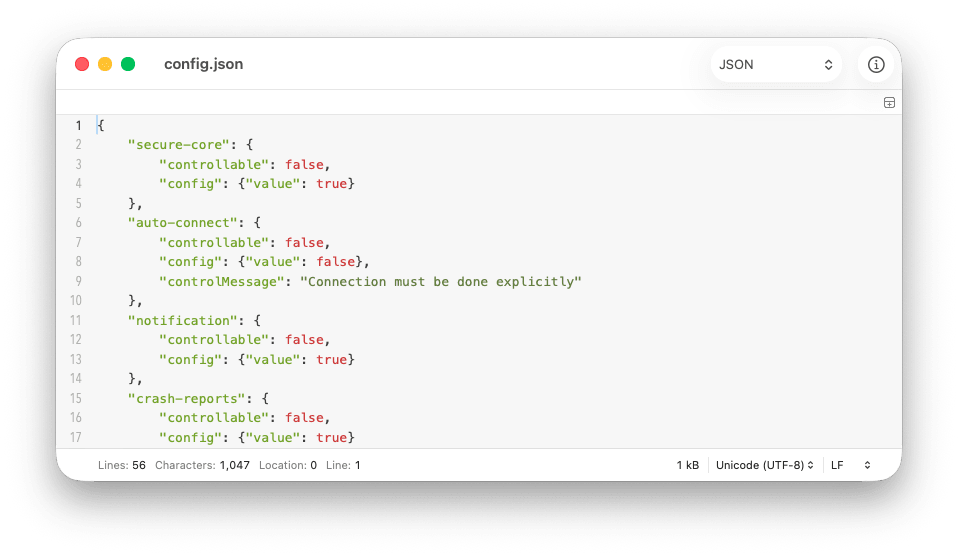
1. Download this JSON file(uusi ikkuna) or create a new text file named config.json containing the following text:
{

	"secure-core": {
		"controllable": false,
		"config": {"value": true}
	},
	"auto-connect": {
		"controllable": false,
		"config": {"value": false},
		"controlMessage": "Connection must be done explicitly"
	},
	"notification": {
		"controllable": false,
		"config": {"value": true}
	},
	"crash-reports": {
		"controllable": true,
		"config": {"value": false}
	},
	"prevent-webrtc-leak": {
		"controllable": false,
		"config": {"value": true}
	},
	"telemetry": {
		"controllable": true,
		"config": {"value": false}
	},
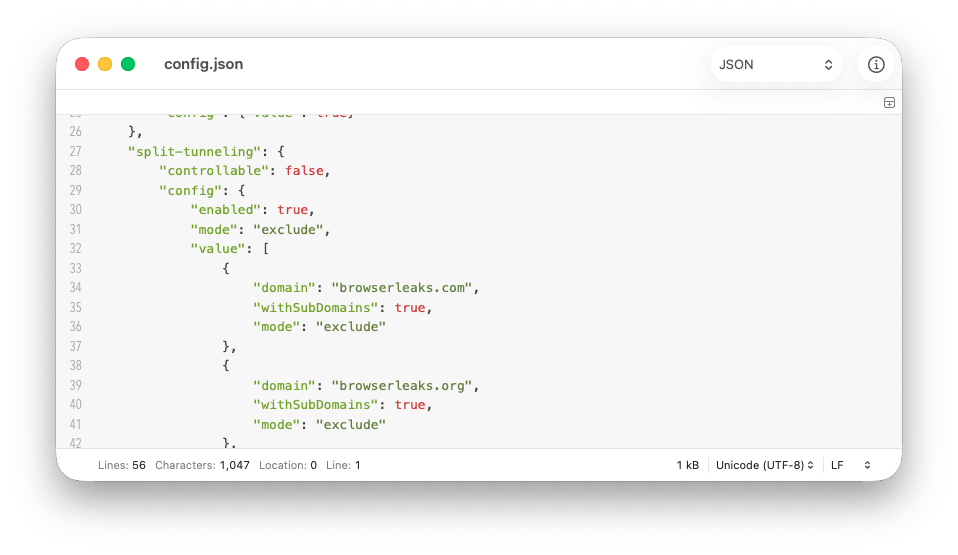
	"split-tunneling": {
		"controllable": false,
		"config": {
			"enabled": true,
			"mode": "exclude",
			"value": [
				{
					"domain": "browserleaks.com",
					"withSubDomains": true,
					"mode": "exclude"
				},
				{
					"domain": "browserleaks.org",
					"withSubDomains": true,
					"mode": "exclude"
				},
				{
					"domain": "browserleaks.net",
					"withSubDomains": true,
					"mode": "exclude"
				},
				{
					"domain": "atlassian.net",
					"withSubDomains": true,
					"mode": "exclude"
				}
			]
		}
	}
}2. Open the file in a text editor and edit the text to configure the browser extension settings across your organization. You can configure the following settings:
- secure-core(uusi ikkuna): If true, route connections through a double-hop VPN connection for high-security environments.
- auto-connect: If false, ask explicit user consent before establishing connections after a dropout. You can manually edit the message users will see for this.
- notification: If true, displays system alerts for connection status changes.
- crash-reports(uusi ikkuna): If true, help us to troubleshoot and improve the platform by sharing anonymous crash reports.
- prevent-webrtc-leak(uusi ikkuna): If true, prevents WebRTC leaks exposing your real IP address. Generally recommend, but you may wish to disable to solve issues with video conferencing and other tools that use WebRTC.
- telemetry(uusi ikkuna): If true, help us to fight censorship by sharing anonymous statistics.
- split-tunneling(uusi ikkuna): If true, route some connections through the VPN tunnel while excluding others.
Most of these settings have two values, which can be true or false:
- controllable: Whether the setting is user-controllable. When set to false, only administrators can change the setting via this JSON file.
- config: Whether the setting is turned on (true) or off (false). If the setting is user-controllable, this is the default value.
To configure split tunneling, you must edit additional settings for each domain you wish to include in or exclude from the VPN tunnel:
- mode: To exclude specific apps and IP addresses from the VPN tunnel, enter the value: exclude.To only include specific apps and IP addresses inside the VPN tunnel, enter the value include. Note that for each domain, this value must match the mode value for the split-tunneling setting.
- domain: Enter the domain name or each domain you wish to include in or exclude from the VPN tunnel
- withSubdomians: Whether to include or exclude subdomains.
3. Save the JSON file when you’re done
How to deploy the JSON config file
Deploy the JSON file using your MDM platform to the chrome.storage.managed folder for the changes to take effect.