BitLocker je vestavěné řešení pro úplné šifrování disku od systému Windows pro zabezpečení vašich dat v případě, že je váš počítač nebo notebook odcizen nebo jinak skončí v rukou třetí strany. Nedávné zprávy o tom, že společnost Microsoft běžně předává záložní klíče nástroje BitLocker(nové okno) orgánům činným v trestním řízení (jako je FBI), upoutaly pozornost na to, zda je bezpečné používat nástroj BitLocker (a jeho ořezanou verzi, Šifrování zařízení).
- Co je to BitLocker?
- BitLocker vs. Šifrování zařízení
- Jak funguje BitLocker?
- Co je to obnovovací klíč nástroje BitLocker?
- Kde je obnovovací klíč uložený?
- Je BitLocker bezpečný?
- Může FBI získat má data?
- Alternativní řešení šifrování
- Závěrečné myšlenky
Co je to BitLocker?
BitLocker je funkce pro úplné šifrování disku integrovaná v systému Microsoft Windows. Šifruje celý váš systémový disk, takže vaše důležitá data jsou chráněna, pokud je vaše zařízení ztraceno, odcizeno nebo je k němu přistupováno bez autorizace.
Úplné šifrování disku znamená, že jsou šifrovány všechny soubory na disku. Nešifruje jednotlivé soubory, ale můžete jej (volitelně) použít k zašifrování vašich dalších (nesystémových) disků.
Přísně vzato, BitLocker je dostupný pouze v edicích Windows Pro, Enterprise a Education. Windows Home však obsahuje Šifrování zařízení (aktivované ve výchozím nastavení na podporovaném hardwaru a při přihlášení pomocí účtu Microsoft). To využívá stejnou technologii jako BitLocker, ale je mnohem méně konfigurovatelné.
BitLocker vs. Šifrování zařízení
Šifrování zařízení je zjednodušená, automatická konfigurace nástroje BitLocker s menším počtem možností. S nástrojem BitLocker:
- Získáte plnou kontrolu nad nástrojem BitLocker
- Můžete si vybrat, jak jsou klíče chráněny (kód PIN, klíč USB atd.)
Pomocí Šifrování zařízení:
- Nemůžete spravovat nastavení šifrování v detailech
- Nemůžete vyžadovat start-up PIN
- Obnovovací klíč je automaticky zálohován na váš účet Microsoft
- Vyžaduje modul Trusted Platform Module (TPM) (viz níže)
- Šifrování se může automaticky zapnout, když se přihlásíte pomocí účtu Microsoft
Jak funguje BitLocker?
Když je váš počítač se systémem Windows vypnutý nebo je disk jinak offline, celý disk zůstává šifrovaný. U většiny moderních systémů Windows je šifrovací klíč chráněn malým bezpečnostním čipem na základní desce zvaným Trusted Platform Module (TPM – důvěryhodný modul platformy), který klíč uvolní pouze v případě, že systém nebyl pozměněn bez dovolení. Tato hardwarová ochrana je jedním z hlavních důvodů, proč společnost Microsoft vyžaduje podporu TPM 2.0 pro Windows 11.
Při spuštění počítače provede modul TPM před načtením systému Windows kontroly integrity. Tyto kontroly hledají známky neoprávněné manipulace a mohou být také spuštěny významnými změnami hardwaru, firmwaru nebo konfigurace zavádění vašeho zařízení.
Pokud vše vypadá normálně, modul TPM automaticky uvolní šifrovací klíč a BitLocker odemkne disk, což umožní normální spuštění systému Windows. Tento proces probíhá na pozadí, takže si ho většinou ani nevšimnete.
Důležitým rozdílem mezi nástrojem BitLocker a Šifrováním zařízení je flexibilita. Šifrování zařízení je zjednodušená verze nástroje BitLocker, která vyžaduje modul TPM a funguje automaticky, zatímco BitLocker lze použít i bez modulu TPM tím, že se spolehne na alternativy, jako je heslo, kód PIN nebo bezpečnostní klíč USB.
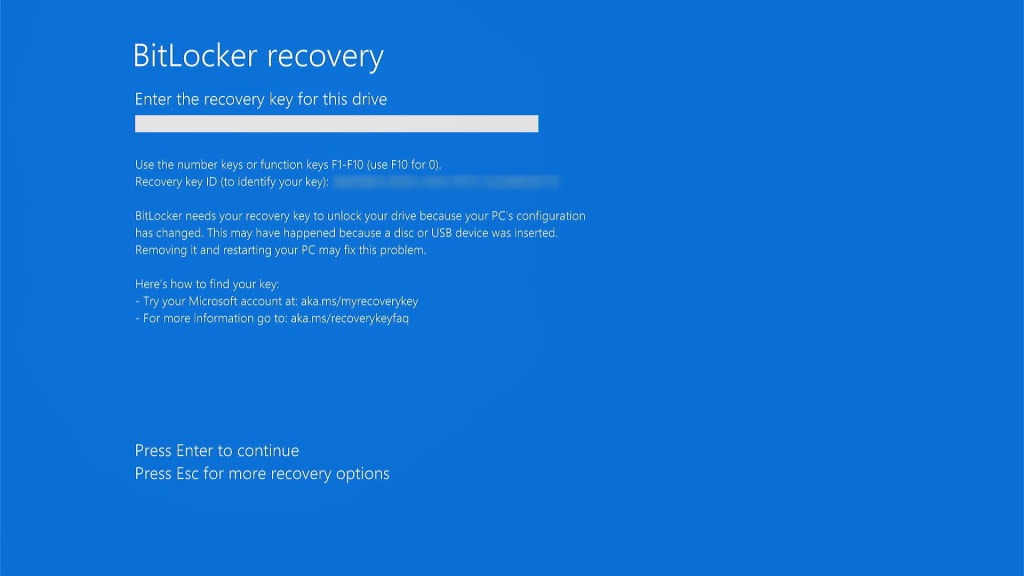
Pokud modul TPM detekuje problém (nebo pokud nejsou splněna vaše alternativní bezpečnostní opatření), BitLocker si vyžádá váš obnovovací klíč. Bez obnovovacího klíče se systém Windows nenačte a vaše data zůstanou bezpečně zašifrovaná, čímž se zabrání neoprávněně přistupovat.
Co je to obnovovací klíč nástroje BitLocker?
Obnovovací klíč nástroje BitLocker je 48místná číselná záloha, která vám umožní odemknout váš disk zašifrovaný nástrojem BitLocker, pokud k němu nemůžete přistupovat vaší běžnou metodou (heslo, PIN, TPM atd.).
Kde je obnovovací klíč uložený?
To závisí na vaší edici systému Windows a instalaci:
Windows Home (pomocí Šifrování zařízení):
Klíč se automaticky uloží na váš účet Microsoft.
- Chcete-li jej najít (na jiném zařízení, pokud se váš počítač nespustí), přejděte na account.microsoft.com/devices/recoverykey(nové okno) a musíte se přihlásit pomocí svého uživatelského jména a hesla k účtu Microsoft.
Windows Pro a Enterprise (s využitím plné verze nástroje BitLocker)
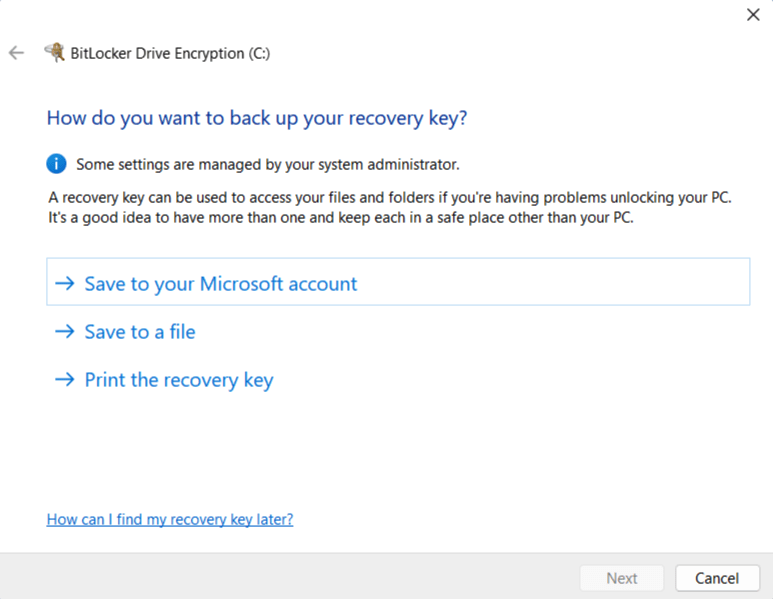
Sami si vyberete, kam jej uložíte:
- Účet Microsoft (viz výše)
- USB disk
- Soubor na jiném disku
- Vytištěná kopie
- Active Directory (pro podniková prostředí, což umožňuje organizacím centrálně spravovat obnovovací klíče a zásady pro šifrování)
Je BitLocker bezpečný?
Proti čemu BitLocker chrání
| Scénář hrozby | Chrání vás BitLocker? | Poznámky |
|---|---|---|
| Ztracený nebo odcizený notebook (vypnutý) | Ano (silná ochrana) | Disk zůstává šifrovaný; útočník potřebuje obnovovací klíč nebo PIN. |
| Zařízení zabavené úřady (vypnuté) | Částečně | Silná kryptografie, ale pokud je obnovovací klíč uložený na účtu Microsoft, může být získán prostřednictvím zákonného procesu. |
| Notebook odcizený v režimu spánku nebo hibernace | Většinou | Chráněno, ale některé pokročilé útoky (např. útok cold boot(nové okno) nebo DMA(nové okno)) by mohly extrahovat klíče. |
| Notebook odcizený během přihlášení / odemčený | Ne | Disk je dešifrovaný, takže útočník může plně přistupovat. |
| Malware nebo vzdálený hacker za běhu systému Windows | Ne | Úplné šifrování disku nechrání před tím, aby byl software kompromitovaný. |
| Útok zlé pokojské (Evil maid attack) | Částečně | Modul TPM detekuje mnoho změn, ale sofistikované útoky mohou měření obejít nebo napodobit. |
| Hacknutý účet Microsoft | Ne (pokud má Microsoft váš klíč) | Útočník by mohl získat obnovovací klíč a dešifrovat disk offline. |
| Zapomenutí vašeho hesla nebo kódu PIN | Záleží | Vyžaduje se obnovovací klíč. Bez něj jsou vaše data trvale ztracena. |
Technické zabezpečení
BitLocker zabezpečuje vaše data pomocí algoritmu pro šifrování AES. Ve výchozím nastavení u moderních systémů se jedná o AES-256 v režimu XTS(nové okno) pro větší ochranu uložených dat. To je velmi bezpečné.
Starší systémy mohou používat minimálně AES-128 v režimu CBC(nové okno). To je stále dostatečně silné na to, aby to ochránilo vaše data před většinou útočníků, i když vysoce sofistikovaní protivníci (jako jsou státem sponzorovaní aktéři) by se mohli potenciálně pokusit o pokročilé útoky.
BitLocker používá vrstvený systém správy klíčů. Na nejvyšší úrovni je hlavní klíč svazku (VMK), který šifruje samotný šifrovací klíč dat (úplný šifrovací klíč svazku, nebo FVEK).
Samotný klíč VMK je poté chráněn jednou nebo více metodami ověření: čipem TPM (a/nebo heslem, kódem PIN, klíčem USB nebo jejich kombinací, pokud používáte plnou verzi nástroje BitLocker). Tento návrh znamená, že si můžete změnit heslo, aniž byste museli znovu zašifrovat celý disk.
Bezpečnost nástroje BitLocker je celá o obnovovacím klíči
Takže pokud je obnovovací klíč v bezpečí, vaše data jsou velmi bezpečná když je vaše zařízení Windows vypnuté (k tomu se ještě vrátíme).
Představte si BitLocker jako dveře chránící vaše cenná data a váš obnovovací klíč jako klíč k těmto dveřím. Vyrazit dveře, abyste získali svá data, je téměř nemožný úkol, ale pomocí klíče je můžete jednoduše odemknout. Obnovovací klíč je proto slabým místem.
To platí zejména tehdy, když se rozhodnete nahrát svůj obnovovací klíč na svůj účet Microsoft. Jak mohou nedávné události zobrazit, společnost Microsoft může a také předává obnovovací klíče uživatelů třetím stranám, které je mohou použít k tomu, aby mohly přistupovat k vašim datům.
Pouze offline
Dalším důležitým aspektem je, že BitLocker chrání vaše data pouze tehdy, když je váš počítač se systémem Windows vypnutý. Jakmile je systém Windows spuštěn, vaše disky jsou dešifrované a kdokoli s možností přistupovat k vašemu počítači může přistupovat k vašim datům. To by mohlo znamenat fyzicky přistupovat nebo digitálně přistupovat (například, pokud jste byli hacknuti).
To platí pro všechna řešení úplného šifrování disku (nejen pro BitLocker), ale v závislosti na vašem modelu rizik může být užitečné to mít na paměti.
Útoky zlé pokojské
Útok zlé pokojské(nové okno) nastane, když někdo získá možnost dočasně fyzicky přistupovat k vašemu zařízení (například v hotelu nebo na hranicích) a tajně jej upraví tak, aby mohl později ukrást váš šifrovací klíč nebo PIN. Místo prolamování šifrování obelstí systém, aby jej odhalil.
Ve výchozím nastavení většina počítačů používá nástroj BitLocker s automatickým odemykáním prostřednictvím modulu TPM, což je silné proti krádeži, ale slabší proti neoprávněné manipulaci. Chcete-li se bránit před útoky zlé pokojské, měli byste aktivovat BitLocker pomocí kódu PIN nebo klíče USB před spuštěním, takže disk nelze odemknout automaticky. Bohužel to v systému Windows Home pomocí základního Šifrování zařízení není možné.
Může FBI získat má data?
Stručně řečeno, ano. Microsoft je americká společnost, a proto se musí řídit právně závaznými soudními příkazy a dalšími právními nástroji, jako jsou dopisy o národní bezpečnosti(nové okno) (NSL), které nutí společnosti předávat obrovské množství osobních dat a metadat vládním organizacím bez jakéhokoli soudního dohledu. Ty jsou obvykle doprovázeny příkazem mlčenlivosti, který brání společnosti upozornit své uživatele, že jim byl doručen NSL.
V roce 2016 svedla společnost Apple odhodlaný boj proti soudem podporovaným požadavkům FBI na odemknutí iPhonu(nové okno) patřícího podezřelému z terorismmu, což bylo vyřešeno až tehdy, když si FBI najala třetí stranu k úspěšnému prolomení šifrování společnosti Apple. Aby se zabránilo opakování tohoto incidentu, společnost Apple se od té doby přiklonila k implementaci koncového šifrování ve svých produktech. Koneckonců nemůže předat šifrovací klíče, které prostě nemá.
Společnost Microsoft však žádné takové tendence nezobrazuje. Když se rozhodnete nahrát svůj obnovovací klíč nástroje BitLocker na svůj účet Microsoft, je to společnost Microsoft, která jej šifruje a (v případě potřeby) jej může společnost Microsoft dešifrovat. Společnost Microsoft tedy může vždy přistupovat k vašemu obnovovacímu klíči.
V roce 2025 FBI požádala společnost Microsoft o poskytnutí obnovovacích klíčů BitLocker(nové okno), potřebných k odemknutí šifrovaných dat uložených na třech noteboocích spojených s vyšetřováním údajného podvodu na Guamu. Microsoft vyhověl a mluvčí pro Forbes uvedl, že společnost dostává ročně zhruba 20 žádostí o klíče BitLocker. Ve většině takových případů Microsoft nemůže vyhovět, protože tyto klíče nejsou uloženy v účtech Microsoft. Ale z toho plynoucí důsledek je zřejmý: pokud může pomoci, udělá to.
Alternativní řešení pro šifrování
Pokud byste raději nesvěřovali společnosti Microsoft svůj obnovovací klíč pro úplné šifrování disku, máte několik možností.
1. Použijte Windows Pro
Pokud již používáte Windows Pro (nebo Enterprise), je to nejjednodušší řešení. Pokud používáte systém Windows Home, budete si muset zakoupit novou licenci a upgradovat.
1. V systému Windows 11 Pro otevřete aplikaci Nastavení a přejděte do nabídky Soukromí a zabezpečení → Šifrování disku nástrojem BitLocker. Pokud jste právě upgradovali z verze Windows Home nebo používáte verzi Pro, ale již jste se rozhodli nahrát svůj obnovovací klíč do společnosti Microsoft (výchozí chování, pokud se do systému Windows přihlásíte pomocí účtu Microsoft), budete muset nástroj BitLocker vypnout a počkat, než se váš disk dešifruje).
2. Přejděte na account.microsoft.com/devices/recoverykey(nové okno) a smažte všechny klíče, které tam uvidíte. Předtím se však prosím ujistěte, že je váš disk dešifrovaný!
3. Poté můžete BitLocker znovu zapnout a vybrat si preferovanou metodu zálohování obnovovacího klíče.
2. Použijte raději VeraCrypt
Zcela pochopitelně můžete dát přednost tomu, vyhnout se řešení od společnosti Microsoft úplně (koneckonců, kdo ví, co jeho kód s uzavřeným zdrojem skutečně dělá?).
VeraCrypt(nové okno) je software pro úplné šifrování disku s otevřeným zdrojovým kódem, který prošel několika bezpečnostními audity (zejména QuarksLab v roce 2016(nové okno) a Fraunhofer Institute v roce 2020(nové okno)). Byly nalezeny problémy, ale VeraCrypt je v aktivním vývoji, a proto byly opraveny. Má také značnou výhodu v tom, že je 100% zdarma (ačkoli doporučujeme darovat prostředky, pokud je to ve vašich možnostech). Kromě úplného šifrování disku může VeraCrypt:
- Vytvořit virtuální šifrovaný disk (svazek), který můžete připojit a používat stejně jako skutečný disk (a ze kterého lze udělat skrytý svazek)
- Vytvořit oddíl nebo disk v úložišti obsahující celý operační systém (který lze skrýt). To poskytuje přijatelné popření(nové okno), protože by mělo být nemožné prokázat jejich existenci (pokud jsou přijata všechna správná opatření(nové okno)).
Data jsou ve výchozím nastavení šifrována pomocí XTS-AES-256 (stejná nastavení, jaká používá BitLocker), ale pokud dáváte přednost, můžete si vybrat z více alternativních algoritmů pro šifrování (jako je Twofish). Přístup je zabezpečen pomocí heslové fráze a/nebo souboru s klíčem (který byste měli uložit někam do bezpečí).

Před instalací programu VeraCrypt budete muset vypnout BitLocker nebo Šifrování zařízení a dešifrovat váš disk (jak je popsáno výše, ale ve Windows 11 Home otevřete aplikaci Nastavení a přejděte na Soukromí a zabezpečení → Šifrování disku nástrojem BitLocker).
3. Zbavte se systému Windows
Pokud nemůžete důvěřovat společnosti Microsoft ohledně vašich obnovovacích klíčů pro úplné šifrování disku, proč vůbec používat její operační systém? Chcete-li od systému Windows přejít jinam, máte dvě reálné možnosti:
macOS
Počítače Mac jsou drahé, vysoce proprietární a poskytují velmi kontrolovaný uživatelský zážitek. Dokážou však téměř všechno, co počítač, a na rozdíl od společnosti Microsoft má Apple historii odmítání vládních požadavků, aby jí pomohl přistupovat k šifrovaným zařízením.
Vestavěné řešení úplného šifrování disku v systému macOS se nazývá FileVault, které se můžete rozhodnout aktivovat při instalaci počítače Mac. Když to uděláte, FileVault vám nabídne nahrát váš obnovovací klíč na váš účet iCloud, kde k němu bude moci potenciálně přistupovat společnost Apple a předat jej třetím stranám. Můžete si však vybrat pouze místní obnovovací klíč, čímž se vygeneruje číselný klíč, který si zapíšete a bezpečně uložíte, nebo jej přidáte do svého správce hesel.
Další možností je aktivovat volitelné nastavení Pokročilá ochrana dat na iCloudu(nové okno), které chrání vaše data na iCloudu pomocí koncového šifrování. To znamená, že společnost Apple nemůže přistupovat k vašemu obnovovacímu klíči FileVault (nebo k jakýmkoli jiným datům, která se rozhodnete nahrát na iCloud). Upozorňujeme však, že funkce Pokročilá ochrana dat není dostupná pro uživatele ve všech regionech (zejména ve Spojeném království(nové okno)).
Linux
Linux je zcela bezplatný operační systém s otevřeným zdrojovým kódem, který lze nainstalovat na váš stávající hardware (a téměř jistě na něm poběží lépe než systém Windows náročný na zdroje). S výjimkou několika proprietárních aplikací, které na této platformě prostě nejsou dostupné (zejména cokoliv od Adobe, ačkoliv pro většinu z nich existují dobré bezplatné alternativy s otevřeným zdrojovým kódem), dokáže Linux udělat všechno to, co Windows a macOS.
Linux přichází v mnoha různých „příchutích“ (zvaných distribuce, nebo jen distra), ale téměř všechny z nich používají systém pro úplné šifrování disku LUKS, který můžete vybrat, když se rozhodnete instalovat OS.
LUKS nemá jediný „obnovovací klíč“ jako BitLocker nebo FileVault. Místo toho používá náhodný hlavní klíč, který zůstává na vašem zařízení a který lze odemknout pomocí metody zálohy podle vašeho výběru. Patří mezi ně:
- Druhá heslová fráze
- Vytištěná obnovovací heslová fráze
- Soubor s klíčem uložený offline
- Klíč zapečetěný modulem TPM (se záložní heslovou frází)
Závěrečné úvahy o nástroji BitLocker a úplném šifrování disku
Nástroj BitLocker je z čistě technického hlediska silný a dobře navržený systém pro úplné šifrování disku. Jeho využití moderní kryptografie, hardwarového úložiště klíčů a vrstvené správy klíčů jej činí vysoce účinným při ochraně vašich dat před běžnými hrozbami, jako je ztracené nebo odcizené zařízení. Pro většinu uživatelů systému Windows poskytuje BitLocker smysluplnou a spolehlivou ochranu s minimálním úsilím. Pokud je váš model rizik odcizený notebook, nástroj BitLocker obvykle postačuje.
Jak však ukazují nedávná odhalení o spolupráci společnosti Microsoft s orgány činnými v trestním řízení, bezpečnost jakéhokoli systému pro šifrování v konečném důsledku závisí na tom, kdo drží klíče. V závislosti na vašem modelu rizik může být skutečnost, že je obnovovací klíč nástroje BitLocker uložený na vašem účtu Microsoft, hluboce znepokojující.
Naštěstí máte alternativy. Windows Pro vám umožňuje spravovat obnovovací klíče sami, zatímco nástroje s otevřeným zdrojovým kódem, jako je VeraCrypt, poskytují dobrou bezplatnou alternativu. Úplná změna platforem a odklon od společnosti Microsoft, například na macOS s místně uloženými klíči FileVault nebo na Linux se systémem LUKS, je také silnou možností.