
How to add, remove, or edit a payment method
You can link a credit card, debit card, or PayPal account to your Proton Account for auto-renewals and future purchases. Payment methods can be managed in your account settings.
- Add a new payment method
- View and manage payment methods
- Delete a payment method
- What other payment methods does Proton accept?
Add a new payment method
Payment card
We accept all major credit and debit cards. To add a card to your account:
- Sign in at proton.me. Select any service from the menu.
- To open your account settings, click Settings (⚙️) → All settings.

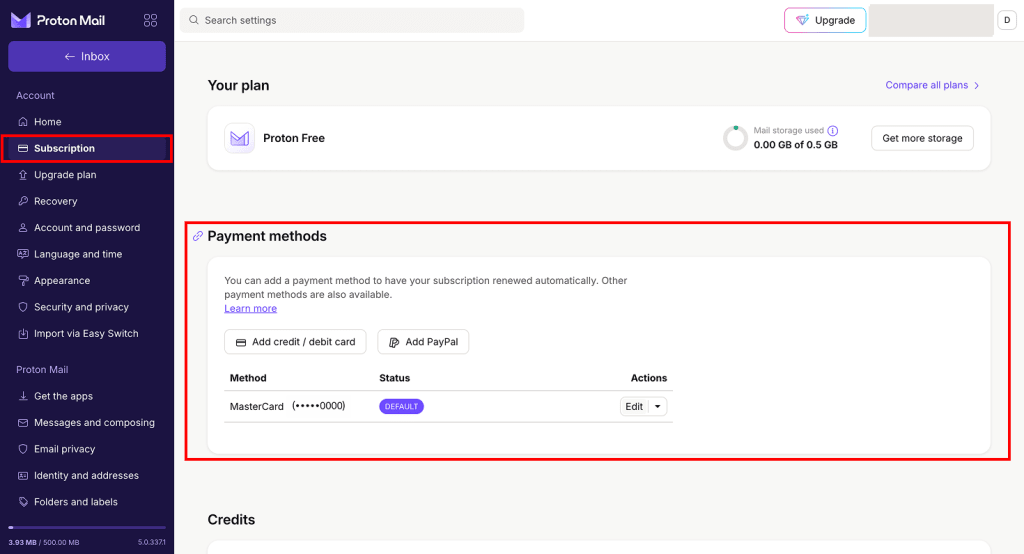
- In the Subscriptions tab, go to Payment methods and click Add credit/debit card.

- Enter your card details and click Save.

By default, cards on your account can be used to pay for renewals of any subscriptions you have (or purchase later). If you don’t want this card to be used for renewal payments, toggle Enable auto-pay support off.
- You might be asked to complete 3DS (3D Secure) verification with your bank. If so, click Verify to continue.
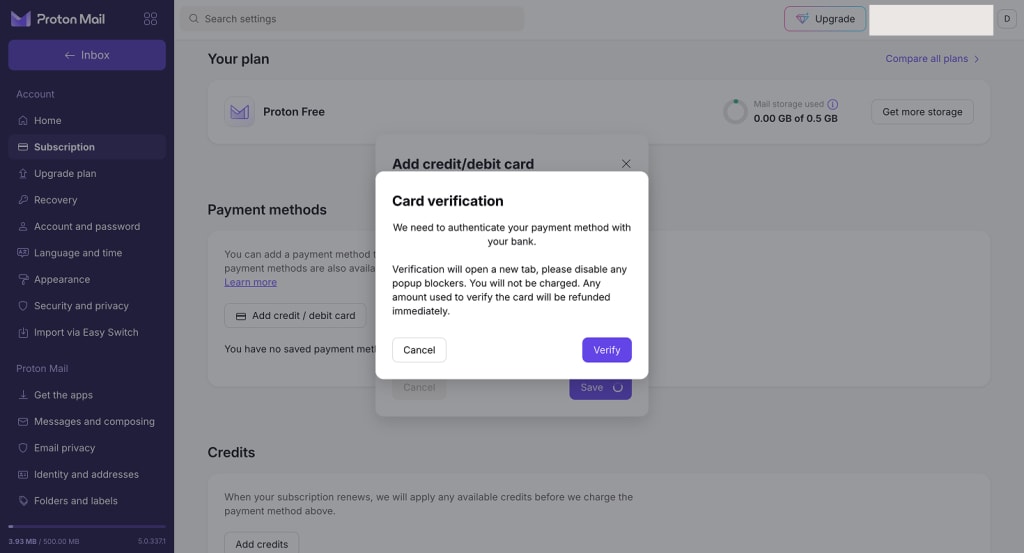
The verification page will open in a new window. If it doesn’t open, you may need to disable ad-blocker.
- All done. Your credit or debit card is now linked to your Proton Account.

PayPal
To link your PayPal account:
- Sign in at proton.me. Select any service from the menu.
- To open your account settings, click Settings (⚙️) → All settings.
- In the Subscriptions tab, go to Payment methods and click Add PayPal.

- Read the confirmation dialog. To continue, click the PayPal button.
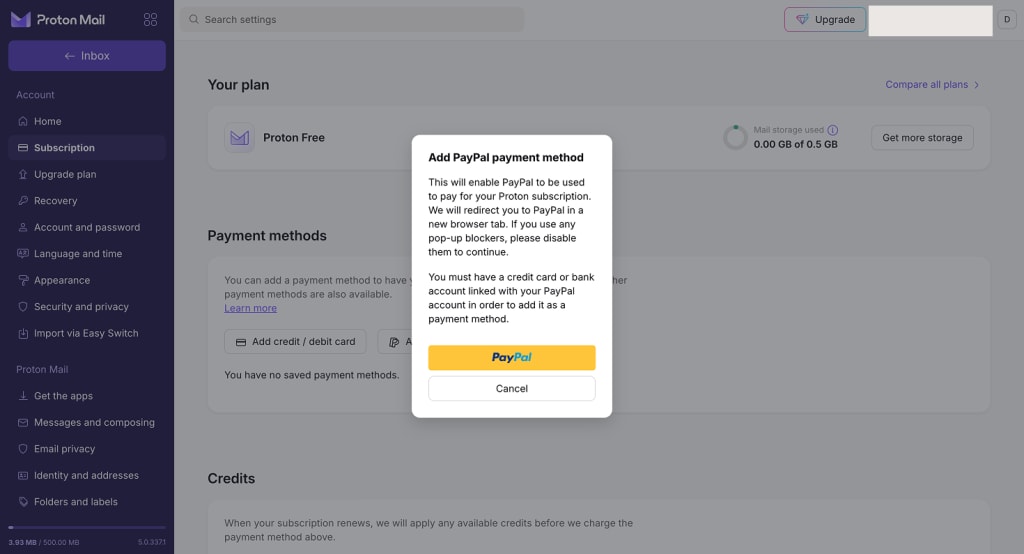
- The PayPal website will open in another window. You’ll be asked to sign in and confirm that you want to link your account to Proton. If the PayPal website doesn’t open, you may need to disable ad-blocker.
- All done. Your PayPal is now linked to your Proton Account and can be used to pay for your subscription.

View and manage your payment methods
- Sign in at proton.me. Select any service from the menu.
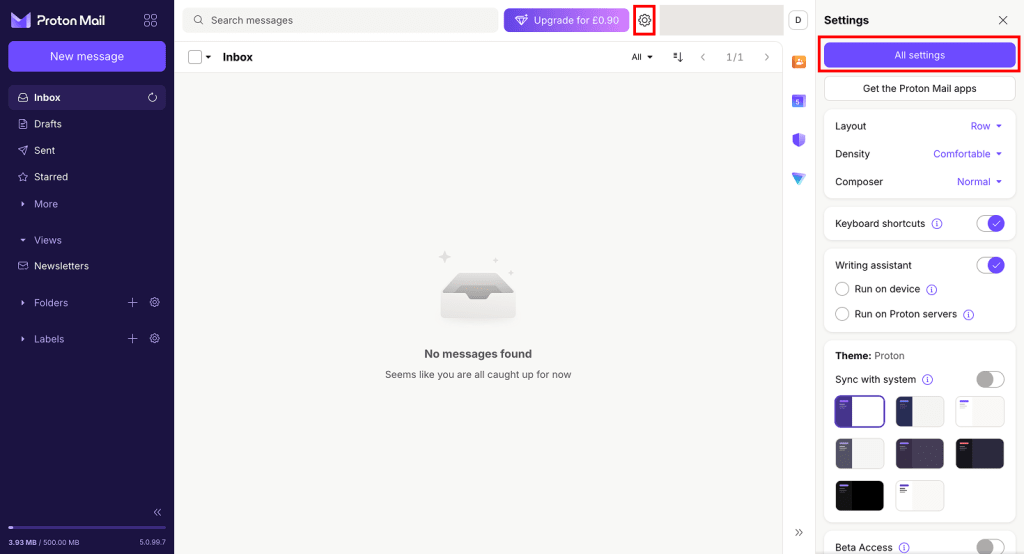
- To open your account settings, click Settings (⚙️) → All settings.
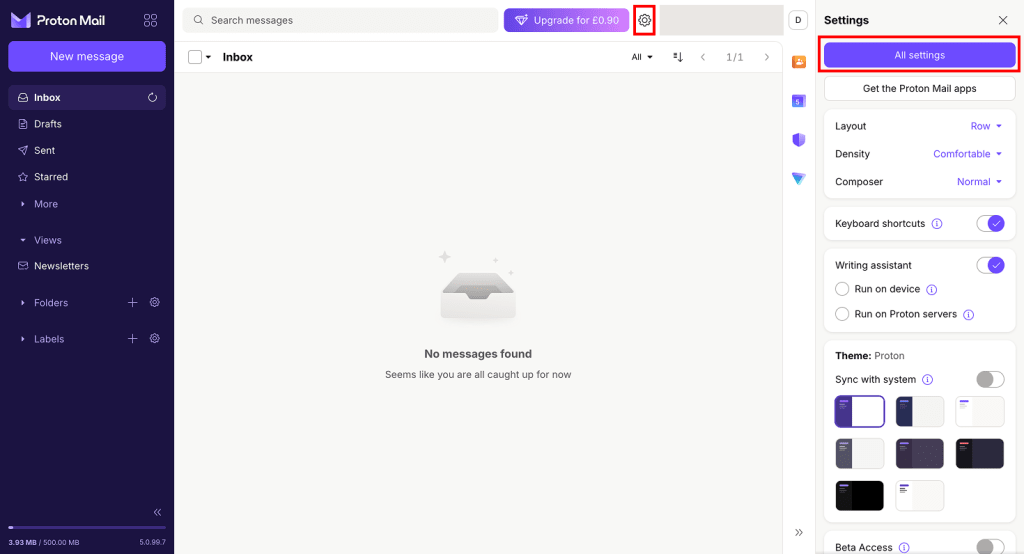
- To view your payment methods, open the Subscription page and scroll to Payment methods.
Set a default payment method
If you have multiple payment methods on your account, you can set a default payment method to be used for subscription auto-renewals. If payment fails, we’ll try the other payment methods on your account.
Here’s how to set a default payment method:
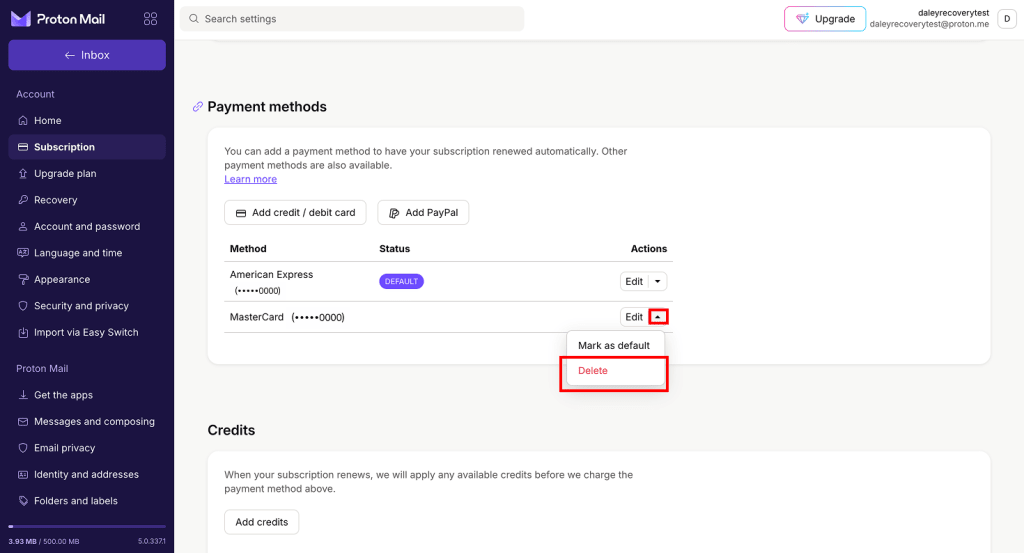
- Find the payment method you want to set as your default. Click the small arrow next to Edit.
- Click Mark as default.
Edit card details
If you want to change your card details, it’s usually easier to add a new card with your updated details, and then delete the old one.
But if you prefer, it is technically possible to edit the Expiry date, Postal/Zip code, or Auto-pay preferences for an existing card on your account.
- Find the card you want to edit, then click Edit.

- Enter your card details again.
- Card number: This cannot be changed. Re-enter the same card number as before.
- CVC (CVV, security code): This cannot be changed. Re-enter the same CVC as before.
- Expiry date: Enter your updated details.
- Postal code: Enter your updated details.

- Click Save to confirm your changes.
Delete payment method
If you’re on a paid Proton subscription, keep at least one valid payment method on your account to ensure uninterrupted access to your privacy services.
- Sign in at proton.me. Select any service from the menu.
- To open your account settings, click Settings (⚙️) → All settings.
- In the Subscriptions tab, go to Payment methods. Find the payment method you want to remove, click the small arrow next to Edit, then select Delete from the menu.

- You’ll be asked to confirm that you want to delete the payment method. Read the information carefully, and click Delete if you want to continue.
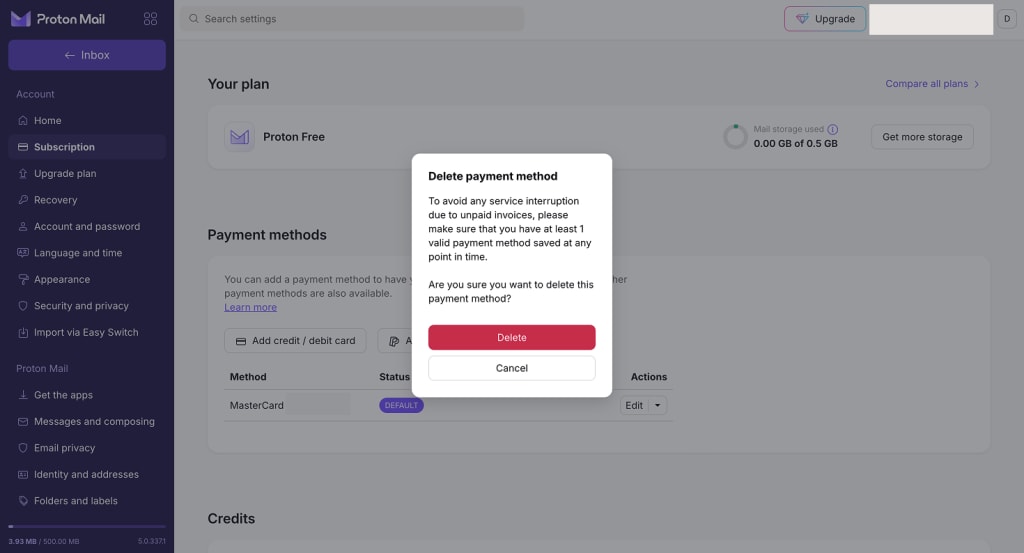
Note: Deleting your payment methods won’t automatically cancel a paid Proton subscription. To avoid unpaid invoices, cancel your subscription before removing your payment methods.
- All done. The payment method is no longer linked to your Proton Account.

Does Proton accept any other payment methods?
Yes. Aside from Payment card and PayPal, you can pay for a Proton subscription with Bitcoin, Bank transfer, and even Cash.