
Importa file da Google Drive a Proton Drive
- Lettura
- 3 minuti
- Categorie
- Utilizzo di Proton Drive
- Proton Drive
Se stai cercando un’alternativa a Google Drive(nuova finestra) di cui ti puoi fidare, Proton Drive tiene al sicuro i tuoi dati utilizzando la crittografia end-to-end. Questo significa che solo tu e le persone con cui decidi di condividere i file(nuova finestra) potete accedere ai tuoi contenuti — non terze parti, non inserzionisti, e nemmeno Proton. Questo articolo ti spiega come trasferire i tuoi file da Google Drive.
- Esporta i tuoi file di Google Drive
- Scarica la tua esportazione
- Importa in Proton Drive
- Cosa fare dopo?
Esporta i tuoi file di Google Drive
- Vai su https://takeout.google.com(nuova finestra) e accedi all’account Google da cui vuoi scaricare i file.
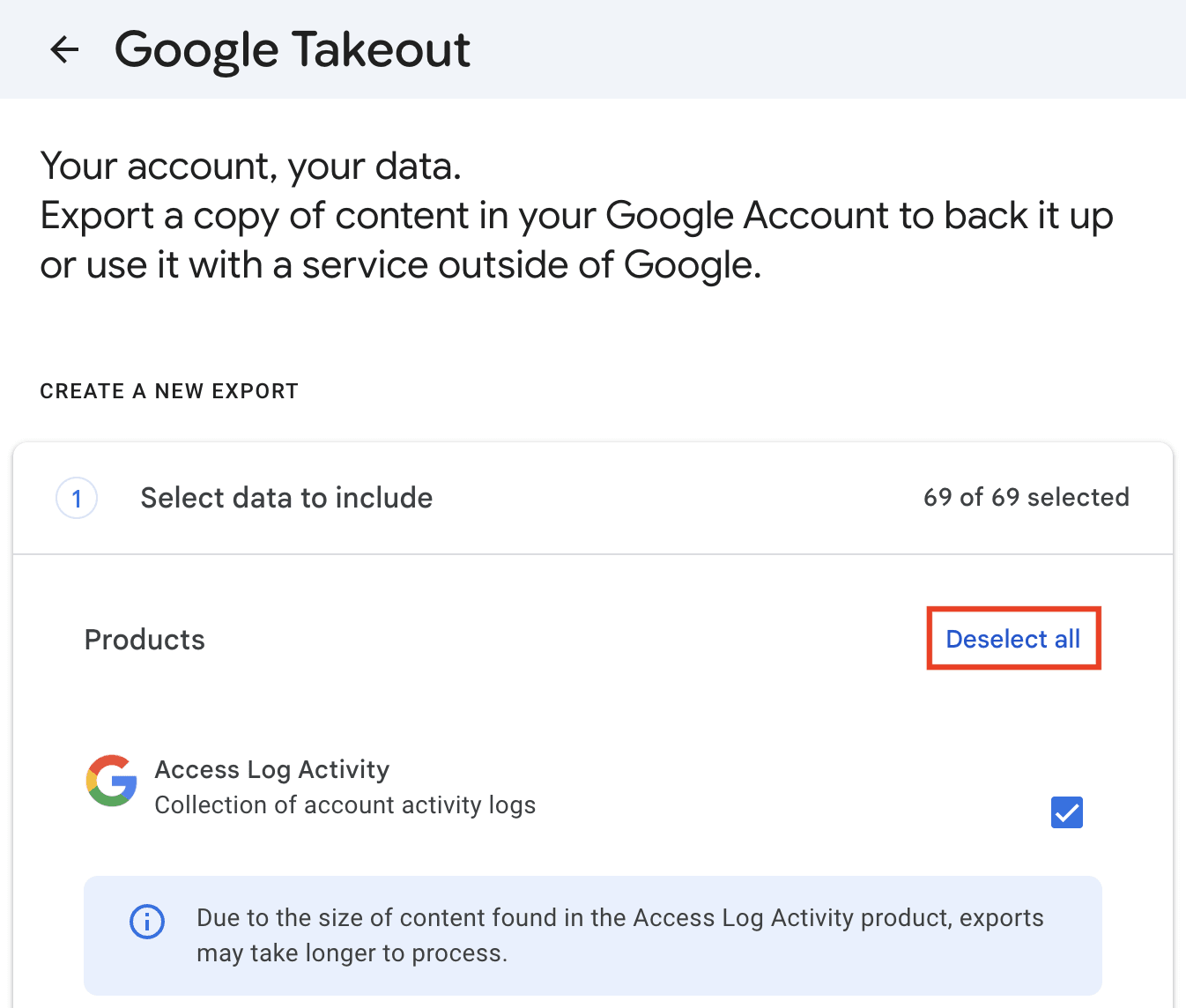
- Scorri fino a Crea una nuova esportazione e fai clic su Deseleziona tutto.
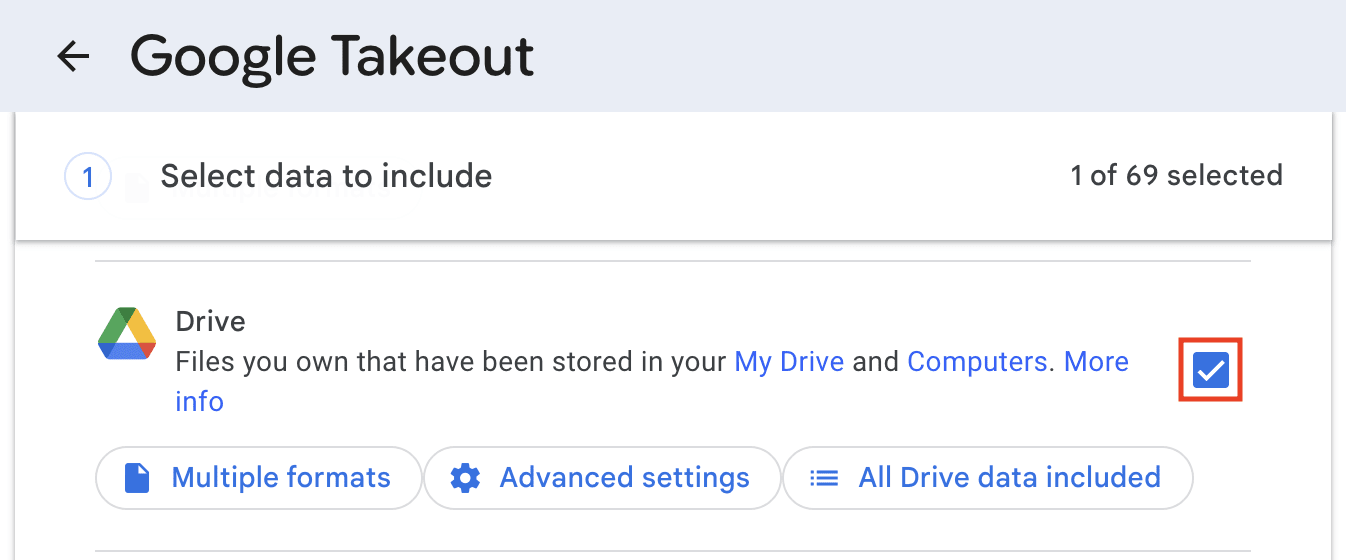
- Continua a scorrere verso il basso, trova Drive e seleziona la casella accanto.
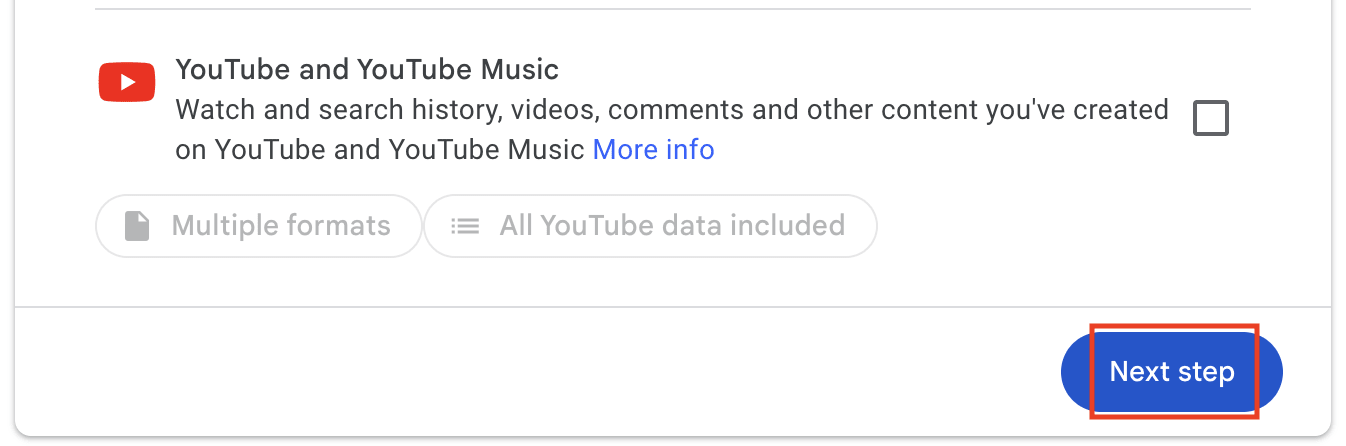
- Scorri fino in fondo e seleziona Passaggio successivo.
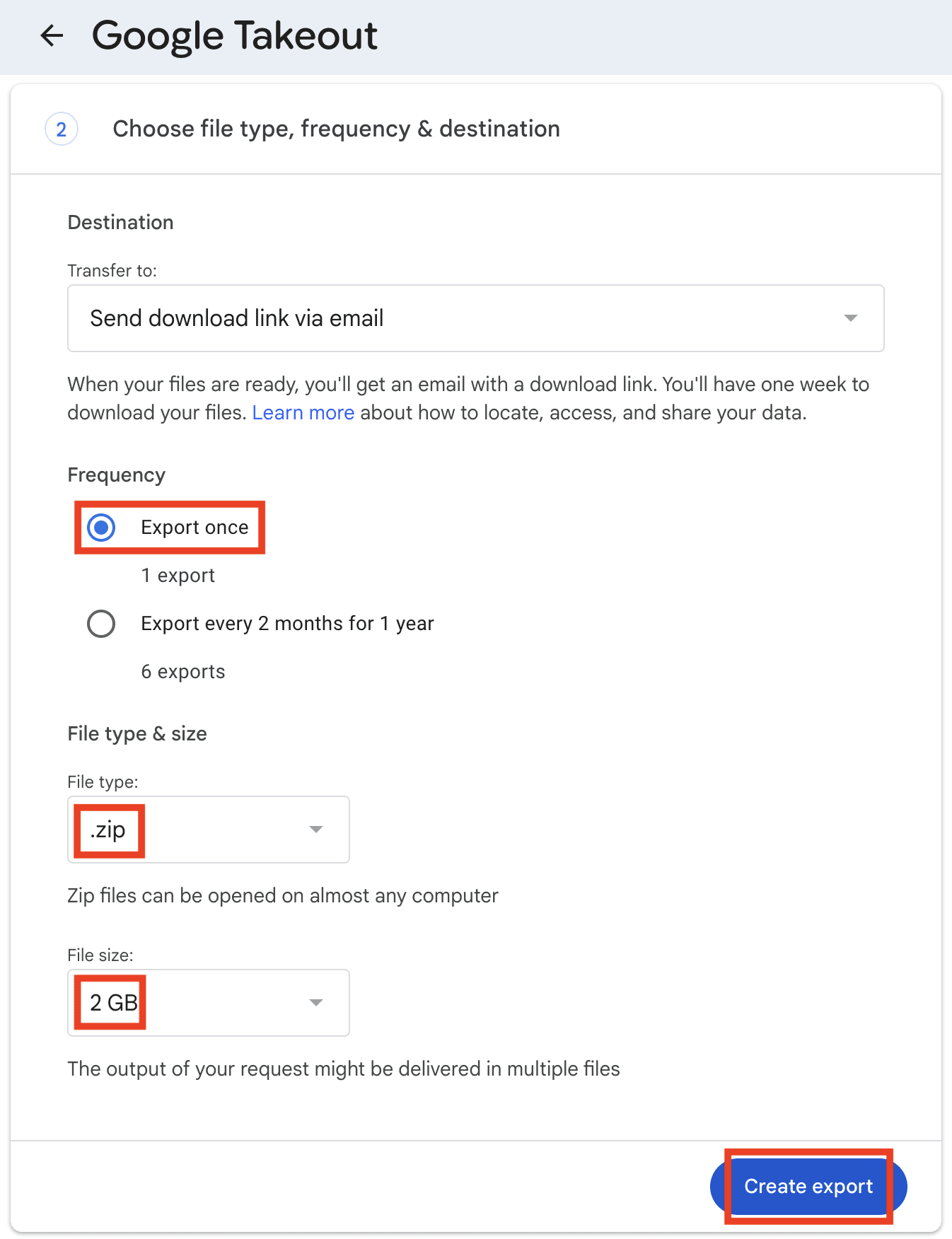
- Seleziona la destinazione del trasferimento, la frequenza di esportazione, il tipo e la dimensione del file. Fai clic su Crea esportazione.
La preparazione dell’esportazione potrebbe richiedere del tempo. Quando sarà pronta, riceverai un link di download nella tua Gmail. Nell’attesa, puoi avviare un’altra esportazione, ad esempio per Google Foto.
Scarica la tua esportazione
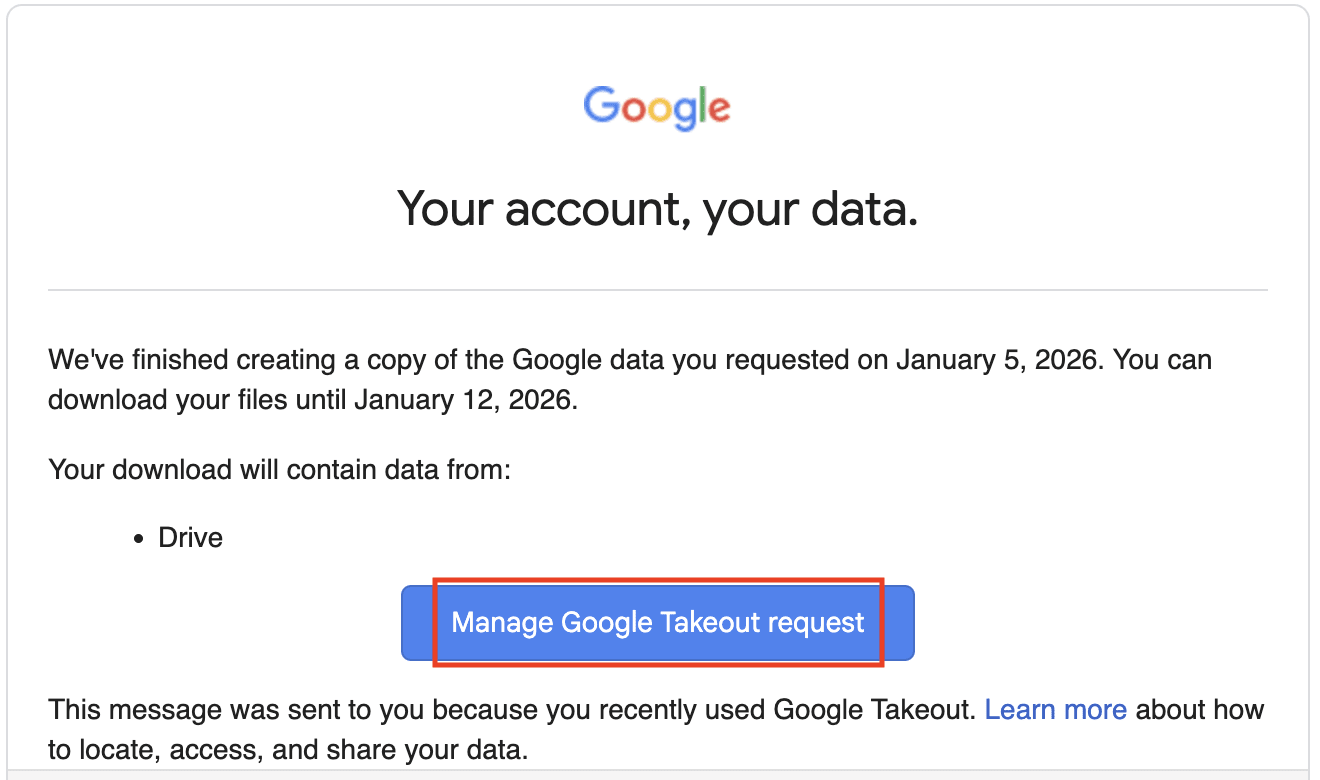
- Apri l’email “I tuoi dati Google sono pronti per il download” e fai clic su Gestisci la richiesta Google Takeout.
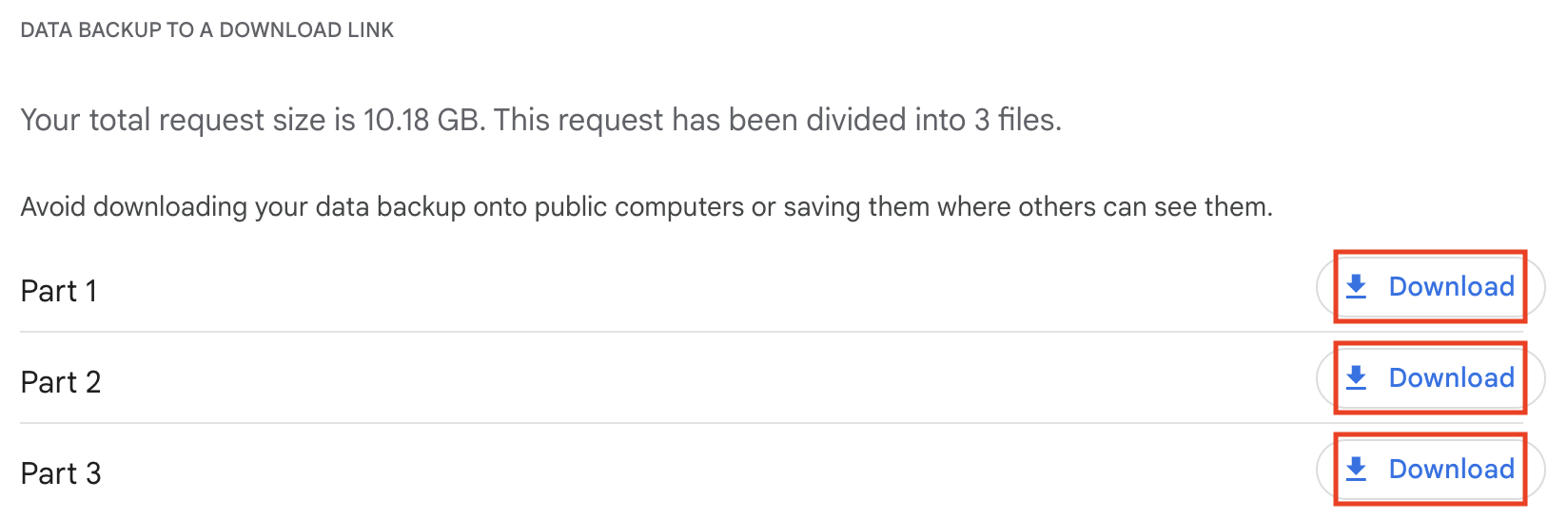
- Scarica tutte le parti dell’esportazione.
- Estrai i file zip sul tuo computer. Scopri come estrarre i file su Mac(nuova finestra) e Windows(nuova finestra).
Nota: Proton Drive mantiene la struttura delle cartelle di tutti i file che carichi. Tuttavia, se l’esportazione di Google Drive è suddivisa in più parti, potresti voler riorganizzare o unire le cartelle prima di caricarle su Proton Drive. Puoi riorganizzare i file dopo averli caricati, ma farlo localmente è solitamente più veloce.
Importa i tuoi file in Proton Drive
Puoi spostare i file di Google Drive su Proton Drive utilizzando le app desktop o web. L’app desktop offre generalmente un’esperienza più stabile e riprova automaticamente i caricamenti in caso di problemi, il che la rende la scelta migliore per caricare molti file o file di grandi dimensioni contemporaneamente. L’app web ti consente di caricare file senza installare nulla, il che può essere utile sui computer condivisi o di lavoro.
Desktop (Windows, macOS)
Quando installi l’app Proton Drive per Windows o macOS, questa crea una cartella dedicata sul tuo computer. Tutti i file o le cartelle che inserisci in questa cartella vengono caricati automaticamente sul tuo spazio di archiviazione cloud crittografato.
Ecco come copiare i file estratti nella cartella Proton Drive sul tuo computer:
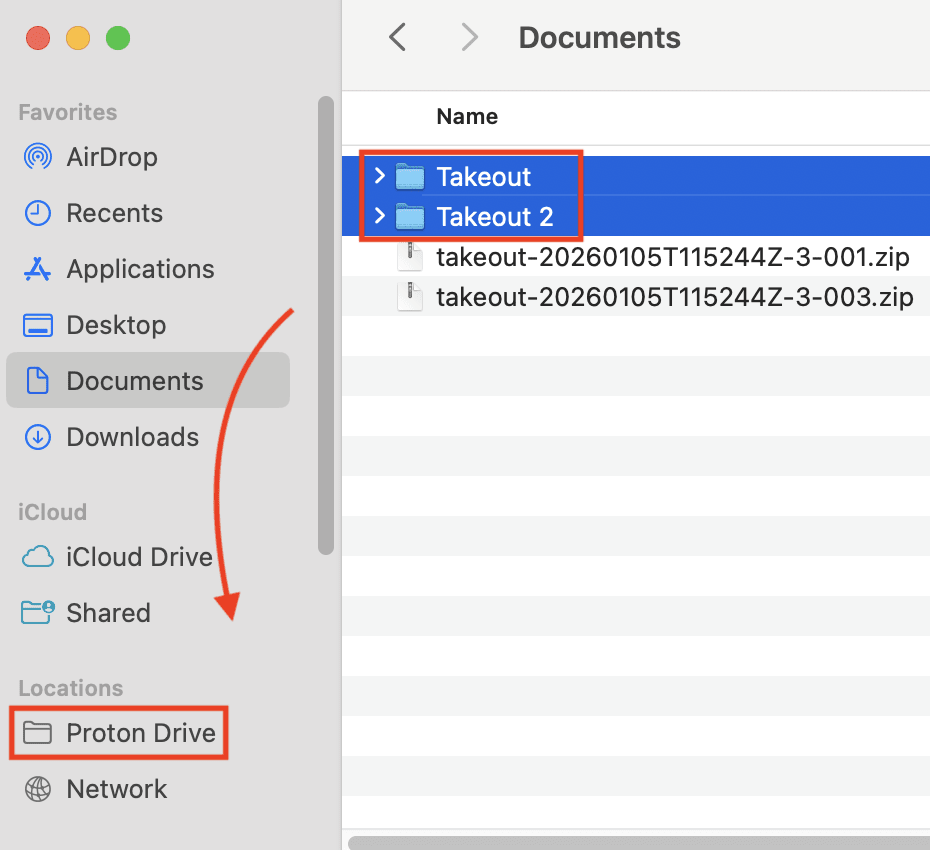
Su macOS: apri il Finder, quindi trascina e rilascia i file in Proton Drive.
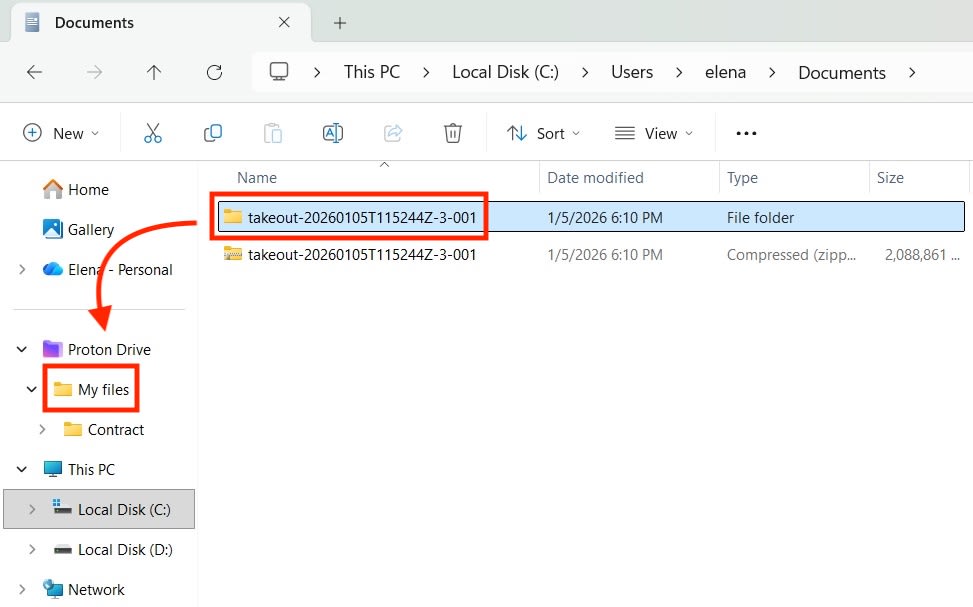
Su Windows: apri Esplora file, quindi trascina e rilascia i file in Proton Drive → I miei file.
Il caricamento potrebbe richiedere del tempo, a seconda delle dimensioni dei file. Puoi controllare lo stato della sincronizzazione nell’app Proton Drive su Windows o macOS per confermare che il caricamento sia completato.
App web
- Vai su https://drive.proton.me/(nuova finestra) e accedi al tuo account Proton.
- Puoi creare una nuova cartella per i tuoi file di Google Drive per tenerli organizzati.
- Carica i file trascinando i tuoi file di Google Drive in Proton Drive o selezionando il pulsante Carica (📤) per scegliere file o cartelle dal tuo computer.
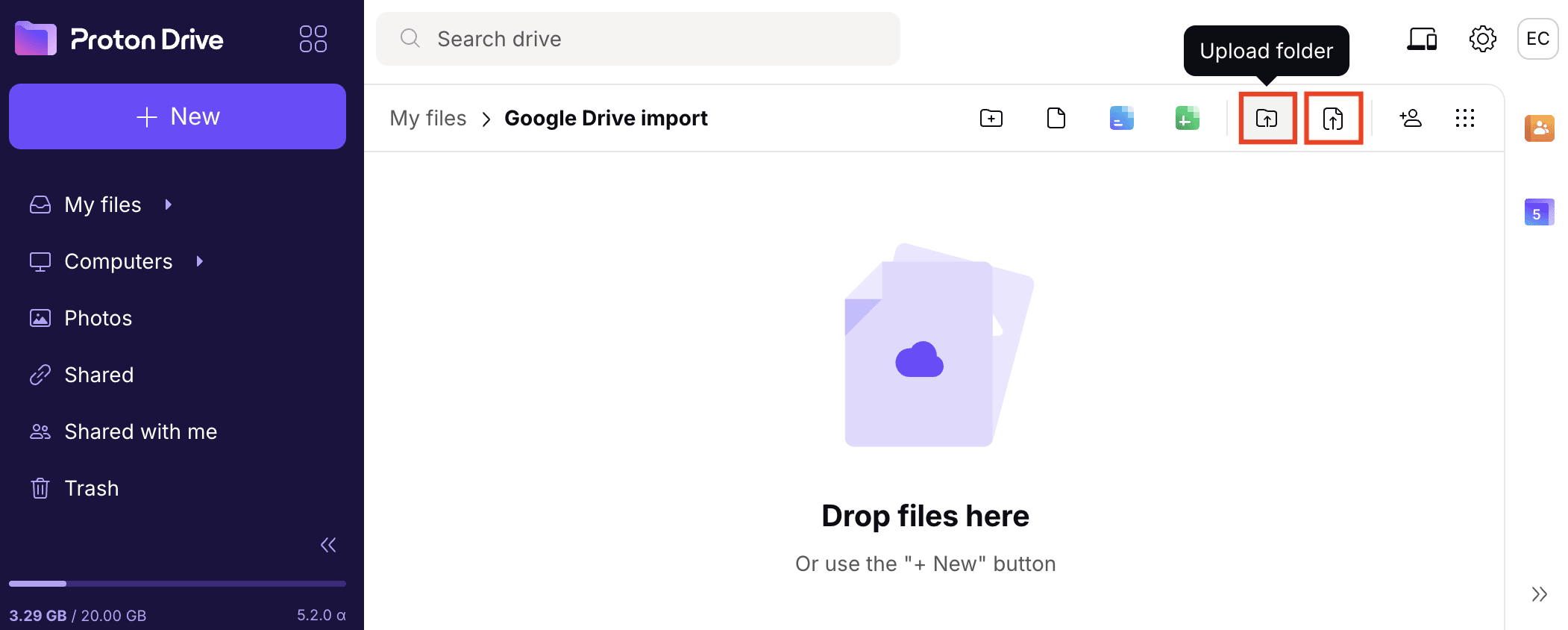
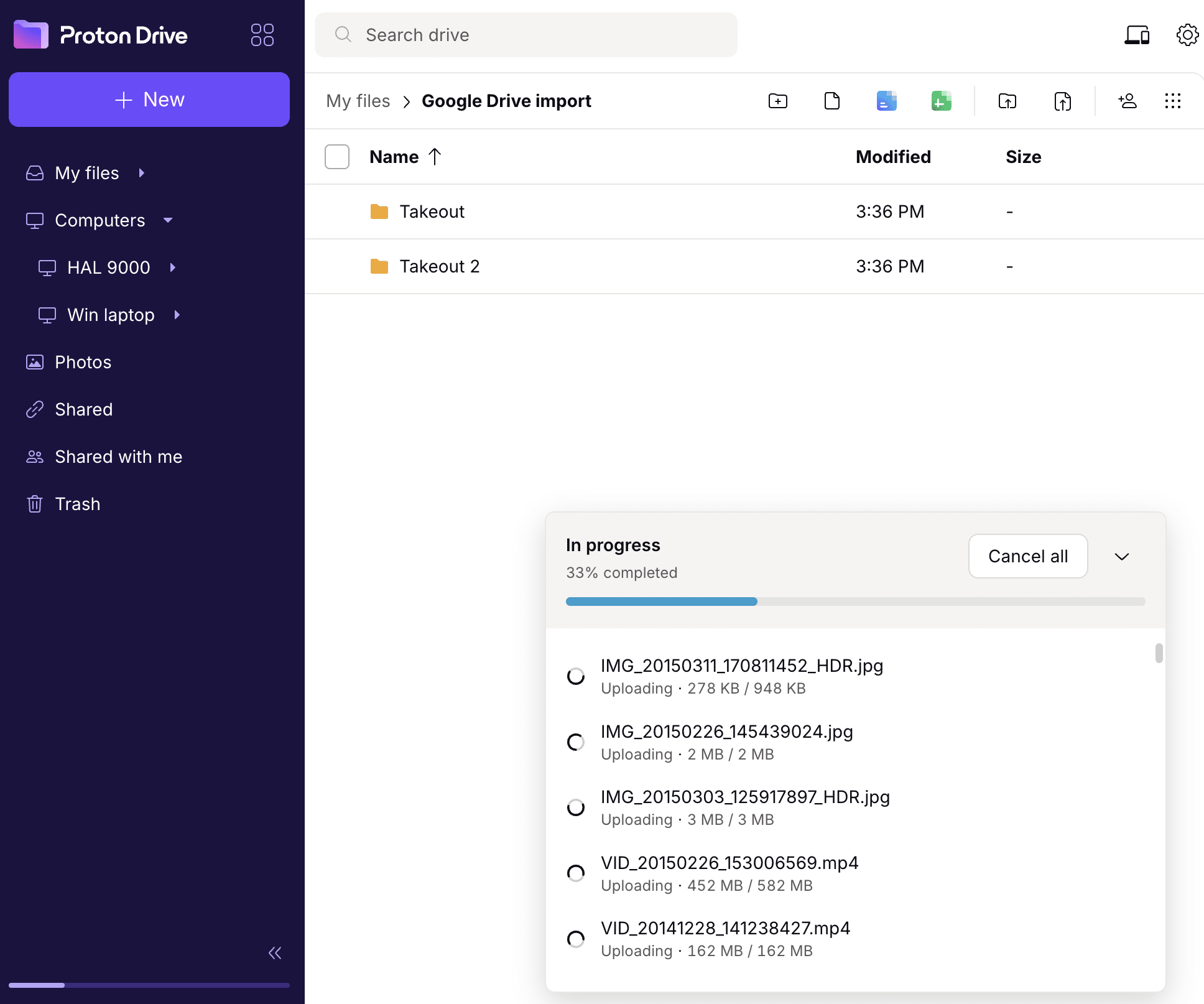
Il caricamento potrebbe richiedere del tempo, in particolare per file di grandi dimensioni o per un numero elevato di file. Puoi monitorare lo stato del caricamento direttamente nell’app web.
E adesso?
Once your files are stored in Proton Drive, you can safely remove them from Google Drive.
Se stai abbandonando Google(nuova finestra), valuta di migrare le tue Google Foto su Proton Drive in seguito.