
How to use email forwarding
With email forwarding (also known as auto-forwarding), you can automatically forward emails sent to your Proton Mail account to any email address. You can also create custom conditions for more granular control over which emails are forwarded.
Email forwarding is available with Proton Mail Plus, Proton Unlimited, and all other paid Proton Mail plans.
- How to set up email forwarding
- How to accept an email forwarding request
- How to manage email forwarding rules
- How to stop receiving forwarded emails
How to set up email forwarding
- Sign in to your Proton Account. Select Settings (⚙️) → All settings.

- Select Forward and auto-reply from the sidebar, then click Add forwarding rule.

- Select origin and destination addresses:
- In the Forward to field, enter the email address you want your emails to be forwarded to.
- If you have multiple email addresses, open the Forward from dropdown and select which email address you want to forward messages from.

If you don’t want to add custom conditions, click Next and skip to step 7.
- Click Add condition.

- Enter your forwarding condition:
- Select options from the dropdown menus (under If) to create your condition.
- Then enter your keyword in the field below.

Here’s an example condition:
- “If the subject contains vacation” This means only emails with the word “vacation” in the subject will be forwarded.
- You can add multiple conditions. Once you’re done, click Save.

- You’ll be asked to confirm your request. Click Send confirmation email.
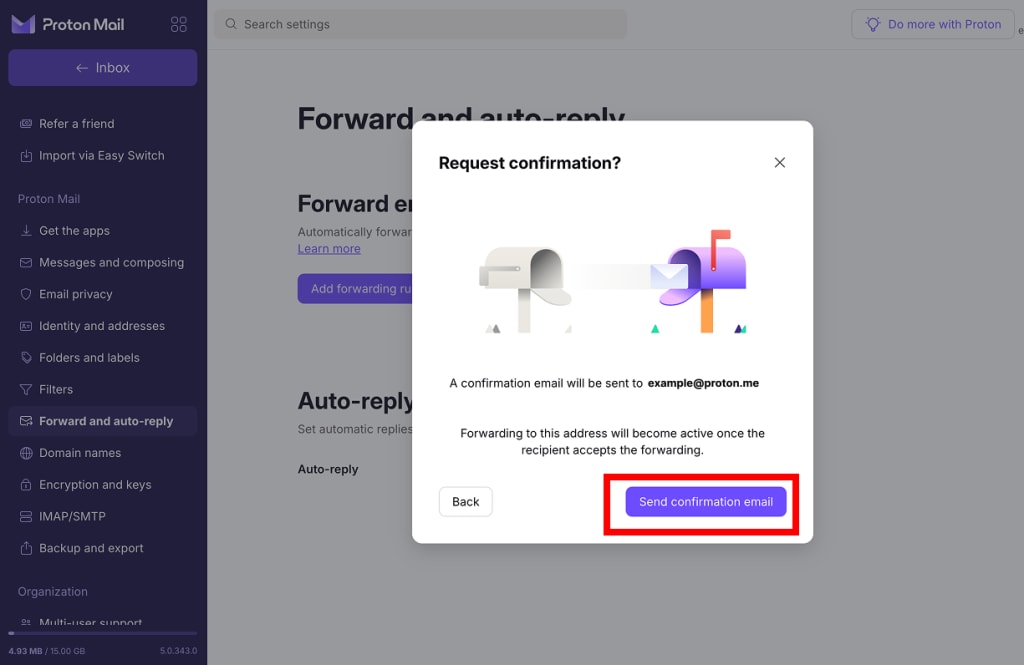
We’ll send a message to your destination email address, asking them if they’re happy to receive forwarded emails from the origin account.
Once they confirm, your email forwarding will be active.
How encryption works for forwarded emails
- Emails forwarded to another Proton Mail email address are forwarded using end-to-end encryption.
- Emails originating from non-Proton Mail addresses are stored on Proton Mail’s servers using zero-access encryption, but they’re not end-to-end encrypted.
- If you forward to a non-Proton Mail email address, end-to-end encryption for all the emails to and from the forwarding address will be disabled. This does not affect the encryption of your other Proton Mail addresses.
Learn more about Proton Mail encryption
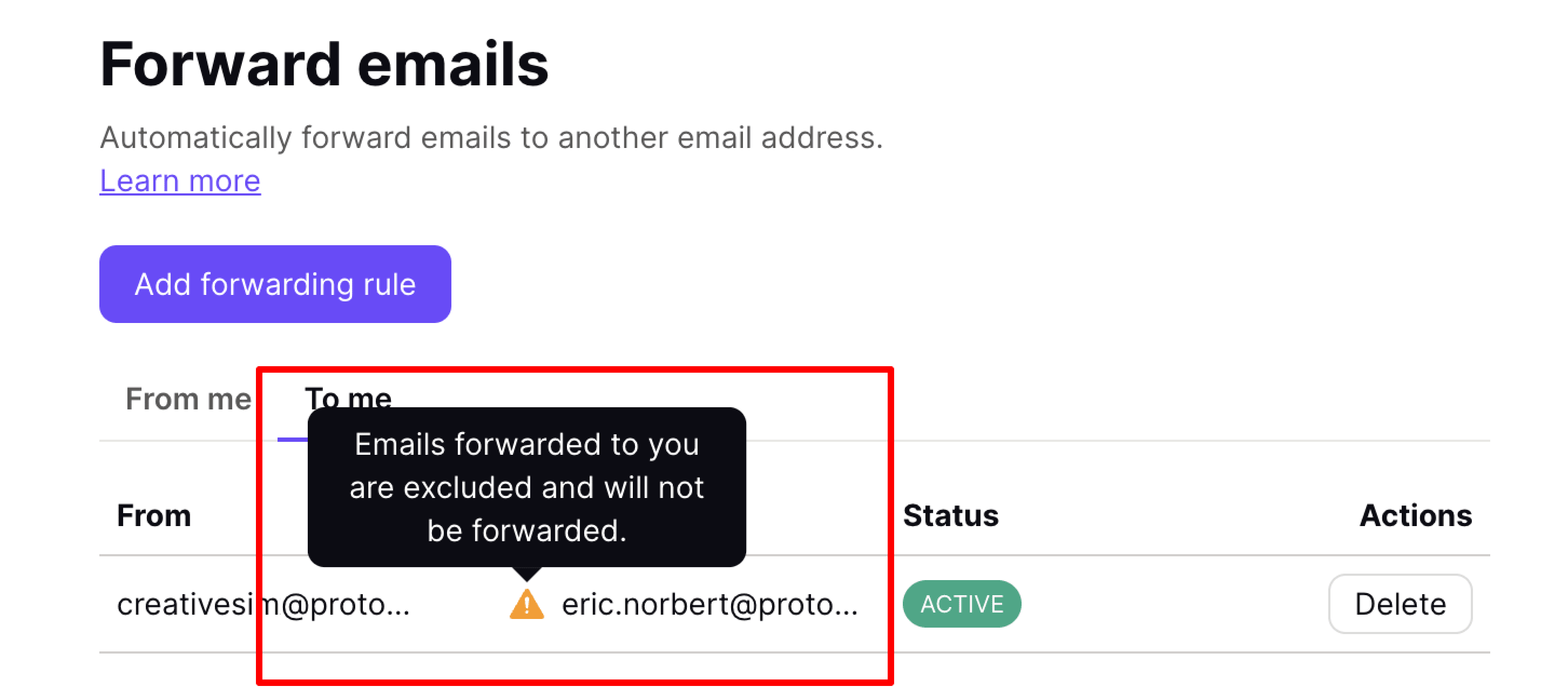
You can’t “re-forward” emails
Emails that were forwarded to you can’t be forwarded again. When one or more emails have been excluded from your active forwarding rule, you’ll see a yellow triangle icon in the Forward emails → To column.
How to accept an email forwarding request
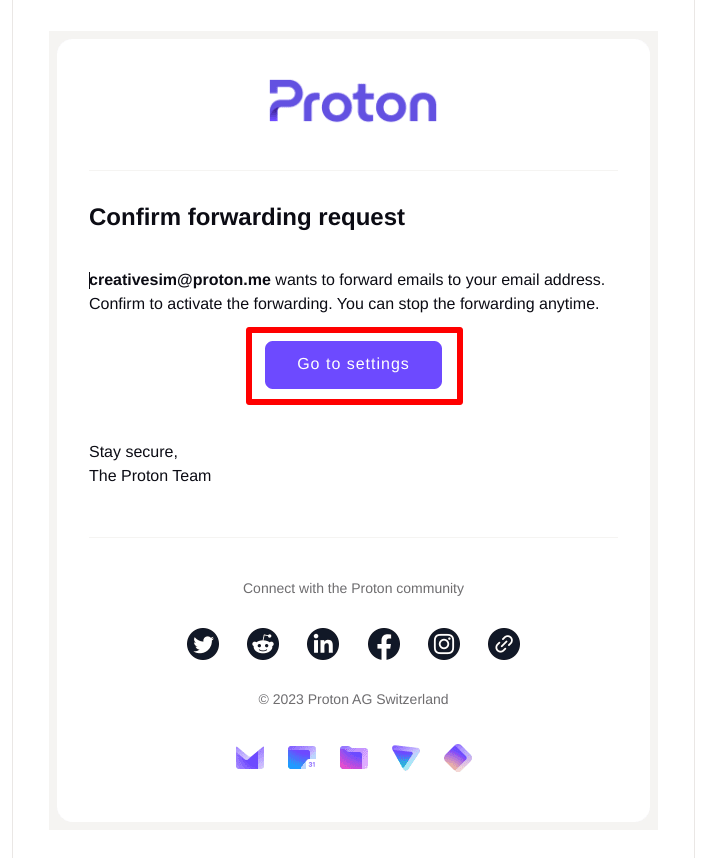
For email forwarding to be activated, the recipient must confirm the email forwarding request. They will receive an email invitation to do this.
Proton Mail email addresses
1. Click the Go to settings button in the invitation email (or sign in to Proton Mail and go to Settings → All settings → Forward and auto-reply).
2. Click Accept (under Actions). You may be asked to enter your password.
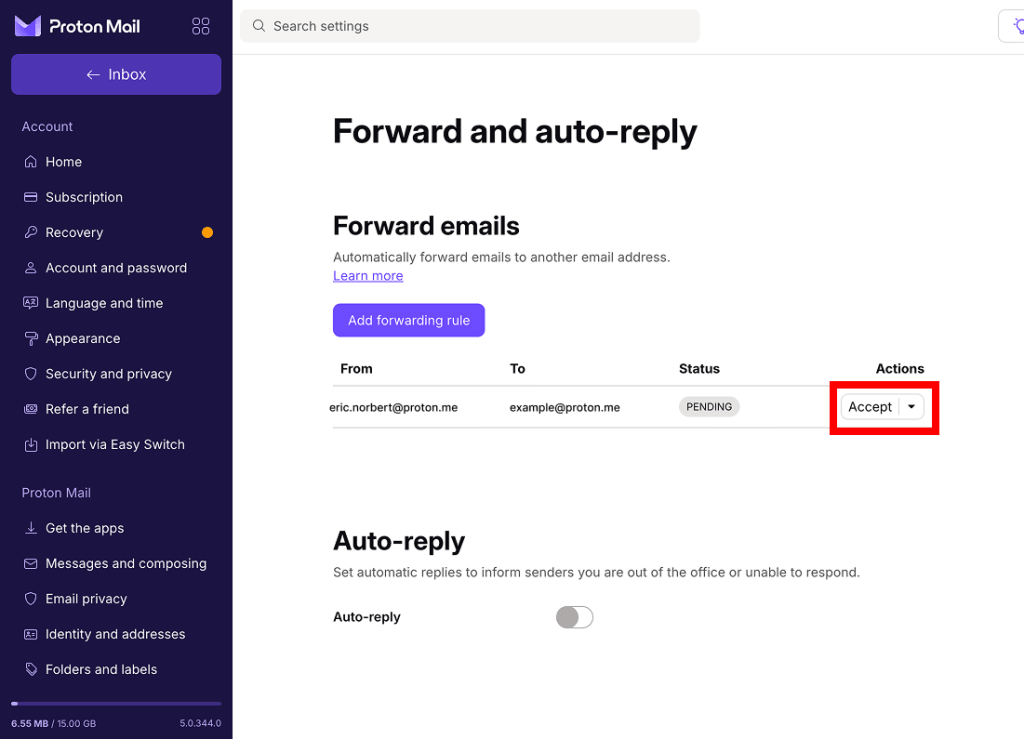
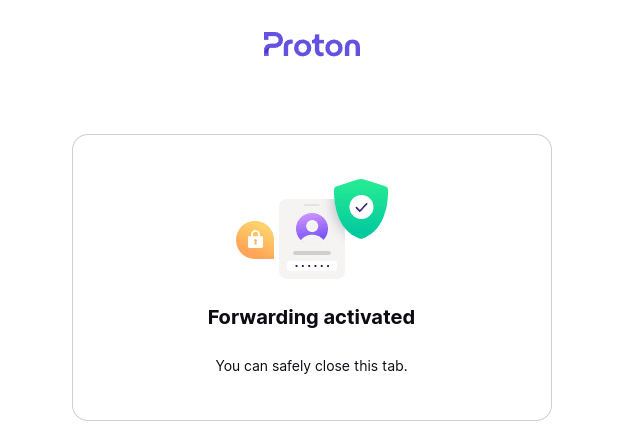
Email forwarding is now activated.
Non-Proton Mail addresses
Click the Accept forwarding button in the invitation email to accept the request.

Email forwarding is now activated.
How to manage email forwarding rules
- Sign in to your Proton Account. Select Settings (⚙️) → All settings.

- Select Forward and auto-reply from the sidebar. Find the forwarding rule you’re looking for, then click the three dots under Actions.

- Select Edit conditions to modify your custom conditions.
- Select Pause to temporarily stop forwarding emails.
- Select Delete to permanently stop forwarding emails and delete the forwarding rule.
How to stop receiving forwarded emails
Proton Mail addresses
- Sign in to your Proton Account. Select Settings (⚙️) → All settings.
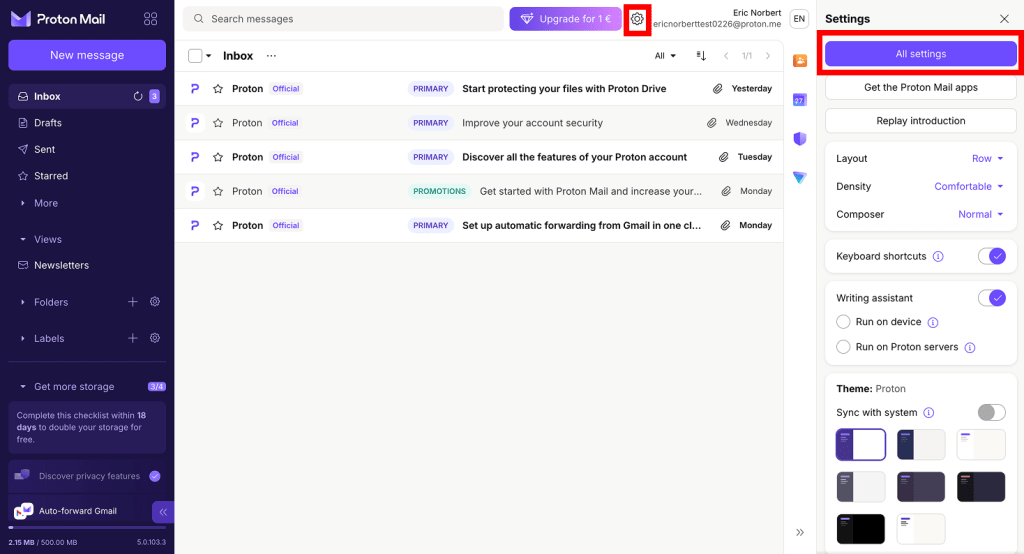
- Select Forward and auto-reply from the sidebar. Find the forwarding rule you’re looking for and click Delete.

Non-Proton Mail addresses
- Find the original invitation email and click the Decline forwarding button.
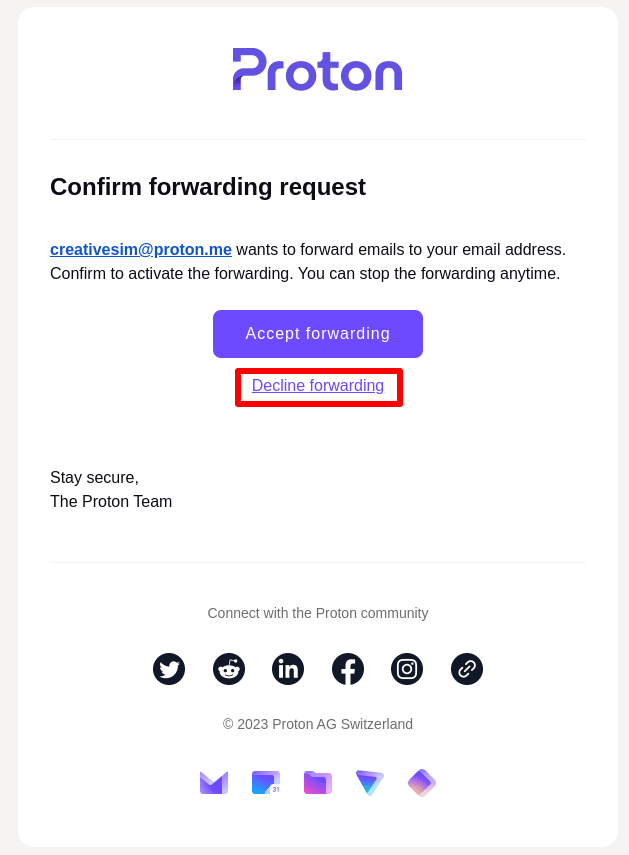
Email forwarding will now be canceled.
