
Import files from Microsoft OneDrive to Proton Drive
If you’re looking for a private, end-to-end encrypted alternative to OneDrive that’s transparent about how it handles your data and doesn’t share it with third parties, consider switching to Proton Drive — our secure cloud storage. It lets you store and share files securely, with the confidence that only you and the people you choose can access your content.
Export files from OneDrive
1. Open onedrive.live.com(fereastră nouă).
2. Select the checkbox of the file(s) files you want to export from OneDrive.
3. Click Download.

4. Unless your computer’s default settings have been changed, your files will download to your computer’s Downloads folder as a compressed file named OneDrive-[Date].zip.
Notes:
- If your browser prompts you, select Save or Save As and then where you want to save your download.
- You can only download 250 GB or 10,000 uncompressed files at a time. Files within nested folders count toward the 10,000 file limit. If the files you are exporting exceed these, your download will consist of multiple .zip files.
Add your files to Proton Drive
5. Download and install the Proton Drive desktop app for Windows or for Mac sign in using your admin username and password..
6. Open Finder (Mac) or File Explorer (Windows) to drag and drop the downloaded .zip file from your Downloads folder (or the folder you selected) to the Proton Drive folder.

7. Unzip the files in the Proton Drive folder. Here’s how to unzip files on Mac(fereastră nouă) and Windows(fereastră nouă).
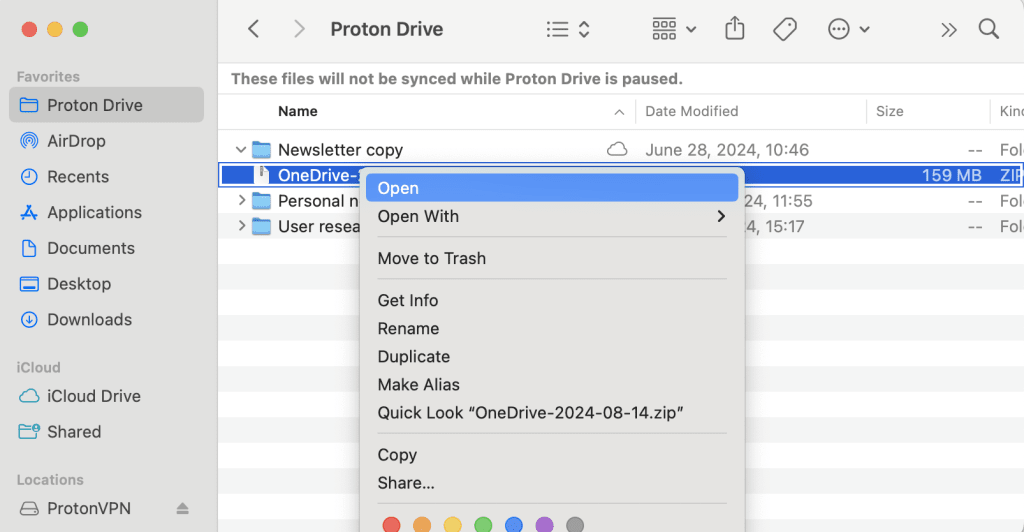
8. Your files are now securely stored in Proton Drive. You can now access, collaborate, and share them from your desktop application and drive.proton.me(fereastră nouă).