
Deploying Proton Pass with Microsoft Intune
- 閱讀
- 3 分鐘
- 類別
- Proton Pass
- Pass for Business
Note to uninstall .exe: Uninstall previous versions of Proton Pass for Windows on any PCs where you want to deploy the app, including per-user installations. This helps you avoid multiple installations of Proton Pass on your team’s PCs.
Businesses can use mobile device management (MDM) platforms to deploy and manage Proton Pass across their team’s Windows devices. This guide explains how to do that with Microsoft Intune. It will allow you to:
- Automatically install Proton Pass on your organization users’ Windows PCs
- Monitor deployment
To get started, you’ll need:
- The latest Proton Pass for Windows app installer
- The Microsoft Win32 Content Prep Tool(新視窗) from Github
- A Microsoft Intune admin account for your organization
In this guide, we’ll cover:
- How to add a new user
- How to configure Intune to use the Proton Pass app
- How to set up a MDM on a Windows PC
- How to monitor deployment of the Proton Pass app
Step 1: Add new users
- Sign in to intune.microsoft.com(新視窗) and go to Users → + New user → Create new user.

- Fill in the new user’s details and click Review + create when you’re ready. Be sure to make a note of the password, as you’ll need it to set up a business profile on the user’s PC (see step three).
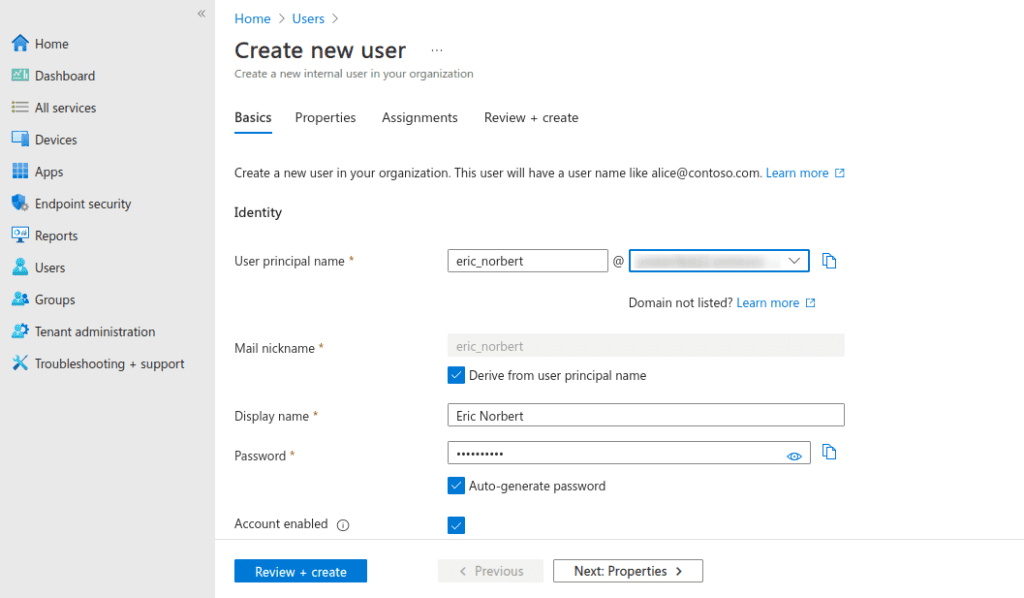
- Review the user profile you’ve just created and click Create when you’re ready.

Step 2: Configure Intune to use the Proton Pass app
- Download the latest version of Proton Pass for Windows.
- Sign in to intune.microsoft.com(新視窗) and go to Apps → Windows and select +Create.
- In the Select app type window, use the App type dropdown to select Line-of-business app → Hit Select.

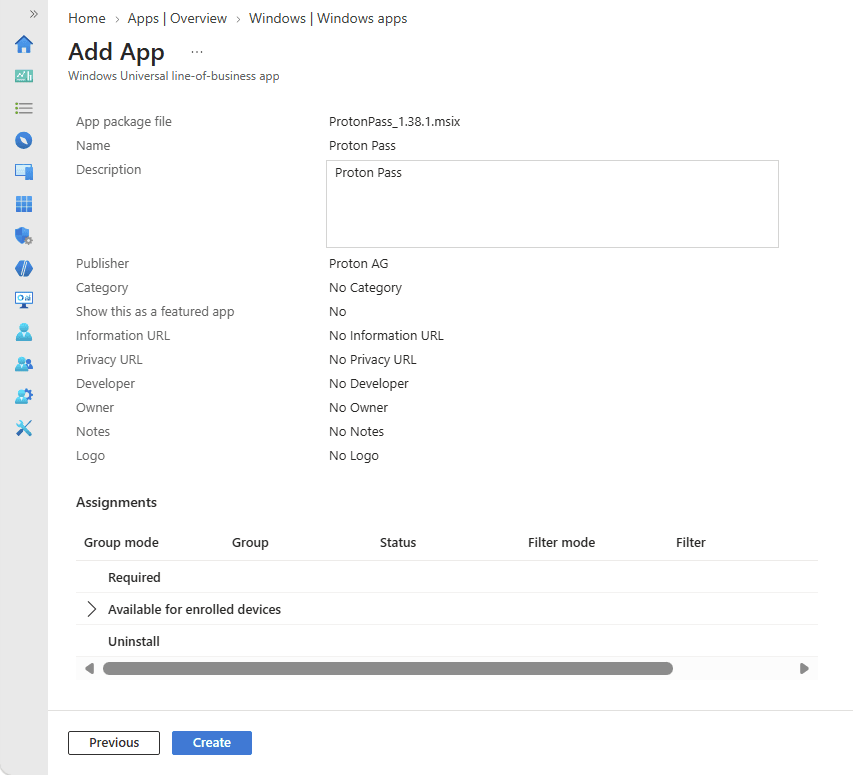
- On the App information screen, click Select app package file → App package file and locate the ProtonPass_xxxx.msix file you just downloaded. Click OK when you’re ready.
- Fill in as many details as you like. We suggest choosing “Computer Management” as a category, and showing Proton Pass as a featured app. Click Next when you’re done.

- On the Assignments tab, add the group you want it to be required for, then select Available for enrolled devices → +Add all users, followed by Next.
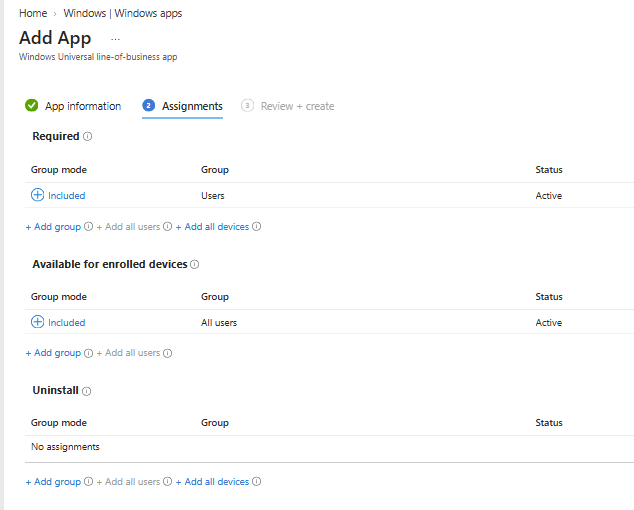
- Review your settings and click Create.
Step 3: Set up MDM on a Windows PC
This step can be performed by your organization’s administrator on company devices or by your team members on their own PCs.
- On the Windows device, install the Company Portal app from the Microsoft Store.
- Open the Company Portal app and sign in using the username and password created in step one.
- You can find the Proton Pass app under the category specified in step 3.6 above, or you can search for it.
- Click on it to install.
A managed version of Proton Pass is now installed on your Windows PC, and can be run from the Start menu.

How to monitor deployment of the Proton Pass app
Apps → Monitor → Proton Pass. You can also manage the app’s properties from here.
