
Lumo AI로 이미지 생성, 편집 또는 분석
- 읽기
- 0분
- 카테고리
- Lumo AI
Lumo AI를 사용하면 필요한 내용을 Lumo에 말하는 것만으로 분석할 이미지를 업로드하고, 설명으로 이미지를 생성하고, 기존 이미지 파일을 편집하거나, 대략적인 스케치를 완성된 비주얼로 바꿀 수 있습니다. Lumo는 동일한 대화에서 텍스트, 이미지 및 업로드된 파일을 처리할 수 있습니다.
대화와 마찬가지로 Lumo의 모든 이미지와 업로드된 파일은 제로 액세스 암호화로 보호됩니다. Proton을 포함하여 그 누구도 여기에 접근할 수 없습니다.
이 기능은 웹 및 모바일 앱 모두에서 모든 Lumo 사용자가 사용할 수 있습니다.
이 문서에서는 다음 방법을 설명합니다:
이미지 생성
Lumo에서 이미지를 생성하는 방법은 세 가지가 있습니다:
A. 대화창에 이미지 프롬프트를 입력하기만 하면 됩니다.

B. 대화창 아래에서 도구 를 선택한 다음, 이미지 생성을 선택합니다.

이 옵션을 사용하면 대화창의 오른쪽 아래 구석에서 이미지 크기를 선택할 수도 있습니다.

프롬프트를 입력하면 Lumo가 이미지를 생성합니다.
C. 메뉴 모음에서 이미지를 선택합니다.

이렇게 하면 이전 대화의 이미지와 영감을 얻기 위해 자동 생성된 이미지가 저장되어 있는 이미지 갤러리가 열립니다.

이미지 또는 파일 업로드
- lumo.proton.me(새 창)로 이동하거나 Lumo 모바일 앱을 열고 Proton 계정에 로그인합니다.
- 대화창 아래의 + 아이콘을 선택합니다. 기기에서 업로드를 선택합니다.
- Lumo에 업로드할 이미지 또는 파일을 선택합니다. 대화창에 자동으로 업로드됩니다.

이미지 편집
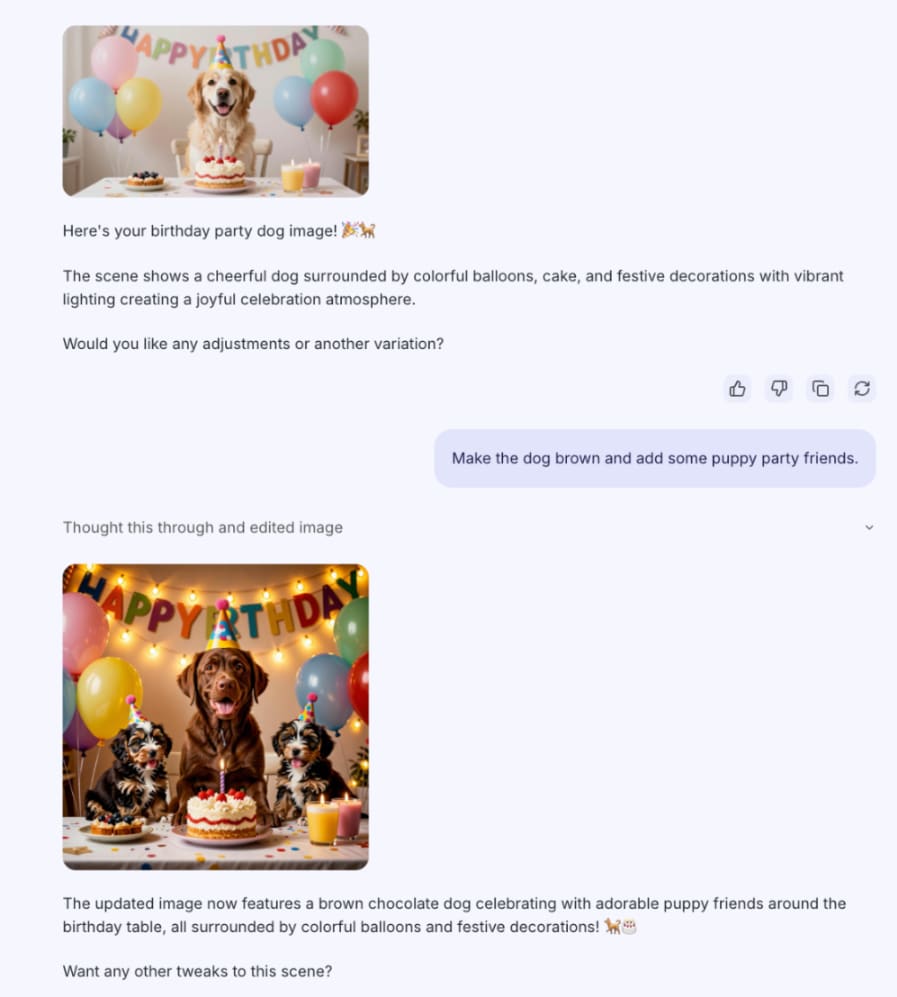
이미지를 생성하거나 업로드한 후, Lumo가 수행할 편집 내용을 설명합니다. Lumo가 편집 내용을 적용하고 동일한 대화에서 업데이트된 이미지를 반환합니다.
대화에서 생성된 이미지가 이미 열려 있는 경우, 이미지의 왼쪽 아래 구석에서 수정을 선택한 다음, 적용할 변경 사항을 선택하거나 설명할 수도 있습니다.
이미지 또는 파일 분석
- 우선 파일 또는 이미지를 업로드하여 시작합니다.
- 대화창에서 Lumo가 어떻게 분석하기를 원하는지 설명합니다.
예를 들어, 냉장고에 있는 음식 사진을 기반으로 저녁 메뉴를 제안하도록 Lumo에 요청하거나 법적 계약서를 요약하도록 할 수 있습니다.
스케치를 완성된 이미지로 변환
- 먼저 스케치를 Lumo에 업로드합니다.
- 스케치를 기반으로 이미지를 생성하도록 Lumo에 요청합니다. 최상의 결과를 얻으려면 “배경을 보라색으로 만들기” 또는 “수채화 스타일 사용”과 같은 맥락이나 구체적인 설명을 추가합니다.
Lumo가 동일한 대화에서 완성된 이미지를 반환합니다.
이전에 업로드하거나 생성한 이미지에 접근
- lumo.proton.me(새 창)로 이동하거나 Lumo 모바일 앱을 열고 Proton 계정에 로그인합니다.
- 메뉴 모음을 열고 이미지를 선택합니다.
이렇게 하면 업로드된 이미지, 이전에 생성된 이미지, 영감을 얻기 위해 자동 생성된 이미지가 저장되어 있는 이미지 갤러리가 열립니다.