
Erzeuge, bearbeite oder analysiere Bilder mit Lumo AI
- Lesen
- 3 Min.
- Kategorie
- Lumo KI
Mit Lumo AI kannst du ein Bild zur Analyse hochladen, Bilder aus einer Beschreibung erzeugen, eine bestehende Bilddatei bearbeiten oder eine grobe Skizze in ein fertiges Bild verwandeln, indem du Lumo einfach sagst, was du brauchst. Lumo kann mit Text, Bildern und hochgeladenen Dateien in derselben Unterhaltung arbeiten.
Wie deine Unterhaltungen sind auch alle Bilder und hochgeladenen Dateien in Lumo durch Zero-Access-Verschlüsselung geschützt. Niemand sonst, nicht einmal Proton, kann darauf zugreifen.
Diese Funktion steht allen Lumo-Benutzern zur Verfügung, sowohl in Web- als auch in mobilen Apps.
In diesem Artikel erklären wir, wie du:
- Ein Bild erzeugen
- Ein Bild oder eine Datei hochladen
- Ein Bild bearbeiten
- Ein Bild oder eine Datei analysieren
- Eine Skizze in ein fertiges Bild verwandeln
- Auf ein Bild zugreifen, das du zuvor hochgeladen oder erstellt hast
Ein Bild erzeugen
Es gibt drei Möglichkeiten, Bilder in Lumo zu erstellen:
A. Gib einfach deinen Bild-Prompt im Chatfenster ein.

B. Wähle Tools unter dem Chatfenster aus und wähle dann Bild erstellen.

Diese Option ermöglicht es dir auch, die Bildabmessungen in der unteren rechten Ecke des Chatfensters auszuwählen.

Gib deinen Prompt ein und Lumo erstellt dein Bild.
C. Wähle in der Menüleiste Bilder aus.

Dadurch wird deine Bildergalerie geöffnet, in der Bilder aus früheren Unterhaltungen und automatisch generierte Bilder zur Inspiration gespeichert werden.

Ein Bild oder eine Datei hochladen
- Gehe auf lumo.proton.me(neues Fenster) oder öffne die mobile Lumo-App und melde dich bei deinem Proton-Konto an.
- Wähle das +-Symbol unter dem Chatfenster aus. Wähle Vom Gerät hochladen.
- Wähle das Bild oder die Datei aus, das bzw. die du bei Lumo hochladen möchtest. Es wird automatisch in dein Chatfenster hochgeladen.

Ein Bild bearbeiten
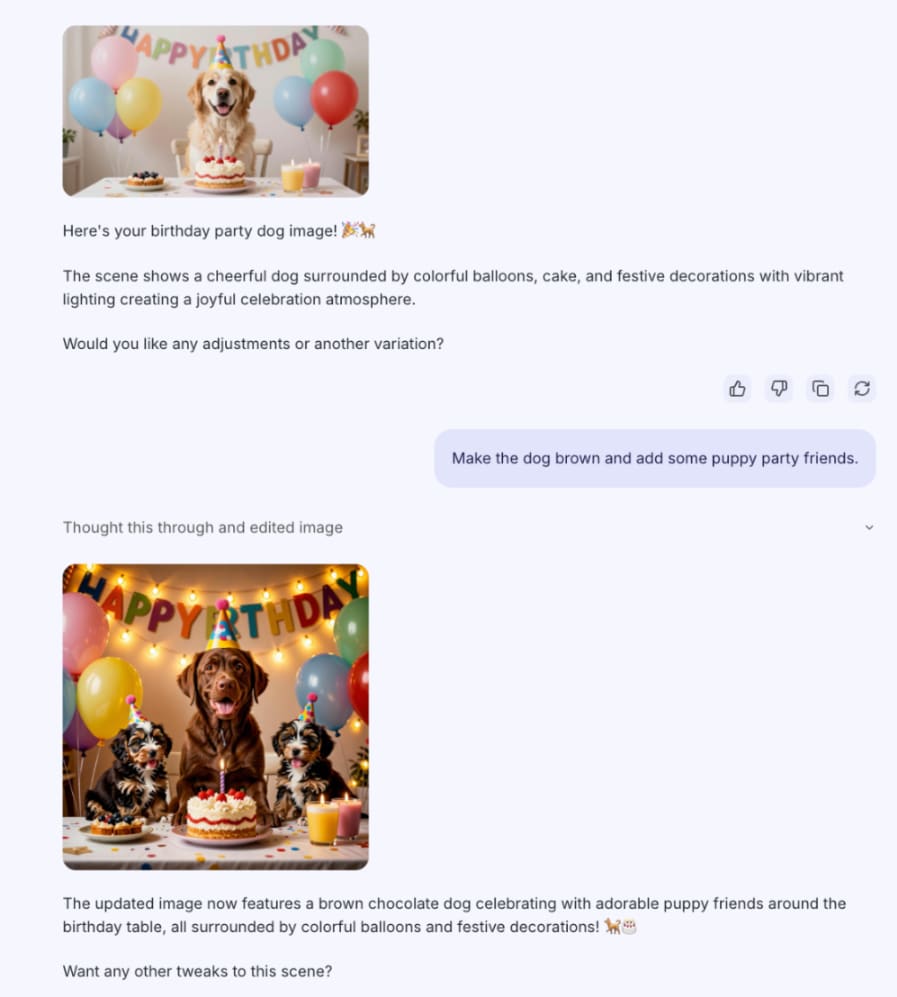
Sobald du ein Bild erzeugt oder hochgeladen hast, beschreibe die Änderungen, die Lumo vornehmen soll. Lumo wendet deine Änderungen an und liefert das aktualisierte Bild in derselben Unterhaltung zurück.
Wenn du dein erzeugtes Bild bereits in der Unterhaltung geöffnet hast, kannst du auch Ändern in der unteren linken Ecke des Bildes auswählen und dann die Änderungen auswählen oder beschreiben, die du vornehmen möchtest.
Ein Bild oder eine Datei analysieren
- Beginne, indem du deine Datei oder dein Bild hochlädst.
- Beschreibe im Chatfenster, wie Lumo es analysieren soll.
Du kannst Lumo zum Beispiel bitten, dir Abendessen-Gerichte basierend auf einem Foto vom Inhalt deines Kühlschranks vorzuschlagen, oder es einen rechtlichen Vertrag zusammenfassen lassen.
Eine Skizze in ein fertiges Bild verwandeln
- Lade zuerst deine Skizze bei Lumo hoch.
- Bitte Lumo, ein Bild basierend auf deiner Skizze zu erstellen. Füge für beste Ergebnisse Kontext oder spezifische Beschreibungen hinzu, wie zum Beispiel “Mache den Hintergrund lila” oder “Verwende einen Aquarell-Stil”.
Lumo liefert ein fertiges Bild in derselben Unterhaltung zurück.
Auf ein Bild zugreifen, das du zuvor hochgeladen oder erstellt hast
- Gehe auf lumo.proton.me(neues Fenster) oder öffne die mobile Lumo-App und melde dich bei deinem Proton-Konto an.
- Öffne die Menüleiste und wähle Bilder aus.
Dadurch wird deine Bildergalerie geöffnet, in der hochgeladene Bilder, zuvor erstellte Bilder und automatisch generierte Bilder zur Inspiration gespeichert werden.