
Searching for spreadsheets in Proton Drive
Spreadsheets you create or upload in Proton Sheets are stored in Proton Drive, just like any other file. You can easily find them using the Drive search tool or from the Docs homepage.
Find a spreadsheet in Drive
- Open the Drive web app(nowe okno) and log in.
- At the top, select the Search drive bar.

- Enter the full file name or a partial match.

- In the search results, look for files with the Sheets icon (green).
- Double-click a file to open it in Proton Sheets.
At this moment, the Proton Drive search tool only returns files stored in My files. Files located in Shared with me or Trash do not appear in search results.
Find a spreadsheet in the Docs homepage
- Go to the Proton Docs homepage(nowe okno).
- At the top, select the Search recents bar.

- Enter the full file name or a partial match.
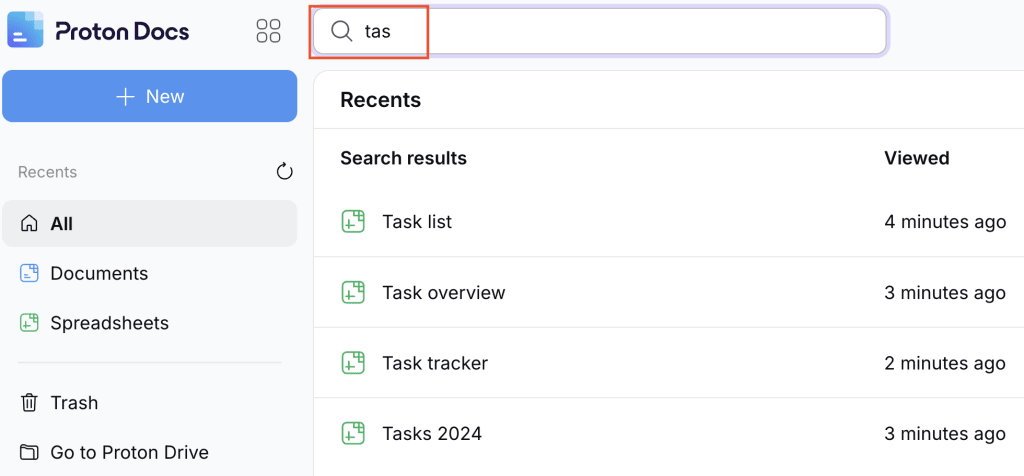
- In the search results, look for files with the Sheets icon (green). The Docs search returns results from the My files and Shared with me tab.
- Select a file to open it in Proton Sheets.
You can also filter your files by selecting Spreadsheets(nowe okno) on the left under Documents. This narrows the view to only your Sheets files.

The Proton Docs homepage displays only your most recent 100 files, which includes all file types, not just spreadsheets. If your spreadsheet is older or outside this 100-file window, it may not appear here even though it still exists in Proton Drive — in that case, use the Proton Drive search tool to find it.
What next?
If you’re new to Proton Sheets, check out our getting started guide to learn the basics.