Gli iPhone hanno da tempo la reputazione di essere impermeabili a virus e malware. Ma questa reputazione è meritata o è solo un mito? In questo articolo vedremo quanto è probabile che un iPhone venga infettato, quali misure di sicurezza puoi adottare e come proteggerti dai virus e da altri tipi di malware.
- Gli iPhone possono prendere i virus?
- Segnali della presenza di virus o malware sul tuo iPhone
- Come rimuovere un virus da un iPhone
- È sicuro fare il jailbreak del mio iPhone?
- Consigli per la sicurezza: a cosa prestare attenzione
Gli iPhone possono prendere i virus?
Forse il tuo iPhone è caldo al tatto o la batteria si scarica troppo velocemente. La buona notizia è che è estremamente improbabile che si tratti di un virus. La cattiva notizia è che è comunque possibile che il tuo iPhone sia stato colpito da un malware.
Virus vs. malware su iPhone
Il malware (unione delle parole “malicious” + “software”) è progettato e distribuito intenzionalmente per rubare, alterare o distruggere dati, oppure per assumere il controllo di un dispositivo. Esistono diversi tipi di malware(nuova finestra), tra cui trojan, spyware, ransomware e, naturalmente, virus.
Un virus si chiama così per via del modo in cui si comporta. Una volta che infetta l’host, si replica nei vari file. Il motivo per cui gli iPhone sono considerati al sicuro dai virus è che ogni app di terze parti su un iPhone è isolata non solo da tutte le altre app, ma anche dai dati del sistema operativo. Ciò rende praticamente impossibile la replicazione autonoma di un virus su un iPhone.
In che modo Apple protegge dal malware
La strategia di difesa di Apple si basa su un’architettura progettata per evitare che il malware (compresi i virus che si autoreplicano) possa mai insediarsi. Invece di affidarsi a software antivirus di terze parti, iOS (il sistema operativo proprietario di Apple per iPhone) integra la sicurezza attraverso tre livelli principali:
- Sandboxing rigoroso: ogni app viene eseguita nel proprio ambiente isolato (una “sandbox”), il che le impedisce di accedere ai dati di altre app o ai file di sistema principali, a meno che non sia esplicitamente consentito dall’utente.
- Controlli sull’App Store: le app vengono sottoposte a verifiche sia manuali che automatizzate prima di essere pubblicate. Questo riduce significativamente il rischio che del codice dannoso penetri nell’ecosistema, a differenza di quanto avviene su piattaforme aperte (come Android) dove il sideloading(nuova finestra) è molto più comune.
- Patch di sicurezza automatiche: Apple rilascia aggiornamenti frequenti e obbligatori di iOS che risolvono immediatamente le vulnerabilità note. In questo modo si garantisce che le falle sfruttate vengano chiuse rapidamente su tutti i dispositivi supportati.
Scopri di più sulla sicurezza di Android rispetto a iOS
Forse proprio perché ha totale fiducia nelle misure di sicurezza adottate, Apple non ha risorse di supporto ufficiali che utilizzino il termine “virus”. Si concentra invece su concetti come “modifiche non autorizzate” e “notifiche di minaccia”.
Sebbene questo rafforzi l’idea che gli iPhone siano immuni ai virus, rende più difficile agire se sospetti che il tuo iPhone sia stato compromesso. Inoltre, anche se non ci sono prove che i virus abbiano colpito con successo gli iPhone, si sono verificati attacchi malware significativi.
Attacchi nel mondo reale
Sebbene iOS sia progettato per bloccare i virus che si autoreplicano, rimane vulnerabile ad altre forme di malware in condizioni specifiche, come il jailbreak, strumenti di sviluppo compromessi o exploit mirati a livello statale.
AdThief (2014)
Tipo di malware: adware/hijacker
Questo malware prendeva di mira gli utenti che avevano effettuato il jailbreak dei propri dispositivi. Una volta installato su circa 75.000 dispositivi, sostituiva gli annunci legittimi all’interno delle app con i propri annunci dannosi. L’impatto è stato di natura finanziaria: i cybercriminali hanno dirottato il flusso di entrate pubblicitarie, sottraendo i guadagni agli sviluppatori.
Questo è un ottimo esempio di come, una volta violata la sandbox del sistema operativo tramite jailbreak, diventi possibile persino il semplice furto di entrate.
XcodeGhost (2015)
Tipo di malware: trojan della catena di fornitura
Questo è stato un incidente storico in cui il metodo di attacco non è stato un virus telefonico, bensì uno strumento di sviluppo compromesso. Gli aggressori hanno creato una versione contraffatta di Xcode (il software di codifica ufficiale di Apple) infettata da un malware. Gli sviluppatori cinesi che hanno scaricato questo strumento contraffatto hanno inconsapevolmente creato versioni compromesse di app popolari, tra cui WeChat e Angry Birds. Quando gli utenti installavano queste app dall’App Store, il malware si attivava.
Questo ha dimostrato che persino le app verificate da Apple potevano essere vettori se il codice sorgente stesso veniva contaminato prima della revisione.
Pegasus (dal 2016 a oggi) e Graphite (dal 2025 a oggi)
Tipo di malware: spyware zero-click
A differenza degli esempi precedenti, Pegasus e il simile Graphite(nuova finestra) non richiedono alcuna interazione da parte dell’utente. Sviluppati rispettivamente dalle aziende israeliane NSO Group e Paragon Solutions, sfruttano le vulnerabilità zero-day(nuova finestra) di iOS per ottenere l’accesso root. Una volta all’interno, possono estrarre messaggi, foto, dati sulla posizione e feed del microfono.
Queste rappresentano le minacce più gravi fino ad oggi, a dimostrazione del fatto che soggetti sofisticati possono aggirare completamente la sicurezza di iOS sfruttando falle non ancora scoperte. I bersagli sono generalmente personaggi di alto profilo come giornalisti e politici, piuttosto che il grande pubblico.
LightSpy (dal 2020 a oggi)
Tipo di malware: spyware multipiattaforma/exploit basato sul web
Prendendo di mira sia macOS che iOS, LightSpy utilizza siti web dannosi per distribuire il suo payload. Quando gli utenti visitano una pagina compromessa (spesso tramite link di phishing o annunci ingannevoli), il sito tenta di installare un software di sorveglianza in grado di raccogliere contatti, messaggi e file senza alcuna ulteriore interazione.
Non hai bisogno di scaricare nulla o premere su elementi sospetti: basta visitare la pagina web sbagliata. Poiché Safari è il browser predefinito su iPhone e apre automaticamente i link web, rappresenta il punto di ingresso più probabile per questo tipo di attacco se il dispositivo non esegue l’ultima versione del software.
Segnali della presenza di virus o malware sul tuo iPhone
Non esiste un modo definitivo per verificare la presenza di virus su iPhone, ma ci sono dei segnali a cui puoi prestare attenzione.
1. Attività insolita dell’account
- Messaggi inviati dal tuo dispositivo che non hai inviato tu
- Dispositivi attendibili sconosciuti collegati al tuo ID Apple
- Modifiche alla password o acquisti imprevisti
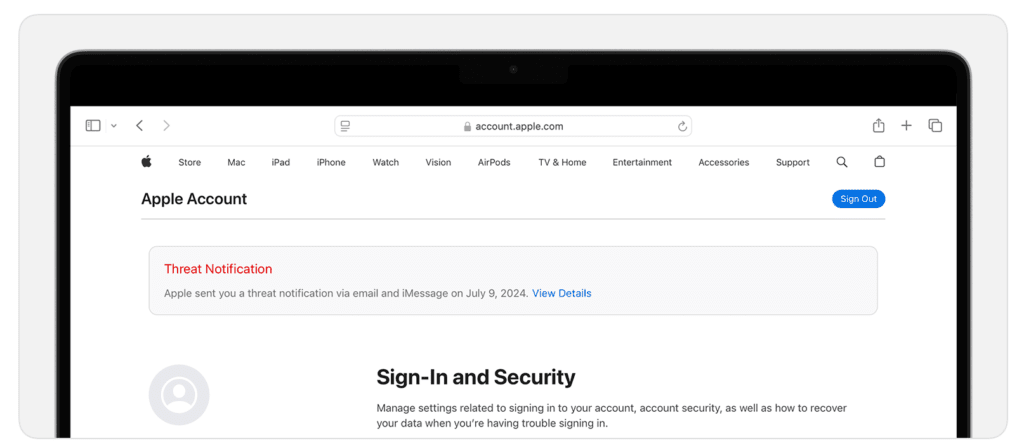
- Notifiche di minaccia
- Se Apple individua una minaccia, riceverai avvisi via email, sul tuo numero di telefono e all’interno del tuo account Apple
3. Anomalie tecniche
- Consumo anomalo della batteria o surriscaldamento senza una causa chiara
- Chiusure improvvise delle app o comparsa di app sconosciute
- Modifiche alle impostazioni senza il tuo intervento
4. Pop-up o tentativi di phishing
Messaggi che ti invitano a installare profili, fare clic su link sospetti o fornire credenziali: spesso si tratta di truffe, ma possono indicare tentativi di compromissione
Scopri di più su come capire se il tuo telefono è stato hackerato
Come sbarazzarsi di un virus su iPhone
Poiché Apple non utilizza il termine “virus” nella documentazione ufficiale di supporto, non troverai passaggi specifici per la rimozione dei virus sul suo sito web. Tuttavia, se riscontri i sintomi sopra descritti, puoi adottare misure pratiche per risolvere ciò che potrebbe comportarsi come un virus, come adware, hijack del browser o malware nei profili di configurazione.
Poiché nessuna app antivirus per iPhone è in grado di scansionare l’intero sistema, dovrai eseguire una diagnosi manuale utilizzando gli strumenti integrati:
1. Esegui Controllo di sicurezza (iOS 16 o versioni successive)
Se sospetti che un’app abbia troppo accesso ai tuoi dati, usa la funzionalità Controllo di sicurezza di Apple per rivedere e reimpostare i permessi.
- Vai su Impostazioni → Privacy e sicurezza → Controllo di sicurezza.
- Tocca Gestisci condivisione e accesso e segui le istruzioni per reimpostare la condivisione con persone e app.
Questo garantisce che qualsiasi app potenzialmente compromessa perda immediatamente l’accesso ai tuoi contatti, alla tua posizione e alle tue foto.
2. Cancella i dati di Safari
Spesso, ciò che sembra un virus è in realtà un adware aggressivo o script dannosi intrappolati nella cache del browser, che possono causare pop-up.
- Vai su Impostazioni → App → Safari.
- Scorri verso il basso e tocca Cancella cronologia e dati dei siti web.
Questo rimuove i cookie e gli script memorizzati nella cache che potrebbero attivare annunci o reindirizzamenti indesiderati.
3. Controlla i profili di configurazione
A volte i malware installano un “profilo” nascosto per forzare modifiche alle impostazioni o reindirizzare il traffico internet.
- Vai su Impostazioni → Generali → VPN e gestione dispositivi.
- Se vedi l’opzione Gestione dispositivi, toccala per visualizzare i profili installati.
- Se non vedi alcun profilo, significa che non ne hai installato nessuno. Se noti qualcosa di sconosciuto o sospetto, tocca il profilo, seleziona Elimina profilo, inserisci il codice di accesso e riavvia il dispositivo.
4. Esegui un ripristino delle impostazioni di fabbrica
Se il problema persiste dopo aver provato i passaggi precedenti, la soluzione definitiva consiste nell’inizializzare completamente il dispositivo.
- Attenzione: prima di procedere, assicurati di avere un backup recente e pulito dei tuoi dati su iCloud o su un computer.
- Vai su Impostazioni → Generali → Trasferisci o inizializza iPhone → Inizializza contenuto e impostazioni.
Questo inizializza completamente il telefono, rimuovendo qualsiasi malware. Potrai quindi configurarlo come nuovo o ripristinarlo da un backup creato prima che iniziassero a manifestarsi i sintomi.
Nota: se ritieni che il tuo dispositivo sia stato preso di mira da spyware sofisticati (come Pegasus o Graphite), un ripristino delle impostazioni di fabbrica potrebbe non essere sufficiente. In questi rari casi, contatta direttamente il supporto Apple per ricevere assistenza avanzata.
Posso fare il jailbreak del mio iPhone?
Sconsigliamo vivamente di fare il jailbreak del tuo iPhone. Sebbene la rimozione delle restrizioni software di Apple consenta di accedere ad app non ufficiali e opzioni di personalizzazione, smantella anche l’architettura di sicurezza che protegge il tuo dispositivo dai malware. Per la maggior parte delle persone, non c’è alcun motivo pratico per accettare questo compromesso rischioso.
Quando fai il jailbreak di un iPhone, aggiri tre livelli critici di protezione:
- Rompi la sandbox: il jailbreak rimuove l’isolamento tra le app. Una volta interrotta la sandbox, un’app dannosa può accedere a dati, contatti e file di sistema appartenenti ad altre app. Questo è il modo in cui i virus tradizionali operano su altri dispositivi.
- Perdi il controllo dell’App Store: le app installate tramite store di terze parti o sideloading non sono state sottoposte alla revisione di sicurezza di Apple. Ciò aumenta il rischio di installare adware, trojan o spyware.
- Blocchi gli aggiornamenti di sicurezza: i dispositivi con jailbreak non possono installare facilmente le ultime patch di sicurezza di iOS. Senza questi aggiornamenti, le vulnerabilità note rimangono aperte, lasciando il tuo telefono esposto a nuovi exploit.
Mantenere il tuo iPhone non modificato è la difesa più efficace in assoluto contro i malware. La comodità di temi personalizzati o tweak non autorizzati non vale la pena se trasforma il tuo iPhone sicuro in un facile bersaglio per gli hacker.
Consigli per la sicurezza: a cosa prestare attenzione
Sebbene gli iPhone siano naturalmente resistenti ai virus, i rischi maggiori derivano dall’ingegneria sociale e da comportamenti rischiosi. Le violazioni della sicurezza hanno maggiori probabilità di verificarsi quando vieni indotto con l’inganno a concedere l’accesso o a installare software dannoso. Ecco a cosa prestare attenzione:
- Phishing e smishing: sii estremamente diffidente nei confronti di email, SMS (smishing) o iMessage non richiesti che affermano che un pacco è in ritardo, che il tuo account è compromesso o che hai vinto un premio. Questi messaggi contengono spesso link a false pagine di login progettate per rubare le tue credenziali. Segna sempre i messaggi sospetti come indesiderati ed eliminali immediatamente.
- Finti “scanner antivirus”: se vedi un’app sull’App Store che dichiara di scansionare l’iPhone alla ricerca di virus, non scaricarla. Come abbiamo notato in precedenza, l’architettura di iOS rende impossibile la scansione dei virus su tutto il sistema. Le app che fanno questa affermazione sono spesso truffe progettate per raccogliere i tuoi dati o venderti abbonamenti inutili.
- Siti web dannosi: evita di fare clic sui link presenti in messaggi sospetti, anche se sembrano provenire da aziende legittime. Prima di installare un’app, assicurati di verificarne tu stesso l’affidabilità. Cerca un numero elevato di download (i milioni di solito indicano un’app affidabile), leggi le recensioni recenti per individuare eventuali segnali di allarme e controlla i permessi che richiede. Un’app non dovrebbe avere bisogno di accedere al tuo microfono o ai tuoi contatti solo per mostrare una torcia.
Il modo migliore per proteggerti dal phishing e dal furto di dati è utilizzare strumenti che gestiscano la sicurezza al posto tuo. Ti consigliamo di utilizzare un dedicato gestore di password come Proton Pass per generare e memorizzare password uniche e complesse per ogni sito, in modo che se uno viene violato, gli altri rimangano sicuri. Anche la funzionalità di filtraggio DNS NetShield Ad-blocker(nuova finestra) di Proton VPN impedirà a malware e tracker di connettersi a domini dannosi.