Proton Pass SSH 에이전트 설정
- 읽기
- 0분
- 카테고리
- Proton Pass 사용하기
- Pass for Business
- Proton Pass
Proton Pass를 사용하면 패스프레이즈로만 보호되는 디스크의 일반 텍스트 파일 대신 SSH 비밀 키를 암호화된 상태로 보관함에 저장할 수 있습니다. 이를 통해 SSH 에이전트 프로토콜이 활성화되므로 Git이나 SSH 같은 도구가 일반 에이전트와 통신하는 것과 동일한 방식으로 비밀번호 관리자에 접근할 수 있습니다.
보관함을 잠금 해제하면(예: 생체 인식 사용) 서명용 SSH 키에 대한 접근도 함께 잠금 해제됩니다. 이를 통해 키 저장공간이 기타 자격 증명과 함께 중앙에서 관리되며, 별도의 패스프레이즈 보호 파일 대신 보관함의 암호화 및 접근 제어가 키를 보호합니다.
SSH 에이전트는 다음과 같은 용도로 사용할 수 있습니다:
- Git으로 인증
- Git 커밋에 서명
- SSH 인증을 원격 서버로 전달
Proton Pass SSH 에이전트는 Proton Pass Essentials를 제외한 전체 유료 Proton Pass 요금제에서 사용할 수 있습니다. Proton Pass 데스크톱 앱을 통해 접근할 수 있습니다.
참고: SSH 에이전트를 사용하려면 먼저 Proton Pass에 SSH 키를 저장해야 합니다. Proton Pass Android 및 iOS 앱에서는 새 SSH 키를 생성하여 저장할 수 있습니다. Proton Pass 데스크톱 앱과 웹 앱에서는 기존 SSH 키를 저장할 수 있습니다.
Android 또는 iOS에서 SSH 키 생성
- Proton Pass Android 및 iOS 앱에서는 SSH 에이전트를 활성화하기 위해 고유한 SSH 키를 생성할 수 있습니다. SSH 키를 생성하려면 + 아이콘을 선택합니다.
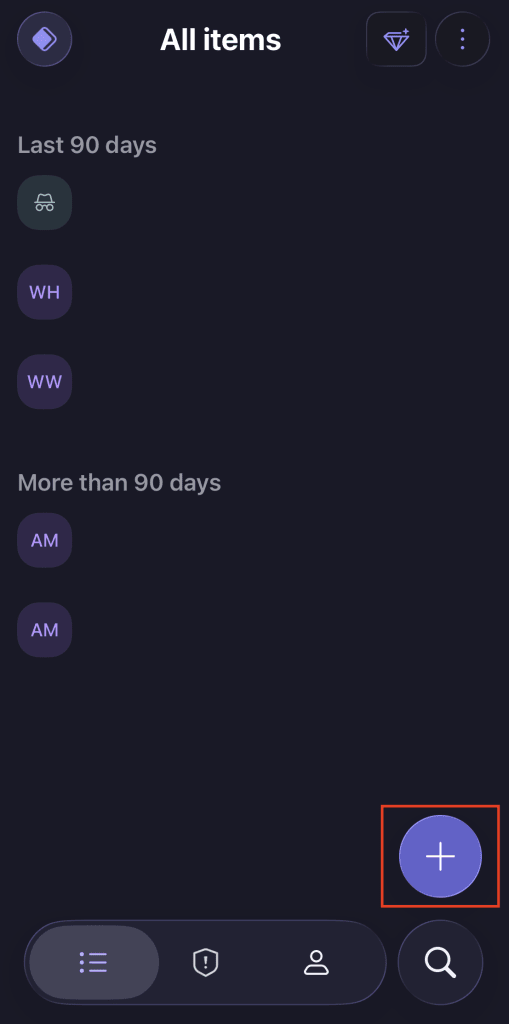
2. 기타를 선택합니다.

3. SSH 키를 선택합니다.

4. SSH 키 이름을 입력한 다음 공개 키 필드 → SSH 키 생성을 선택합니다.

5. 생성할 키 유형을 선택합니다.

6. 호스트 및 추가 필드를 입력합니다 → 생성을 선택합니다.

데스크톱 또는 웹에서 SSH 키 생성
- Proton Pass 웹 및 데스크톱 앱에서는 SSH 에이전트를 활성화하기 위해 기존 SSH 키를 저장할 수 있습니다. SSH 키를 추가하려면 + 항목 생성 → 기타를 선택합니다.

2. SSH 키를 선택합니다.

3. SSH 키 이름을 지정하고 공개 키와 비밀 키, 사용자 이름, 호스트 도메인을 입력합니다 → 생성을 선택합니다.

Proton Pass SSH 에이전트 활성화
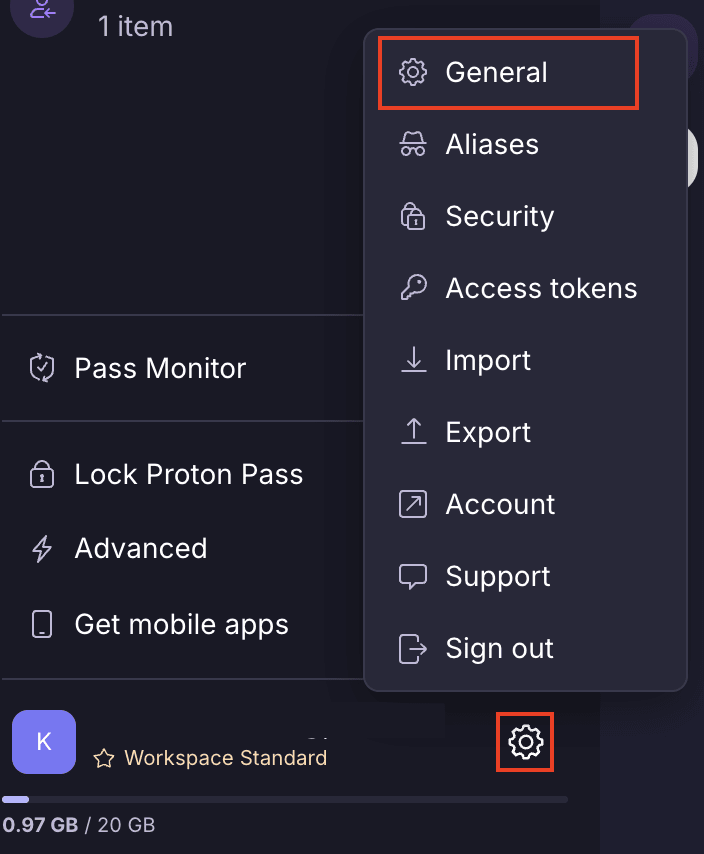
- 설정 ⚙ 아이콘 → 일반을 선택합니다.
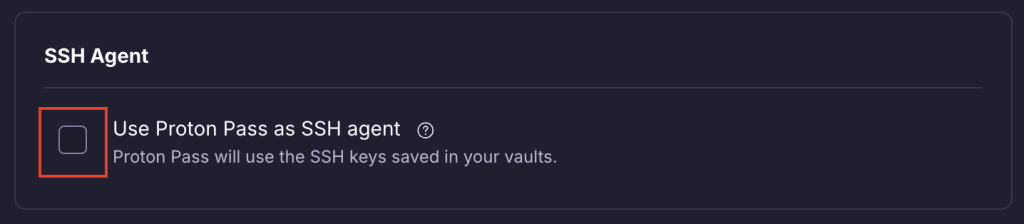
2. SSH 에이전트 섹션에서 Proton Pass를 SSH 에이전트로 사용 확인란을 선택하면 설정 명령이 생성되며, 이를 터미널에 붙여넣을 수 있습니다. macOS 또는 Linux 기기를 사용하는 경우 명령을 복사한 후 완료를 선택합니다. Windows 기기를 사용하는 경우 아래에 안내된 추가 단계를 수행해야 합니다.
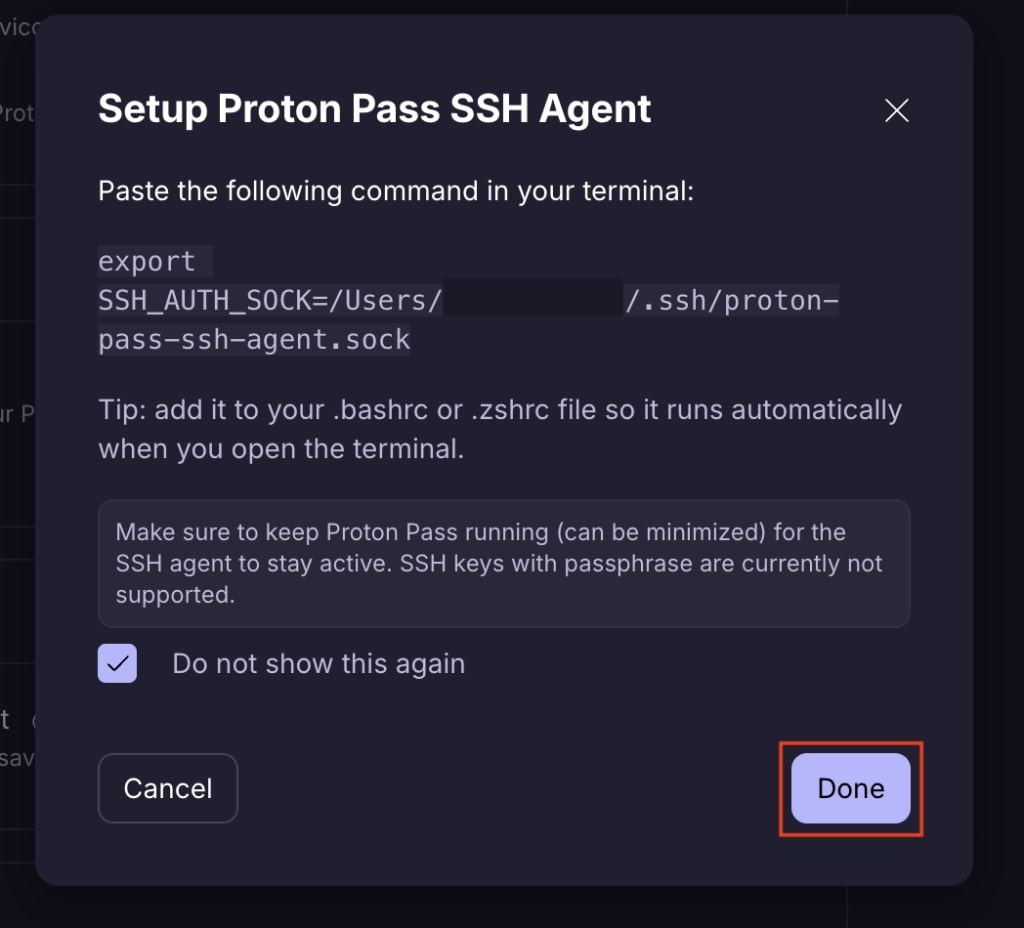

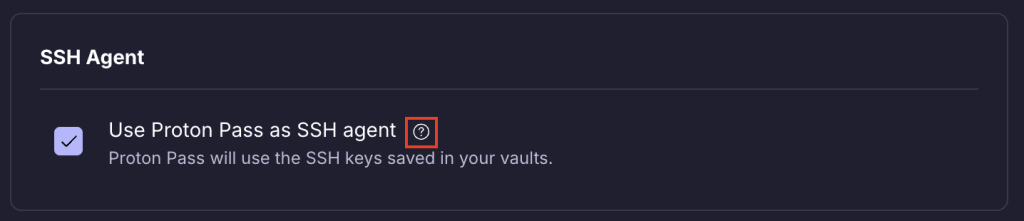
3. 명령을 다시 사용해야 하는 경우 ? 아이콘을 선택하여 찾을 수 있습니다.