
Connect Slack to Lumo
- Leitura
- 7 min
- Categoria
- Lumo AI
Connect your Slack workspace to Lumo Desktop so Lumo can search your Slack conversations, summarize channels, and, when you approve it, post messages for you. Everything happens on your own computer, using your own Slack access.
Availability: The Slack connector is part of Lumo Desktop (macOS, Windows and Linux). It isn’t available in the Lumo web app or mobile apps.
On this page
- What Lumo can do with Slack
- Who can connect Slack
- How to connect your Slack workspace
- What Lumo can see
- Approving actions
- Example prompts
- Permissions Lumo requests
- Privacy and security
- Disconnecting
- FAQs
- Troubleshooting
What Lumo can do with Slack
Once connected, Lumo can use Slack to answer questions and complete tasks:
- Search messages, files and people across the channels and conversations you can already access.
- Read a channel, thread or direct message and summarise it.
- Catch you up on what happened while you were away.
- Look up people, including by email address.
- Post a message or reply in a thread, add reactions, and work with Canvases and files, always as you and only with your approval if you choose.
Lumo works with Slack live. It asks Slack at the moment you make a request, rather than copying your Slack history into a separate index.
Who can connect Slack
- You need to be a member of the Slack workspace you want to connect. You connect with your own Slack account.
- You need Lumo Desktop installed and to be signed in to your Proton account.
- Your Slack workspace must allow the Lumo app to be installed. If your workspace restricts apps, a Slack admin may need to approve Lumo first. In that case Slack shows an approval request when you start connecting.
- Guests may be limited by your workspace’s Slack settings. Lumo can only ever do what your Slack account is allowed to do.
How to connect your Slack workspace
- Open Lumo Desktop and sign in.
- Open Settings (Cmd + , on macOS, Ctrl + , on Windows and Linux, or tray / menu-bar icon → Settings).
- Go to Connectors and select Slack (you can filter by Communication).
- Select Connect.
- Your browser opens on Slack. Check the workspace name at the top. If it’s the wrong one, switch workspaces before continuing.
- Review the permissions and select Allow.
- Your browser returns you to Lumo. The Slack status changes to connected.
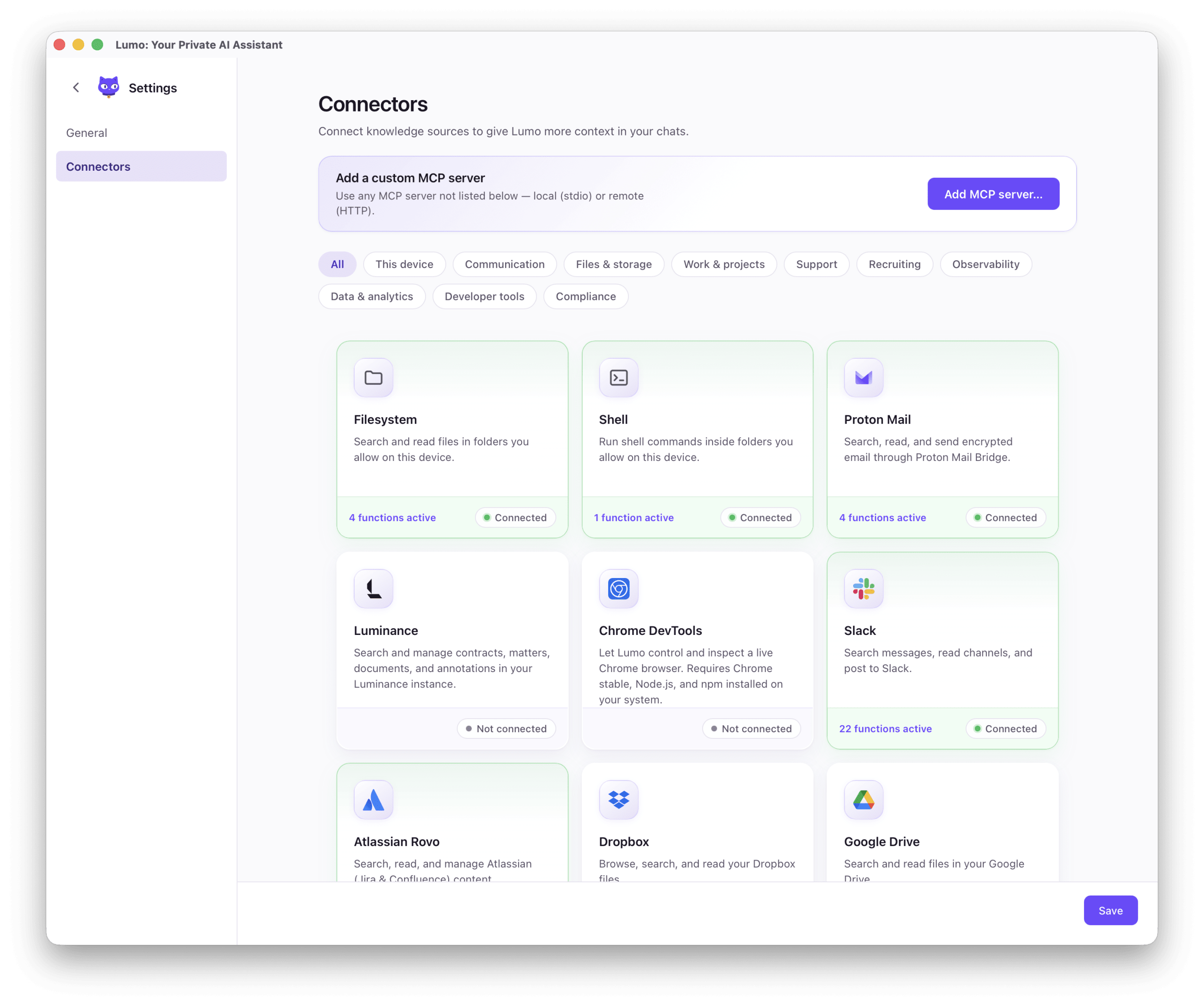
To confirm it works, open the Functions tab to see the Slack tools, then ask Lumo something like “What were the latest messages in #general?”.
Not working? If nothing happens after you select Allow, make sure your browser is allowed to open Lumo when prompted. See Troubleshooting.
What Lumo can see
Lumo acts as you. It can reach only what your Slack account can reach:
- Public channels you can access.
- Private channels, group messages and direct messages you are a member of.
- Files and Canvases you have access to.
- Workspace people directory information, including email addresses where your workspace allows it.
It can’t see conversations you aren’t part of, and it can’t do anything in Slack that you couldn’t do yourself. Permissions follow your Slack account: if your access changes or your account is deactivated, so does Lumo’s.
A few things to keep in mind:
- Messages Lumo posts appear as coming from you, not from a bot. Like any message you send, a post can’t be unsent by Lumo, so review what you ask it to send.
- Connecting Slack doesn’t make Lumo read everything. Lumo only searches or reads Slack when your request needs it.
Approving actions
Lumo Desktop lets you decide how much Lumo can do on its own. Open Settings → Connectors → Slack → Functions. Each Slack tool can be set to:
| Setting | What happens |
|---|---|
| Auto-approve (✓) | Lumo uses the tool immediately. |
| Ask (?) | Lumo shows you what it wants to do, for example the exact message it will post, and waits for Approve or Deny. |
| Disabled (✗) | Lumo can’t use the tool. |
We recommend Ask for anything that writes to Slack (posting, replying, editing, reactions, Canvases, file uploads). Requests you don’t answer within two minutes are denied.
If you use Lumo’s scheduled tasks with Slack, the task must have the Slack connector attached. Tools set to Disabled stay blocked even in scheduled runs.
Example prompts
- “Summarize what happened in #launch this week.”
- “What did I miss while I was out of office?”
- “Find the thread where we decided on the new pricing and tell me who agreed.”
- “Who is jordan@example.com in Slack and what have they been working on?”
- “Draft a recap of this document and post it in #team-updates.” (you’ll be asked to approve the post)
- “Every weekday at 9am, summarize yesterday’s messages in #support.” (using a scheduled task)
Permissions Lumo requests
When you connect, Slack shows the permissions Lumo needs. Lumo requests these user permissions so it can act on your behalf:
| Purpose | Permissions |
|---|---|
| Search | search:read.public, search:read.private, search:read.im, search:read.mpim, search:read.files, search:read.users |
| Read channels and messages | channels:read, channels:history, groups:read, groups:history, im:read, im:history, mpim:read, mpim:history |
| Post and manage messages | chat:write, channels:write, groups:write, im:write, mpim:write |
| Reactions and emoji | reactions:read, reactions:write, emoji:read |
| Files and Canvases | files:read, files:write, canvases:read, canvases:write |
| People | users:read, users:read.email |
These are requested through Slack’s MCP (Model Context Protocol) server. Even with these permissions, Lumo can only reach what you can reach, and every write can be set to require your approval.
Privacy and security
- Credentials stay on your device. Your Slack access token is stored in your operating system’s keychain (macOS Keychain, Windows Credential Manager, or the Linux secret service). It’s never sent to the Lumo web app.
- No copy of your workspace. Lumo doesn’t build a separate index of your Slack history. It queries Slack when you ask.
- Per account. The connection belongs to the Proton account you’re signed in with on this device. Another account on the same computer has its own setup.
- You’re in control. Disconnect at any time, and set each tool to Ask or Disabled.
- Content from Slack that Lumo reads to answer you is handled like the rest of your Lumo conversation. See the Lumo privacy policy .
Disconnecting
To disconnect Slack from Lumo:
- Open Settings → Connectors → Slack.
- Select Disconnect to sign out while keeping the setup, or Reset to remove the saved configuration and stored tokens.
To also revoke Lumo’s access on Slack’s side, go to Slack → Your workspace → Settings & administration → Manage apps, find Lumo, and remove it.
Once disconnected, Lumo can no longer reach Slack, and the token is removed from your keychain.
FAQs
Does Lumo post in Slack as me or as a bot?
As you. Posts, replies and reactions appear as coming from your account.
Can Lumo read channels I’m not in?
No. It can only access public channels and the private conversations your own account can access.
Does Lumo index or store my Slack messages?
No. Lumo asks Slack when you make a request and doesn’t create a separate searchable copy of your workspace.
Can Lumo post without asking me?
Only if you leave the writing tools on Auto-approve. Set them to Ask to review every action.
Does it work with Slack Connect channels?
Lumo follows your Slack access. If your Slack account can open a Slack Connect channel, Lumo can search and read it for you in response to a request.
Do my teammates get access when I connect?
No. The connection is personal. Each person connects their own Slack account in their own copy of Lumo Desktop.
Does it work on the web or mobile?
Not yet. The Slack connector is part of Lumo Desktop.
How do I switch to a different Slack workspace?
Disconnect Slack, connect again, and choose the other workspace on Slack’s authorization page.
Troubleshooting
| Problem | What to try |
|---|---|
| The browser opens but Lumo doesn’t return to the app | Allow your browser to open Lumo (the proton-lumo:// link) when prompted, then try Connect again. |
| Slack says the app needs approval | Your workspace restricts apps. Ask a Slack admin to approve Lumo. |
| Connected, but Lumo says it can’t find a channel or message | Lumo can only see what you can. Check you’re a member of that channel and that you connected the right workspace. |
| Lumo can search but not post | The write tools may be set to Disabled, or the request was denied or timed out. Check Settings → Connectors → Slack → Functions. |
| Slack tools are missing or out of date | Select Refresh tools on the Functions tab. |
| Connection stops working after a long time | Disconnect and reconnect to get a fresh Slack sign-in. |
Still stuck? Contact Lumo support and include your operating system, Lumo Desktop version (tray → About Lumo) and the steps you took. Never include tokens or message contents you don’t want to share.