
How to create folders in Proton Drive
Proton Drive(nyt vindue) allows you to securely store your files on the Proton server network. Your files are encrypted on your device, and only you — or people you send a shareable link(nyt vindue) to — can decrypt them.
You can create folders and subfolders to better organize and categorize your newly-encrypted files. Folders you create in Proton Drive are also encrypted using the same method of PGP encryption that we use for your files.
Creating a new folder in Proton Drive
1. Log in to your Proton Account at account.proton.me and switch to Proton Drive.
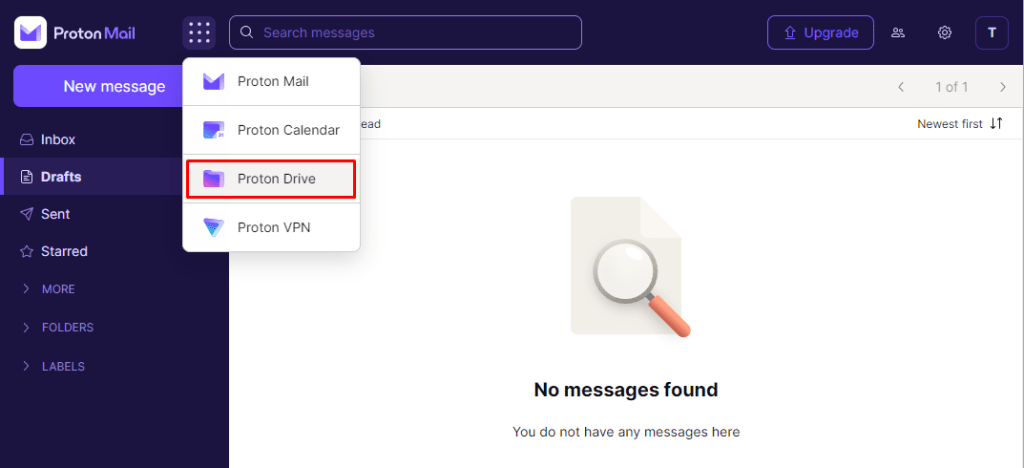
2. Click the Create new folder button at the top left.
 (nyt vindue)
3. Name your new folder in the field marked Folder name and click Create. Or click Cancel to go back.
 (nyt vindue)
Your new folder is now ready to use and will appear under My files in your drive.
 (nyt vindue)
How to create a subfolder in Proton Drive
You can create a folder within a folder in Proton Drive. These folders are called subfolders, and they can help you better organize your files.
To create a subfolder:
1. Open an existing folder in your drive by double clicking on it.
 (nyt vindue)
2. Click the Create new folder button in the top left of the app.
(nyt vindue)3. Name your new folder in the field marked Folder name and click Create. Or click Cancel to go back.
 (nyt vindue)
Your new subfolder will now appear within the existing folder. You can make sure it is in the right folder by opening it and checking the navigation path at the top of the app.
In the example below, the navigation path shows My new folder > My new subfolder, meaning that My new subfolder exists within My new folder.
 (nyt vindue)
Drag and drop subfolders
If you have two existing folders at the top level of your drive, and you would like one of them to become a subfolder of the other, you can also drag and drop one of the folders into the other folder.
For example, you could drag and drop My new folder into the Work folder below.
 (nyt vindue)
Troubleshooting folders
If you cannot create a folder or have trouble moving a folder into another folder, you may already have a folder with that name in your chosen destination.
If this is the case, you’ll see a red error message at the top of the page.
 (nyt vindue)
If you’re trying to move an existing folder, try moving it to another destination or renaming it. If you are creating a new folder, try creating it in another destination or giving it a different name.