
Organization monitor | Proton for Business Support
With organization monitor, administrators can audit changes to organization settings made by themselves or other admins. This feature is available for Proton Business Suite and all Proton for Business plans at the Professional tier.
How organization monitor works
Organization monitor shows actions that administrators have taken within your Proton organization. It helps admins see what changes were made, who made them, and when.
These events include:
- Adding and removing users
- Creating, editing, and deleting groups
- Managing organization settings and retention policies
- Enabling or disabling security features
- Granting or removing administrator permissions
You’ll see when the event happened, which administrator performed it, which users, groups, or settings were affected, and any other details related to the specific event.
See all events
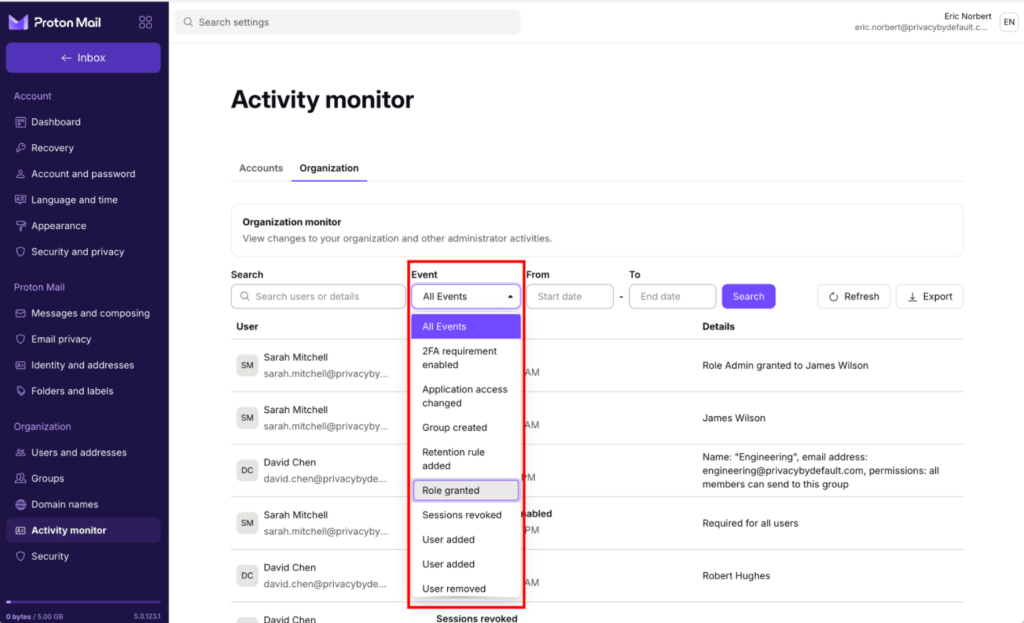
- User added: A user was added to your organization.
- User removed: A user was deleted from your organization.
- Retention rule added: A new rule was added to your organization’s data retention policy.
- Retention rule edited: A rule in your organization’s data retention policy was modified.
- Retention rule deleted: A rule was deleted from your organization’s data retention policy.
- Group created: A new user group was created.
- Group edited: A group’s name, members, or permissions were changed.
- Group deleted: A user group was removed from your organization.
- Proton Sentinel enabled: Learn more about Proton Sentinel
- Proton Sentinel disabled: Learn more about Proton Sentinel
- Account monitor enabled: Account monitor was enabled for your organization.
- Account monitor settings changed: Changes were made to your organization’s account monitoring feature.
- Account monitor disabled: Account monitor was disabled for your organization.
- 2FA requirement enabled: Two-factor authentication (2FA) was made mandatory. This could be for users, administrators, or all members.
- 2FA grace period changed: This is the amount of time users have to enable 2FA before their account is restricted.
- 2FA requirement disabled: Two-factor authentication is no longer mandatory for users, administrators, or all members.
- 2FA reminder sent: An email reminder was sent to members asking them to enable 2FA.
- Role granted: A user in your organization was given administrator permissions.
- Role revoked: A user in your organization no longer has administrator permissions.
- Admin signed in as user: An administrator signed into a user’s account.
- Sessions revoked: A user was forcefully signed out from one or more sessions.
- Organization key changed: Learn more about organization keys
- Password policies updated: Password requirements for users in your organization were changed.
- Application access changed: An administrator changed which Proton services users can access. (By default, non-admins can access the free version of Proton services that aren’t included in your organization’s plan)
- Feature access enabled: An app (for example, Zoom) was integrated with your organization.
- Feature access disabled: An app is no longer integrated with your organization.
Organization monitor is part of Proton for Business’ Activity monitor. You can see all activity monitoring tools available for your account in the activity monitor dashboard.
Visibility, access, and security
- Organization monitor cannot be disabled. Events are saved permanently so you always have an audit trail.
- All administrators can view the organization monitor dashboard, but nobody can delete or edit events. This prevents tampering with audit records.
- Organization monitor does not log administrator’s IP addresses or device information.
How to use organization monitor
- Sign in to account.proton.me using your administrator account.
- Select Settings → All settings.
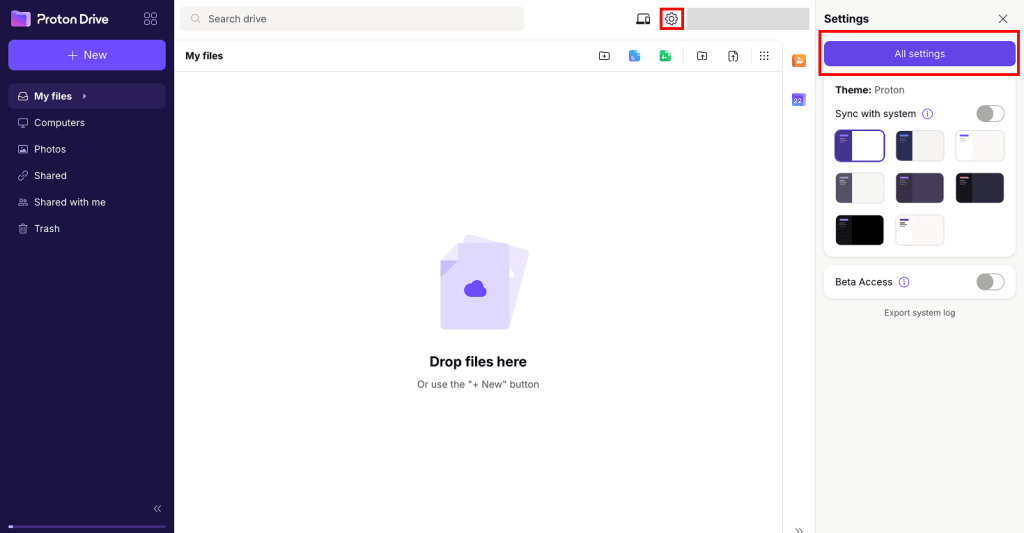
3. In the sidebar, go to Organization → Activity monitor. Select the Organization tab.

Search, sort, and filter events
To search for a specific event, use the search bar under Organization monitor. You can search by name, email address, domain, event name, or event details.

To sort events by date, click the Event column label.
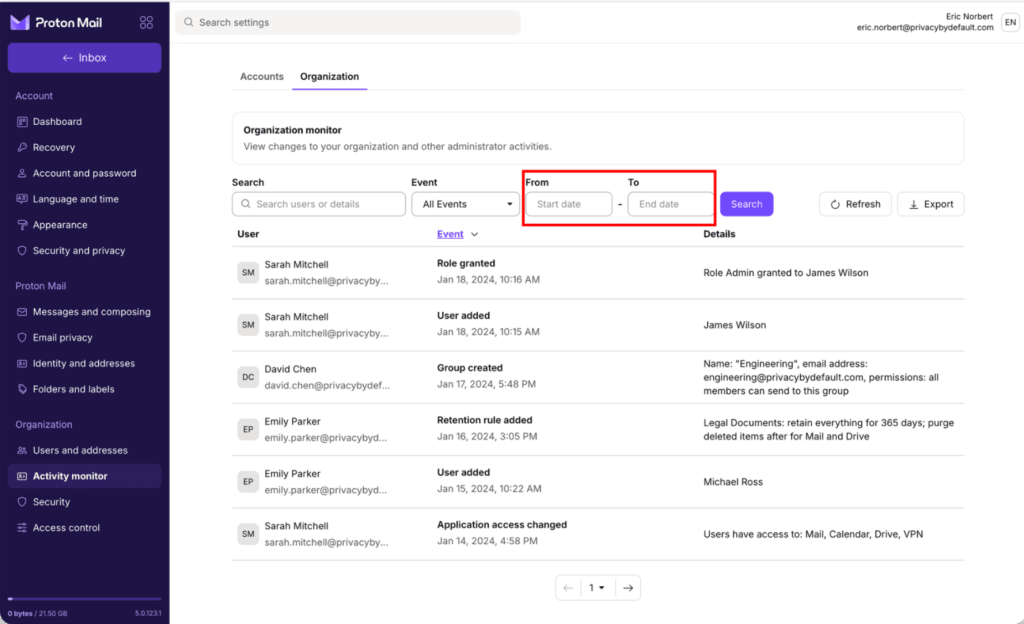
To filter by date range, fill in the From and To fields next to the search bar. Then click Search.
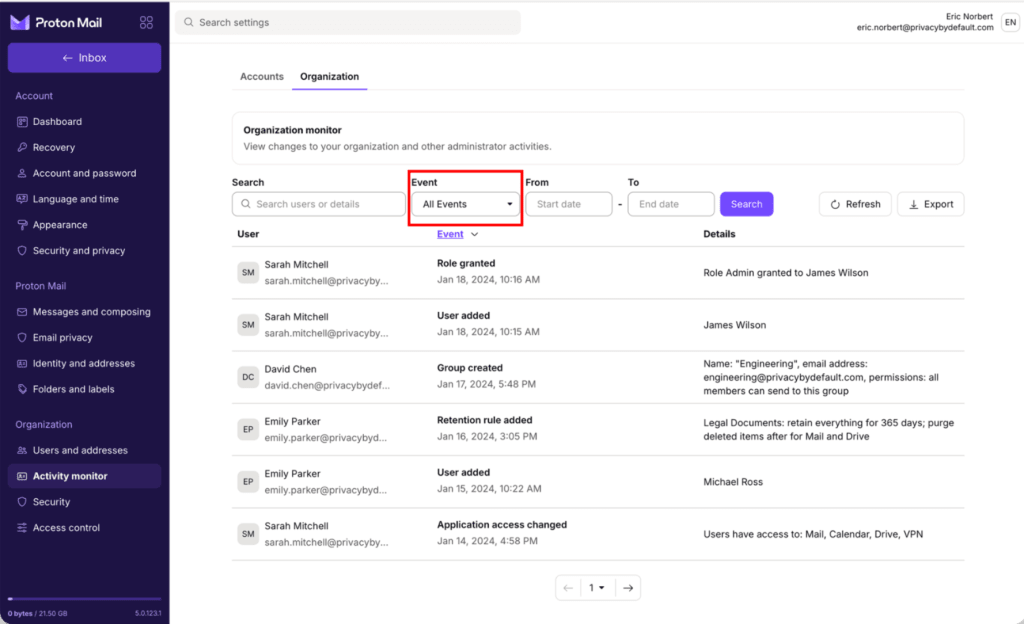
To filter by event type, open the Event dropdown and select an event. Then click Search.
Export organization monitor events
- Apply any filters or search criteria you need.
- Click Export. This will download your events as a CSV file.
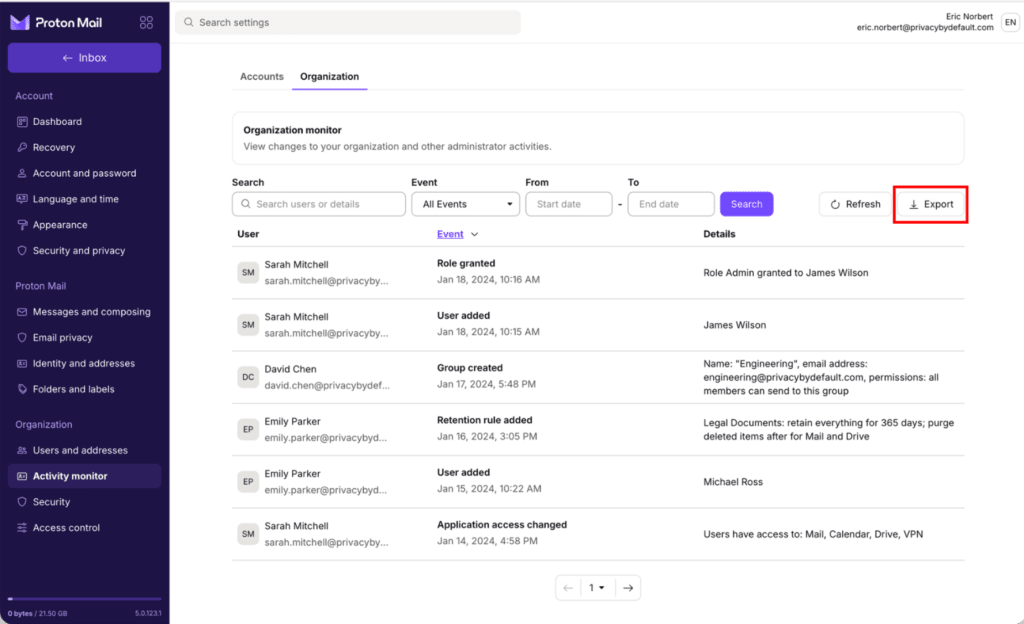
Note: You can export up to 10,000 events at once. If your organization has more than 10,000 events, use filters to narrow down your search before exporting.
Why use organization monitor?
Organization monitor gives administrators visibility over how their organization is managed and ensures accountability. It helps businesses:
- Meet compliance requirements: Your organization has a permanent audit trail of administrator actions.
- Investigate security incidents: Organization monitor makes it easier to review historical organization changes.
- Troubleshoot problems: Admins can spot any organization-level changes affecting user experience or resource access.
- Track administrative changes: Teams can work out who made changes to their organization settings.