
Always-on VPN: Frequently asked questions
- Reading
- 4 mins
- Category
- Proton VPN for Business
Always-on VPN is a Proton VPN for Business feature that allows you to enforce VPN usage across your organization.
Learn how to deploy Always-on VPN
In this support article, we answer some frequently asked questions.
- How Always-on VPN works
- Platforms and plans
- Deployment
- Authentication
- Known limitations
- Managing profiles and troubleshooting
How Always-on VPN works
What does Always-on VPN do?
On a device where the profile is deployed, the user must be connected to a Proton VPN server to go online. Until they connect, the device has no internet access. Enforcement applies at the device level, not the account level This means it can’t be bypassed from inside the app, and it survives sign-out and restart.
Can users switch it off?
Not from the app. There’s no toggle, and because enforcement is tied to the device rather than the user session, it stays active after sign-out and reboot. The only realistic ways to remove it are to delete the device profile or uninstall the app, which is exactly what your MDM is for: it deploys the profile and restricts users’ permissions to remove it.
Can employees still choose their server?
Yes. Users can switch freely between shared servers and gateways they have access to. They just can’t disconnect entirely.
Does split tunneling work with Always-on?
No. Always-on directs all traffic through the VPN, so split tunneling is disabled while it’s active.
Does it survive reboot, sleep, and OS updates?
Yes.
Platforms and plans
Which platforms are supported?
Only Windows for now. Support for other platforms is planned.
Which plans include it?
VPN Professional, VPN + Pass Professional, and Workspace (any tier).
Do I need a specific app version?
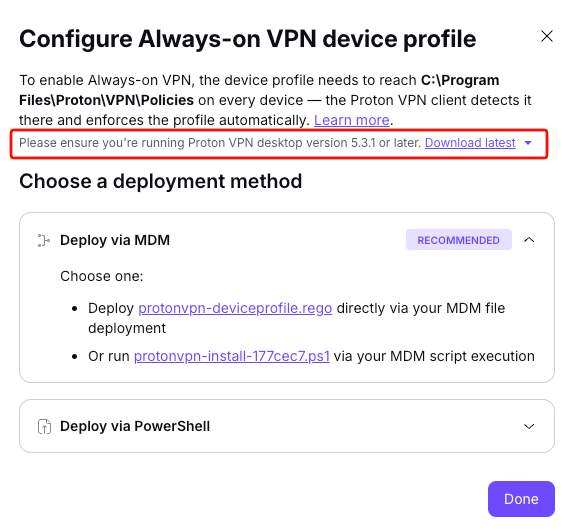
Yes. Proton VPN for Windows 5.3.0 or higher must be installed on target devices. For now, this is only available from the Always-on configuration panel (go to VPN → Always-on VPN → Instructions).
Deployment
Do I need an MDM to use this?
Effectively, yes. It’s technically possible to delpoy without one — there’s a PowerShell script and a manual file-copy method — but an MDM plays two essential roles: deploying the profile to devices, and protecting it from being tampered with or removed by users.
Which MDMs does it work with?
Any of them. The profile is a file drop plus an optional script, so anything that can push a file or run a script will work.
Can we apply it to some teams and not others?
Yes. Simply use your MDM to target the profile at specific users or groups.
Does it work on BYOD / personal devices?
Yes, but enforcement is weakened. On an unmanaged device, you can’t stop the user from uninstalling the app or deleting the profile, and you can’t remove the profile remotely afterwards.
How do I verify it’s actually enforced on a device?
Not through our portal. Verification comes from your MDM’s deployment reporting, or by confirming the profile file is present on the device.
Authentication
Does it work with SSO?
Not yet. However, full SSO sign-in support is coming soon.
Known limitations
What happens if Proton has an outage?
Enforcement itself doesn’t depend on our backend; it works at OS-level on the device, and keeps functioning whatever happens. However, if the VPN can’t establish a connection to Proton servers, the device won’t have internet access.
My employees travel a lot. Will hotels and airports cause problems?
Captive-portal networks (common at hotels and airports) can prevent the device from getting online, which may frustrate frequent travellers. We’re developing the ability for admins to allow temporary disconnects to address this scenario. But for now, deferring rollout to users who travel a lot is the only workaround.
Managing profiles and troubleshooting
What happens when an employee leaves?
Remove the device profile or the app first, then de-provision the user. If you de-provision while the profile is still enforced, the user can’t sign in, the device stays offline without a VPN connection, and you may lose the ability to reach it remotely to fix it. See here for more details.
I changed a setting in the portal but nothing happened on users’ devices. Why?
This is expected. The profile is a static file, so enforcement only kicks in once the updated profile is deployed to devices.
I deleted the profile in the portal, but employees are still locked out. Why?
This is also expected. Deleting the profile in the portal generates a removal script; it doesn’t reach devices by itself. Enforcement stops only when the profile file is removed from the device via MDM, the removal script, or manually.
A profile ended up on a personal device by mistake.
Remove it from that device. Nothing the user does in the app will remove it, since it’s device-level and survives sign-out. On an unmanaged device, this means the using removal script or deleting profile manually with the user’s co-operation.
How do I exempt a single device without turning enforcement off for everyone?
Manage it through your MDM. Simply stop targeting that device, and remove the profile file from it.
A device is offline and unreachable.
Once the user gets the device connected it will come online, and the profile can then be removed via MDM as normal.