
如何從 1Password 匯入至 Proton Pass
- 閱讀
- 0 分鐘
- 類別
- 匯入與匯出密碼
Proton Pass 內建支援從 1Password 匯入您的密碼與其它資料,包括 1PUX 檔案。
此流程分為兩個階段:
1. 從 1Password 匯出您的密碼與其它資料
2. 將您匯出的密碼匯入至 Proton Pass
如何在 macOS 上從 1Password 匯出
- 打開 1Password 桌面應用程式,前往選單列 → 檔案 → 匯出 → 您的 1Password 使用者名稱。

2. 輸入您的 1Password 主密碼,確保已選取 匯出檔案格式:1PUX,然後按一下 匯出資料。

您系統的檔案管理員會詢問您要將 .1pux 檔案儲存至何處。
如何在 Windows 上從 1Password 匯出
- 打開 1Password 桌面應用程式,前往選單列 → ☰ → 匯出 → 您的 1Password 使用者名稱。
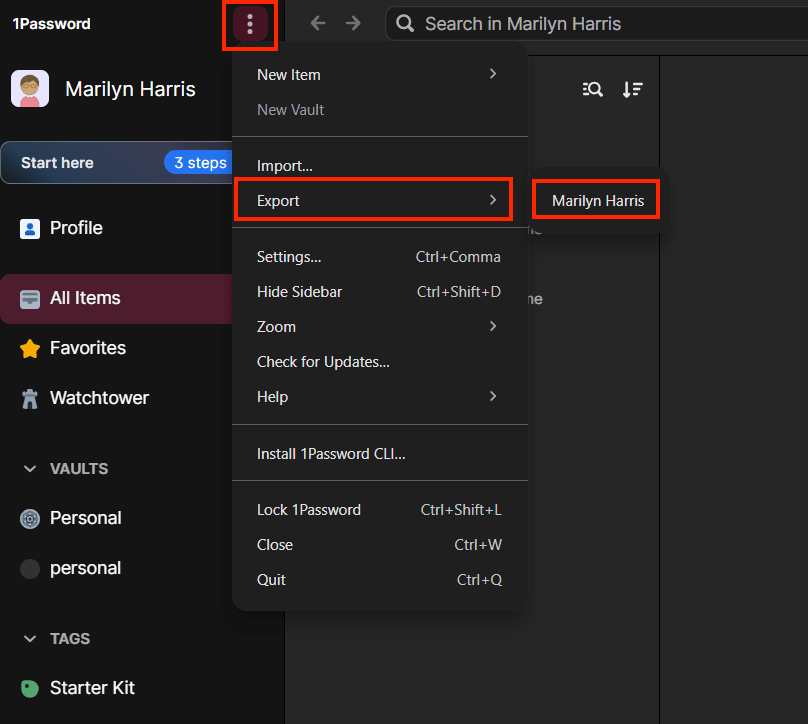
- 輸入您的 1Password 主密碼,確保已選取 匯出檔案格式:1PUX,然後按一下 匯出資料。

如何在 iOS 上從 1Password 匯出
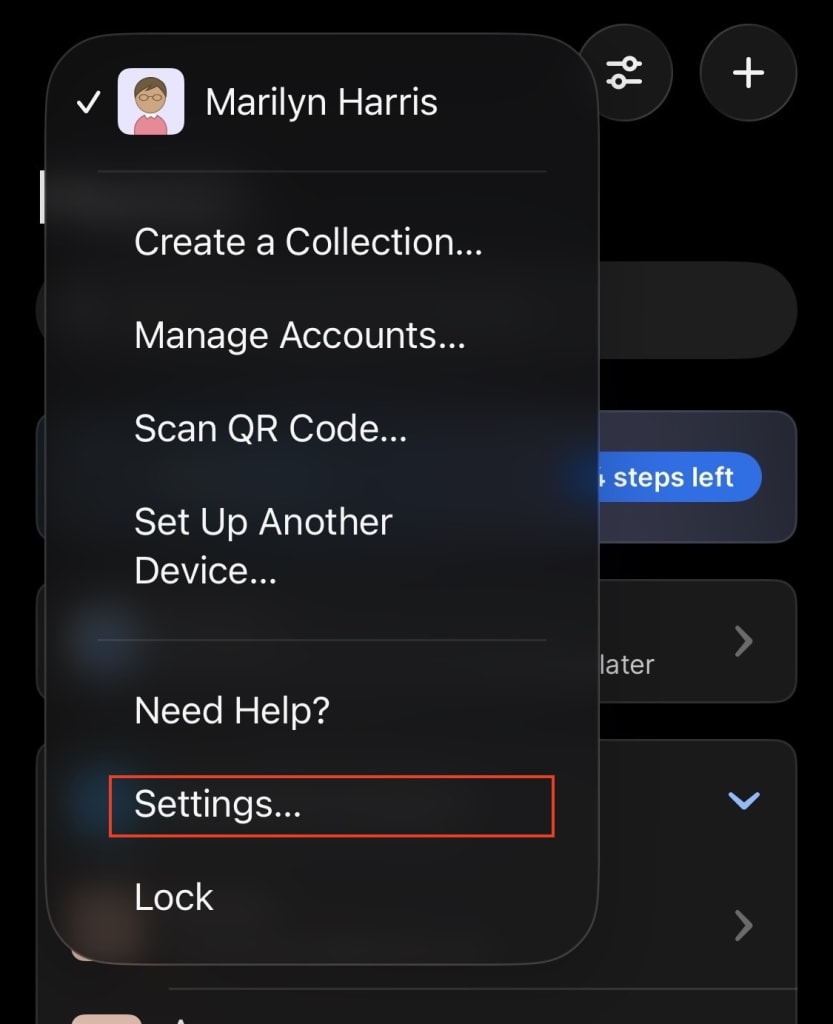
- 在您的裝置上打開並解鎖 1Password 應用程式,然後選取您的帳號圖示 → 設定。
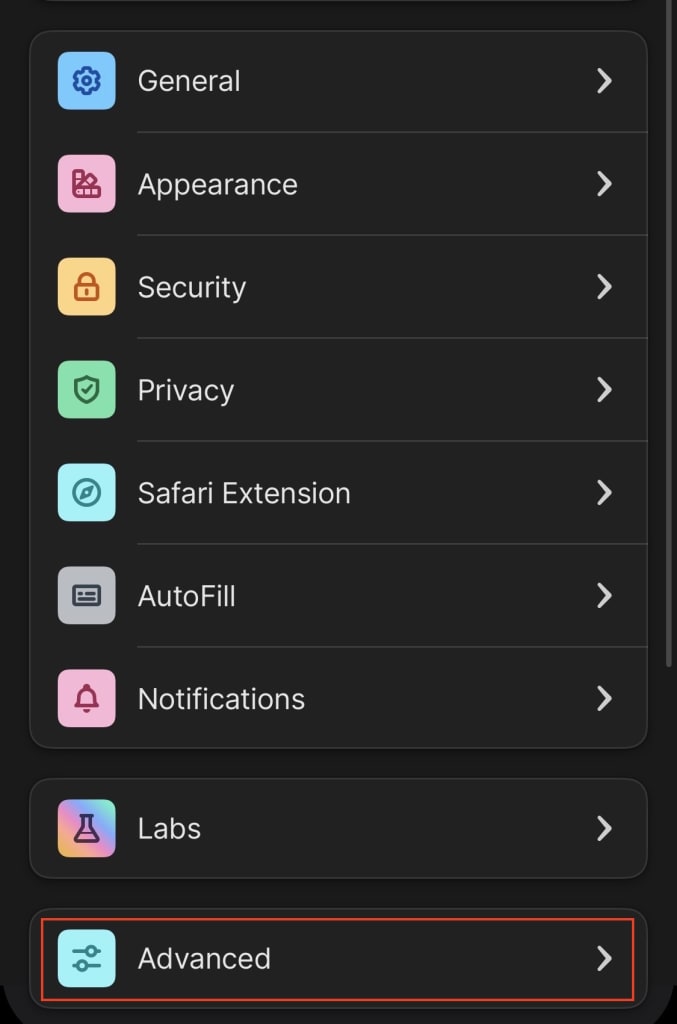
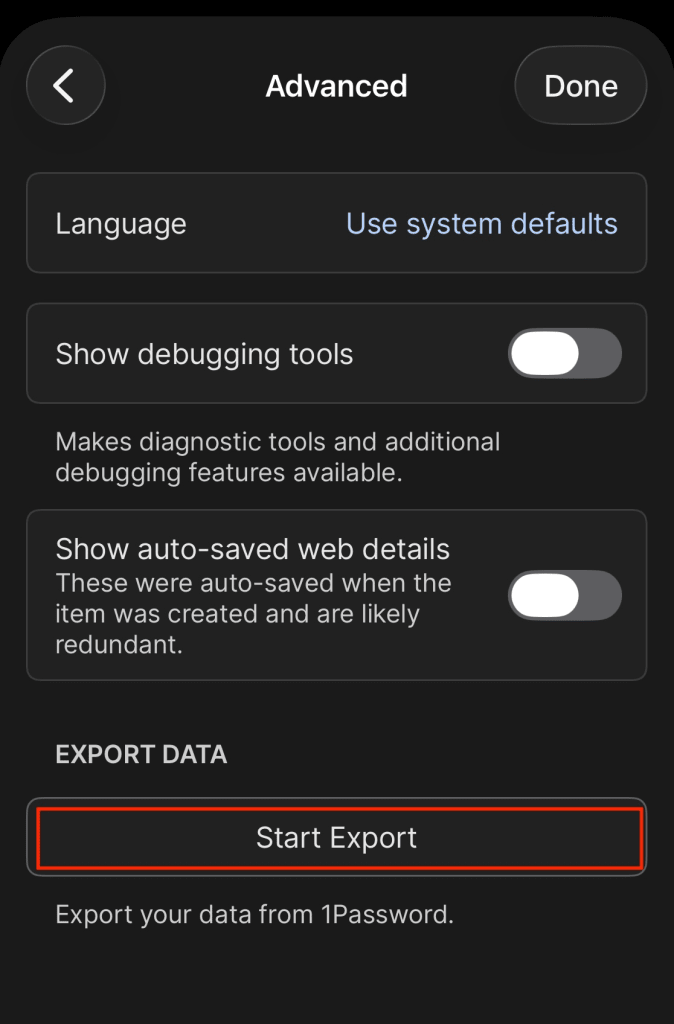
- 選取 進階 → 開始匯出 ,並依照說明將您的資料匯出至 Proton Pass
如何匯入至 Proton Pass
1. 打開 Proton Pass 瀏覽器擴充套件,並前往 ☰ → 設定。
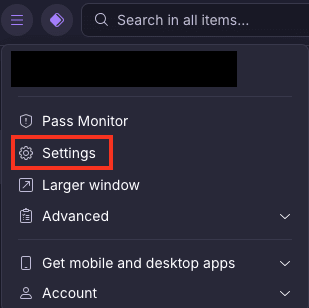
2. 前往 匯入 索引標籤,從下拉式 提供者 列表中選取 1Password (1pux, 1pif),然後將您匯出的檔案拖曳至 檔案 方塊中,或是按一下 選擇檔案或拖曳到此處 按鈕以使用系統的檔案管理員手動進行選取。
完成後點選 匯入。

