Whether you’re consolidating accounts, switching to a secure email provider, or shutting down a business mailbox you no longer need, deleting an Outlook account is a permanent decision — and Microsoft’s account closing process can be slow and difficult to navigate.
There are good privacy reasons for deleting your Outlook account, starting with Microsoft turning Outlook into a data collection service for its ad delivery system and hundreds of external partners that may process that data under their own policies.
This easy-to-follow guide will help you delete your Outlook account and better protect your online privacy. If you’re concerned about your privacy, consider switching to an Outlook alternative that doesn’t use your data as its business model.
- How to delete your Outlook account in 10 easy steps
- Before you delete your Outlook email account
- How to remove Outlook from your email client
- Why delete your Outlook account
- Switch to a secure email provider
How to delete your Outlook account in 10 easy steps
Closing a personal Outlook.com account also closes the associated Microsoft account, affecting your email and access to other Microsoft services, such as OneDrive and Xbox. Make sure to back up your emails and files, cancel active subscriptions, and complete more steps before deleting your Outlook account.
- Sign in to your Microsoft account(nueva ventana).
- Select Your info from the side menu.
- Click Close account at the bottom of the page.

- You’ll be redirected to the Microsoft Support page for closing accounts. Review the information and select Close account.

- You may be prompted to sign in and/or verify your account.
- Select Continue with closing your account?
- Review the checklist and choose a reopen window between 30 or 60 days before your Outlook account is permanently deleted. Then click Next.

- Check the boxes confirming you understand what happens when the account closes, and choose a reason for leaving.
- Select Mark account for closure.
- A warning message alerts you of the final date for recovering your account if you change your mind. Click Done.
That’s it! Your Outlook account is now marked for closure.
What happens after you mark your account for closure
Waiting period: Microsoft holds your account for 30 or 60 days (depending on what you select) before permanently deleting it. If you don’t sign in during these 30 or 60 days, your account will be permanently closed.
Recovery option: Signing back in during the 30- or 60-day window cancels the closure and reopens your account. You’ll need to repeat all Outlook account deletion steps if you still want to close it.
Permanent data loss: Once the 30- or 60-day window passes, Microsoft deletes your account data and content, including all emails, contacts, and calendar entries.
Loss of access to linked services: Closing your Microsoft account also cuts off access to every service tied to it, such as OneDrive, Xbox Live, Microsoft 365, and any shared calendars or documents your collaborators rely on.
Before you delete your Outlook account
Closing your Outlook account affects your email, files, subscriptions, and access to other Microsoft services. Before you proceed, take the following steps to avoid losing important data or access to accounts linked to your Outlook address.
Export your mailbox
- From the Outlook desktop app, go to Settings → Files → Export.
- Select Get started.

- Follow the steps in the wizard to select the mailbox or specific folders you want to export.
Cancel active subscriptions
Be sure to cancel or transfer any active subscriptions because closing your account doesn’t automatically cancel them:
- Sign in to your Microsoft account(nueva ventana).
- Select Subscriptions on the side menu.
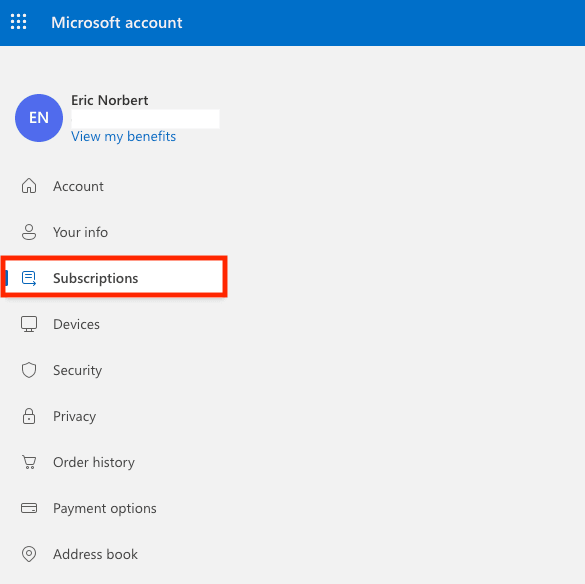
- Cancel all active subscriptions.
Migrate and redirect your email
If you’re switching to another email provider, migrate your mailbox. Most providers offer an import tool, such as Proton Mail’s Easy Switch, that connects directly to Outlook and transfers your data automatically.
You’ll also want to make sure any new messages sent to your old Outlook address still reach you during the 30- or 60-day open window, after which your Outlook account will be permanently closed and email forwarding will no longer work. To do this, you can:
Set up automatic forwarding: From the Outlook web app(nueva ventana), go to Settings → Mail → Forwarding and IMAP. Toggle on Enable forwarding and enter your new email address. Any message sent to your Outlook account will be automatically redirected to your new inbox.

Notify your contacts: Redirecting your email works right up until your Outlook account is closed. Send a heads-up to your important contacts and update your address with banks, subscriptions, and other services so they have your new address before your Outlook address disappears for good.
How to remove Outlook from your email client
Before we dive into the specifics of removing an Outlook account from your email client, it’s important to clarify: Outlook is both an email service (Outlook.com) and a desktop/mobile email client part of Microsoft 365. You can use the app to manage your Outlook email account as well as accounts from other providers, such as Gmail or Yahoo. Removing one of these accounts from the Outlook app only disconnects it from the app — it does not delete the email account itself.
Follow these steps to disconnect your Outlook inbox from the Outlook app, whether you want to free up hard drive space, to keep only essential accounts in your client, or to change your Outlook account:
Disconnect your account in New Outlook for Windows
- Open the Outlook app and go to Settings ⚙.
- Go to Accounts → Email accounts.
- Select Manage next to the Outlook account you wish to delete.
- Click Remove.
- A warning message alerts you that all offline cached content for this account will be deleted. This only affects content downloaded and stored on your computer, so your emails and files are safe and still accessible from the Outlook web app.
- Select Yes to confirm.
If you’re signed in with the Outlook account that you’re disconnecting, you’ll be automatically signed out.
Disconnect your account in New Outlook for Mac
- Launch the Outlook desktop app.
- Select Outlook → Settings in the menu bar.
- From the side menu, select Accounts.
- Choose the account you want to remove, click Manage, and select Remove account.
- A warning message alerts you that all offline cached content for this account will be deleted. This only affects content downloaded and stored on your computer; your emails and files are safe and still accessible from the Outlook web app.
- Select Continue to confirm.
Why delete your Outlook account
There are plenty of good privacy reasons to stop using Outlook:
Third-party data sharing: Outlook shares your data with third parties, including advertising partners — and Microsoft is doubling down. The email service has been the subject of scrutiny over its data privacy practices as Microsoft pivots to data-driven advertising as a “newfound religion(nueva ventana).”
No end-to-end encryption: Outlook encrypts your data in transit and at rest, but it doesn’t have end-to-end encryption. That means Microsoft can read, analyze, and share the contents of your emails.
US surveillance risks: Unlike European email providers, Outlook is owned by a US company, which means that Microsoft is legally obligated to hand your data over to authorities if compelled — in some cases, without a warrant — under laws like Section 702 of FISA, no matter where you live.
Credentials exposed to Microsoft: The integration of Outlook with cloud services has also raised alarm bells(nueva ventana). The new Outlook is configured to send login details, including usernames and passwords, directly to Microsoft servers.
AI training on your Copilot activity: If you use Copilot in Outlook, your contact details and email contents are kept out of Microsoft’s AI training data. But, the moment you ask Copilot to summarize an email, search your inbox, or draft a reply based on a message, that content becomes part of your Copilot conversations. According to the Copilot privacy policy, conversation activity and any files and content you share with the AI assistant may be used to train its AI models by default after data anonymization (but that’s not as anonymous as it sounds) unless you opt out.
Switch to a secure email provider
After quitting Outlook, you may be looking for an email service that puts your privacy first. Proton Mail not only has an easy-to-use email experience but an entirely different approach to security – one that gives you more privacy, not less.
Here’s what you get with a Proton Mail account:
No ads or sharing of your data: We never show ads, use your data for targeted ads, or share it with anyone. Our security architecture keeps your data hidden even from us.
No AI training on your data: Proton Mail offers an AI-powered private writing assistant, but it’s never trained on your data. You decide whether to use it, and your information never reaches us.
Truly private email: Proton Mail protects your emails with strong security based on end-to-end encryption and zero-access encryption, which means nobody can read your private messages except you and the people you send them to — not even us.
Fully transparent: Proton Mail is independently audited and open source, so means anyone can verify our security.
Easy migration: You can easily move your emails, contacts, and calendars from Outlook to Proton Mail using our Easy Switch tool. If you’re also leaving OneDrive behind when closing your Outlook account, you can easily move your files to Proton Drive and start using end-to-end encrypted cloud storage — all under the same free Proton Account you create when signing up for Proton Mail.
Built for organizations, too: Proton Mail for Business gives teams a central admin dashboard to onboard members, set permissions, and enforce security policies, support for custom email domains so your company can keep its own address, alongside ISO 27001 certification and SOC 2 Type II attestation. Plus, our end-to-end and zero-access encryption help your organization meet requirements under regulations like GDPR and HIPAA.
At Proton, protecting your private communications is the cornerstone of everything we do. In contrast to the practices of Big Tech companies like Microsoft that commoditize your personal data, our mission is to uphold your basic right to online privacy.