
隨選同步在 Proton Drive Windows 應用程式中的運作方式
- 閱讀
- 0 分鐘
- 類別
- Windows 應用程式
Proton Drive 的隨選同步功能可讓您直接從檔案總管存取所有雲端檔案,而不會占用硬碟上不必要的空間。本文將說明隨選同步在 Windows 上的運作方式,以及如何控制哪些檔案要儲存至本機。
備註:您必須在您的裝置上安裝 Proton Drive Windows 應用程式,才能依照這些指示操作。
Proton Drive 中的隨選同步如何運作?
一旦您安裝 Proton Drive 應用程式並登入後,您的雲端檔案將會鏡像同步至本機 Proton Drive 資料夾中。
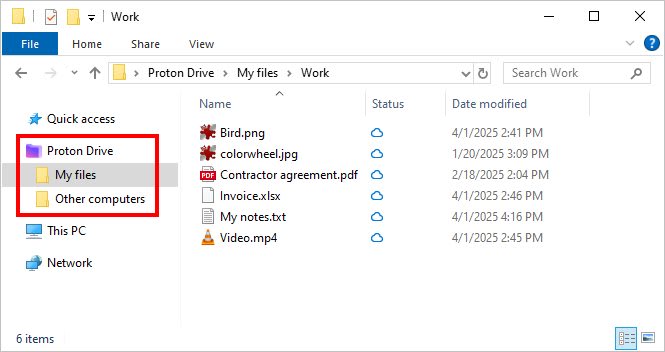
運作方式如下:
- 僅存在於雲端的檔案和資料夾會以預留位置的形式出現在您的檔案總管中 — 僅會顯示其「中繼資料」和「縮圖」。
- 當您與僅雲端檔案互動時(例如開啟或複製),Proton Drive 將會自動將其下載至您的裝置。
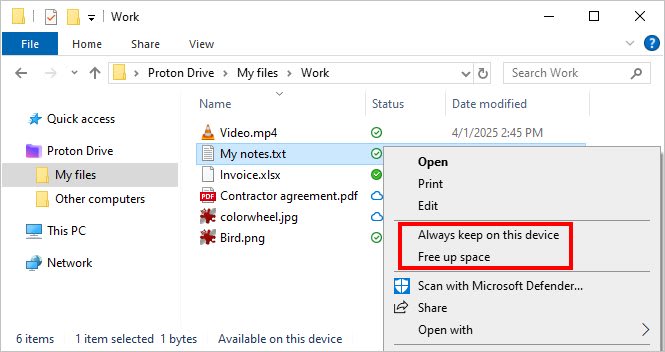
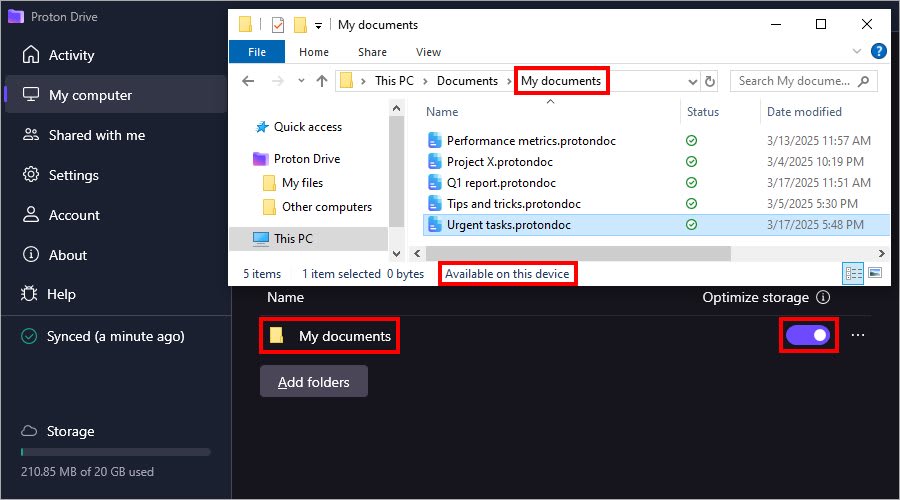
- 您可以透過在檔案總管中右鍵點選檔案並選擇釋放空間、永遠保留在此裝置上,或調整選項使其為暫時離線可用,來手動管理檔案的可用性。
如何辨識 Windows 上的同步狀態
您可以透過檔案總管中的小圖示疊加層以及狀態列中顯示的詳細描述來識別檔案的同步狀態:
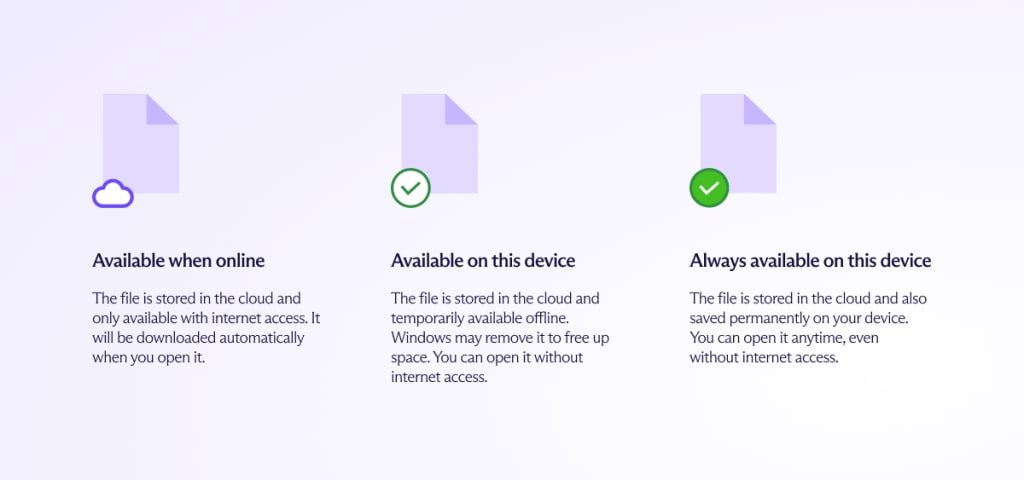
線上時可用
預設情況下,從雲端同步的檔案會顯示為「僅限線上」(僅限雲端),並標記為線上時可用狀態。這些檔案不會佔用本機儲存空間,並在檔案總管中以 
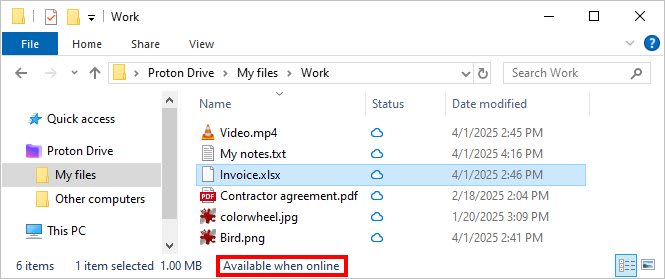
您需要網際網路連線才能打開「僅限線上」的檔案。當您存取檔案時,Proton Drive 會自動下載該檔案,並將其狀態變更為在此裝置上可用。
您也可以透過按一下右鍵並選取永遠保留在此裝置上,讓檔案可以離線使用。
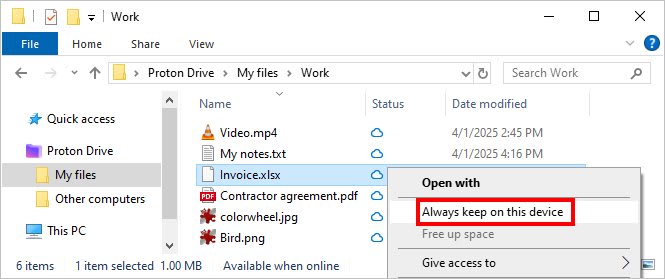
如果您稍後取消選取此裝置上可以使用,同步狀態將會變更為此裝置上可以使用。
此裝置上可以使用
一旦您打開僅限線上檔案,它就會被下載並儲存在本機。其狀態會變更為此裝置上可以使用,並由 
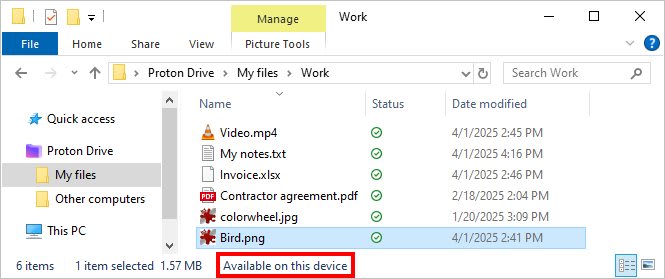
您從裝置複製到本機 Proton Drive 資料夾的檔案預設為 Available on this device。您也可以透過右鍵點擊檔案、取消勾選 Always keep on this device 並不選取 Free up space 來設定此狀態。
與狀態為 Always available on this device 的檔案不同,標記為 Available on this device 的檔案可能會在磁碟空間不足時由 Windows 自動移除 — 具體取決於您的 儲存空間設定(新視窗)。
若要讓檔案再次變為 僅限雲端 並釋放磁碟空間,請右鍵點擊該檔案並選取 Free up space。
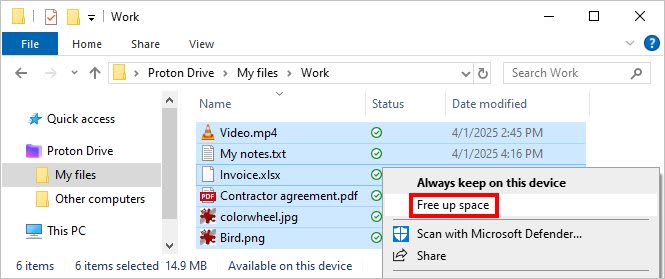
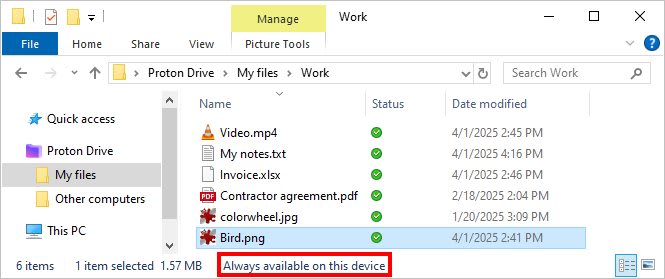
永遠保留在此裝置上
若要永久讓特定檔案或資料夾保持離線,請右鍵點擊它們並選擇 Always keep on this device。
這些項目標記為

圖示,而且與狀態為此裝置上可用的檔案不同,即使您的儲存空間不足,它們也不會被自動移除。
無論檔案的可用性狀態為何,您所做的任何編輯都會同步到雲端。例如,如果您在離線狀態下編輯標記為此裝置上可用或在此裝置上永遠可用的檔案,您的變更將在網際網路連線恢復後自動上傳。