
VPN selalu aktif: Terapkan penggunaan VPN di seluruh organisasi Anda
- Membaca
- 3 mnt
- Kategori
- Proton VPN for Business
Terapkan penggunaan VPN di seluruh organisasi Anda dengan VPN selalu aktif. Fitur Proton VPN for Business ini tersedia pada paket-paket berikut:
- VPN Professional
- VPN and Pass Professional
- Workspace (apa saja)
Saat ini, VPN selalu aktif hanya memungkinkan Anda menerapkan penggunaan VPN di perangkat Windows.
- Cara mengonfigurasi VPN selalu aktif
- Cara menerapkan VPN selalu aktif
- Menerapkan via MDM
- Menerapkan via PowerShell
- Menerapkan secara manual
- Cara menghapus VPN selalu aktif dari perangkat
- De-provisioning pengguna
Prasyarat
Semua perangkat target harus memiliki versi terbaru (minimum 5.3.0) aplikasi Windows kami yang terinstal. Sebagai admin, Anda dapat menerapkannya di seluruh organisasi Anda menggunakan MDM.
Cara mengonfigurasi VPN selalu aktif
1. Masuk ke account.proton.me dan pilih aplikasi VPN.
2. Buka VPN → VPN selalu aktif dan pilih Konfigurasi VPN selalu aktif.
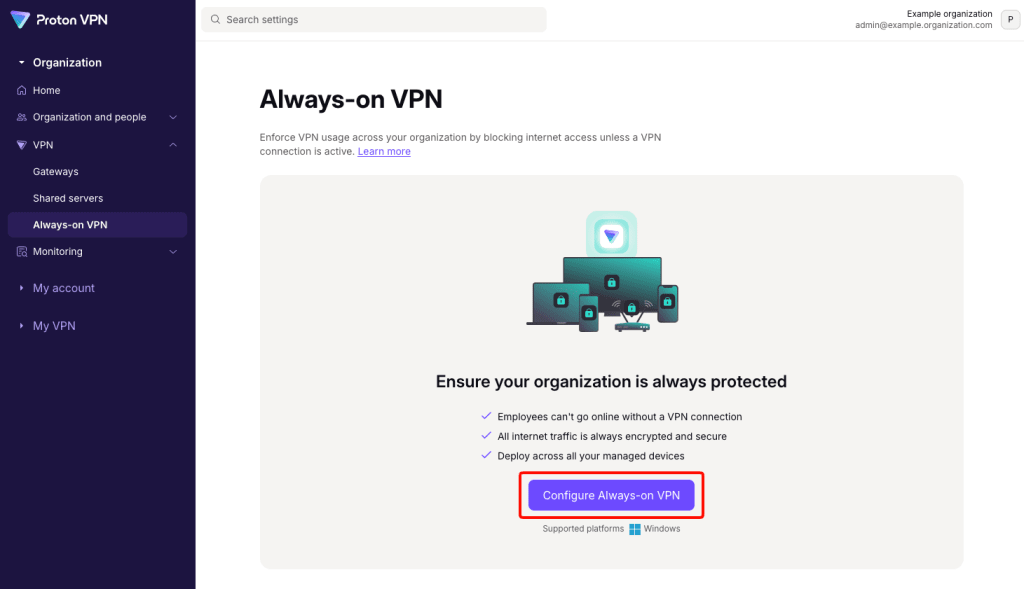
3. Klik Buat profil perangkat.

Cara menerapkan VPN selalu aktif
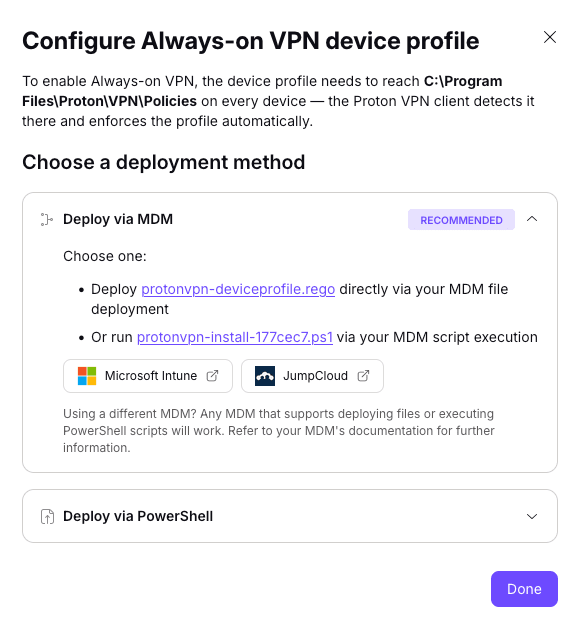
Setelah profil perangkat Anda dibuat, file tersebut perlu berada di C:\Program Files\Proton\VPN\Policies pada setiap perangkat tempat Anda ingin menerapkan penggunaan VPN. Klien Proton VPN akan mendeteksinya di sana dan menerapkan profil secara otomatis.
Anda dapat menerapkan profil tersebut melalui:
- Platform MDM Anda (direkomendasikan)
- Menjalankan skrip PowerShell pada setiap perangkat Windows target
- Secara manual
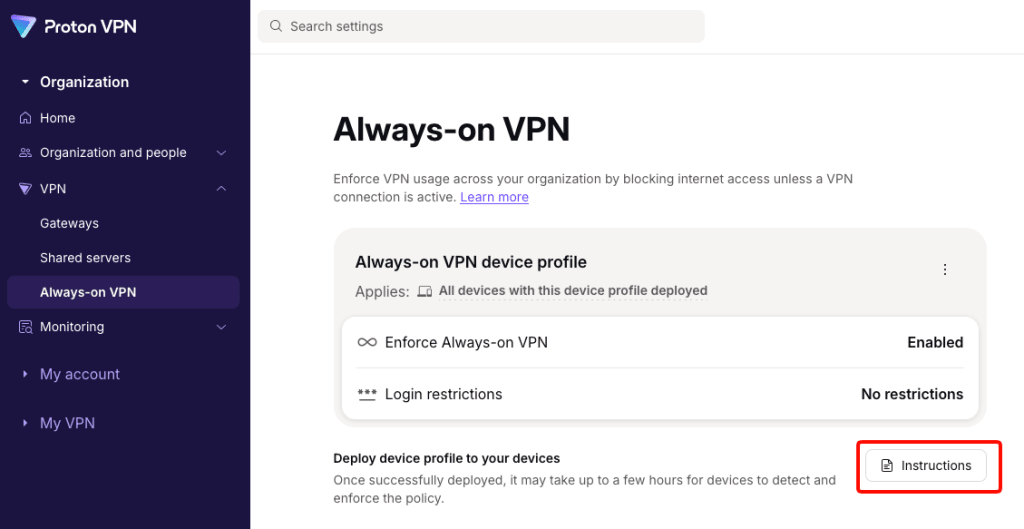
Untuk mengakses file dan instruksi yang diperlukan tentang cara menerapkan profil Anda kapan saja, buka VPN → VPN selalu aktif → Menerapkan profil perangkat ke perangkat Anda → Instruksi.
1. Menerapkan via MDM
Pilih salah satu:
- Menerapkan protonvpn-deviceprofile.rego(jendela baru) langsung melalui penerapan file MDM Anda
- Atau jalankan skrip .ps1 yang telah dibuat melalui eksekusi skrip MDM Anda
2. Menerapkan via PowerShell
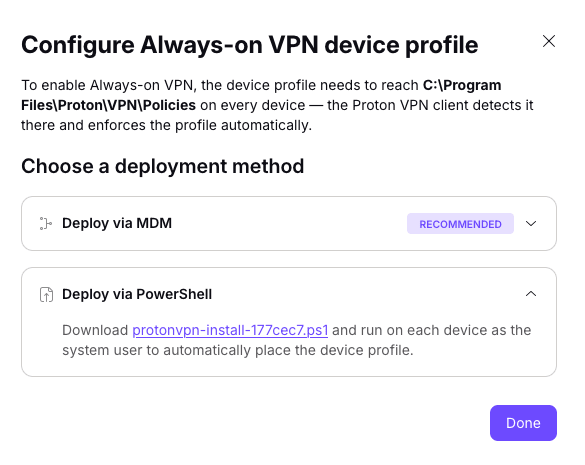
1. Unduh file skrip protonvpn-install-xxxxx.ps1 ke setiap perangkat Windows target.
2. Klik kanan pada file
3. Pilih Jalankan dengan PowerShell
3. Menerapkan secara manual
1. Unduh file protonvpn-deviceprofile.rego(jendela baru) ke setiap perangkat tempat Anda ingin menerapkan penggunaan VPN, unduh
2. Pada setiap perangkat, buka Explorer dan arahkan ke C:\Program Files\Proton\VPN\Policies.
3. Seret file protonvpn-deviceprofile.rego(jendela baru) ke folder Policies.

Cara menghapus VPN selalu aktif dari perangkat
Penerapan berhenti ketika file profil dihapus dari perangkat.
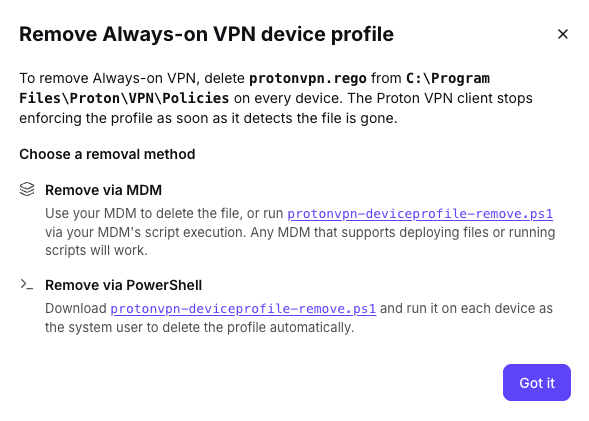
Hapus protonvpn.rego dari C:\Program Files\Proton\VPN\Policies menggunakan salah satu cara berikut:
- MDM: Hapus file melalui mekanisme penerapan file atau skrip yang sama seperti yang Anda gunakan untuk menerapkannya (direkomendasikan)
- Skrip Powershell: Jalankan protonvpn-deviceprofile-remove.ps1 di perangkat
- Secara manual: Buka Explorer, buka C:\Program Files\Proton\VPN\Policies, dan hapus filenya
Anda dapat membuat skrip powershell untuk membantu hal ini sebagai berikut.
1. Masuk ke account.proton.me dan pilih aplikasi VPN.
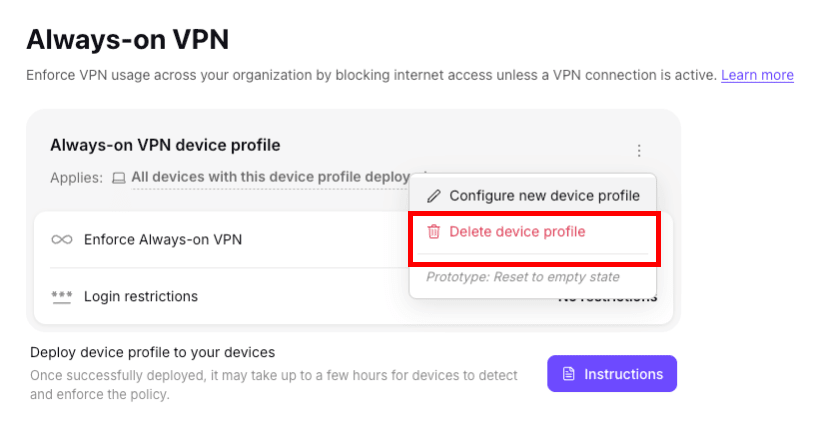
2. Buka VPN → VPN selalu aktif dan pilih Hapus profil perangkat dari menu.
3. Jalankan skrip powershell yang dibuat (protonvpn-deviceprofile-remove.ps1).
De-provisioning pengguna
Jika Anda menghapus pengguna dari organisasi Anda saat VPN selalu aktif masih diterapkan, perangkat akan terkunci sepenuhnya hingga admin masuk secara lokal di perangkat tersebut. Ini berarti Anda tidak dapat melakukan penghapusan jarak jauh (remote wipe) pada perangkat.
Jadi saat menghapus pengguna, Anda sebaiknya:
- Hapus profil perangkat (seperti dijelaskan di atas) atau hapus aplikasi Proton VPN dari perangkat yang dikelola
- De-provision pengguna di konsol admin MDM Anda.
Melakukannya dengan urutan terbalik mencegah perangkat terhubung ke internet, sehingga segala jenis manajemen jarak jauh tidak dapat dilakukan.