How to use URL matching for autofill
- Lesetid
- 2 min
- Kategori
- Proton Pass
You can customize the autofill behavior for your logins in Proton Pass with URL matching. By adding websites to the Website section, you can ensure that the field only autofills if and when you want it to.
TOC
Basic URL matching
Under Basic, you can choose from three autofill options for your login:
- Parent domain and subdomains: The field will autofill for both the exact domain (netflix.com, for example) as well as subdomains (such as tab1.netflix.com)
- Exact host matching: The field will only autofill for the exact domain (netflix.com) and no subdomains (such as tab1.netflix.com)
- Never fill on this exact URL: The field will blocked from autofill for the exact domain (netflix.com) but not subdomains (such as tab1.netflix.com.) If you want to block subdomains from autofill, you’ll have to add them individually as websites and block each one.
Advanced URL matching
Under Advanced, you can choose from four options for autofill for your login:
- Starts with: The field will only autofill if the website URL begins exactly with what you type (for example, https://shop.example.com(nytt vindu) will match https://shop.example.com(nytt vindu) and https://shop.example.com/products(nytt vindu), but not https://other-shop.example.com(nytt vindu))
- URL wildcard pattern: The field will autofill where the asterisk (*) appears in your pattern. Use * to represent any characters (for example, example.com/* matches any page on example.com, and *.example.com matches any subdomain)
- Regular expression: The field will autofill where your regex pattern matches the full URL. This gives you precise control but requires correct syntax. We recommend this option only for technical users comfortable with regular expressions.
- Exact URL matching: The field will only autofill for the complete URL you enter, including the path (, https://example.com/login(nytt vindu), for example, will not match https://example.com/home(nytt vindu))
How to use URL matching
- Select the login you want to change the autofill behavior for → Edit.
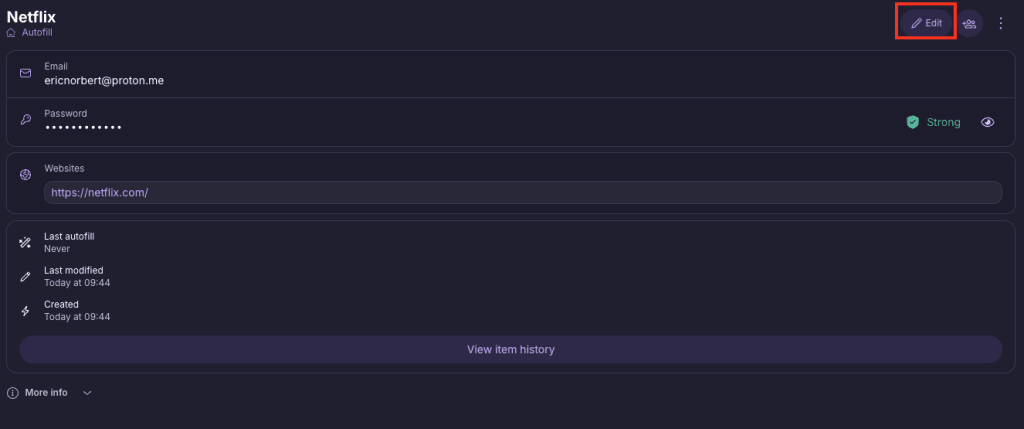
2. Under Websites, select the Settings ⚙ icon next to the website you’d like to change the autofill behavior for.

3. Choose the behavior for the field from the options under Basic or Advanced, and then test URLs to see if the field will autofill using the rule. Once you’re happy with the autofill behavior, select Confirm.

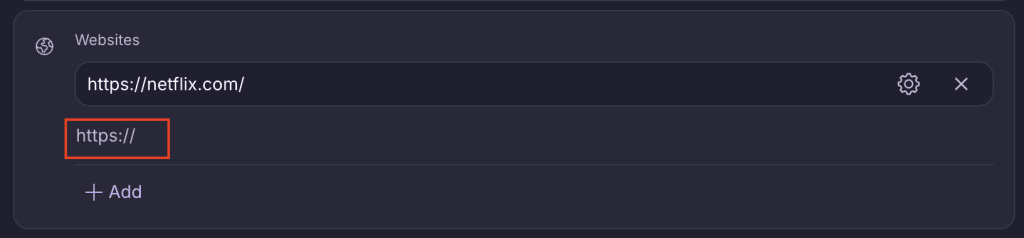
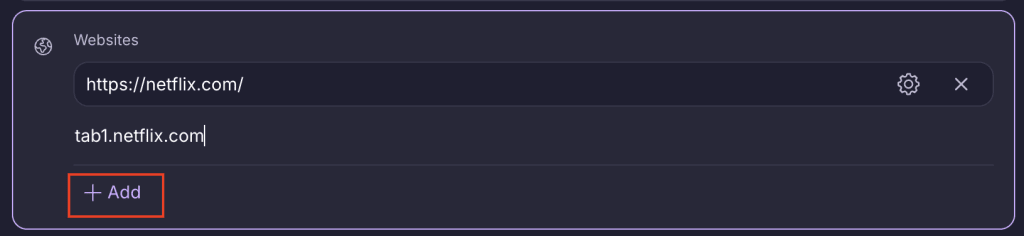
4. You can add additional websites for the login by typing in the field beginning https:// → + Add.