Proton 首頁

Lumo models and reasoning modes

閱讀
2 分鐘
類別
Lumo AI

Lumo AI has two model types (Lumo 2.0 Lite and Lumo 2.0 Max) and two reasoning modes (Fast and Thinking).

Understanding each model and mode helps you get the most useful responses for any type of task.

In this article, we’ll cover:

Lumo models explained

Lumo 2.0 offers two models suited to different types of work:

  • Lite: A capable, efficient model designed for everyday tasks. It handles general questions, writing assistance, summarization, and other day-to-day tasks quickly and reliably.
  • Max: Lumo’s most powerful model. It delivers stronger reasoning, greater contextual understanding, and more precise outputs, making it the better choice for complex or demanding tasks.

Both models are available to all Lumo users. Lumo Plus and Lumo for Business plans have much higher daily usage limits for Lumo 2.0 Max.

Lumo reasoning modes explained

Lumo also has two reasoning modes:

Fast: Focuses on answering as quickly as possible. This mode is well-suited to straightforward queries, quick lookups, and tasks where a rapid response is more useful than an exhaustive one.

Thinking: Prioritizes depth and research. Lumo takes additional time to reason through your query step by step before responding. This produces more thorough, considered answers and is better for complex problems that need careful analysis.

Both reasoning modes are available to all Lumo users, and on both Lite and Max models.

Selecting the best model and mode for your task

You can choose any type of model and mode for your task, but this general guide may help optimize model performance:

TaskRecommended modelRecommended mode
Quick questions and lookupsLumo 2.0 LiteFast
General writing or editingLumo 2.0 LiteThinking
Brainstorming and ideationLumo 2.0 MaxFast
Coding and technical tasksLumo 2.0 MaxThinking

If you’re not sure which to choose, start with Lumo 2.0 Max in Fast for strong, quality answers with minimal wait time.

If you need a more careful or structured response, select Thinking mode.

How to change Lumo’s mode or model

Change model

1. Go to lumo.proton.me(新視窗) or open the Lumo mobile app.

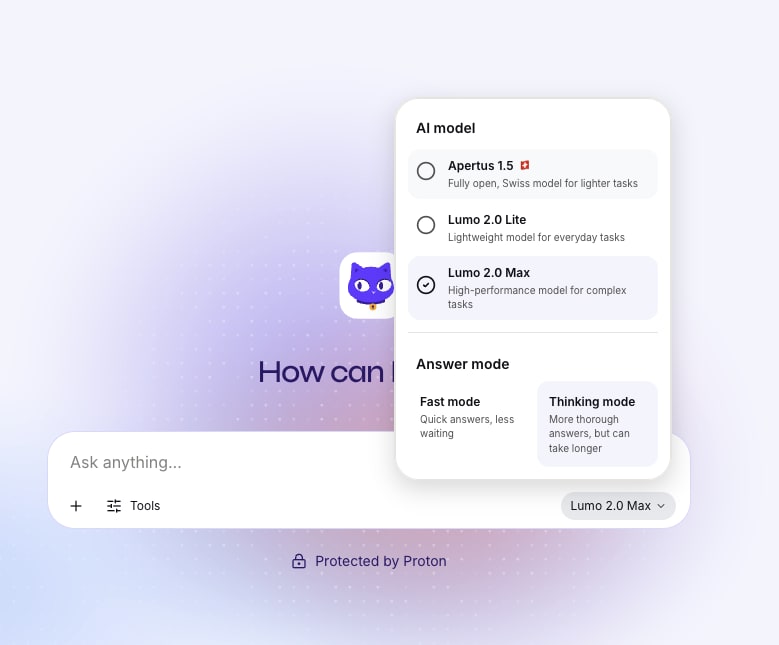
2. Under the chat window, select the model icon at the bottom-right corner. It should be set to Lumo 2.0 Lite by default.

Lumo interface showing different Lumo models (Lumo 2.0 Lite and Lumo 2.0 Max) and Lumo reasoning modes (Fast mode and Thinking mode).

3. In the pop-up, select your preferred Lumo model between Lumo 2.0 Lite and Lumo 2.0 Max.

All done. Lumo will use your selected model for all responses, until you change it — or until you reach the daily usage limit for Max, in which case the model will automatically switch to Lite.

Change reasoning mode

1. Go to lumo.proton.me(新視窗) or open the Lumo mobile app.

2. Under the chat window, select the model icon at the bottom-right corner.

Lumo interface showing different Lumo models (Lumo 2.0 Lite and Lumo 2.0 Max) and Lumo reasoning modes (Fast mode and Thinking mode).


3. In the popup, select your preferred reasoning mode between Fast or Thinking.

All done. Lumo will use your selected mode for all responses, until you change it.