
Lumo models and reasoning modes
- Reading
- 3 mins
- Category
- Lumo AI
Lumo AI has three model types (Lumo 2.0 Lite, Lumo 2.0 Max, and Apertus 1.5) and two reasoning modes (Fast and Thinking).
Understanding each model and mode helps you get the most useful responses for any type of task.
In this article, we’ll cover:
- Lumo models explained
- Lumo reasoning modes explained
- Selecting the best model and mode for your task
- How to change Lumo’s mode or model
Lumo models explained
Lumo offers three models suited to different types of work:
- Lumo 2.0 Lite: A capable, efficient model designed for everyday tasks. It handles general questions, writing assistance, summarization, and other day-to-day tasks quickly and reliably.
- Lumo 2.0 Max: Lumo’s most powerful model. It delivers stronger reasoning, greater contextual understanding, and more precise outputs, making it the better choice for complex or demanding tasks.
- Apertus 1.5: An independent, fully open large language model (LLM) developed by researchers at EPHL, ETH Zurich, and the Swiss National Supercomputing Centre (CSCS). Apertus 1.5 is multilingual and trained on over 1,000 languages, including underrepresented ones such as Romansh and Swiss German.
All models are available to all Lumo users. Lumo Plus and Lumo for Business plans have much higher daily usage limits for Lumo 2.0 Max.
Lumo reasoning modes explained
Lumo also has two reasoning modes:
Fast: Focuses on answering as quickly as possible. This mode is well-suited to straightforward queries, quick lookups, and tasks where a rapid response is more useful than an exhaustive one.
Thinking: Prioritizes depth and research. Lumo takes additional time to reason through your query step by step before responding. This produces more thorough, considered answers and is better for complex problems that need careful analysis.
Both reasoning modes are available to all Lumo users, and on both Lite and Max models.
Selecting the best model and mode for your task
You can choose any type of model and mode for your task, but this general guide may help optimize model performance:
| Task | Recommended model | Recommended mode |
|---|---|---|
| Quick questions and lookups | Lumo 2.0 Lite | Fast |
| General writing or editing | Lumo 2.0 Lite | Thinking |
| Brainstorming and ideation | Lumo 2.0 Max | Fast |
| Coding and technical tasks | Lumo 2.0 Max | Thinking |
If you’re not sure which to choose, start with Lumo 2.0 Max in Fast for strong, quality answers with minimal wait time.
If you need a more careful or structured response, select Thinking mode.
How to change Lumo’s mode or model
Change model
1. Go to lumo.proton.me(new window) or open the Lumo mobile app.
2. Under the chat window, select the model icon at the bottom-right corner. It should be set to Lumo 2.0 Max by default.
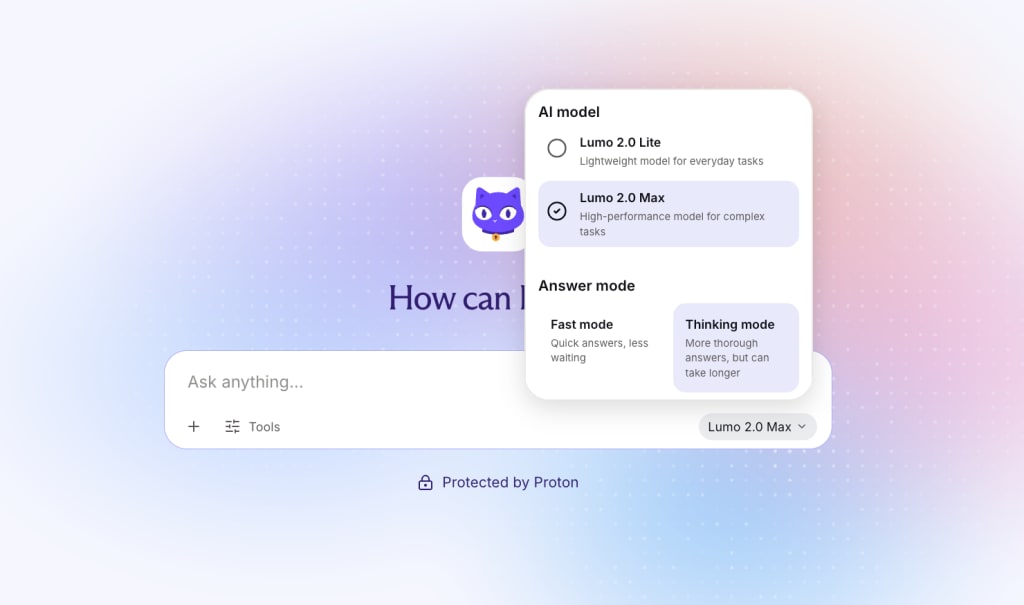
3. In the pop-up, select your preferred Lumo model.
All done. Lumo will use your selected model for all responses, until you change it. If you selected Lumo 2.0 Max, your model will automatically switch to Lite if you hit your daily usage limit for Max.
Change reasoning mode
1. Go to lumo.proton.me(new window) or open the Lumo mobile app.
2. Under the chat window, select the model icon at the bottom-right corner.

3. In the popup, select your preferred reasoning mode between Fast or Thinking.
All done. Lumo will use your selected mode for all responses, until you change it.