
Search past chats and projects
- Reading
- 4 mins
- Category
- Lumo AI
Lumo can look things up in your earlier chats and in your project files when that helps it answer. For example, you can ask “What did we decide about the budget last week?” or “What does the supplier contract say about payment terms?” without pasting anything in again.
You choose what Lumo can look up. Searching past chats is off until you turn it on.
How it works
You don’t need to do anything special. Ask your question as you normally would, and Lumo decides whether looking something up would help. It only uses what your settings allow.
Lumo searches with the encrypted search index on your device. It adds the passages it finds to your conversation the same way that you can attach a file, so it can use them to answer your question.
Choose what Lumo can look up
Go to Settings → General, and find What can Lumo see?. These are your defaults for every chat. Each project can change them for its own chats.
Past chats
| Option | What Lumo can look up |
|---|---|
| Off (default) | Only the chat you’re in. |
| Same project only | In a project: the other chats in that project. Outside a project: only the chat you’re in. |
| All chats | All your chats, except chats in projects that aren’t searchable (see below). |
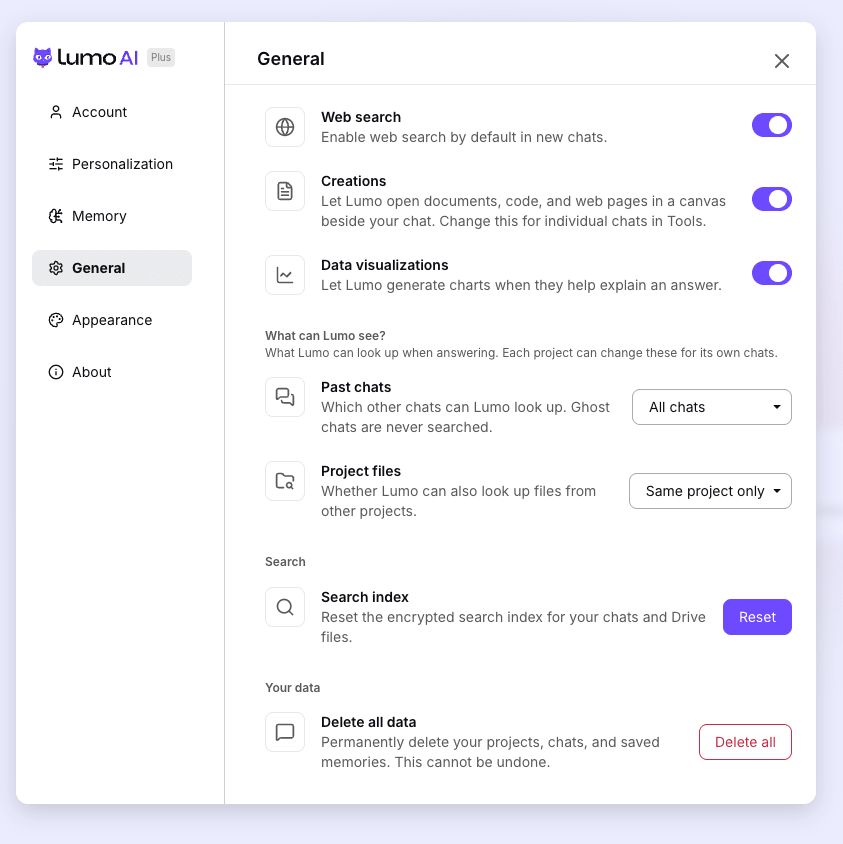
Project files
| Option | What Lumo can look up |
|---|---|
| Same project only (default) | Files in the chat’s own project, including a linked Proton Drive folder. Outside a project: only files attached to the chat. |
| All projects | Files in all your projects, except projects that aren’t searchable (see below). |
Note: Files you attach to a chat can always be looked up in that chat.
Change the settings for one project
Each project can have its own settings. Open the project, and find What can Lumo see? in the panel on the right, between Instructions and Project knowledge. It shows a short summary of the project’s current settings, for example “This project’s chats · This project’s files”.
To change them, select the pencil icon (Edit search settings). In the window that opens:
- Past chats and Files work like the options in Settings, but only for chats in this project. Here, the options read This project instead of Same project only.
- Under each of them, Follows your general setting means the project uses your default from Settings. Once you change it, you’ll see Set for this project. Select Use general setting to go back to your default.
- Searchable from other chats lets chats outside the project look up this project’s chats and files, if their own settings allow it. This is on by default. Turn it off for sensitive work, to keep the project’s content inside the project. Chats inside the project aren’t affected. When it’s off, the project’s summary shows “Hidden from other chats”.
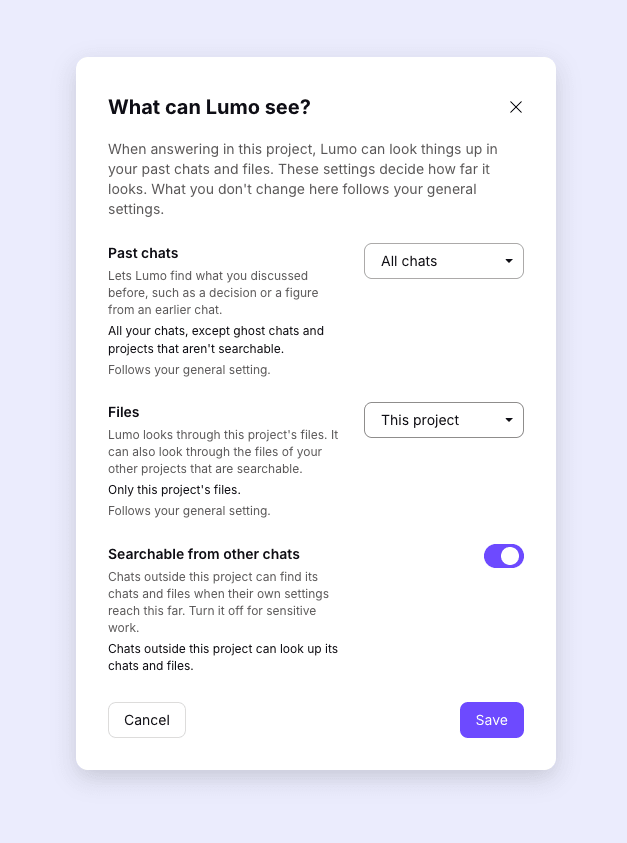
Select Save to apply your changes.
For example, if you have a “Health” project, turn off Searchable from other chats so that its chats and files are only used inside that project, even if you’ve chosen All chats in Settings.
What Lumo never searches
- Ghost chats. Lumo never searches ghost chats from other chats. Inside a ghost chat, Lumo can only look things up in that same chat.
- Files you switched off. If you turn off a file for a chat, Lumo won’t look it up in that chat.
- Deleted chats, and chats no longer in your history (for example, older chats on the free plan).
- Scheduled task runs.
Things to know
- Lumo searches the chats saved on your current device. On a new device, Lumo may not find a chat you haven’t opened there yet. Open the chat once, and Lumo can search it after that.
- If you’re not signed in, Lumo can only look things up in the chat you’re in.
- If Lumo can’t find something, check that your settings allow it, and that the project has Searchable from other chats turned on. Mentioning a distinctive word, file name or topic also helps.
Frequently asked questions
Does turning on “All projects” for files let Lumo search the chats in other projects?
No. Past chats decides which chats Lumo can look up, and Project files decides which files. They’re separate.
Can a chat outside a project search a project’s chats?
Yes, if you chose All chats and the project has Searchable from other chats turned on.
How do I stop Lumo from looking anything up?
Set Past chats to Off and Project files to Same project only.
Lumo will then only use the chat you’re in and its project’s files. If a project has its own settings, select Use general setting for each of them, or set them the same way.
What does “Reset” next to the search index do?
You’ll find it in Settings → General → Search → Search index. It deletes and rebuilds the encrypted search index on your device. Use it if search results seem out of date. Your chats and files aren’t affected.