Los usuarios de Instagram han informado de un aumento en correos electrónicos inesperados de restablecimiento de contraseña, llegando justo cuando circulaba la noticia(ventana nueva) de que una base de datos que contenía más de 17 millones de cuentas de Instagram se había filtrado en la dark web. Juntos, los dos eventos han planteado preocupaciones sobre una posible vulneración de datos y han dejado a muchos usuarios preocupados por la seguridad de sus cuentas.
Esto es lo que sucedió y lo que puedes hacer para mantener segura tu cuenta de Instagram.
- ¿Qué provocó los correos electrónicos de restablecimiento de contraseña de Instagram?
- Si no hay filtración de datos de Instagram, ¿por qué preocuparse por los correos electrónicos de restablecimiento de contraseña?
- Cómo cambiar tu contraseña de Instagram
- Cómo restablecer tu contraseña de Instagram
- Cómo mantener segura tu cuenta de Instagram
- Mantente seguro con Proton Pass
¿Qué provocó los correos electrónicos de restablecimiento de contraseña de Instagram?
En enero de 2026, los usuarios de Instagram comenzaron a recibir(ventana nueva) múltiples notificaciones de restablecimiento de contraseña de security@mail.instagram.com. Los usuarios no habían solicitado, sin embargo, restablecer sus contraseñas. Para algunos, los correos electrónicos llegaron repetidamente durante cortos períodos de tiempo, provocando temores de que sus cuentas estuvieran activamente bajo ataque.
Meta, la empresa principal de Instagram, confirmó(ventana nueva) que un error había permitido a una parte externa solicitar correos electrónicos de restablecimiento de contraseña para otros usuarios. Dijo que solucionó el problema, enfatizando que no hubo vulneración de los sistemas de Instagram y que las cuentas permanecen seguras. La empresa no proporcionó detalles técnicos sobre cómo ocurrió el error y, en cambio, restó importancia a la gravedad del problema. Meta instó a los usuarios a simplemente ignorar los correos electrónicos.
En este momento, no hay evidencia confirmada de una nueva vulneración de datos de Instagram. El conjunto de datos que se publicó libremente en un foro de la dark web en enero de 2026 parece consistir en datos de Instagram extraídos previamente. Algunas fuentes han especulado que puede estar conectado a un incidente histórico de extracción de API de Instagram en 2024(ventana nueva) o 2022(ventana nueva), aunque Meta ha negado tener conocimiento de tales incidentes. La información incluye nombres de usuario, direcciones de correo electrónico, números de teléfono, países y otra información sensible, pero no contraseñas.
Si no hay filtración de datos de Instagram, ¿por qué preocuparse por los correos electrónicos de restablecimiento de contraseña?
Los correos electrónicos en sí mismos pueden ser legítimos y generados por los sistemas automatizados de Instagram. Una ola de correos electrónicos de restablecimiento repetidos, sin embargo, puede ser parte de una estrategia de suplantación más amplia que se basa en algo llamado «fatiga de alertas».
Las personas conscientes de la seguridad tienden a inspeccionar cuidadosamente los correos electrónicos sospechosos, evitar hacer clic en enlaces desconocidos y responder rápidamente a alertas de seguridad reales. Pero si los atacantes activan repetidamente correos electrónicos de restablecimiento de contraseña legítimos, pueden desgastar lentamente a las personas. Eventualmente, cuando aparece una alerta de seguridad genuina, es fácil asumir que es solo otra falsa alarma e ignorarla, dando a los atacantes tiempo extra para actuar, un poco como «el pastor mentiroso».
Cómo cambiar tu contraseña de Instagram de forma segura
Si quieres cambiar tu contraseña, hazlo solo a través de Instagram directamente:
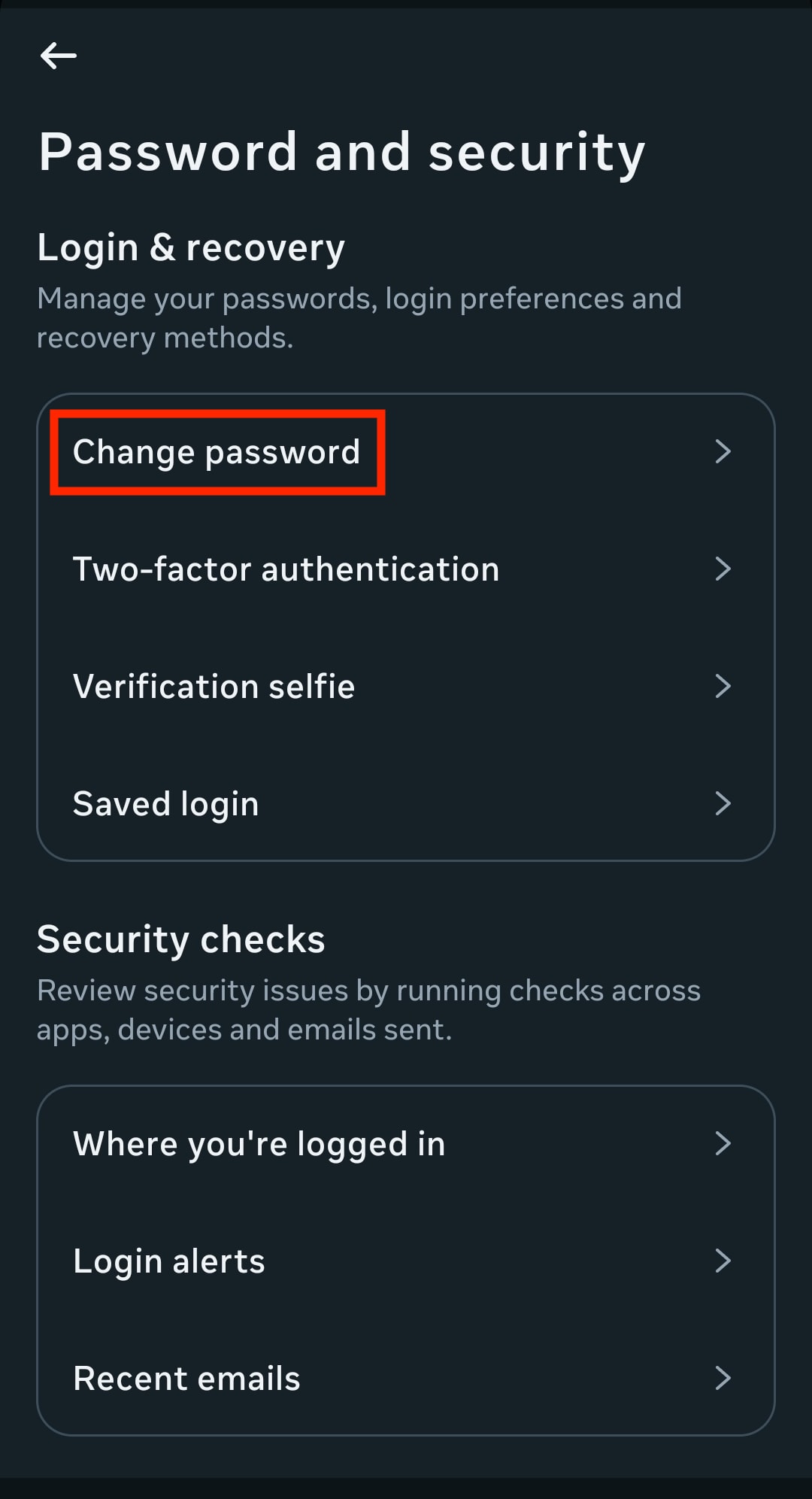
- En tu aplicación de Instagram, abre el Centro de cuentas.

- Ve a Contraseña y seguridad.

- Selecciona Cambiar contraseña y elige una cuenta.
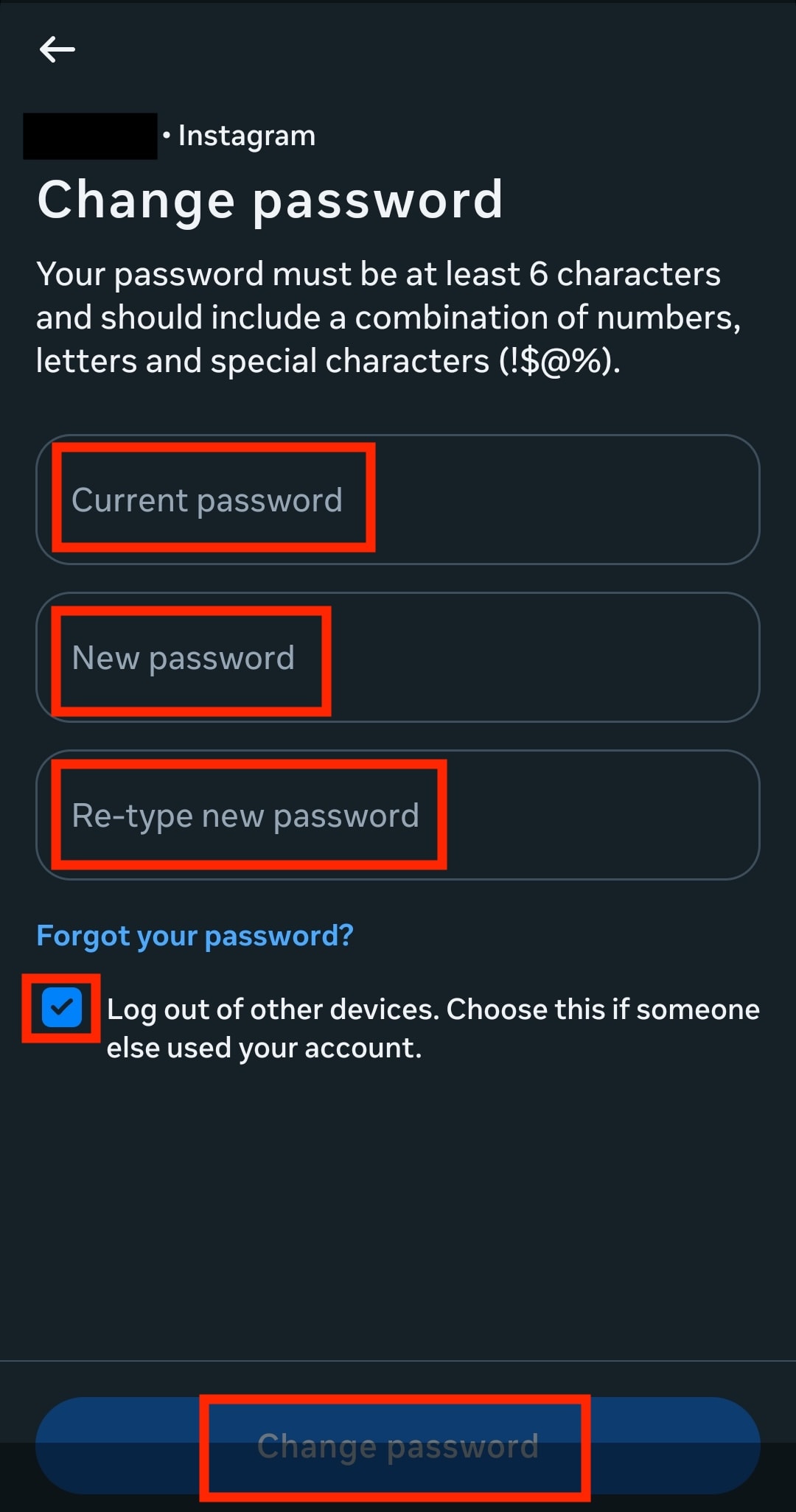
- Ingresa la contraseña actual y la nueva.
- Si sospechas que alguien más ha usado tu cuenta, selecciona Cerrar sesión en otros dispositivos.
- Haz clic o pulsa en Cambiar contraseña para confirmar.
Cómo restablecer tu contraseña de Instagram
Si olvidaste tu contraseña de Instagram y ya no puedes iniciar sesión, esto es lo que debes hacer:
- Abre la aplicación de Instagram.
- Selecciona ¿Olvidaste la contraseña?

- Ingresa el nombre de usuario, correo electrónico o teléfono asociado a tu cuenta de Instagram, luego selecciona Continuar.

- Se enviará un enlace a tu correo electrónico. Abre el correo electrónico y haz clic en Restablecer tu contraseña.

- Ingresa una nueva contraseña, confírmala y selecciona Restablecer contraseña.

Cómo mantener segura tu cuenta de Instagram
Aunque la reciente ola de correos electrónicos de restablecimiento de contraseña de Instagram involucró mensajes legítimos, los atacantes podrían usar momentos como este para lanzar estafas de seguimiento. Aquí te explicamos cómo protegerte:
Usa una contraseña única y segura
Tu contraseña de Instagram debe ser larga, compleja y usada solo en esta plataforma. Si reutilizas la contraseña en múltiples sitios web, una vulneración en otro lugar podría poner tu cuenta de Instagram en riesgo a través de ataques de relleno de credenciales, donde los ciberdelincuentes toman combinaciones de correo electrónico y contraseña de una vulneración y las prueban automáticamente en otras plataformas, incluidas las redes sociales.
Un gestor de contraseñas te ayuda a generar y almacenar contraseñas únicas sin necesidad de recordarlas todas.
Activar la autenticación de dos factores
La 2FA añade una capa extra de seguridad cuando inicias sesión, como un código de un solo uso generado por una aplicación de autenticación. Incluso si un atacante logra adivinar tu contraseña u obtenerla de otra vulneración, aún no podrá acceder a tu cuenta sin este segundo factor.
Aquí te explicamos cómo activar la 2FA en Instagram y guardarla en Proton Pass:
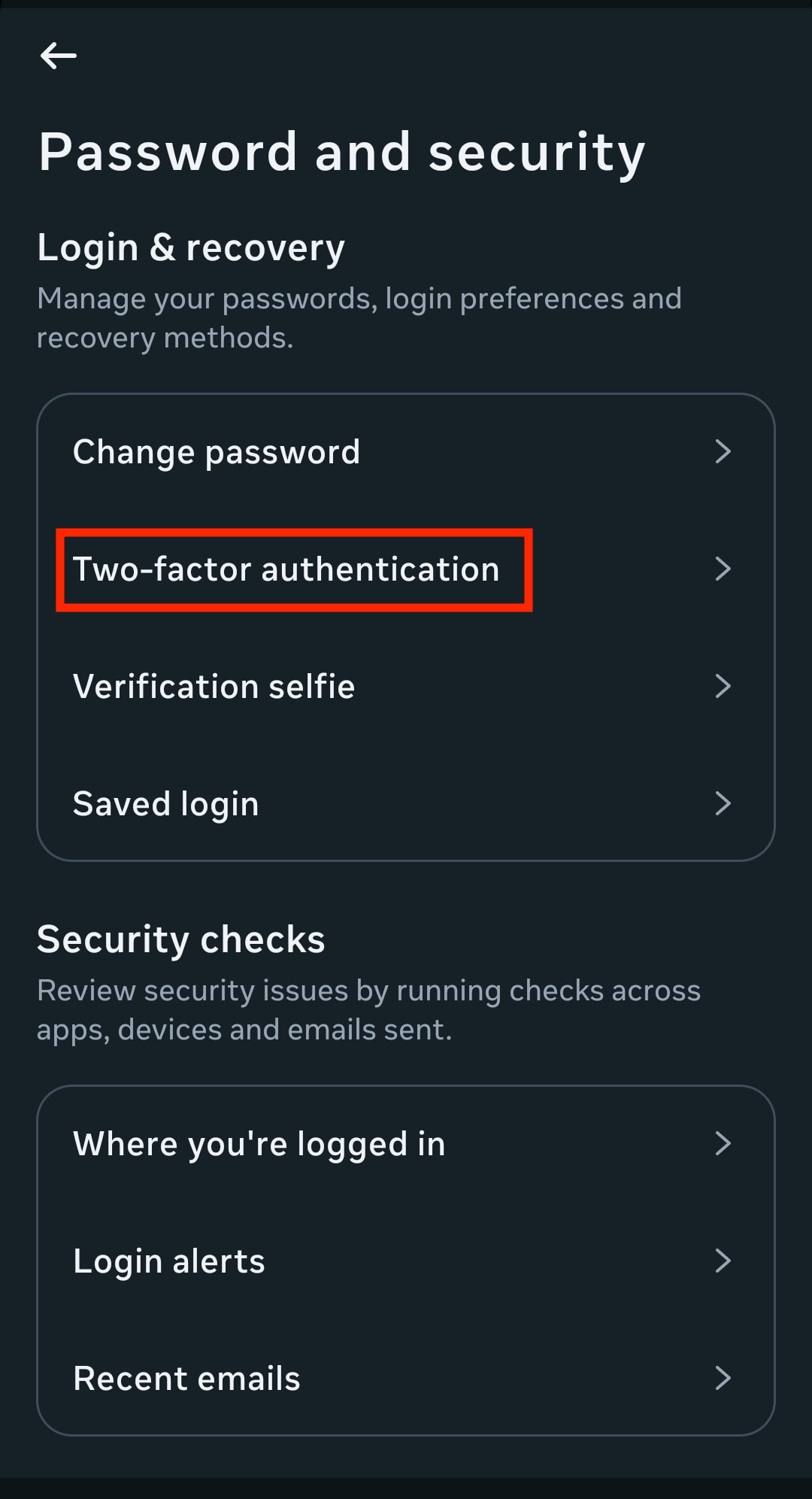
- En tu aplicación de Instagram, abre el Centro de cuentas.
- Ve a Contraseña y seguridad.
- Selecciona Autenticación de dos factores y elige una cuenta.
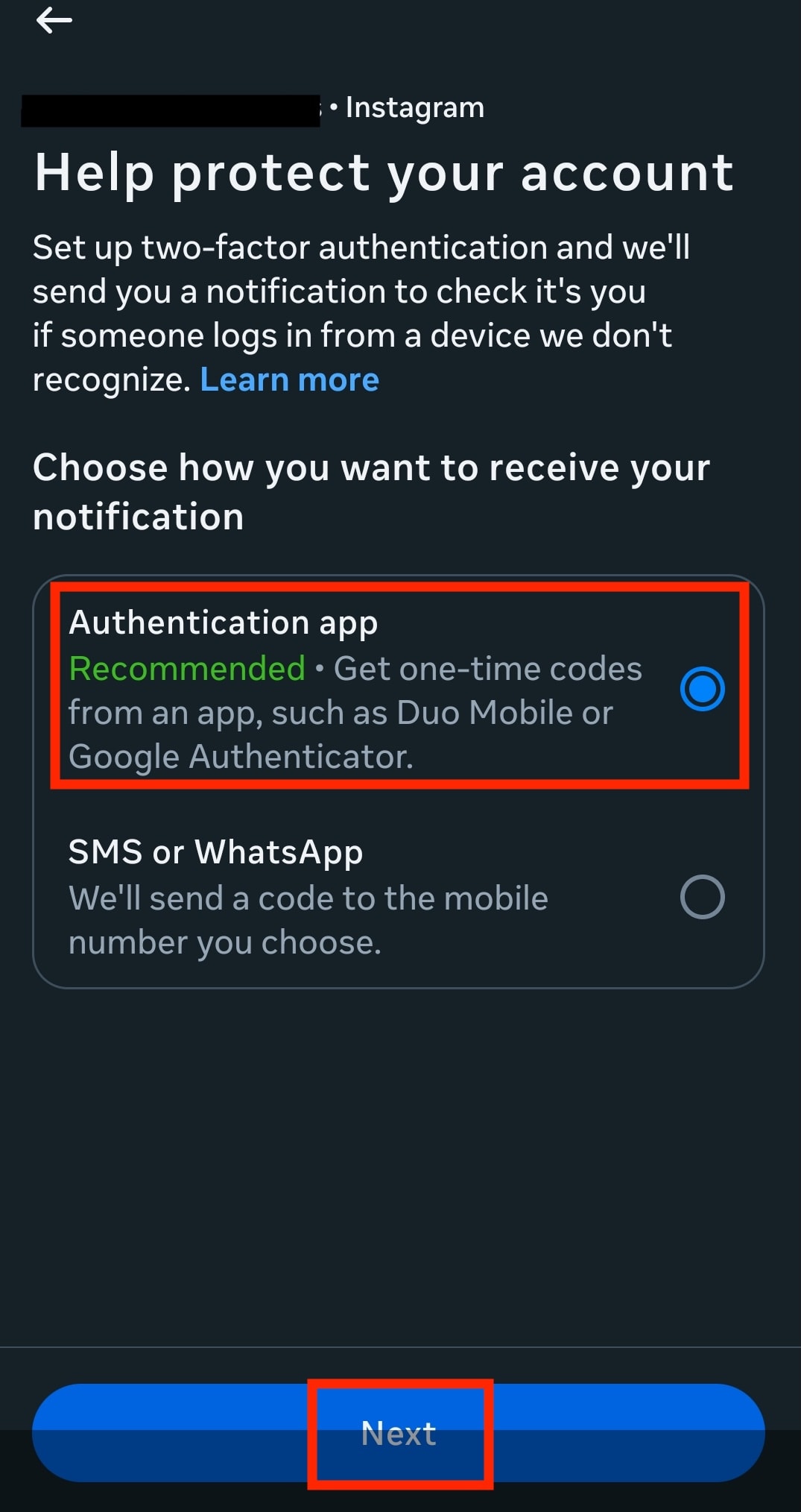
- Elige Aplicación de autenticación y haz clic o pulsa en Siguiente.
- Selecciona Copiar clave y luego Siguiente.

- Abre la aplicación Proton Pass y busca tu entrada de Instagram. Si aún no la has guardado, añade primero tu inicio de sesión de Instagram.
- Pulsa Editar, añade la clave de Instagram a Clave secreta 2FA (TOTP) y guarda los cambios.

- Pulsa Token 2FA (TOTP) para copiar la clave.

- Vuelve a la aplicación de Instagram, pega la clave y pulsa Siguiente para finalizar la configuración.
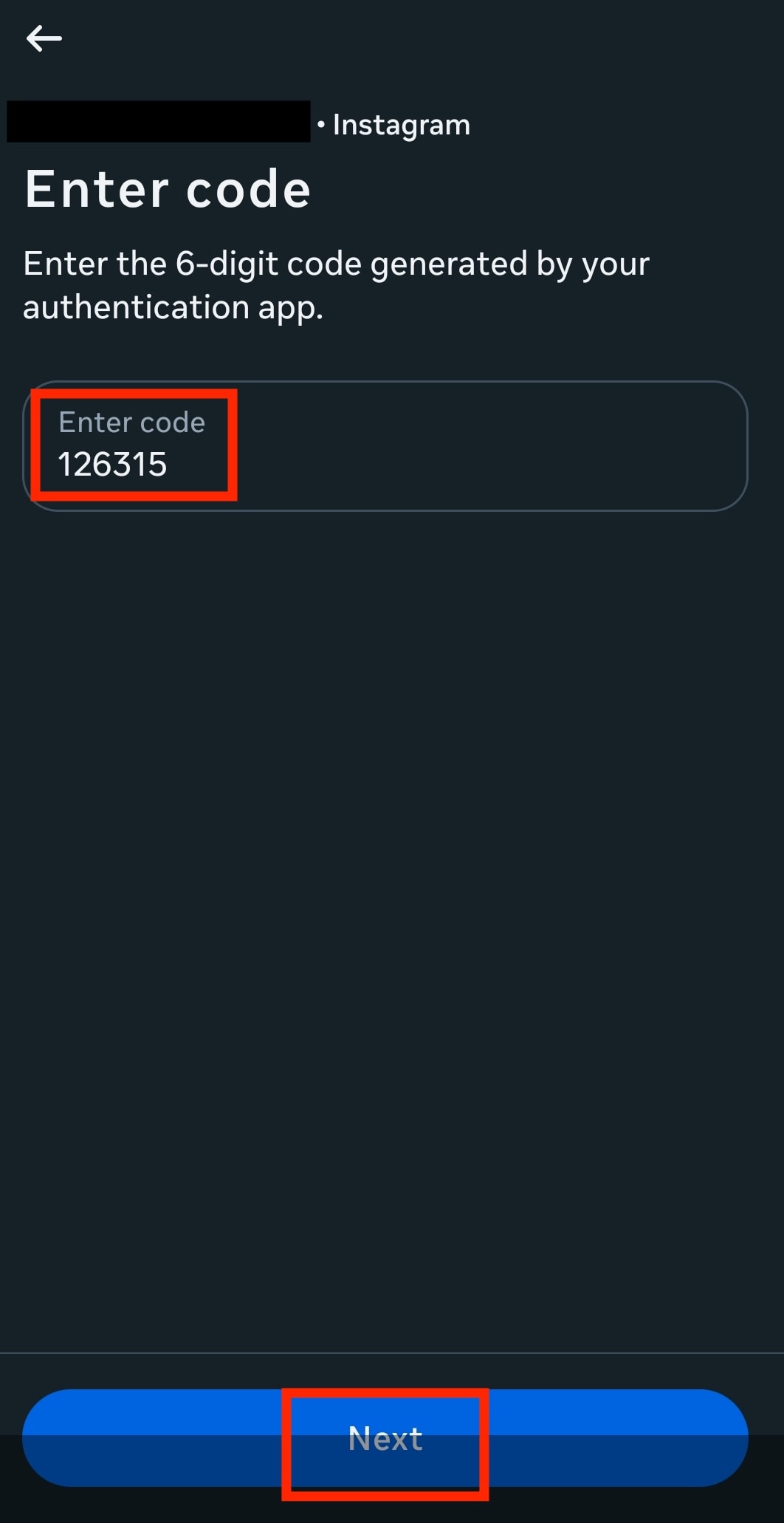
Cuando inicies sesión en tu cuenta de Instagram, se te pedirá que ingreses el código 2FA almacenado en tu cuenta de Proton Pass después de enviar tu contraseña de Instagram.
Igual de importante, Instagram te alertará cuando un intento de inicio de sesión requiera verificación. Si recibes tal aviso sin intentar iniciar sesión tú mismo, es una señal clara de que alguien más está intentando acceder a tu cuenta, y puedes cambiar tu contraseña.
Proton Pass identifica automáticamente contraseñas débiles o reutilizadas, y 2FA inactiva. También puedes usar el Monitoreo de la Dark Web para recibir alertas si tu correo electrónico y contraseña fueron parte de una vulneración de datos.
Cuidado con los correos electrónicos y mensajes de texto inesperados
Los atacantes a menudo explotan la confusión enviando mensajes de seguimiento que parecen similares pero son falsos, empujándote a actuar rápido. Ten especial cuidado con los mensajes directos que afirman ser del soporte de Meta, y los textos o correos electrónicos que exigen acción inmediata o códigos de verificación.
Mantente seguro con Proton Pass
Proton Pass es un gestor de contraseñas gratuito que protege tus datos con cifrado de extremo a extremo, lo que significa que nadie más que tú puede acceder a tus datos. Ni siquiera nosotros. Te ayuda a mantenerte por delante de las amenazas en evolución asegurando tus credenciales, incluidos los códigos 2FA. Además, Pass puede detectar contraseñas débiles o reutilizadas o 2FA inactiva, y alertarte si tu información aparece en una vulneración, para que puedas actuar antes que los atacantes.