Comment configurer le verrouillage par Face ID, Touch ID et code PIN sur l’application Proton Mail pour iOS
- Lecture
- 2 minutes
- Catégorie
- Sécurité mobile
Lors de votre première connexion aux applications Proton Mail pour iPhone et iPad(nouvelle fenêtre), votre mot de passe de connexion est enregistré en toute sécurité sur votre appareil pour vous permettre d’accéder facilement à vos e-mails chiffrés et d’en envoyer.
Pour ajouter une couche de protection supplémentaire, l’application Proton Mail sur votre iPhone ou iPad peut être verrouillée automatiquement avec Face ID (si votre appareil en dispose), Touch ID ou un code PIN. Vous pouvez configurer ces options pour verrouiller votre compte après un certain délai ou à chaque fois que vous ouvrez l’application.
Vous devez choisir une option (Face ID/Touch ID/code PIN) lorsque vous configurez le verrouillage automatique. Vous ne pouvez pas utiliser un code PIN et Face ID/Touch ID en même temps.
Si vous oubliez votre code PIN ou si l’authentification par Face ID/Touch ID échoue, l’application vous demandera de saisir le code PIN de votre appareil.
- Comment configurer Face ID ou Touch ID
- Comment configurer un code PIN
- Comment définir le délai de verrouillage automatique
Comment configurer Face ID ou Touch ID
- Assurez-vous d’avoir défini un code d’accès(nouvelle fenêtre) dans les Paramètres système de votre iPhone ou iPad.
- Ouvrez l’application Proton Mail et connectez-vous avec votre compte Proton.
- Appuyez sur ☰ et ouvrez les Paramètres.

- Allez dans Personnalisations de l’application.

- Sélectionnez Verrouillage de l’application.

- Appuyez sur Sécuriser avec Face ID ou Sécuriser avec Touch ID, selon votre appareil.

Vous pouvez maintenant sélectionner :
- Verrouillage automatique pour définir le délai avant le verrouillage automatique
- Ne pas verrouiller pour désactiver Face ID ou Touch ID
Comment configurer un code PIN
- Ouvrez l’application Proton Mail et connectez-vous avec votre compte Proton.
- Appuyez sur ☰ et ouvrez les Paramètres.
- Allez dans Personnalisations de l’application.
- Sélectionnez Sécuriser avec code PIN.

- Saisissez un code PIN, puis appuyez sur Continuer et confirmez-le.

Vous pouvez maintenant sélectionner :
- Verrouillage automatique pour définir le délai avant le verrouillage automatique
- Modifier le code PIN pour saisir un nouveau code PIN
- Ne pas verrouiller pour désactiver le code PIN
Comment définir le délai de verrouillage automatique
Le délai de verrouillage automatique est la durée après laquelle votre compte se verrouille automatiquement, nécessitant Face ID/Touch ID ou votre code PIN pour être déverrouillé.
- Ouvrez l’application Proton Mail et connectez-vous avec votre compte Proton.
- Appuyez sur ☰ et ouvrez les Paramètres.
- Allez dans Personnalisations de l’application.
- Sélectionnez Verrouillage de l’application, puis Verrouillage automatique.
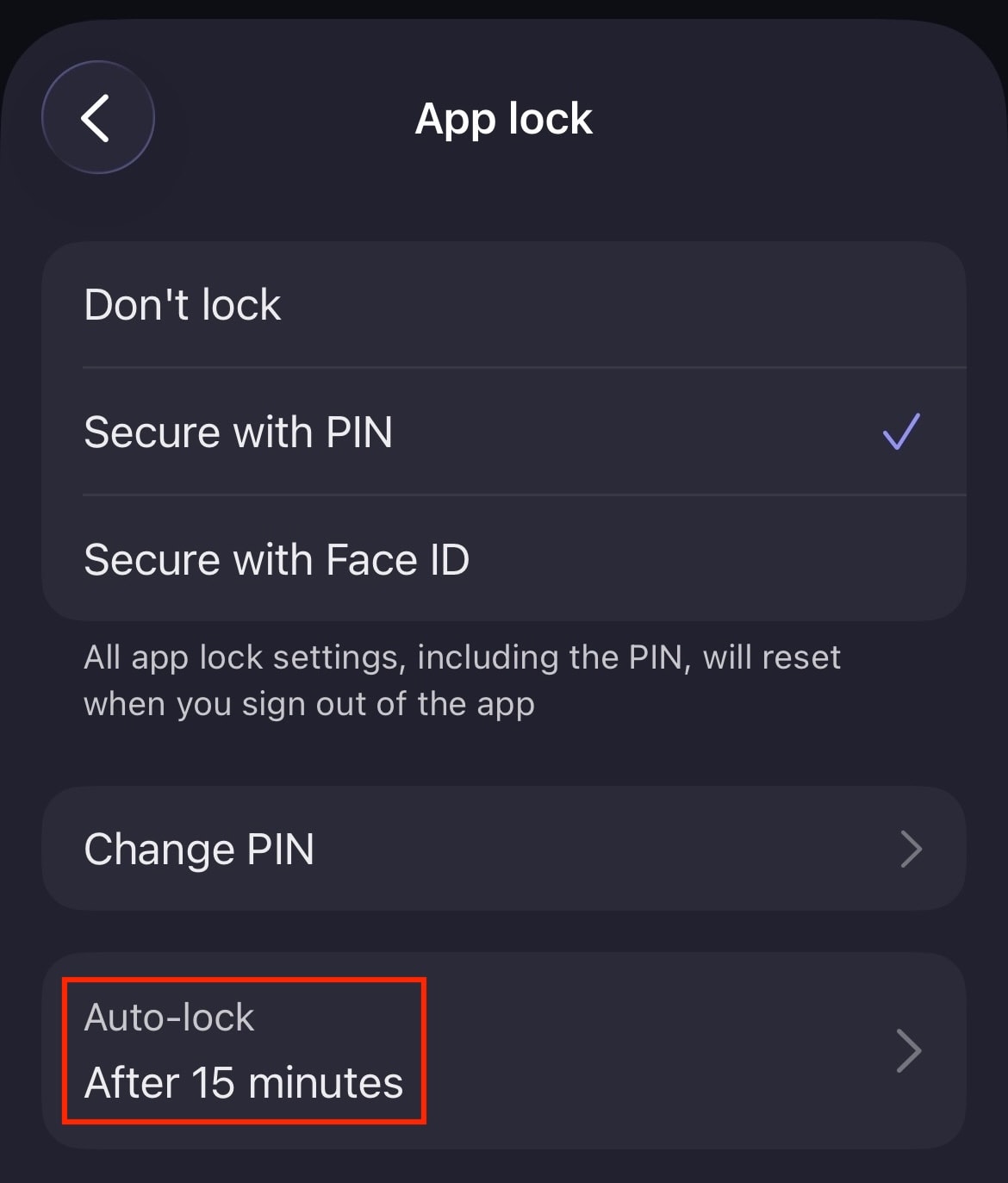
- Définissez le délai de verrouillage automatique de votre choix, allant de Immédiatement à Après 60 minutes.