If you’ve ever been locked out of your account, you’ll know what a relief it is when you can find and use your backup codes to gain access.
This guide explains why you need backup codes, where to store them securely, and how to find them when you need them.
What are backup codes?
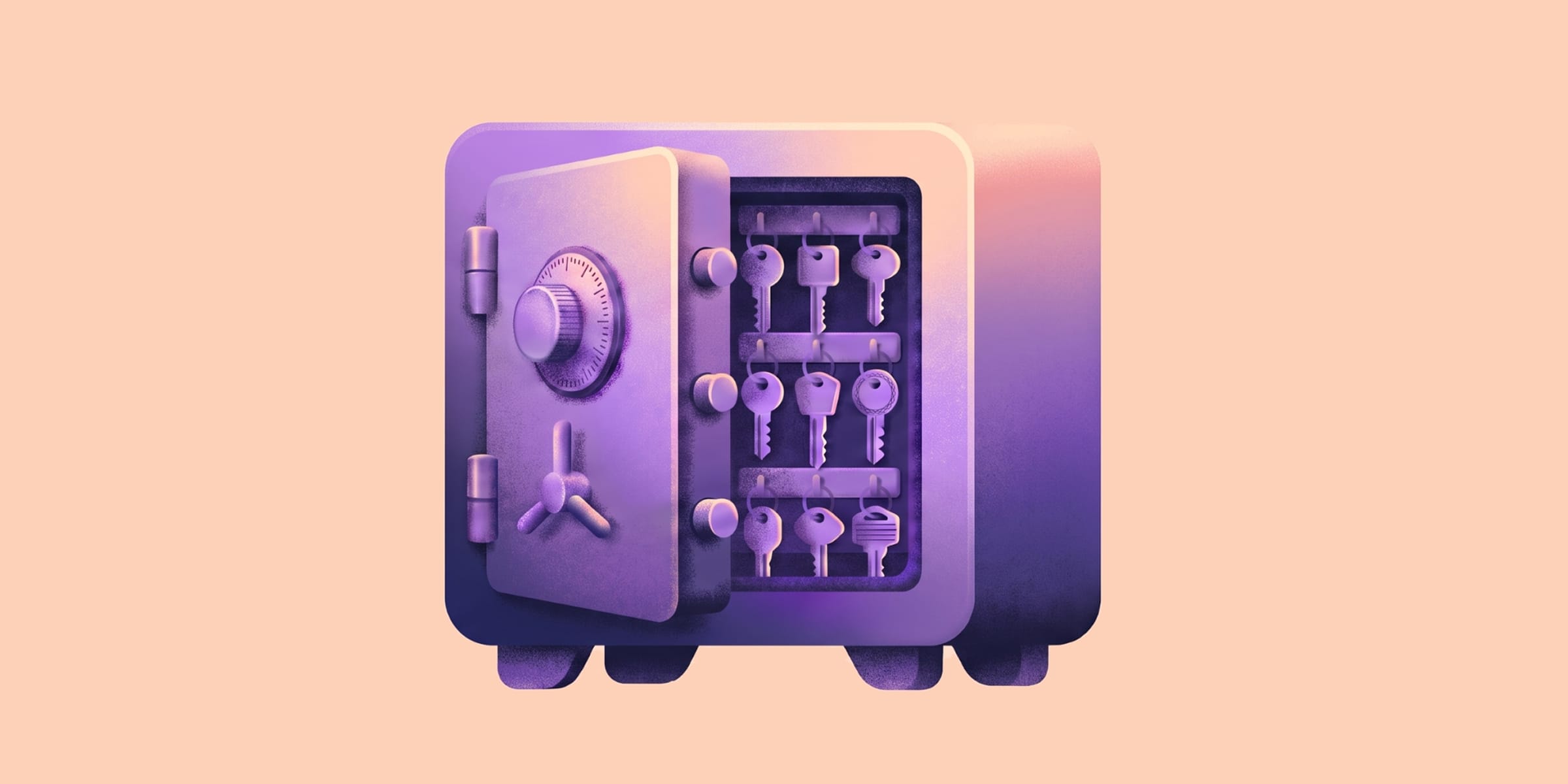
A backup code, or recovery code, is the equivalent of a spare key. It’s a way into your accounts if you get locked out and can’t access them through your normal method.
Backup codes are usually provided when you set up an account. You’ll get a set of up to ten random strings, each one only valid for a single use.
If you didn’t get any backup codes or can’t remember where you saved them, you can usually go into your privacy settings and generate a new set of backup codes.
When do you need backup codes?
Mostly, you won’t need your backup codes. A successful login process won’t require a backup verification code, and, thanks to password managers, logins are both easier and more secure than ever.
Here’s what a successful login often looks like:
- Enter your credentials: This is usually a username and password, which can be saved in your password manager.
- Provide your second factor authentication: The most secure logins require two-factor authentication (2FA) or multi-factor authentication (MFA). The first factor is your password, and second factors can include biometric information, an OTP via text message or email, a security key, or a TOTP from an authenticator app.
Multiple factors make your account more secure, but they can create a problem, too; what happens if you lose access to your second factor? This is when you need a backup code.
When to use a backup code
You may need to use a backup or recovery code if:
- You’ve lost your phone, YubiKey, or other second-factor device
- You’ve upgraded to a new phone and your authenticator app or security key setup didn’t carry over
- Your authenticator app was deleted, reset, or stopped syncing
- Your phone number changed, so you can no longer receive SMS verification codes
Where to look for saved backup codes when you need them
You’re pretty sure you saved your recovery codes “somewhere safe”, but it can be hard to find them when you actually need them.
Here are some of the most common places people save their backup codes, starting with the ones you probably shouldn’t rely on.
Your Notes app (not recommended)
The Notes app is an easy spot to scribble down ideas, phone numbers, and random bits of information.
It’s usually intended as a temporary space, but it’s often where things like backup codes, PINs, passwords, and phone numbers end up living permanently.
The problem is that most notes apps aren’t encrypted, they often sync in plain text to a cloud server, and they’re readable by anyone holding your unlocked phone.
If you find your backup codes here, use them then move them somewhere more secure.
Your email drafts (not recommended)
Email drafts are the other classic “temporary” dumping ground. But your email is synced across every device you’ve signed in on, and your drafts can stick around for weeks in your trash, even after you delete them.
Plus there’s another catch that makes email drafts risky for backup codes: if your account’s recovery email is the same one whose drafts folder is holding your backup codes, you won’t be able to access your backup codes when you need them.
Your password manager (recommended)
If you’re going to save your backup codes somewhere digital, your password manager is the place. Storing them alongside your login details means the code is exactly where you need it — right alongside the password it’s intended to rescue.
Unlike your notes app or email drafts, a password manager encrypts your data before it ever leaves your device. It’s the best combination of convenience (everything in one place) and security (zero-access encryption), which is why it’s one of our recommended ways to store backup codes.
Hint: Don’t store your backup codes(nowe okno) for your password manager inside your password manager.
How to store backup codes
Your workplace will often dictate how and where you should save your backup codes. But if it’s up to you, or you want to go above and beyond, here are some best practices for storing backup codes.
Keep any digital copies of your backup codes stored in an encrypted or password-protected environment
A plain-text file, an unencrypted note, or an unprotected spreadsheet is readable by anyone who gets access to your device, and often by anyone who gets access to your cloud storage, since files sitting in sync folders are typically not encrypted on the server side.
Encrypted storage means a stolen laptop or a breached cloud account doesn’t also hand over the keys to everything protected by 2FA.
Print out a copy of essential backup codes and store them in a secure physical location
A paper copy isn’t going to be impacted by a broken, lost, or stolen laptop, a locked device, or a service you’re locked out of.
Just be sure to treat the printout of your backup codes with the importance it deserves, and put it in a lockbox or safe, rather than on your desk or in a junk drawer.
Keep two copies, in two different formats, in two different places
Digital plus physical is the standard pairing, and keeping them in different places reduces the risk of losing both.
What not to do when storing backup codes
Don’t store your backup codes inside the service the codes are for
If you get locked out of your password manager but that’s where your backup codes are, you won’t be able to use them to regain access. This is the equivalent of keeping a spare key for your house inside your house in case you get locked out.
Don’t store your backup codes on your device, or on a piece of paper next to your device
If your device is stolen or accessed without your permission, this makes it very easy for someone to skip your second factor and gain access to your accounts. This is like taping your spare key to your front door.
Don’t screenshot your backup codes
Most phones auto-upload photos to cloud libraries, sync to family-shared albums, and get scanned by search features that can find text in any image.
Searching “backup codes” in your photo library will probably surface them, which means that (like Notes) anyone with your unlocked phone can access them, too.
Where to find or generate backup codes in your settings
Backup codes for Google
Desktop steps
- Go to your Google Account at myaccount.google.com
- In the left navigation panel, click Security & sign-in

- Under How you sign in to Google, select 2-Step Verification → Backup codes
- If you don’t have existing backup codes, you can select Get backup codes to generate your first set of backup codes
- Once you have backup codes, you can generate a new set of backup codes by clicking the refresh arrow button

- Print, download, or copy the codes
Android steps
- Open the Settings app
- Tap Google Services
- At the top, tap your name and email address
- Tap Google Account → Security and sign-in
- Under How you sign in to Google, tap 2-Step Verification
- Under Backup codes, tap Continue
- Tap Get backup codes, or Refresh to generate a new set
- Print or download the codes
Backup codes for Facebook
- Click on your profile picture in the top right of Facebook
- Select Settings & privacy → Settings
- Select Accounts Center → Login and security
- Select Two-factor authentication, then select the account you want codes for (you may need to re-enter your password)

- Under How you get login codes, select Additional methods → Recovery codes
- Copy or download codes, or select Get new codes to generate a new set
Backup codes for Proton
- Sign in to account.proton.me and select Settings
- Select Account and password → Two-factor authentication
- Toggle on the Authenticator app and pair your authenticator app via QR code or by entering the key manually

- Enter your password and the 2FA code to confirm
- Save your recovery codes
Read more: Set up two-factor authentication (2FA) with an authenticator app
Are backup codes secure?
Broadly speaking, yes — but like passwords, backup codes are only as secure as where you keep them. A 20-character password that ticks every box is worthless if it’s on a post-it stuck to your laptop. The same goes for your backup codes.
What makes backup codes safe?
Backup codes are built with several safeguards. They’re randomly generated, which makes them effectively impossible to guess.
They’re single-use, so the moment one is redeemed, it’s dead. And they live inside your account’s security settings, behind your password, so viewing or regenerating them requires proving you’re the account owner.
On most platforms, you can also generate a fresh set at any time, which instantly invalidates the old one — useful if you suspect your codes have been compromised.
What makes backup codes risky?
The risk isn’t the codes themselves, it’s that they are deliberately designed to skip your second factor, which means that anyone holding one only needs your password to get in.
Unlike the rotating codes from an authenticator app, backup codes are static. This means a carelessly stored code is more than just a fleeting risk.
Social engineering is another risk factor for backup codes. Scammers who already have your password could call or message pretending to be your provider’s support team, and ask you to read out a backup code to verify your identity.
No legitimate service will ever ask for one outside the sign-in screen — if someone asks, it’s a scam.
Keep your backup codes safe and within reach with a password manager
Backup codes only protect you if they’re stored somewhere both secure and easy to reach.
A business password manager like Proton Pass keeps your recovery codes end-to-end encrypted, right next to the logins they’re meant to rescue, so that you don’t get locked out of the accounts that you depend on for your work.
FAQ about backup codes
What happens if you run out of backup codes?
Go back to your account’s security settings and generate a new set. Most platforms let you do this at any time. Note that generating a new set usually invalidates any remaining old codes, so save the new set before you need them.
Do backup codes expire?
No, backup codes generally don’t expire, they remain valid until you use them or generate a replacement set.
Can I use a backup code twice?
No, each backup code works once. As soon as you use it to sign in, it becomes permanently inactive by design.
Can I reuse a backup code after regenerating?
No, when you regenerate your set of backup codes, the old set is invalidated. If you saved your codes digitally, replace the old set with the new set wherever you’ve stored it.