
Vous craignez que votre Android ait attrapé un logiciel malveillant ? Ce guide pratique vous explique exactement ce qu’il faut faire ensuite : comment vérifier si votre téléphone contient des logiciels malveillants et comment les retirer. Pas d’outils payants, pas de jargon, pas de conjectures.
Avant de télécharger un « nettoyeur de virus », lisez ceci
Votre premier réflexe en constatant un signe potentiel d’infection peut être de rechercher « virus cleaner » sur le Google Play Store. Mais cela constitue en soi un risque de logiciel malveillant.
Les applications malveillantes sont fréquentes sur le Play Store. Pour la seule année 2025, Google a bloqué de la plateforme 1,75 million d’applications enfreignant son règlement(nouvelle fenêtre) et a identifié 27 millions de nouvelles applications malveillantes extérieures à l’écosystème. Les faux antivirus et applications de « nettoyage » font partie des déguisements les plus courants.
Si vous avez déjà téléchargé un nettoyeur de virus non vérifié, ne vous inquiétez pas : quel que soit le logiciel malveillant présent sur votre Android, il devrait être détecté et éliminé en suivant les cinq étapes ci-dessous.
Cinq étapes pour retirer un logiciel malveillant d’Android
Les captures d’écran de ce guide ont été prises sur un Pixel fonctionnant sous Android 16. Les étapes sont les mêmes sur les autres appareils Android (10–15), mais le nom des menus peut légèrement différer.
Les utilisateurs de Samsung en particulier peuvent constater que certains chemins d’accès sont nommés différemment. Le cas échéant, nous avons indiqué l’équivalent pour Samsung.
Étape 1 : Lancer une analyse avec Play Protect
Play Protect analyse automatiquement les appareils Android pour détecter les logiciels malveillants, mais certains utilisateurs le désactivent accidentellement, ou se le voient conseiller par des sources en ligne douteuses. Avant de lancer une analyse, confirmez que la fonctionnalité est bien activée.
Pour vérifier :
- Ouvrez le Google Play Store → appuyez sur votre icône de profil → appuyez sur Play Protect → appuyez sur l’icône des paramètres (engrenage, en haut à droite) → confirmez que l’option Analyser les applications avec Play Protect est activée
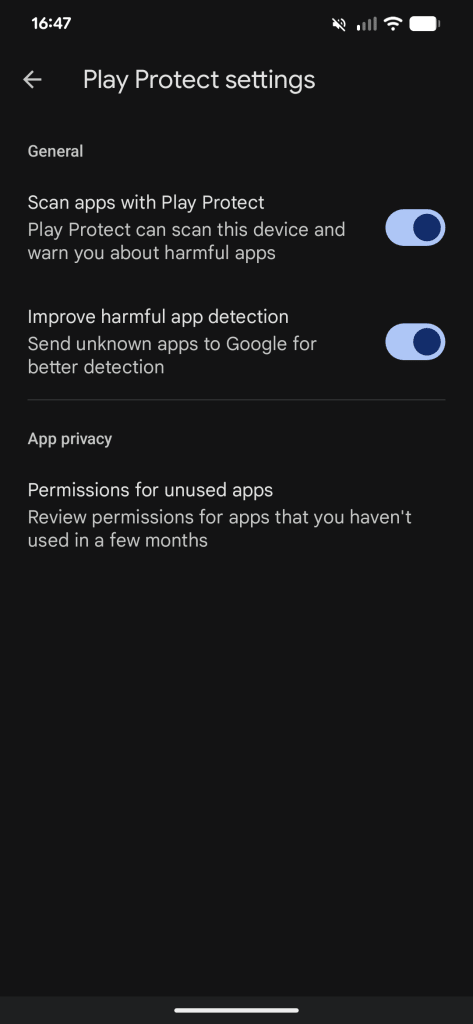
Lancez maintenant l’analyse :
- Ouvrez le Google Play Store → appuyez sur l’icône de profil (en haut à droite) → Play Protect → Analyser
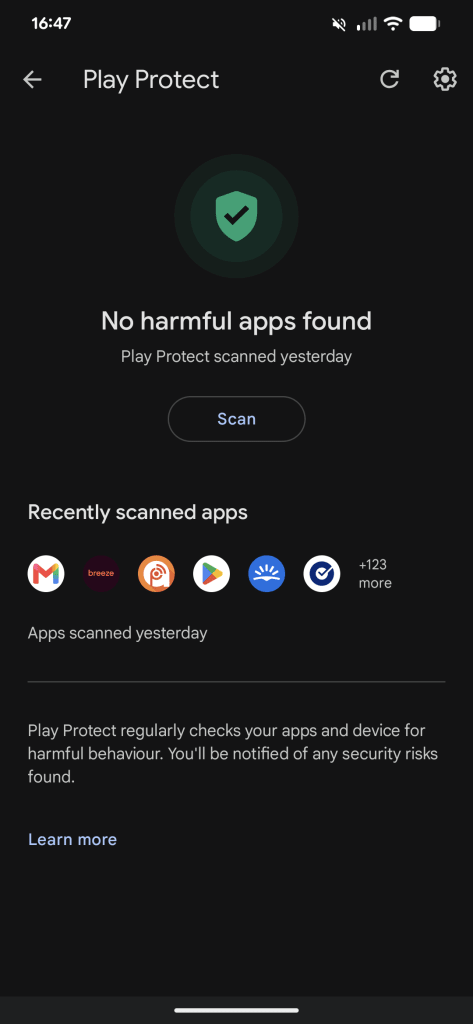
Si vous avez installé des applications de sources inconnues (c’est-à-dire téléchargé des applications en dehors du Play Store), vous pouvez activer l’option Améliorer la détection des applications nocives sur l’écran des paramètres de Play Protect pour une analyse plus approfondie.
Note: This will automatically send unrecognized apps to Google while it’s active. If you’d prefer not to share this data on an ongoing basis, turn it off again once the scan’s completed.
Étape 2 : Rechercher des mises à jour du système d’exploitation (OS)
Les logiciels malveillants exploitent souvent les vulnérabilités de logiciels obsolètes. Si votre système d’exploitation ou vos correctifs de sécurité ne sont pas à jour, une infection que vous venez de nettoyer peut se réinstaller par la même faille (ou une nouvelle peut s’infiltrer pendant que vous traitez la première).
- Pixel : Paramètres → Système → Mises à jour logicielles
- Samsung : Paramètres → Mise à jour logicielle → Téléchargement et installation
- Autres appareils : recherchez une option de mise à jour du système ou du logiciel dans les paramètres
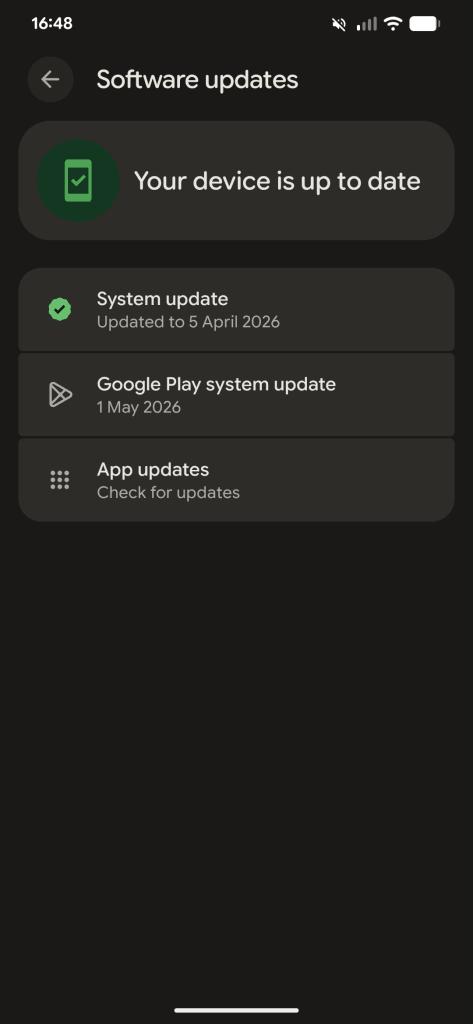
Si vous voyez un message tel que « Votre système est à jour » (comme illustré ci-dessous sur un appareil Samsung), passez à l’étape trois. Sinon, installez la mise à jour disponible avant de continuer.

Étape 3 : Trouver et retirer les applications suspectes
Play Protect signale les menaces connues. Cette étape vous permet de détecter tout ce qu’il a pu manquer : des applications soumises comme propres puis mises à jour ultérieurement pour se comporter de manière malveillante, ou des applications de collecte de données qui n’atteignent pas le seuil d’une classification de logiciel malveillant.
Appuyez sur Paramètres → Applications → Afficher toutes les applications. (Les utilisateurs de Samsung peuvent voir toutes les applications affichées par défaut sans avoir à appuyer une seconde fois, comme le montre la deuxième capture d’écran).
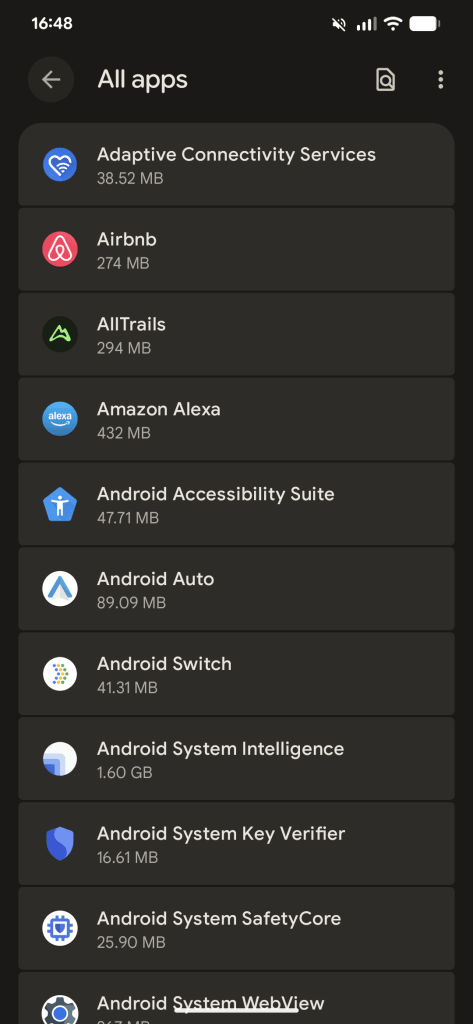
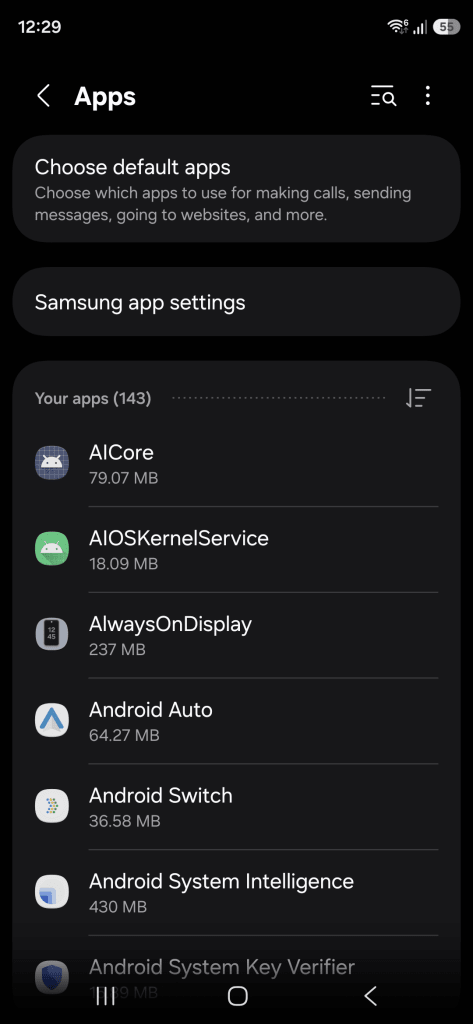
Recherchez :
- Des applications que vous ne reconnaissez pas
- Des applications avec des noms génériques évoquant le système (par exemple, « System Service », « Phone Manager »)
- Des applications installées au moment où les problèmes ont commencé (appuyez sur chaque application pour voir sa date d’installation)
Si vous trouvez quelque chose de suspect, appuyez sur l’application → Désinstaller.
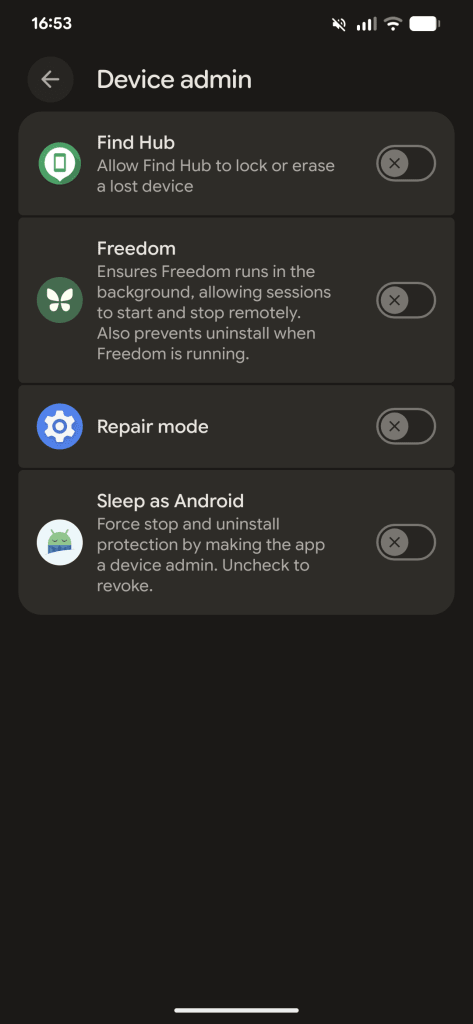
Si l’option Désinstaller est grisée, l’application dispose peut-être de privilèges d’administrateur de l’appareil. Allez dans Paramètres → Sécurité et confidentialité → Autres paramètres de sécurité et de confidentialité → Applications d’administration de l’appareil.
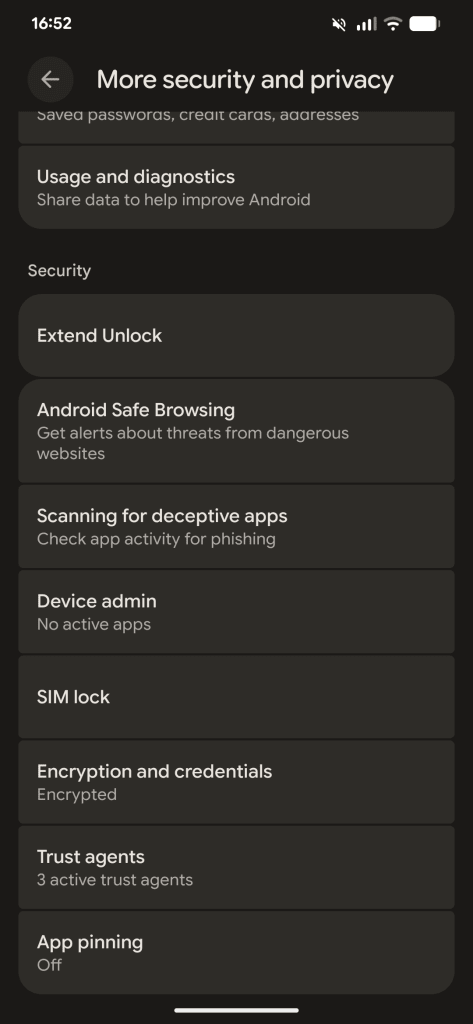
Révoquez ses privilèges, puis revenez pour la désinstaller.
Pour révoquer les privilèges d’administration de l’appareil pour une application sur un appareil Samsung, ouvrez Paramètres → Sécurité et confidentialité → Autres paramètres de sécurité.
Appuyez sur Applications d’administration de l’appareil (parfois répertorié sous « Autres paramètres de sécurité » → « Applications d’administration de l’appareil ») et vous verrez une liste d’applications disposant de privilèges d’administration.
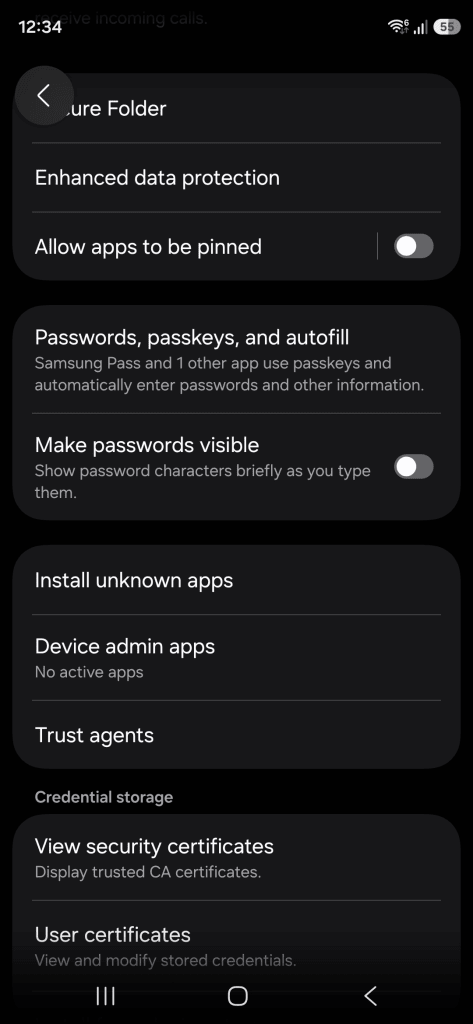
Choisissez l’application pour laquelle vous souhaitez révoquer les privilèges d’administration → appuyez sur Désactiver (ou désactivez l’interrupteur)

Vous pouvez recevoir un avertissement concernant ce que cette application ne pourra plus faire (par exemple, effacement à distance, application de mots de passe) — confirmez pour continuer
Si une application ne se désinstalle toujours pas, même après avoir révoqué les privilèges d’administration, redémarrez votre appareil en mode sans échec.
En mode sans échec, seules les applications système peuvent s’exécuter ; les applications tierces ne le peuvent pas, et ne peuvent donc pas bloquer leur propre suppression.
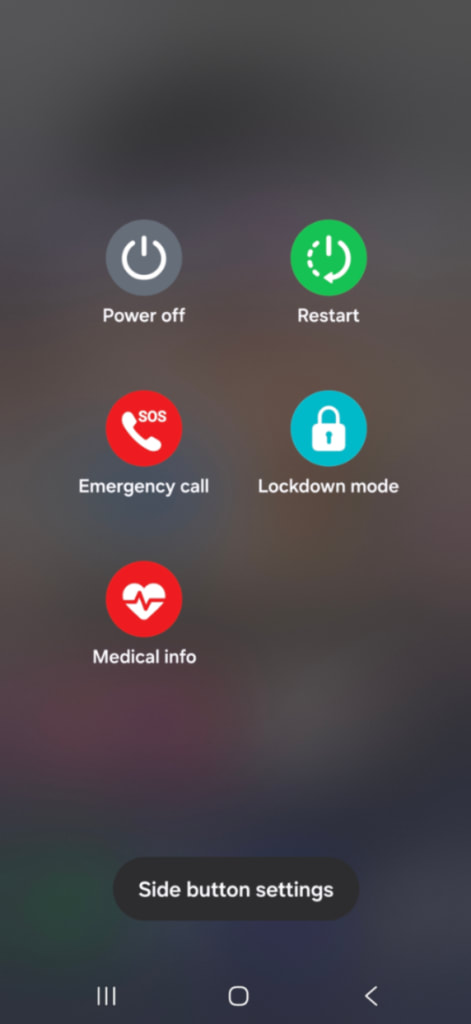
Pour passer en mode sans échec :
- Appuyez longuement sur le bouton d’alimentation → appuyez longuement sur Éteindre jusqu’à ce que « Redémarrer en mode sans échec » s’affiche → appuyez sur OK


Remarque : la méthode exacte varie selon l’appareil. Sur certains modèles Samsung, vous devez appuyer longuement sur Éteindre à l’écran plutôt que de maintenir le bouton physique enfoncé, comme illustré ci-dessous.

Si aucune de ces méthodes ne fonctionne, recherchez sur Google « mode sans échec » suivi du modèle de votre appareil.
Une fois en mode sans échec, essayez de nouveau de désinstaller l’application en suivant le même chemin : Paramètres → Applications → Afficher toutes les applications. Pour quitter le mode sans échec, redémarrez votre appareil normalement.
Étape 4 : Lancer une analyse secondaire avec un outil gratuit (et fiable)
Si les trois premières étapes n’ont pas résolu le problème, il est temps de lancer une analyse secondaire avec un outil fiable.
Comme indiqué plus haut, de nombreuses applications d’« analyse » sont elles-mêmes malveillantes. Nous recommandons Malwarebytes (que vous pouvez télécharger sur le Play Store(nouvelle fenêtre)). Il est recommandé par les chercheurs en sécurité, régulièrement bien noté, et la version gratuite est suffisante pour une analyse ponctuelle.
Assurez-vous simplement que le Malwarebytes que vous avez trouvé est authentique avant de l’installer : le nom du développeur (qui apparaît en texte bleu directement sous le titre principal de l’application et sa note) doit être Malwarebytes.
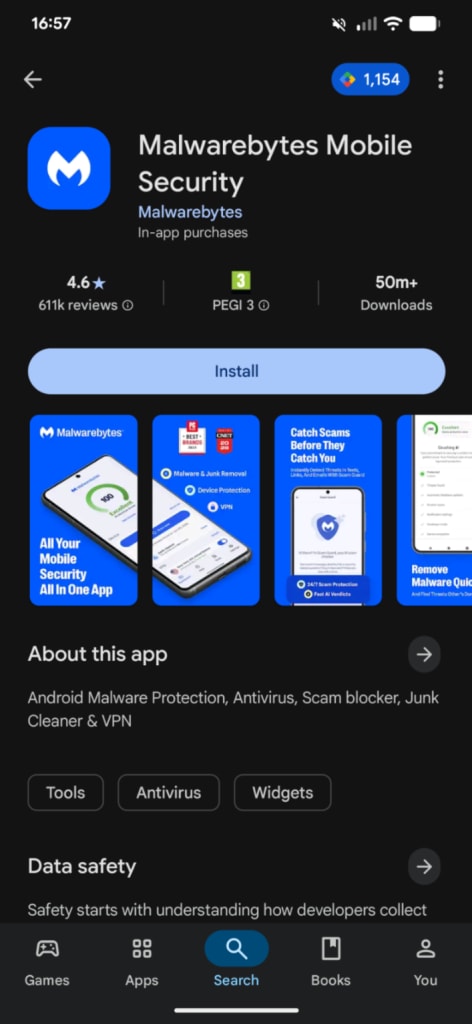
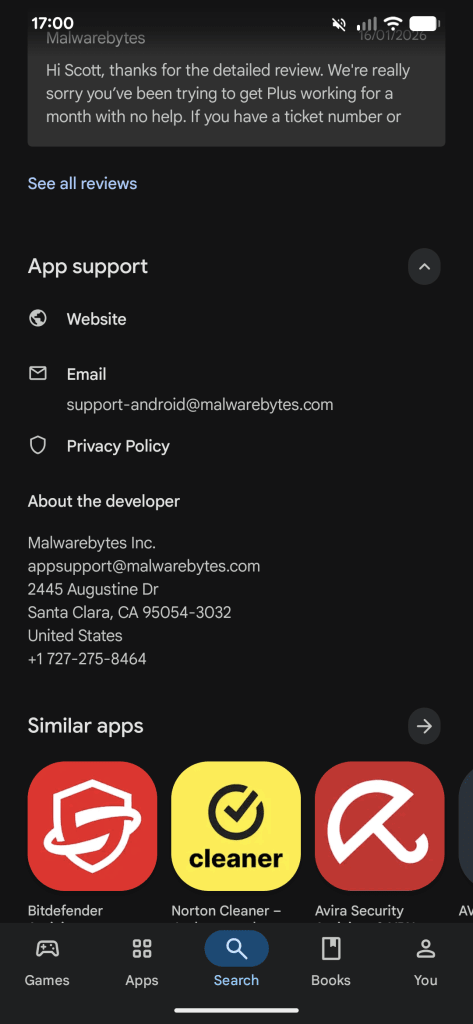
Vérifiez les sections Coordonnées du développeur ou Assistance de l’application pour trouver l’e-mail de contact officiel du développeur, son adresse physique et un lien vers son site internet. Ce site internet doit être malwarebytes.com(nouvelle fenêtre).
Une fois installé : ouvrez Malwarebytes → lancez une analyse (cela prend généralement 5 à 20 minutes) → appuyez sur Quarantaine pour retirer toutes les menaces détectées.
Étape 5 : Effectuer un contrôle de sécurité
Votre appareil devrait maintenant être propre, mais l’infection a peut-être déjà compromis l’accès à votre compte en interceptant vos identifiants, en lisant vos SMS ou en enregistrant vos frappes au clavier.
Pour confirmer que votre compte Google n’a pas été compromis, rendez-vous sur myaccount.google.com/security-checkup(nouvelle fenêtre) et effectuez les vérifications suivantes :
- Vérifiez s’il y a des appareils inconnus connectés à votre compte
- Revoke access for any third-party apps you don’t recognize
- Review recent security activity for anything suspicious
Changez les mots de passe de tous les comptes (Google ou autres) qui ont pu être compromis.
En dernier recours : réinitialisation d’usine
Une réinitialisation d’usine efface complètement votre appareil et ne doit être tentée qu’après avoir suivi les cinq étapes ci-dessus. Elle est efficace, éliminant même les infections les plus profondes, mais elle est aussi irréversible.
Tout ce qui n’est pas sauvegardé disparaîtra. Avant de réinitialiser, sauvegardez donc vos photos et vos fichiers sur un espace de stockage cloud (Proton Drive ou équivalent).
Une fois la réinitialisation terminée, ne restaurez pas vos données à partir d’une sauvegarde complète, car cela pourrait réintroduire le logiciel malveillant que vous venez de retirer. Réinstallez plutôt manuellement des applications de confiance à partir du Play Store.
Suivez ces instructions :
- Pixel : Paramètres → Système → Options de réinitialisation → Effacer toutes les données (rétablir la configuration d’usine)
- Samsung : Paramètres → Gestion globale → Réinitialisation → Réinitialiser toutes les données
L’écran des options de réinitialisation sur un Pixel
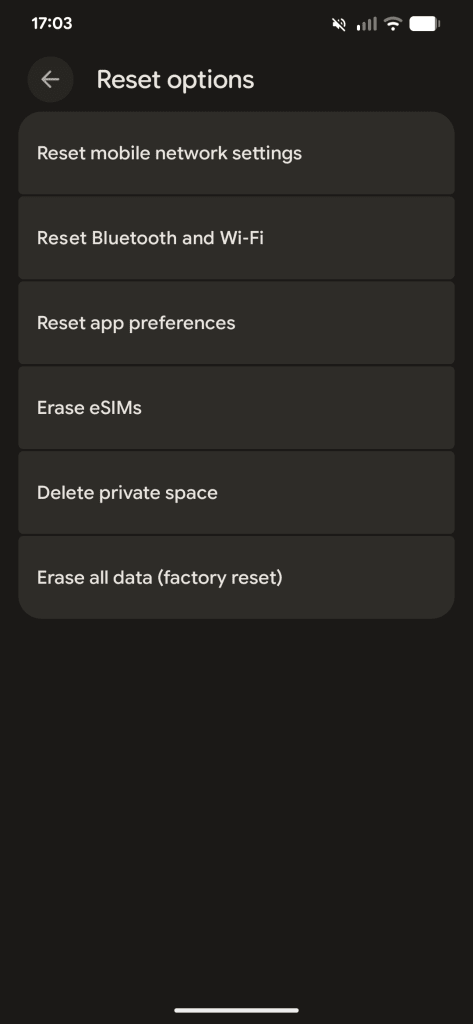
L’écran des options de réinitialisation sur un Samsung

Comment éviter que des logiciels malveillants n’infectent à nouveau votre appareil
Il se peut que vous ne parveniez pas à identifier précisément comment le logiciel malveillant s’est introduit sur votre appareil. Voici quelques moyens d’éviter que cela ne se reproduise :
- Maintenez votre système d’exploitation et vos applications à jour : les logiciels obsolètes constituent l’un des points d’entrée les plus courants, comme expliqué à l’étape deux ci-dessus
- Faites attention à ce que vous installez : limitez-vous au Play Store, vérifiez le nom des développeurs et les avis avant de procéder à l’installation, et méfiez-vous particulièrement des applications utilitaires gratuites. Notre guide complet sur les applications malveillantes du Play Store détaille les éléments à vérifier avant d’appuyer sur Installer
- Utilisez un VPN sur les réseaux wifi publics : les réseaux non sécurisés sont un vecteur courant d’interception d’identifiants. Proton VPN est un VPN sécurisé(nouvelle fenêtre) qui chiffre votre connexion afin que votre trafic ne puisse pas être lu en transit
- Utilisez des mots de passe uniques pour chaque compte : si un logiciel malveillant a exposé un mot de passe que vous avez réutilisé sur plusieurs comptes, chacun d’eux est désormais menacé. Proton Pass est un gestionnaire de mots de passe sécurisé qui génère et stocke des mots de passe uniques afin qu’une seule fuite de données ne se transforme pas en une dizaine de comptes piratés.