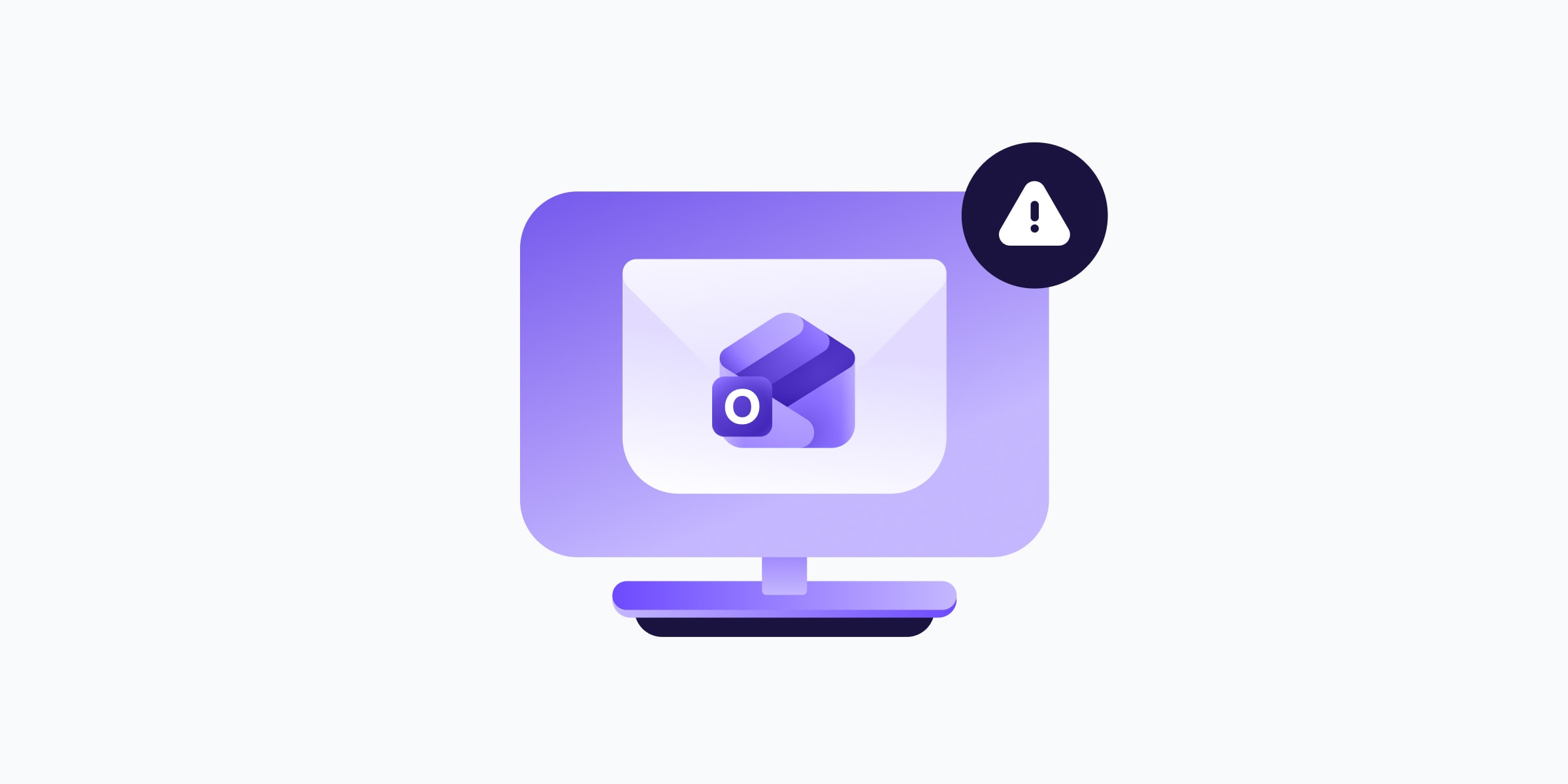
계획적인 하루를 가장 빠르게 망치는 것은 용량이 초과된 첨부 파일로 인해 전송되지 않고 막혀 있는 이메일(새 창)입니다. 마감 기한이 다가올 때 허용된 크기 제한을 초과하는 첨부 파일이 포함된 이메일을 보내는 방법의 문제 해결법을 찾느라 애쓰는 일은 귀하가 가장 피하고 싶은 상황일 것입니다.
이 가이드에서는 Outlook의 실제 첨부 파일 제한과 제한에 도달했을 때 발생하는 현상, 그리고 골치 아픈 일 없이 대용량 파일을 보내는 방법(새 창)을 다룹니다.
Outlook 첨부 파일 크기 제한은 얼마인가요?
Outlook의 첨부 파일 크기 제한은 사용 중인 서비스 버전에 따라 다릅니다. 간단히 요약하면 다음과 같습니다:
| Microsoft 365용 Outlook | 이메일당 35 MB |
| Outlook 2013-2024 | 이메일당 20 MB |
| 개인용 Outlook 계정 | 이메일당 25 MB |
| 학교 또는 회사용 Outlook 계정 | 이메일당 25 MB |
| Exchange(온프레미스) | 이메일당 10 MB |
이 제한은 첨부 파일부터 메시지, 첨부된 이미지에 이르기까지 이메일 전체에 적용됩니다. 이메일 용량이 제한 이하로 보이더라도, 전송되는 과정에서 이메일 크기가 가끔 증가하거나 수신인의 메일 서버에 더 낮은 한도가 설정되어 있으면 여전히 차단될 수 있습니다.
크기 제한에 도달하면 어떻게 되나요?
첨부 파일 크기 제한을 초과하는 파일을 첨부한 경우, Outlook은 메시지 보내기를 중단하고 다음과 같은 오류 메시지를 표시합니다:
The attachment size exceeds the allowable limit.
가끔 Outlook이 문제를 미리 알려주지 않는 경우도 있습니다. 보내기를 누른 후 Microsoft 서버가 이메일을 거부하고 반송 알림을 보낼 수도 있습니다. 반송 메일이 받은 편지함에 도착할 때쯤에는 이미 너무 늦었을 수 있습니다.
비즈니스의 경우 계약서가 전송되지 못해 결국 계약이 무산되는 결과를 초래할 수 있으며, 개인적인 차원에서는 마감 시간 전에 채용 담당자에게 귀하의 입사 지원 어플리케이션이 전달되지 못했다는 것을 의미할 수 있습니다.
Outlook 첨부 파일 크기 제한을 늘릴 수 있나요?
기술적으로는 가능하지만, 기술적인 설정에 익숙해야 합니다. Windows 기기에서 Windows 레지스트리를 편집하여 개인용 Outlook 계정의 제한을 늘릴 수 있습니다. 하지만 변경 사항이 컴퓨터에 영향을 미칠 수 있으므로, 해당 작업을 잘 알고 있는 경우가 아니라면 권장하지 않습니다.
Microsoft 365 또는 Exchange 계정을 사용하는 경우 한도는 서버 수준에서 제어되므로 IT 관리자만 변경할 수 있습니다.
그렇다고 해서 이것이 신뢰할 수 있는 해결책은 아닙니다. 수신인의 이메일 서비스가 대용량 첨부 파일을 지원하지 않는 경우 파일을 받지 못할 수도 있습니다. 대부분의 사람들에게는 대용량 파일을 보내는 더 스마트한 방법을 찾는 것이 더 실용적인 경로입니다. 이에 대해 알아보겠습니다.
이메일로 대용량 파일을 보내는 방법
Outlook의 파일 크기 제한이 걸림돌이 된다면, 여전히 몇 가지 좋은 방법이 있습니다.
파일 압축하기
파일을 .zip 폴더로 압축하면 전체 크기가 줄어들고 모든 파일을 한곳에 깔끔하게 정리할 수 있습니다. 추가 설치 없이 Windows 또는 Mac에서 바로 파일을 압축할 수 있습니다.
- Windows의 경우: 마우스 오른쪽 버튼 클릭 → 보내기 → 압축(zipped) 폴더
- Mac의 경우: Control 클릭 → 압축
이 방법은 문서와 폴더에는 잘 작동하지만 한계가 있습니다. JPEG 및 MP4와 같이 이미 압축된 형식은 크게 줄어들지 않으며, 훨씬 더 큰 파일은 압축하더라도 Outlook의 제한 이하로 줄어들지 않습니다.
비즈니스의 경우 압축만으로는 해결되지 않는 경우가 많으며, 개인적인 용도의 경우 사진과 동영상을 압축하면 화질 및 음질 손실이 발생할 수 있습니다.
장점:
- 오프라인에서 타사 도구 없이 작동함
- 여러 파일과 폴더를 하나의 .zip 파일로 묶을 수 있음
단점:
- 용량이 크거나 이미 압축된 파일의 경우 큰 효과가 없음
- 압축으로 인해 일부 파일의 품질이 저하될 가능성이 있음
- .zip 파일의 개인정보 보호는 이메일 제공 업체의 보안 모델에 따라 제한됨
파일 전송 서비스 사용하기
파일 전송 서비스(새 창)를 사용하면 파일을 직접 첨부하는 대신, 파일을 업로드하고 다운로드 링크를 공유할 수 있습니다. 사용법이 빠르고 간편하며, 대부분 계정 없이도 바로 시작할 수 있습니다.
하지만 단점에 대해 미리 알아둘 필요가 있습니다. 무료 등급의 경우, 보내기를 누른 후 어떤 일이 일어나는지 확인할 수 없습니다. 즉, 누가 파일을 다운로드했는지 확인할 수 없고, 잘못된 사람에게 전달된 경우 접근 권한을 취소할 수도 없습니다. 일부 서비스는 파일을 다시 암호화하기 전에 서버에서 파일을 복호화하기도 합니다. 이는 귀하의 데이터가 일시적으로 보호되지 않는 상태로 존재하며, 해당 서비스가 데이터에 접근할 수 있음을 의미합니다.
규제를 받는 업계의 비즈니스의 경우, 이는 GDPR 또는 HIPAA와 같은 규정과 관련하여 실제 준수 문제를 야기할 수 있습니다. 개인적인 용도의 경우, 귀하의 파일이 제3자가 일정 수준의 접근 권한을 갖는 서버를 통과할 수 있음을 인지해야 합니다.
장점:
- 빠르고 간단하며, 대부분의 서비스에서 계정이 필요하지 않음
- 무료 등급에서도 넉넉한 크기 제한 제공
단점:
- 보낸 후 다운로드를 추적하거나 접근 권한을 취소할 방법이 없음
- 암호화 표준(새 창)이 다양하며 규정 준수 요구 사항을 충족하지 못할 수 있음
- 비밀번호 보호(새 창)는 일반적으로 유료 플랜에서만 제공됨
클라우드 저장공간 사용
클라우드 저장공간(새 창)을 사용하여 파일을 공유하면 단순히 파일을 업로드하고 공유 가능한 링크를 생성하여 이메일에 넣기만 하면 되므로, 첨부 파일 크기 제한에 대해 걱정할 필요가 없습니다.
이미 Microsoft 생태계를 사용하고 있는 Outlook 사용자의 경우, OneDrive가 자연스러운 시작점입니다. Outlook과 직접 통합되어 간단하게 공유할 수 있지만, 무료 저장공간이 제한되어 있고 Microsoft 계정 전체에서 공유되며, Microsoft의 데이터 수집 정책이 적용됩니다. 이로 인해 일시정지하고 고민하게 될 수 있으며, 특히 개인적이고 기밀인 파일을 공유할 때 더욱 그렇습니다.
OneDrive 대안(새 창)을 찾을 때는 귀하의 데이터가 어떻게 처리되는지 생각해 볼 가치가 있습니다. OneDrive와 같은 일부 플랫폼은 귀하가 저장한 파일에 접근할 수 있는 반면, 다른 플랫폼은 종단 간 암호화(새 창)로 파일을 보호하여 귀하와 공유하는 사람들만 파일을 볼 수 있도록 합니다.
기업의 경우, 규정을 준수하지 않는 제공업체와 협업하면 조직이 규제 제재 및 평판 손상에 노출될 수 있습니다. 개인 사용자의 경우, 질문은 더 간단하지만 여전히 던져볼 가치가 있습니다. 제공업체가 귀하의 파일을 자체 목적으로 사용하는 것을 원하십니까?
장점:
- 공유 링크로 첨부 파일 크기 제한 우회하기
- 원본 파일을 업데이트하더라도 링크가 최신 상태로 유지됨
- 일부 제공업체는 종단 간 암호화 및 고급 공유 제어 기능 제공
단점:
- 제공업체 간 개인정보 및 보안 수준의 큰 차이
- 무료 저장공간 등급은 제한적이며 빠르게 가득 차는 경향이 있음
- 공유 권한 설정이 잘못되면 의도치 않은 수신인에게 파일이 노출될 수 있음
Proton Drive로 대용량 파일을 이메일로 안전하게 보내기
Outlook이 첨부 파일을 차단하더라도, Proton Drive는 크기나 형식 제한 및 품질 압축 없이, 유출 없이 수신인에게 파일을 전달합니다.
개인정보 및 접근 제어를 중요하게 생각하는 모든 기업의 경우, 대부분의 공유 옵션에는 제약 사항이 따릅니다. Proton Drive는 다릅니다. 저희는 귀하의 모든 파일을 종단 간 암호화로 보호하므로, 귀하와 귀하가 공유하는 사람들만 파일에 접근할 수 있으며 Proton조차도 접근할 수 없습니다.
귀하는 언제든지 링크를 비밀번호로 보호(새 창)하고, 만료일을 설정하고, 다운로드를 추적하며, 접근을 취소할 수 있어 누가 언제까지 파일에 접근할 수 있는지 완전히 제어할 수 있습니다. 또한 Proton은 스위스에 기반을 두고 있으므로 귀하의 데이터는 세계에서 가장 엄격한 개인정보 보호법의 보호를 받습니다.
기업(새 창)의 경우, Proton Drive는 HIPAA(새 창) 및 GDPR(새 창)과 같은 규정 준수를 지원하므로, 규제 대상 산업에서 신뢰할 수 있는 선택이 됩니다. 그 외의 다른 사용자들에게는 단순히 온라인에서 파일을 공유하는 더 개인적이고 안전한 방법입니다.