If your inbox is full of emails you’ll never read, then you know how hard it can be to find the one email you’re looking for. As you file through subject lines, straining your eyes, you recognize that feeling of dread. You could simply end the problem by deleting all of your messages, but this would haunt you later. You could spend hours unsubscribing and deleting mindlessly, but this would eat up valuable hours of your workday.
There’s an easier way: Email filters streamline your correspondence, organizing your inbox so that you save time and can focus on what matters (instead of poring over email blasts from Foot Locker). But how exactly do you set up a filter for email and better manage your inbox?
In this article, you’ll learn what email filters are, how they work, and how to use them effectively to improve your email organization for good.
What are email filters?
Email filters are labels that you assign to incoming emails to automatically sort your inbox. They work by scanning, or filtering, an email’s subject line or sender address, and by looking for specific keywords and attachments. Once a filter is set, emails are labeled, sorted, or deleted, based on the criteria you’ve applied.
For those who run a small business, email filters are especially helpful. A well-built filter for email makes inbox organization easy by removing unnecessary clutter and preventing important emails from falling through the cracks. Not only do they make email management easier, but they save you and your employees time by automating repetitive tasks that you would have to do by hand — a habit that also helps you get closer to inbox zero.
Email spam filters also help detect spam messages, reducing your risk of becoming a phishing victim or accidentally downloading malware.
How email filters work
Email filters work by scanning an email for certain criteria that you have set. These criteria can include sender name or email address, subject, specific keywords, and more. Once you’ve set the criteria for your filter, you can select what action Proton takes when a message meets that criteria. For example, you can set your filter action to archive emails that meet the filter’s parameters, mark as read, apply a label, delete, mark as important, and more.
In addition to the filters that you set, Proton Mail’s smart spam filters detect spam and learn how to spot spam emails the more you click “Move to spam” or mark your emails as safe. The more you use Proton, the more our smart filters learn how to create new filters and rules based on your actions. You can also whitelist trusted senders or block unwanted addresses outright so your email spam filters know exactly what to catch and what to let through.
How to organize email with filters
Wondering how to organize email once and for all? Start by building filters around the categories that already exist in your inbox: newsletters, receipts, client threads, internal memos. From there, layer in folders and color-coded labels so every filtered message lands somewhere useful instead of just out of sight. For more ideas, check out these tips to declutter your inbox and keep it that way.
Good email organization is an ongoing system, not a one-time project. Once your filters are in place, revisit them periodically as your inbox habits change, and let Proton’s spam filters keep doing the heavy lifting in the background.
How to create custom email filters with Proton
You can create a filter and easily automate your email labels with Proton in two ways. The first is a quick way to automate labels directly from your email window, and the second is a more in-depth way to create custom filters via your settings, where you can set specific requirements and keywords.
From your email window:
1. Sign in to your inbox at mail.proton.me.
2. Open an email, then move or label it as usual.
3. Check the box that says “Always move sender’s emails/Always label sender’s emails” and select the “Move” or “Label” button to automate your filter preferences.
From your settings:
- Sign in to your inbox at mail.proton.me.

- Select Settings → All settings → Proton Mail → Filters

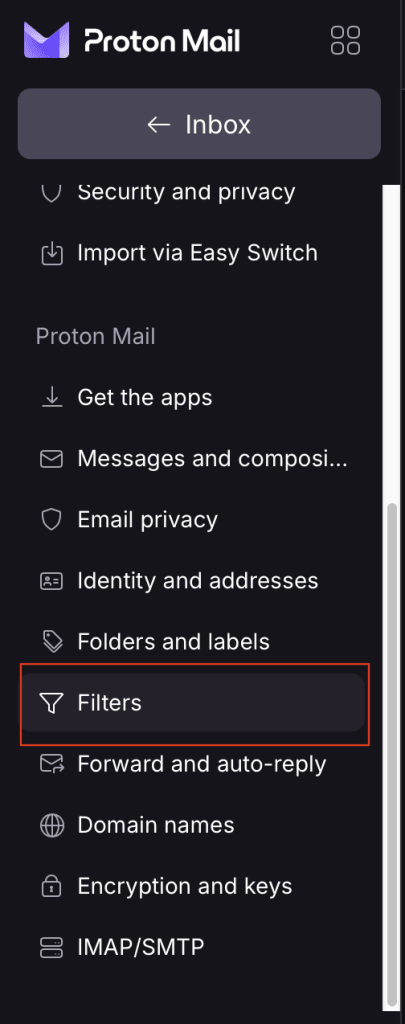
- Under Custon filters, Click “Add filter.”

- Name your filter and select “Next.”

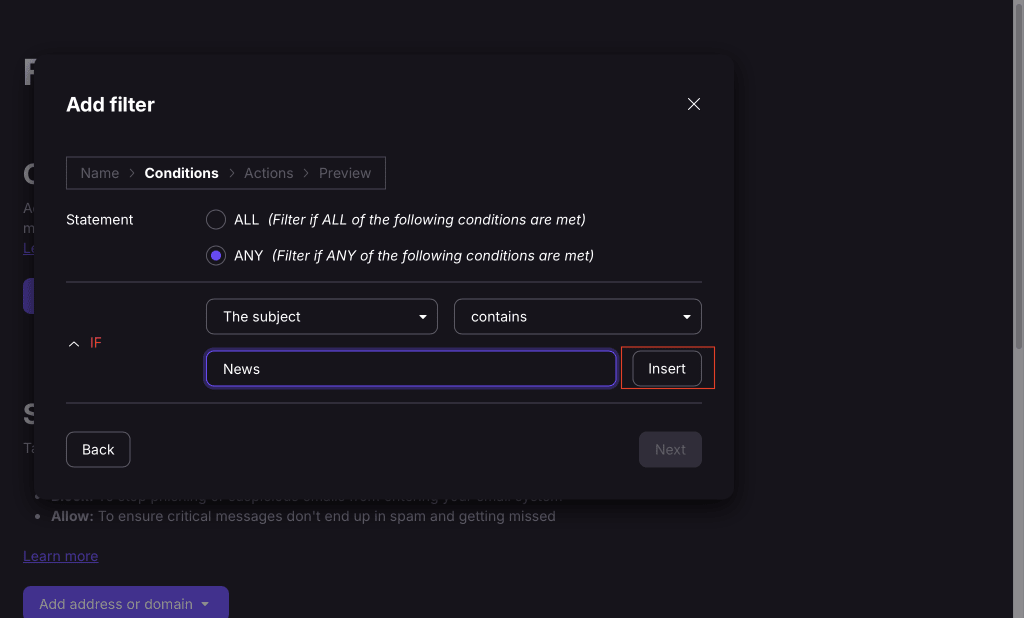
- Add the criteria you want to activate the filter. You can choose to filter emails when only certain conditions are met, or when all requirements are met.
- Click “Insert” to add additional text or keywords to your filter.
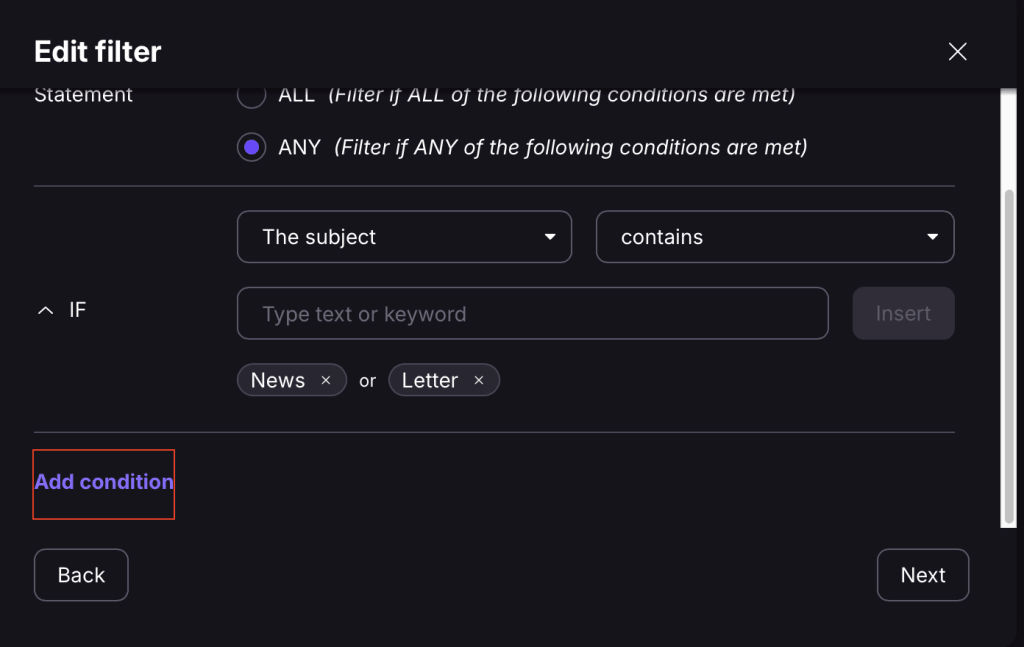
- Select “Add condition” to create a complex filter. You can include as many conditions as you like.
- Select “Next” to set the actions that will apply to your new email filter.
How to use filters to organize your inbox and boost productivity
Email filters can keep unwanted messages out of your inbox, block spam, and organize your inbox into categories for a more efficient workflow. When setting up your filters, you can follow these tips and best practices to create the most streamlined inbox for increased productivity.
- Categorize your business emails by project, sender, work department or priority.
- Use color-coded labels and folders for better visual awareness.
- Create “Follow-up” folders for emails you need to circle back on, or “Reply later” folders so important emails don’t get lost.
- Set up a filter that automatically archives old messages.
- Update and review your filters regularly to see what works for you.
- Don’t accidentally hide important emails by using too many filters.
Keep your inbox organized with Proton
Proton Mail doesn’t only help with email organization; it also keeps your data safe by ensuring that your private messages aren’t accessible to anyone but you. That’s because Proton Mail is end-to-end encrypted, which means you’ll never have to worry about us scanning your emails and selling your sensitive information to third parties.
Filters help manage email overload, save time, and improve communication flow — and using them doesn’t need to be complicated. With Proton Mail, setting up a new filter is easy.
Learning how to use filters is the simplest way to take back control of your inbox, and with additional features like one-click unsubscribe, Newsletters view, Categories view, and Hide-my-email aliases, Proton Mail’s inbox organization goes above and beyond.
If you’re ready to take control of your email workflow — and your privacy — sign up for free email with Proton Mail today.