
Partager votre écran dans Proton Meet
- Lecture
- 3 minutes
- Catégorie
- Proton Meet
Avec Proton Meet, les hôtes et les participants peuvent partager leur écran pour présenter en toute sécurité des diapositives, des documents ou tout autre élément présent sur leur appareil à tous les participants de l’appel.
Le partage d’écran est disponible sur nos applications web, de bureau (macOS, Windows, Linux) et iOS. Pour le moment, les utilisateurs d’Android peuvent uniquement voir les écrans partagés par les autres participants utilisant des plateformes prises en charge.
Début du Partage d’écran
Un seul écran peut être partagé à la fois. Lorsque quelqu’un commence à partager son écran, cela remplace automatiquement tout écran actuellement partagé. Voici comment lancer la diffusion :
- Pendant une réunion, sélectionnez l’icône Partager l’écran 🖥️.

- Si vous y êtes invité, autorisez les Autorisations de Partage d’écran.
- Choisissez ce que vous voulez partager. Les Options disponibles dépendent de votre plateforme :
Application web
- Onglet de navigateur : Partager une page web spécifique et garder les autres onglets privés. Si vous passez à un Autre onglet pendant la présentation, vous pouvez sélectionner Partager cet onglet pour modifier ce qui est montré. En option, vous pouvez partager l’Audio de l’onglet.
- Fenêtre : Partager le contenu de l’une de vos applications, comme votre navigateur ou un éditeur de documents. Vous pouvez également partager l’Audio du Système.
- Écran entier : Partager tout ce qui se trouve sur votre écran. Cette option est idéale lorsque vous devez basculer entre plusieurs applications ou présenter votre bureau. Vous pouvez également partager l’Audio du Système.
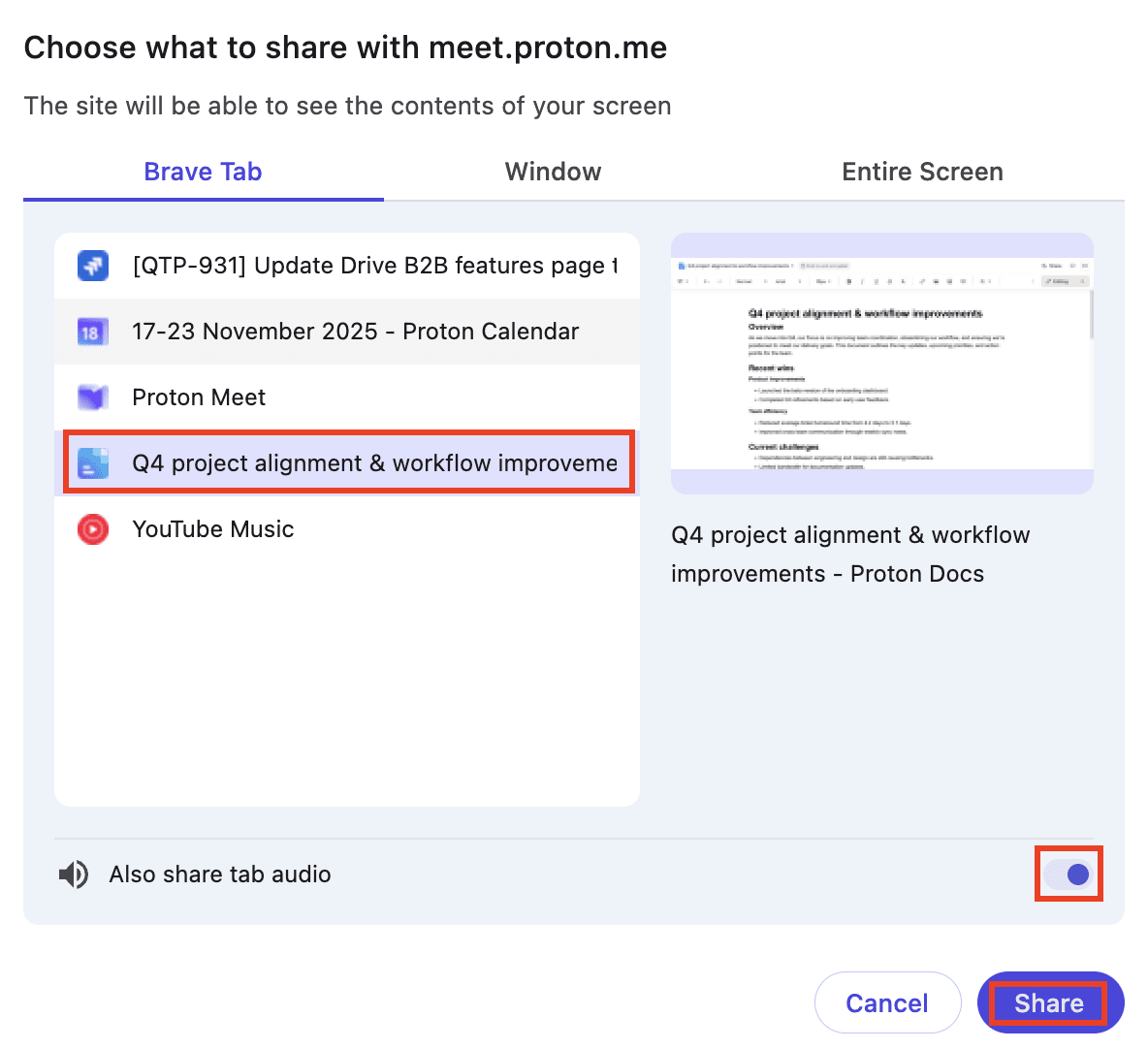
macOS
- Fenêtre spécifique : Basculez vers une autre application et sélectionnez Partager cette fenêtre pour présenter son contenu.
- Toutes les fenêtres d’application : Partager toutes les fenêtres d’application actuellement ouvertes, afin que vous puissiez basculer entre elles pendant la présentation.
- Écran entier : Partager tout ce qui se trouve sur votre écran, y compris le bureau.

Windows
L’application Proton Meet pour Windows partage l’écran entier lors de la diffusion.
Linux
- Fenêtre d’application : sélectionnez une application pour présenter son contenu.
- Écran entier : partagez tout ce qui se trouve sur votre écran, y compris le bureau. Si vous avez plusieurs écrans, vous pouvez choisir celui que vous souhaitez partager.

iOS
Sélectionnez Démarrer la diffusion.
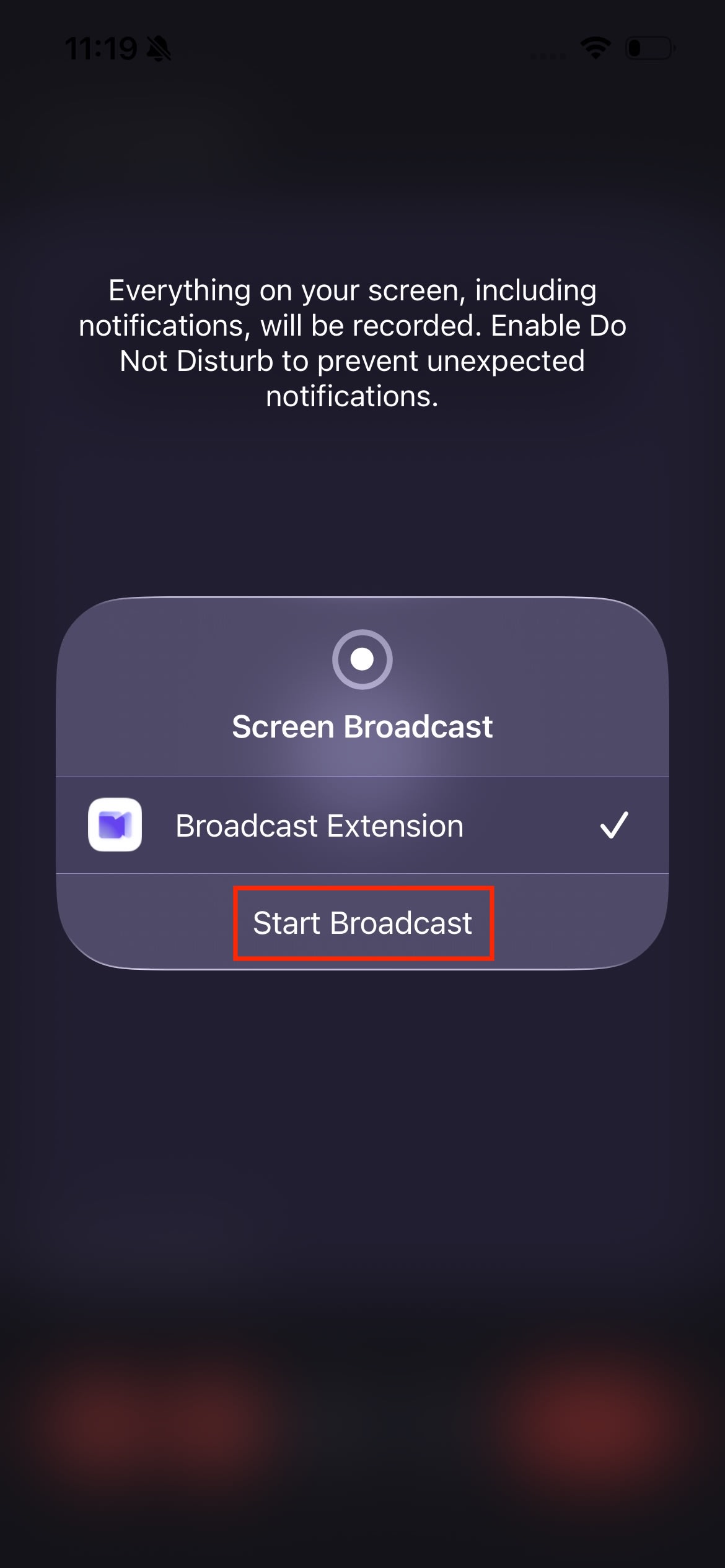
L’application Proton Meet pour iPhone et iPad partage l’écran entier pendant la diffusion.
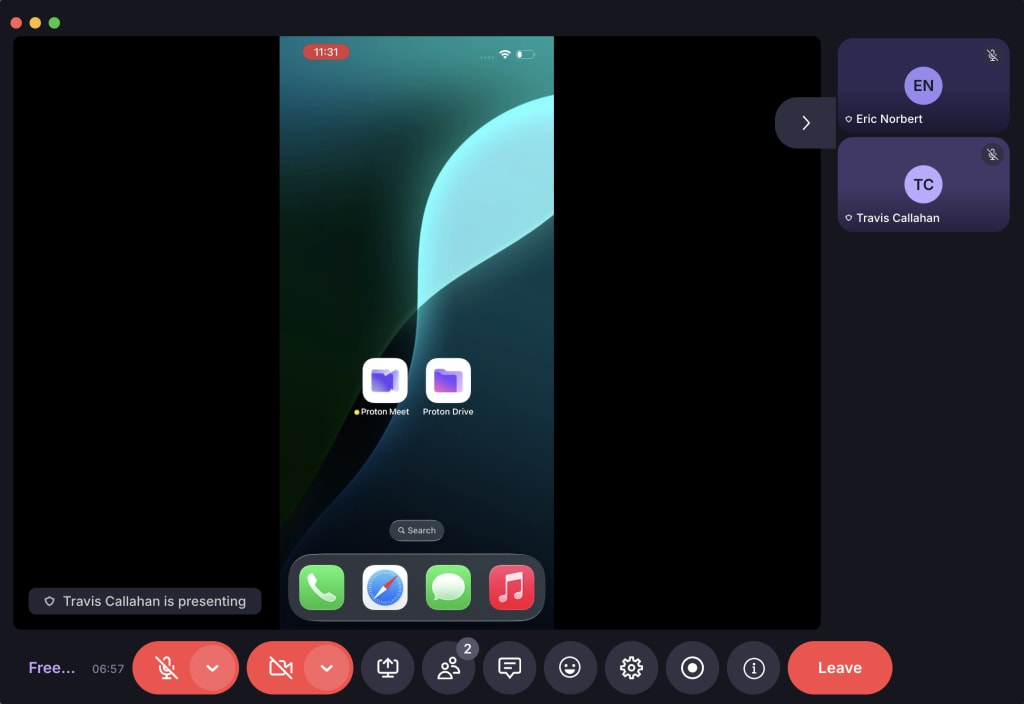
Arrêter le partage d’écran
Application web
Sélectionnez Arrêter le partage ou Arrêter de présenter.

Dans certains navigateurs (comme Brave sur macOS), le bouton Arrêter le partage peut parfois sembler inactif. Bien qu’il soit grisé, le bouton fonctionne toujours.
Applications de bureau (Windows, macOS, Linux)
Sélectionnez Arrêter le partage 🖥️.

iOS
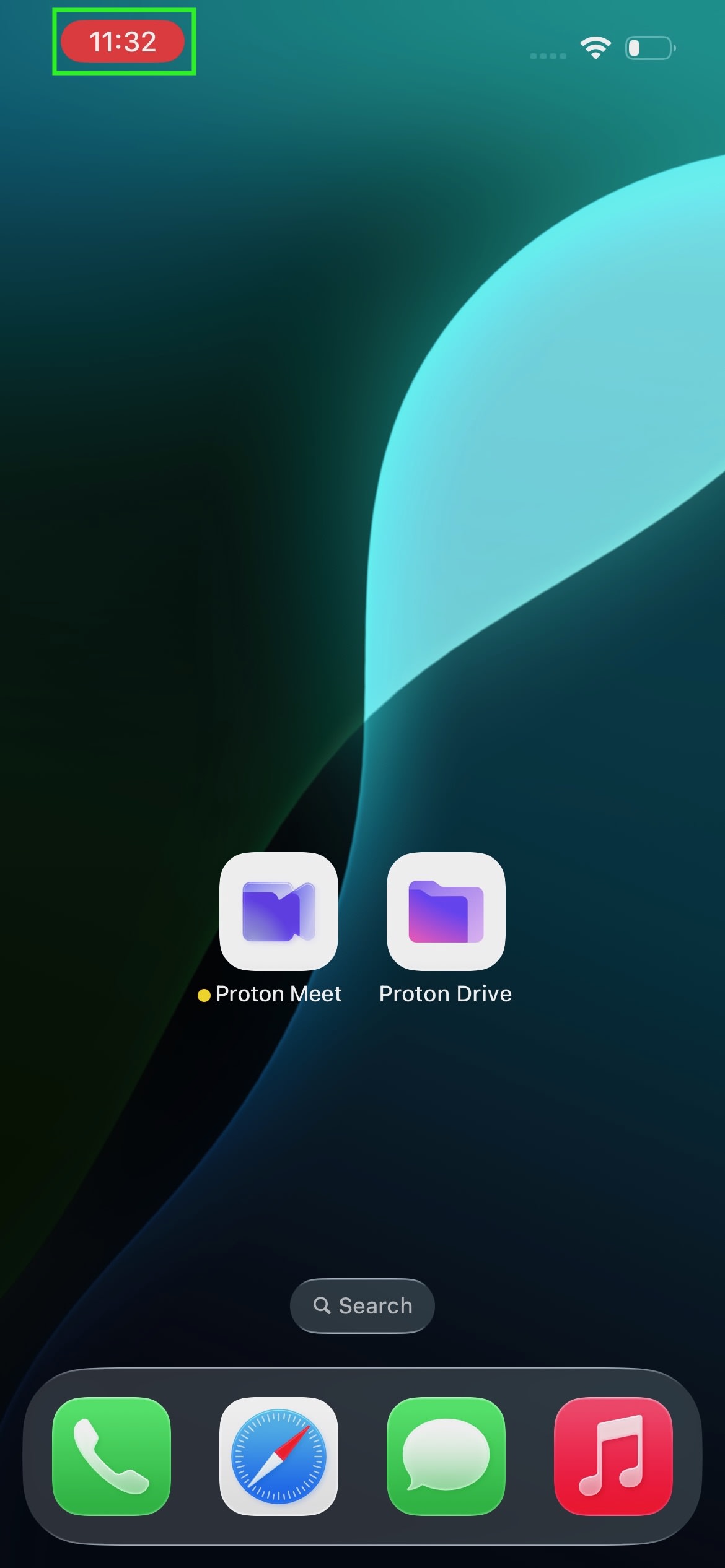
Appuyez sur l’indicateur d’enregistrement 🟥 dans le coin supérieur gauche, puis sur Arrêter pour confirmer.
Seule la personne qui est en train de partager peut arrêter son propre écran. Les hôtes ne peuvent pas arrêter le partage d’écran d’un participant à sa place, mais ils peuvent retirer ce participant de la réunion.
Mode image dans l’image
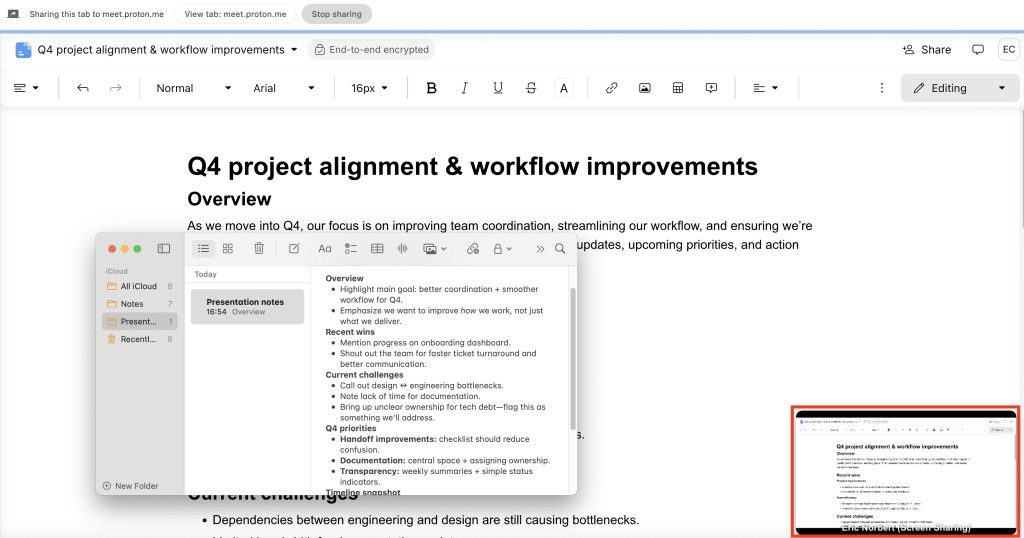
Lors d’une présentation, Proton Meet peut suggérer d’entrer en mode image dans l’image. Cela permet de garder une petite fenêtre de réunion au-dessus des autres applications, affichant ce que voient les participants et vous aidant à rester orienté. Sur certains navigateurs, tels que Mozilla Firefox, vous devrez peut-être l’activer manuellement.
Par exemple, si vous souhaitez lire vos Notes tout en partageant votre écran, vous pouvez déplacer une fenêtre de Notes au-dessus de l’application que vous êtes en train de partager.
Si vous découvrez notre application de visioconférence, consultez notre guide pour bien débuter avec Proton Meet.