
Utilisation des salles de réunion dans Proton Meet
- Lecture
- 3 minutes
- Catégorie
- Proton Meet
Proton Meet propose deux types de salles de réunion réutilisables : les salles de réunion personnelles et les salles classiques. Toutes deux fournissent des liens permanents que vous pouvez réutiliser à tout moment, mais elles diffèrent par la manière dont vous contrôlez la salle. Tous ceux qui ont le lien peuvent rejoindre la réunion, même en votre absence.
Salles de réunion personnelles
Chaque compte Proton Meet comprend une salle de réunion personnelle — un espace toujours disponible lié à votre compte.
Nous vous recommandons de ne la partager qu’avec des personnes de confiance. Si nécessaire, vous pouvez régénérer le lien une fois par jour pour renforcer la confidentialité.
Voici comment utiliser votre salle de réunion personnelle :
- Sur le web ou sur ordinateur, allez dans Mes salles. Votre Salle de réunion personnelle y est listée, avec des actions disponibles à côté.
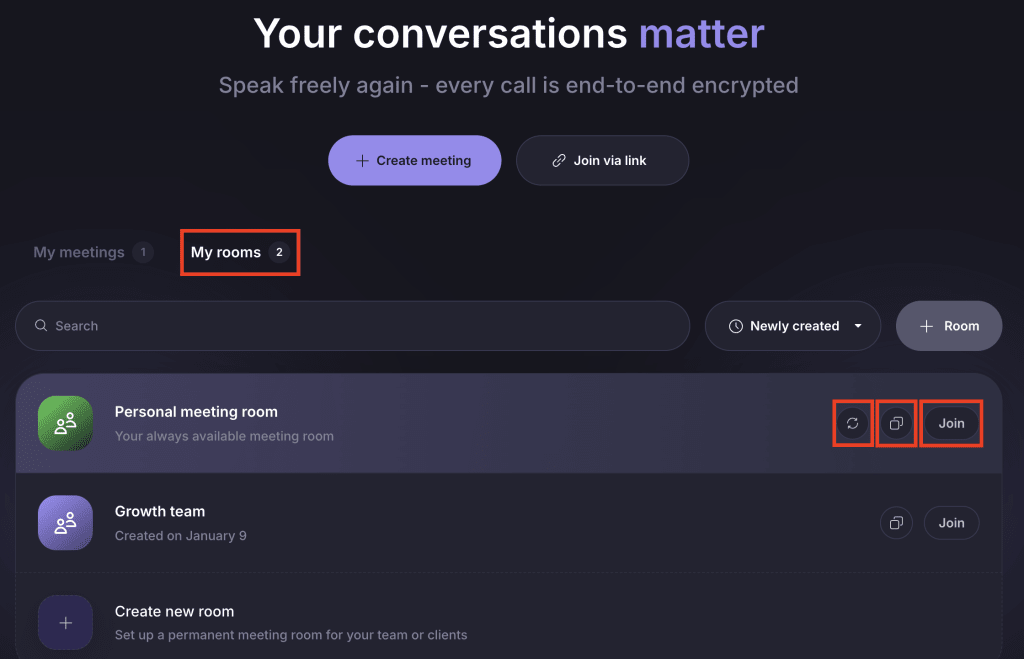
- Sur mobile, allez dans Mes salles et appuyez sur Salle de réunion personnelle.

Vous verrez les Options suivantes :
- Copier 📋 : Copiez et partagez votre lien avec d’autres personnes pour démarrer une réunion rapide sans planifier d’événement. Vous pouvez partager votre lien avec n’importe qui, même si cette personne ne possède pas de compte Proton.
- Rejoindre ou Se connecter à la réunion : Entrez immédiatement dans votre salle.
- Régénérer le lien 🔄 : Créez un nouveau lien pour votre salle de réunion personnelle et détruisez l’ancien. Vous pouvez le faire une fois toutes les 24 heures.
Salles de réunion classiques
Les salles classiques sont des espaces de réunion réutilisables que vous pouvez créer et gérer sur le web, sur ordinateur et sur mobile. Comme les salles personnelles, elles disposent d’un lien permanent, mais vous pouvez les supprimer et en créer de nouvelles si nécessaire.
Voici comment créer une salle de réunion :
- Allez dans Mes salles.
- Sélectionnez Créer une nouvelle salle.
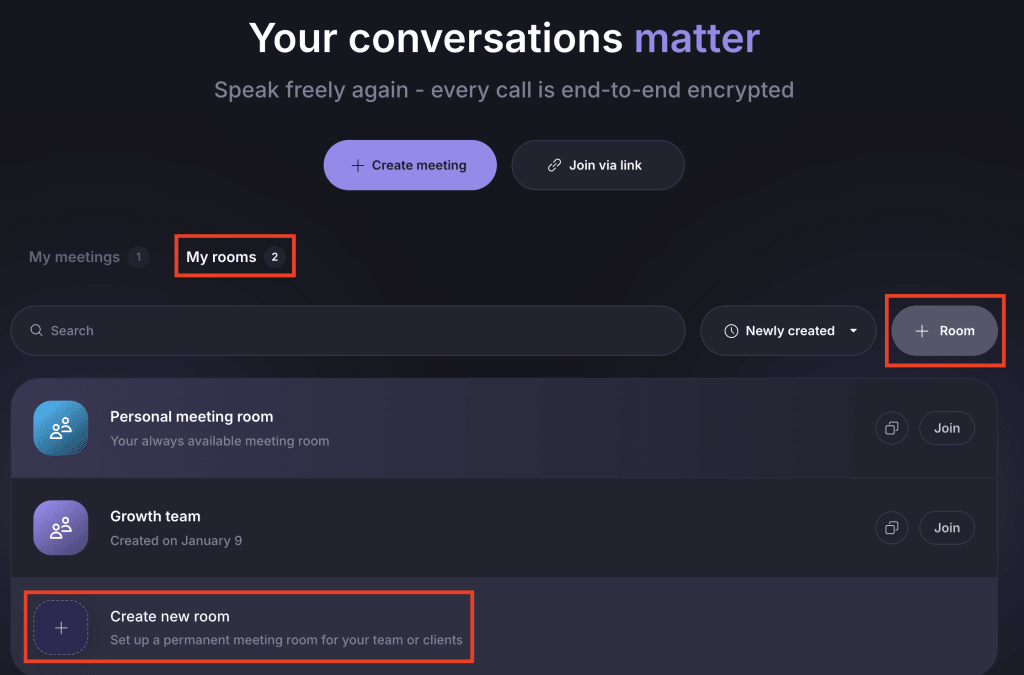
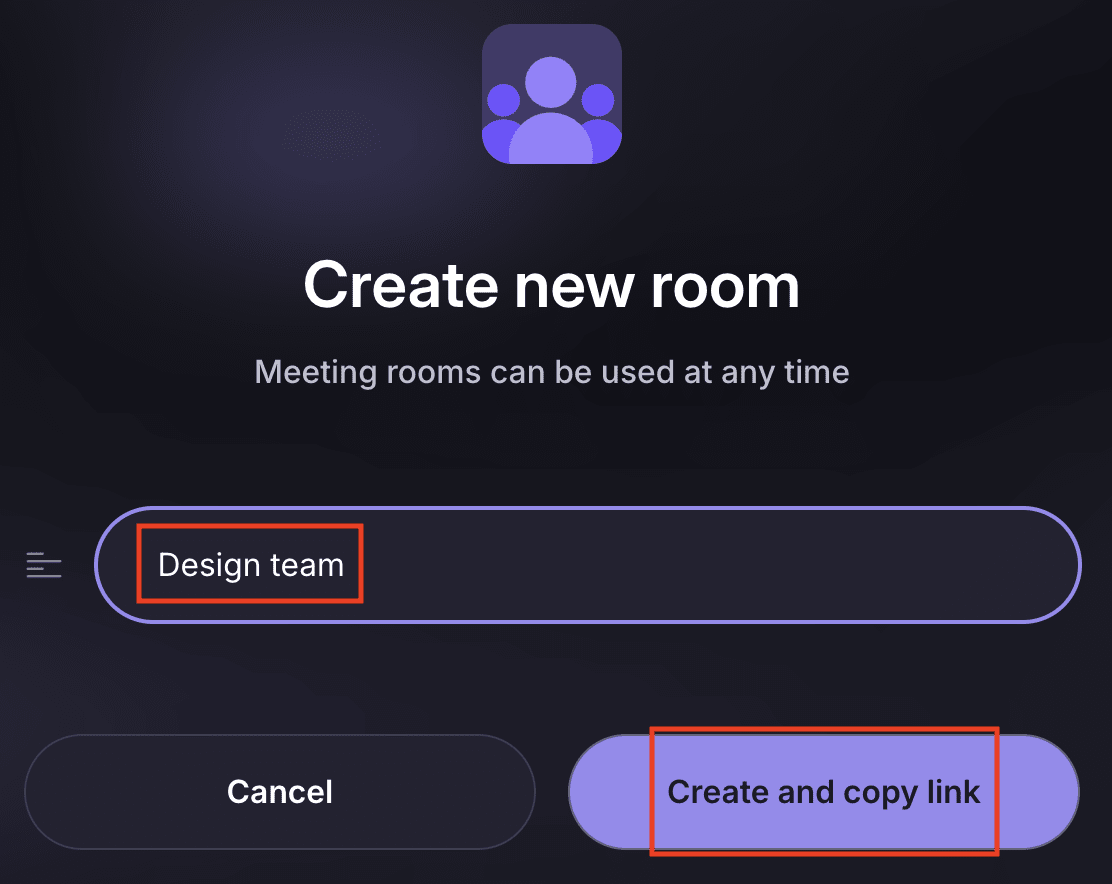
- Saisissez un nom de salle.
- Sélectionnez Créer et copier le lien.
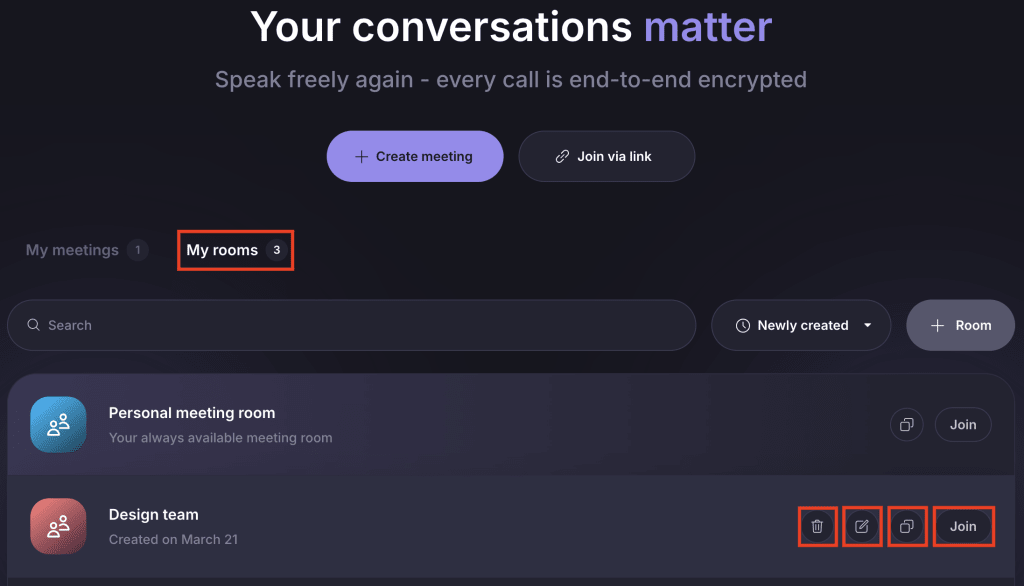
Pour chaque salle, vous pouvez :
- Rejoindre : Entrez immédiatement dans la salle.
- Copier 📋 : Copiez et partagez le lien de la salle avec d’autres personnes.
- Modifier ✏️ : Renommez la salle.
- Supprimer 🗑️ : Supprimez la salle de manière permanente.
Quand utiliser chaque type de salle
Utilisez une salle de réunion personnelle pour :
- Les réunions rapides et ponctuelles ou les points de suivi
- Les discussions continues où les participants disposent déjà de votre lien
- Les personnes de confiance avec qui vous discutez souvent
- Les appels spontanés sans planification
Utilisez les salles classiques pour :
- Des espaces de réunion réutilisables pour des équipes ou des sujets spécifiques
- Les activités basées sur des projets susceptibles de changer ou de prendre fin
- Partager un lien permanent sans exposer votre salle personnelle
Pour les réunions planifiées lorsque vous souhaitez inviter des participants par e-mail et gérer des détails tels que l’heure et les rappels, utilisez plutôt les réunions planifiées.
Si vous découvrez notre application de visioconférence, consultez notre guide pour bien débuter avec Proton Meet.