
Planifier un appel Proton Meet
- Lecture
- 4 minutes
- Catégorie
- Proton Meet
Vous pouvez programmer un appel Proton Meet via l’application web, l’application de bureau (Windows, macOS, Linux) ou l’application mobile (Android, iOS). Il existe deux manières de configurer une réunion dans Proton Meet :
- Planifier avec Proton Calendar (recommandé) : créer un événement complet dans le calendrier avec des invitations envoyées aux participants
- Planifier dans Proton Meet : créer un lien de réunion avec un titre, une date et un horaire pour votre propre référence. Vous pouvez ensuite l’ajouter à des calendriers externes.
Vous pouvez également vérifier et gérer votre emploi du temps de réunion.
Planifier une réunion avec Proton Calendar
Utilisez cette option si vous souhaitez synchroniser vos réunions avec Proton Calendar et envoyer facilement des invitations par e-mail aux participants. Vous aurez besoin d’une adresse Proton Mail (ou d’un domaine personnalisé sur Proton Mail).
- Accédez au tableau de bord Proton Meet(nouvelle fenêtre).
- Sélectionnez Créer une réunion → Planifier une réunion.

- Cliquez sur Planifier dans Proton Calendar. Cela ouvrira Proton Calendar dans votre navigateur.

- Remplissez les détails de votre réunion :
- Titre : ajoutez un nom clair pour votre réunion.
- Date et heure : ajoutez une heure de début et de fin pour votre réunion.
- Participants : saisissez les adresses e-mail de toutes les personnes que vous souhaitez inviter.
- Conférence : un lien Proton Meet sera ajouté automatiquement.
- Description : ajoutez des notes, des sujets ou un ordre du jour.
- Rappels : définissez des notifications mobiles, sur ordinateur ou par e-mail pour vous-même.
- Calendrier : sélectionnez un calendrier où enregistrer votre événement.
- Sélectionnez Enregistrer puis Envoyer pour confirmer l’envoi des invitations par e-mail.
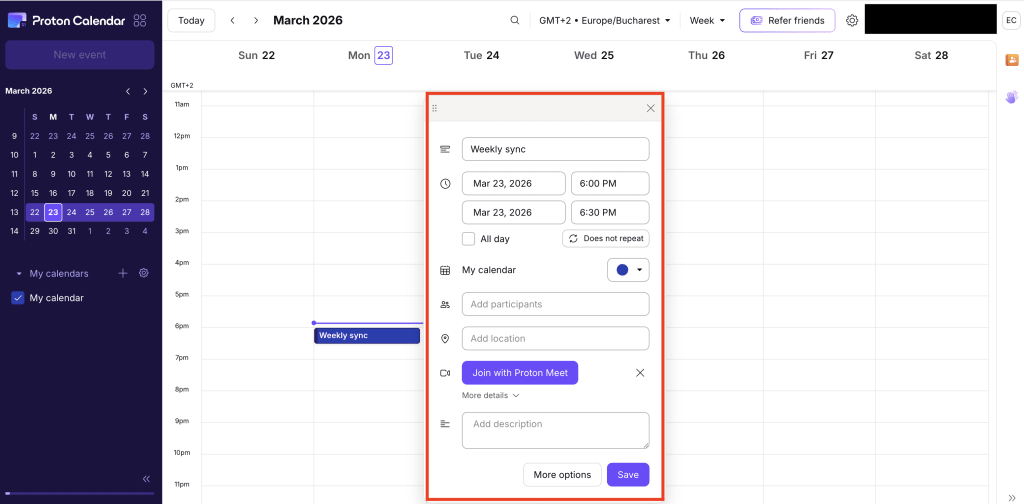
Votre réunion sera synchronisée avec toutes vos applications Proton Calendar. Les participants pourront rejoindre la réunion depuis une invitation Proton Calendar ou sans compte Proton.
Planifier une réunion avec Proton Meet
Utilisez cette option pour créer un lien de réunion et l’ajouter à des calendriers externes tels que Google Calendar et Outlook Calendar.
Cela ne crée pas d’événement Proton Calendar et n’envoie pas d’invitations par e-mail aux utilisateurs Proton. Pour inviter des participants, vous devez partager manuellement le lien de la réunion ou ajouter l’événement aux calendriers externes.
- Accédez au tableau de bord Proton Meet(nouvelle fenêtre).
- Sélectionnez Créer une réunion → Planifier une réunion.
- Saisissez les détails de votre réunion :
- Titre
- Date et heure. Cliquez sur Afficher les fuseaux horaires pour planifier plus facilement en fonction des fuseaux horaires.
- (Optionnel) récurrence

- Cliquez sur Enregistrer. Cela crée une entrée de réunion dans votre tableau de bord et génère un lien de réunion.
- Vous pouvez sélectionner Copier 📋 pour copier et partager le lien de la réunion avec d’autres personnes.

Ensuite, vous pouvez sélectionner Terminé pour revenir au tableau de bord, ou Ajouter au calendrier et choisir :
- Outlook Calendar pour créer et enregistrer la réunion dans Microsoft Outlook Calendar. Cette option est uniquement disponible sur les applications web et de bureau.
- Google Calendar pour créer et enregistrer la réunion dans Google Calendar.

- Télécharger le .ics pour télécharger un fichier de calendrier que vous pouvez importer dans d’autres applications de calendrier ou partager avec des personnes. Sur Android, cette option apparaît sous le nom Partager le fichier de l’événement.
- Ajouter au calendrier du téléphone pour enregistrer la réunion dans le calendrier de votre appareil.

Comment vérifier et gérer votre emploi du temps de réunion
Dans la section Mes réunions affichée dans votre tableau de bord Proton Meet (sur ordinateur ou web), vous verrez la date, le titre et l’horaire de chaque réunion que vous avez créée.
Les réunions sont triées par date ; ainsi, votre prochaine réunion planifiée apparaît en haut de la liste.

Pour chaque réunion à venir, vous pouvez sélectionner :
- Pour copier un lien de réunion dans votre presse-papiers, sélectionnez Copier
- Pour entrer dans une salle de réunion, sélectionnez Rejoindre
- Pour mettre à jour les détails de la réunion, sélectionnez Modifier ✏️
- Pour retirer une réunion de la liste, sélectionnez Supprimer 🗑️
Vous pouvez également programmer des réunions Proton Meet lorsque vous gérez des rendez-vous dans Proton Calendar.
Si vous découvrez notre application de visioconférence, consultez notre guide pour bien débuter avec Proton Meet.