Comment utiliser la planification de rendez-vous dans Proton Calendar
- Lecture
- 4 minutes
- Catégories
- Gérer les événements
- Utilisation de Proton Calendar
- Proton Calendar
Avec la planification de rendez-vous dans Proton Calendar, vous pouvez créer des Pages de réservation et partager vos disponibilités avec d’autres personnes afin qu’elles puissent planifier une réunion à un moment qui vous convient à tous les deux. Les participants peuvent voir quand vous êtes libre, mais ils ne peuvent voir aucune des informations de vos événements de Calendrier.
Vous pouvez personnaliser vos disponibilités, définir la durée des réunions, configurer des réunions via Proton Meet et ajouter des informations que les participants doivent connaître avant de réserver. Vos pages de réservation se synchronisent avec vos calendriers pour garantir que vos disponibilités sont toujours à jour. Tous les détails de réservation sont protégés par un chiffrement à accès zéro.
La planification de rendez-vous est disponible sur les abonnements Proton payants. Mail Essentials, Plus, Unlimited, Duo et Famille incluent 1 page de réservation, tandis que Workspace et Meet Professional en incluent 25.
- Créer une page de réservation
- Afficher et gérer une page de réservation
- Programmer un rendez-vous sur une page de réservation
Créer une page de réservation
- Allez sur account.proton.me/calendar et connectez-vous.
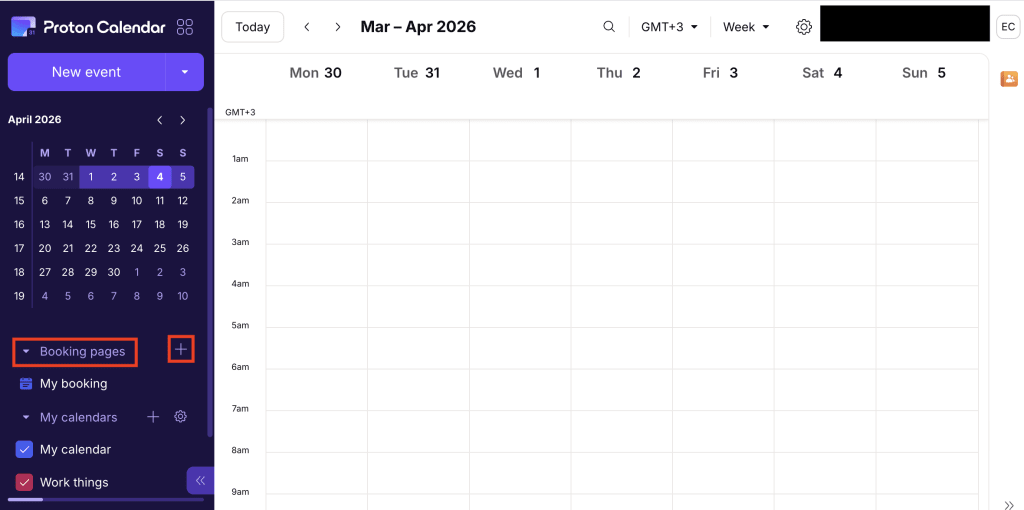
- Dans la barre latérale, cliquez sur + à côté de Pages de réservation.
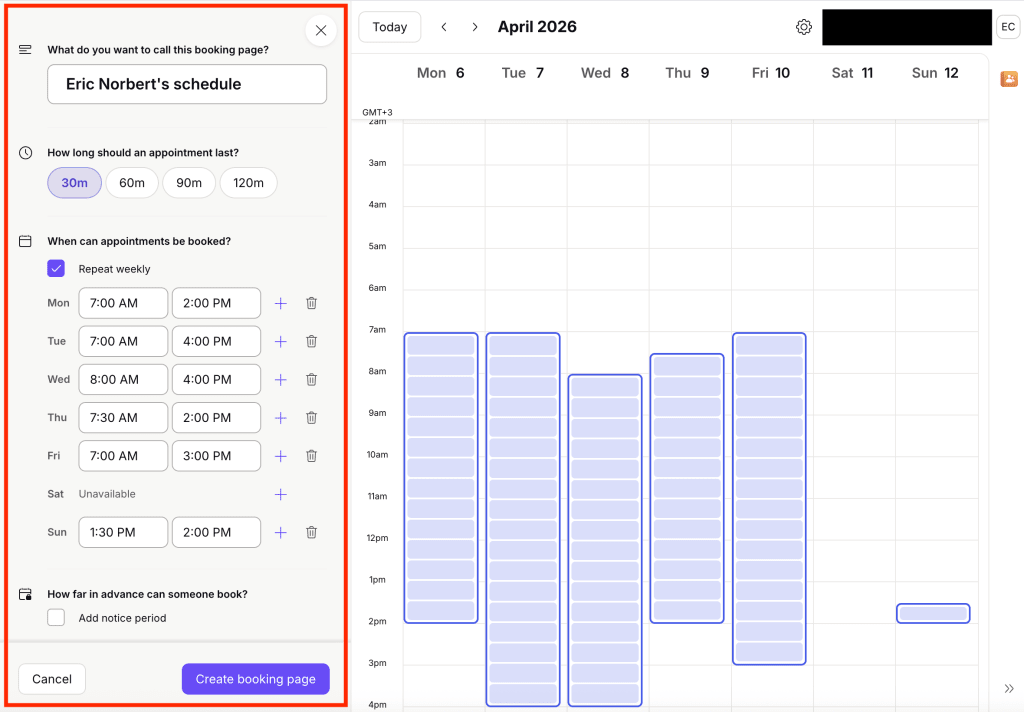
- Ajouter un titre. C’est ce que les participants voient lorsqu’ils ouvrent votre page de réservation.
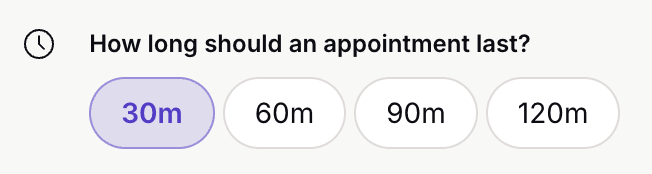
- Sélectionnez la durée de la réunion.
- Ajouter votre disponibilité
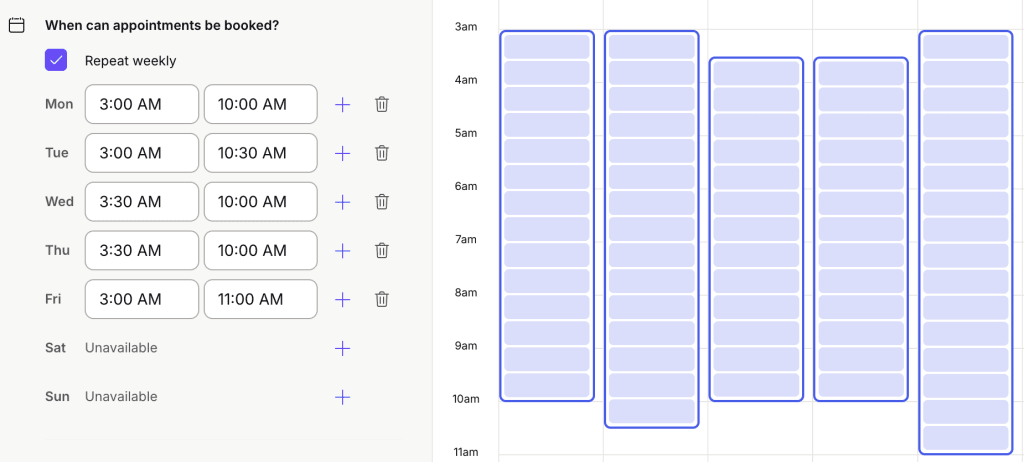
- Pour configurer un événement chaque semaine, assurez-vous que Répéter chaque semaine est coché. Vous pourrez ensuite saisir une ou plusieurs plages horaires pour chaque Jour de la semaine.
- Pour configurer un événement ponctuel, décochez Répéter chaque semaine. Vous pourrez ensuite saisir des plages horaires
Les Jours (ou dates) sans plages horaires sélectionnées s’afficheront comme Indisponible sur votre page de réservation. Vous pouvez également Créer ou ajuster des créneaux de disponibilité directement dans la grille du calendrier en utilisant le glisser-déposer.
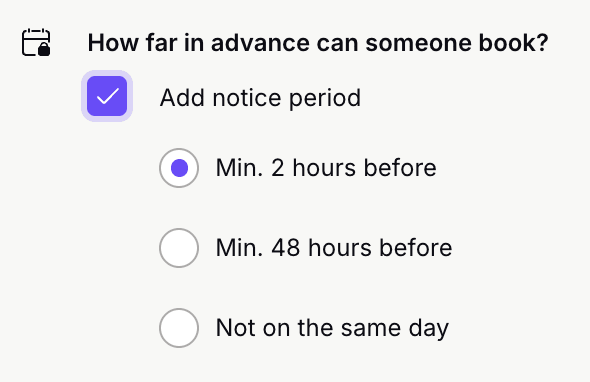
- Définir combien de temps à l’avance une personne peut réserver en activant Ajouter une période de préavis. Vous pouvez exiger que les réservations soient effectuées au moins 2 heures avant, au moins 48 heures avant, ou Pas le même jour.
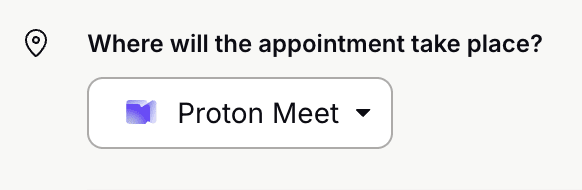
- Sélectionnez l’endroit où votre réunion aura lieu :
- Pour configurer une réunion virtuelle, sélectionnez Proton Meet. Un lien sécurisé Proton Meet sera Créé automatiquement, et les participants peuvent rejoindre la réunion même sans Compte Proton. En savoir plus sur l’utilisation de Proton Meet.
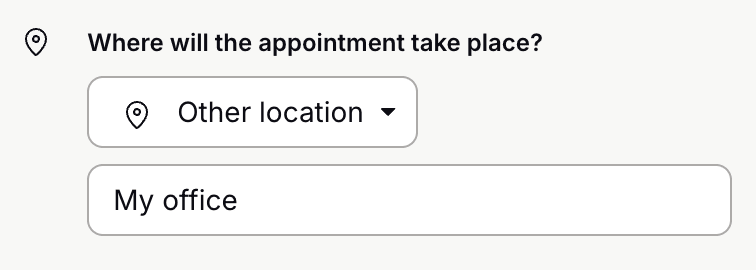
- Pour configurer une réunion sur site, ou pour ajouter un lien de réunion autre que Proton Meet, sélectionnez Autre emplacement. Le champ emplacement s’ouvrira automatiquement, où vous pourrez saisir une adresse, un lien ou d’autres informations sur la réunion. Par exemple, vous pouvez ajouter un lien Zoom, mais nous ne proposons pas de support pour la création automatique de liens Zoom comme nous le faisons pour Meet.
- Choisissez le calendrier où les rendez-vous réservés apparaîtront.
- Les participants pourront voir l’adresse e-mail associée au calendrier que vous choisissez pour les rendez-vous réservés.
- Vous pouvez également synchroniser la disponibilité à partir d’autres calendriers, qu’il s’agisse des vôtres ou de calendriers partagés avec vous. Si vous ajoutez un événement qui entre en conflit avec un créneau horaire disponible, ce créneau n’apparaîtra plus sur votre page de réservation.

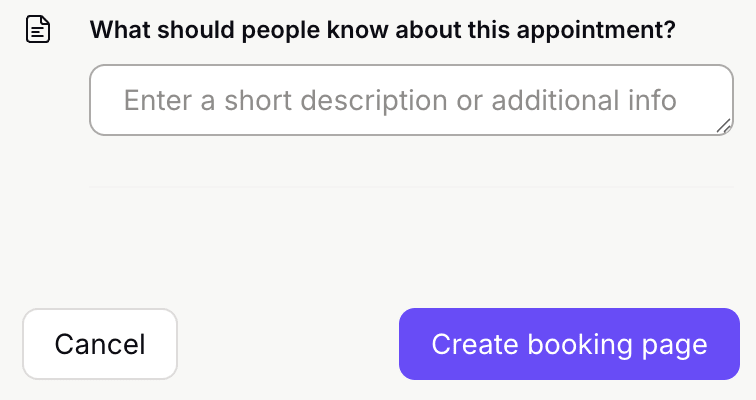
- Saisissez toutes notes ou instructions que vos participants devraient connaître avant de réserver, comme le lieu de la réunion ou combien de temps à l’avance ils peuvent réserver.
- Pour confirmer et créer votre page, cliquez sur Créer une page de réservation.
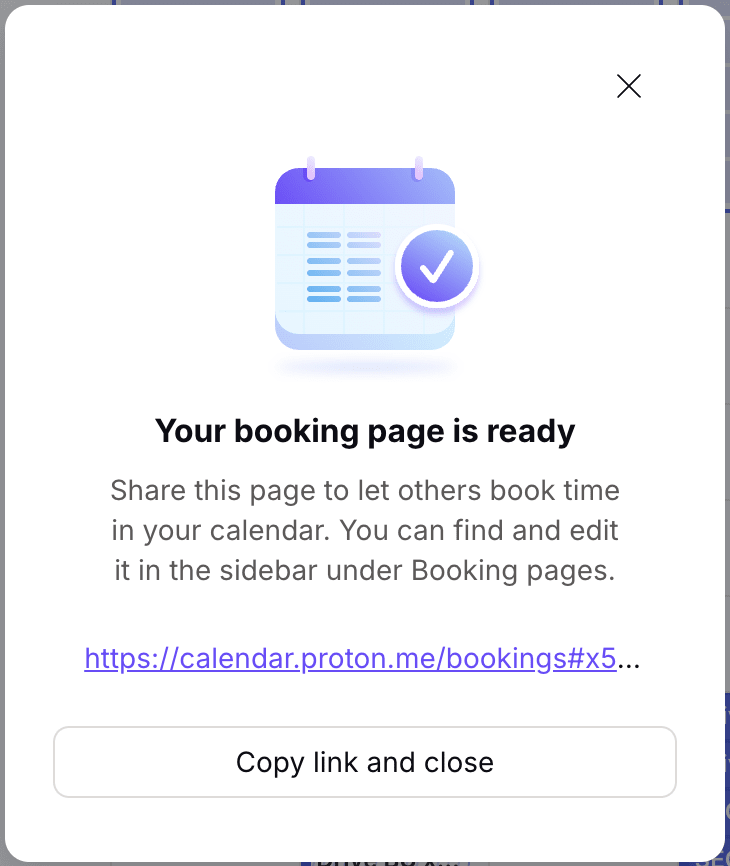
Vous verrez une fenêtre de confirmation avec le lien.
Comment afficher vos Pages de réservation
Pour afficher et gérer les Pages de réservation que vous avez Créé, accédez à account.proton.me/calendar et cliquez sur Pages de réservation dans la barre latérale pour Développer ce Menu.
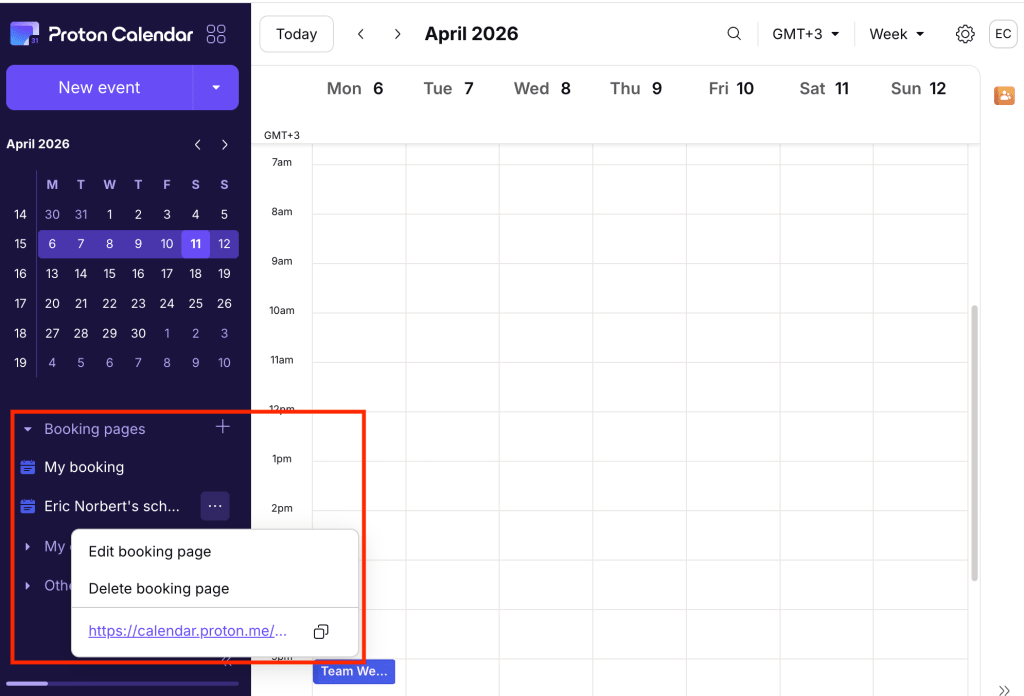
Vous pouvez cliquer sur les points de suspension … à côté de n’importe quelle page de réservation pour la Modifier, la Supprimer, Copier le Lien, ou cliquer pour l’Ouvrir et Afficher votre page de réservation.
Planifier un rendez-vous sur une page de réservation
- Ouvrir le Lien de réservation. Toutes les Liens de réservation Proton Calendar commencent par calendar.proton.me/bookings#. Vous pouvez voir le Fonction/Profession du rendez-vous, la durée, l’hôte et le Lieu.

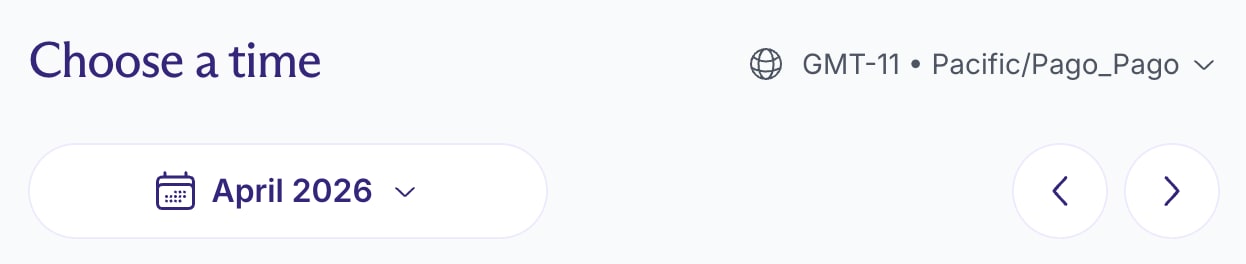
- Choisir un créneau horaire. Vous pouvez utiliser le menu déroulant Mois et les chevrons < > pour Parcourir la disponibilité. Si vous réservez depuis un Fuseau horaire différent, vous pouvez sélectionner votre propre Fuseau horaire pour voir les heures disponibles ajustées automatiquement.
- Saisir votre Nom et votre adresse e-mail, puis Confirmer votre réservation.
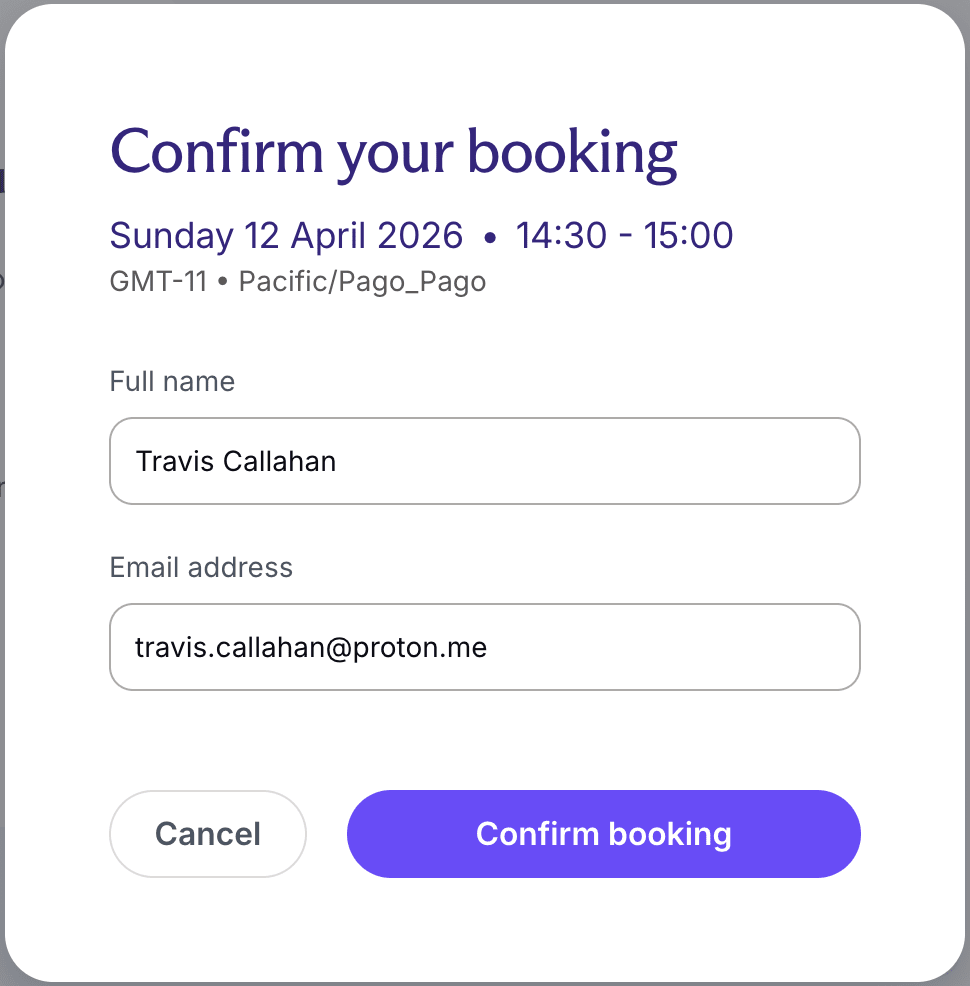
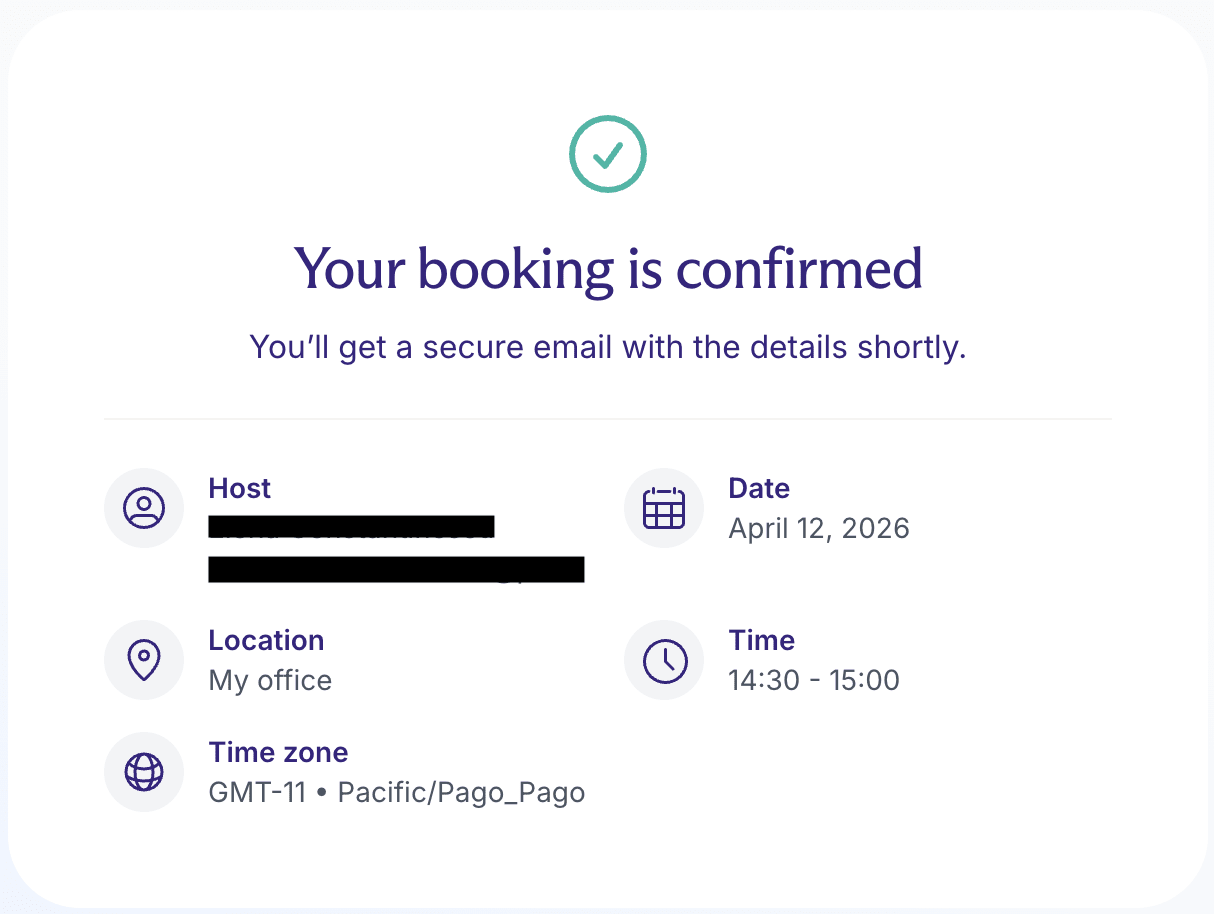
- Afficher la confirmation de réservation avec toutes les Détails. Un e-mail de confirmation est Envoyés automatiquement.