
Participer à un appel Proton Meet
- Lecture
- 3 minutes
- Catégorie
- Proton Meet
Lorsque vous êtes invité à rejoindre une conférence téléphonique Proton Meet, l’hôte doit vous envoyer un lien d’invitation ou en joindre un à l’invitation de votre calendrier.
Proton Meet s’ouvrira dans votre navigateur ou dans l’application Proton Meet, si vous l’avez. Vous pouvez gérer les autorisations de la caméra et du microphone avant de rejoindre la réunion.
Obtenir l’application Proton Meet
Dans cet article
Comment rejoindre un appel vidéo Proton Meet
Rejoindre via un lien de réunion
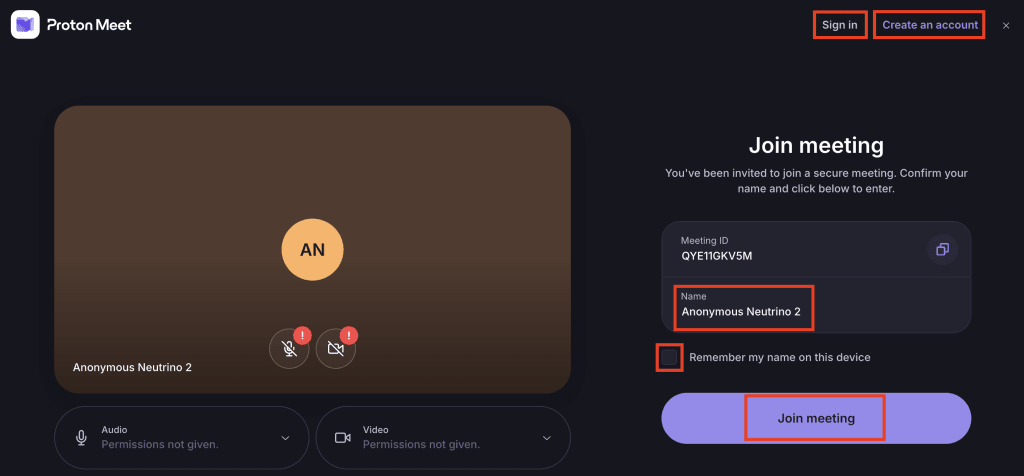
Toute personne disposant d’un lien de réunion peut rejoindre un appel Proton Meet — aucun compte ni aucune application ne sont nécessaires. Voici comment rejoindre via votre lien :
- Cliquez sur le lien Proton Meet que vous avez reçu. Tous les liens Proton Meet commencent par meet.proton.me/.
- (Facultatif) Cliquez sur Se connecter pour vous connecter à votre compte Proton, ou sur Créer un compte pour vous inscrire gratuitement.
- Autorisez l’accès au microphone et à la caméra si vous y êtes invité.
- (Facultatif), modifiez votre nom d’affichage et demandez à Proton Meet de se souvenir de votre nom sur votre appareil.
- Sélectionnez Rejoindre la réunion.
Rejoindre depuis une invitation Proton Calendar
- Ouvrez l’invitation. Vous pouvez le faire de deux manières :
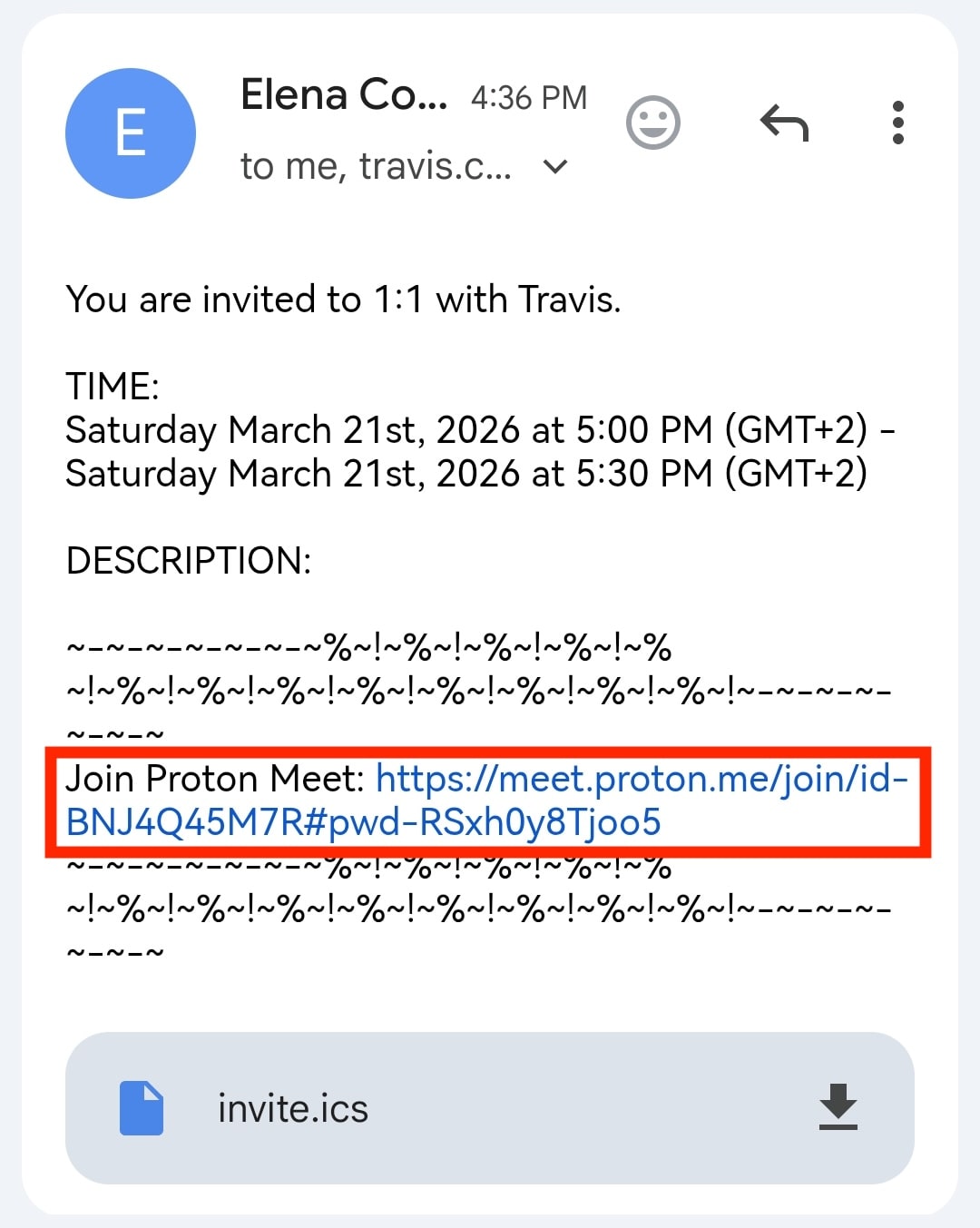
- Ouvrez votre application Proton Mail ou rendez-vous sur mail.proton.me(nouvelle fenêtre) et ouvrez l’invitation à l’événement. Cliquez sur Rejoindre avec Proton Meet.
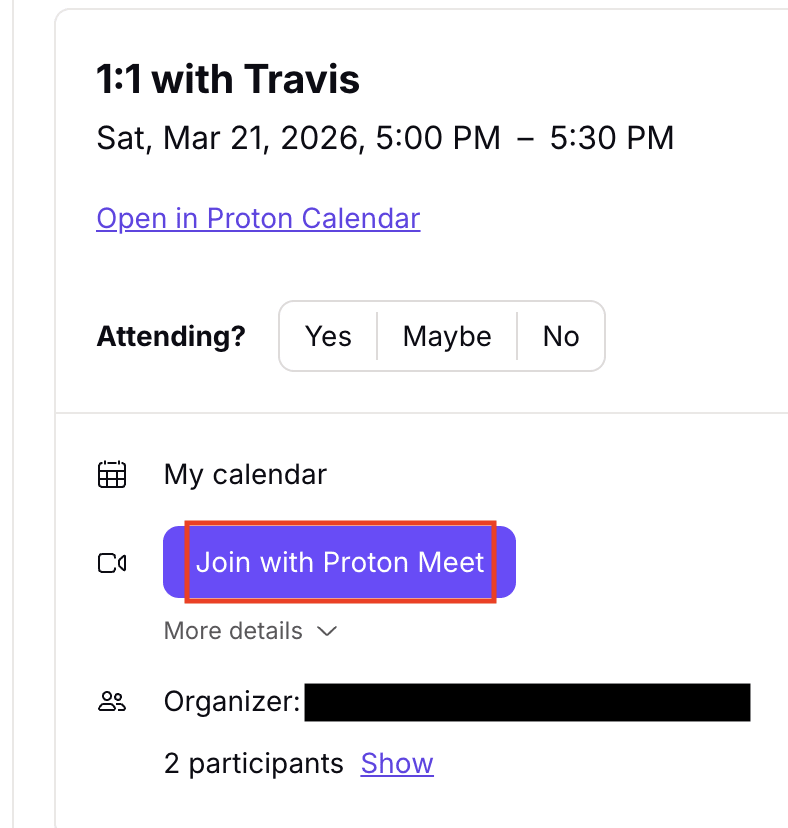
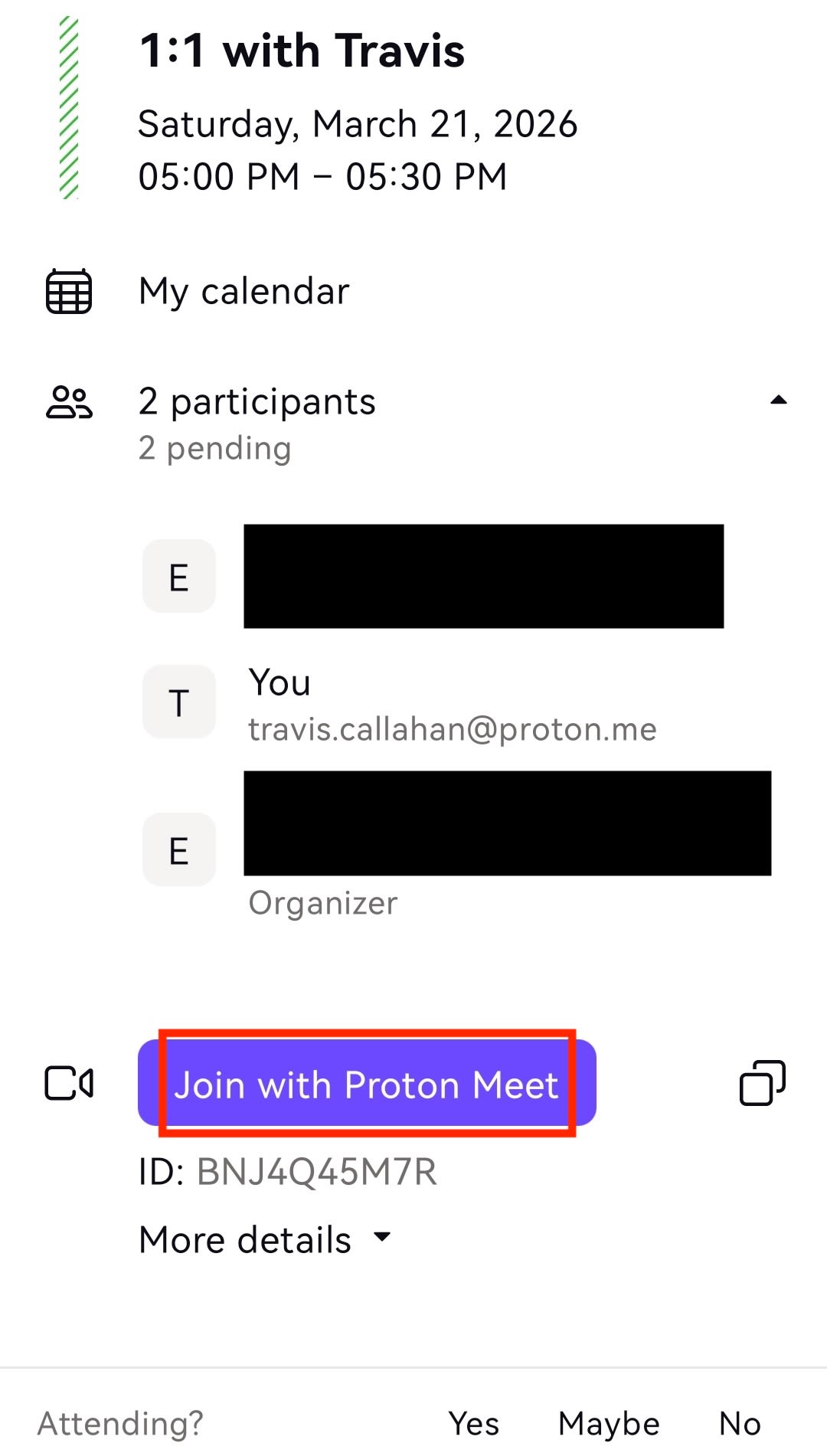
- Ouvrez votre application Proton Calendar ou rendez-vous sur calendar.proton.me(nouvelle fenêtre) et ouvrez l’événement de réunion. Cliquez sur Rejoindre avec Proton Meet. Cela ouvrira Proton Meet dans une nouvelle fenêtre sur ordinateur, ou dans l’application mobile si vous l’avez installée.
- Autorisez l’accès au microphone et à la caméra si vous y êtes invité.
- Facultatif, modifiez votre nom d’affichage et demandez à Proton Meet de se souvenir de votre nom sur votre appareil.
- Sélectionnez Démarrer la réunion.
Rejoindre un appel Proton Meet sans compte Proton
Toute personne peut rejoindre un appel Proton Meet en utilisant un lien d’invitation — vous n’avez pas besoin d’un compte Proton.
Si vous recevez une invitation sur une adresse e-mail non Proton, cliquez simplement sur le lien de réunion dans l’e-mail pour rejoindre.
Cependant, un compte Proton gratuit rend l’utilisation de Meet plus rapide et plus facile. Vous pouvez :
- Utiliser le nom de votre compte Proton comme nom par défaut pour les appels (vous pouvez toujours le modifier)
- Ouvrir les liens de réunion directement depuis votre Proton Mail ou Proton Calendar
- Héberger et planifier vos propres appels
- Utiliser des salles de réunion régulières et personnelles pour des appels récurrents et à la demande
Plus de fonctionnalités d’appel
Tous les participants à un appel peuvent partager leur écran, réagir avec des emojis et envoyer des messages en utilisant la fonctionnalité de chat de Proton Meet. Les hôtes peuvent également verrouiller et déverrouiller les réunions, mettre les participants en sourdine ou couper leur caméra, retirer des participants et enregistrer les réunions.
Sur Android, vous pouvez placer Proton Meet en mode image dans l’image pendant une réunion pour garder l’appel visible dans une petite fenêtre flottante pendant que vous changez d’application et effectuez d’autres tâches.
Si vous débutez avec notre application de visioconférence, consultez notre guide pour bien démarrer avec Proton Meet.