
Comment enregistrer une réunion dans Proton Meet
- Lecture
- 1 minute
- Catégorie
- Proton Meet
Avec un abonnement Proton Meet payant, les hôtes de réunion peuvent enregistrer les appels et sauvegarder la vidéo localement sur leur ordinateur.
L’enregistrement est disponible sur :
- Proton Meet pour le web (tous les navigateurs sauf Mozilla Firefox)
- Applications de bureau Proton Meet (Windows, macOS, Linux)
Comment enregistrer un appel
Pour lancer l’enregistrement, sélectionnez le bouton Enregistrer ⏺️ dans les commandes de la réunion.
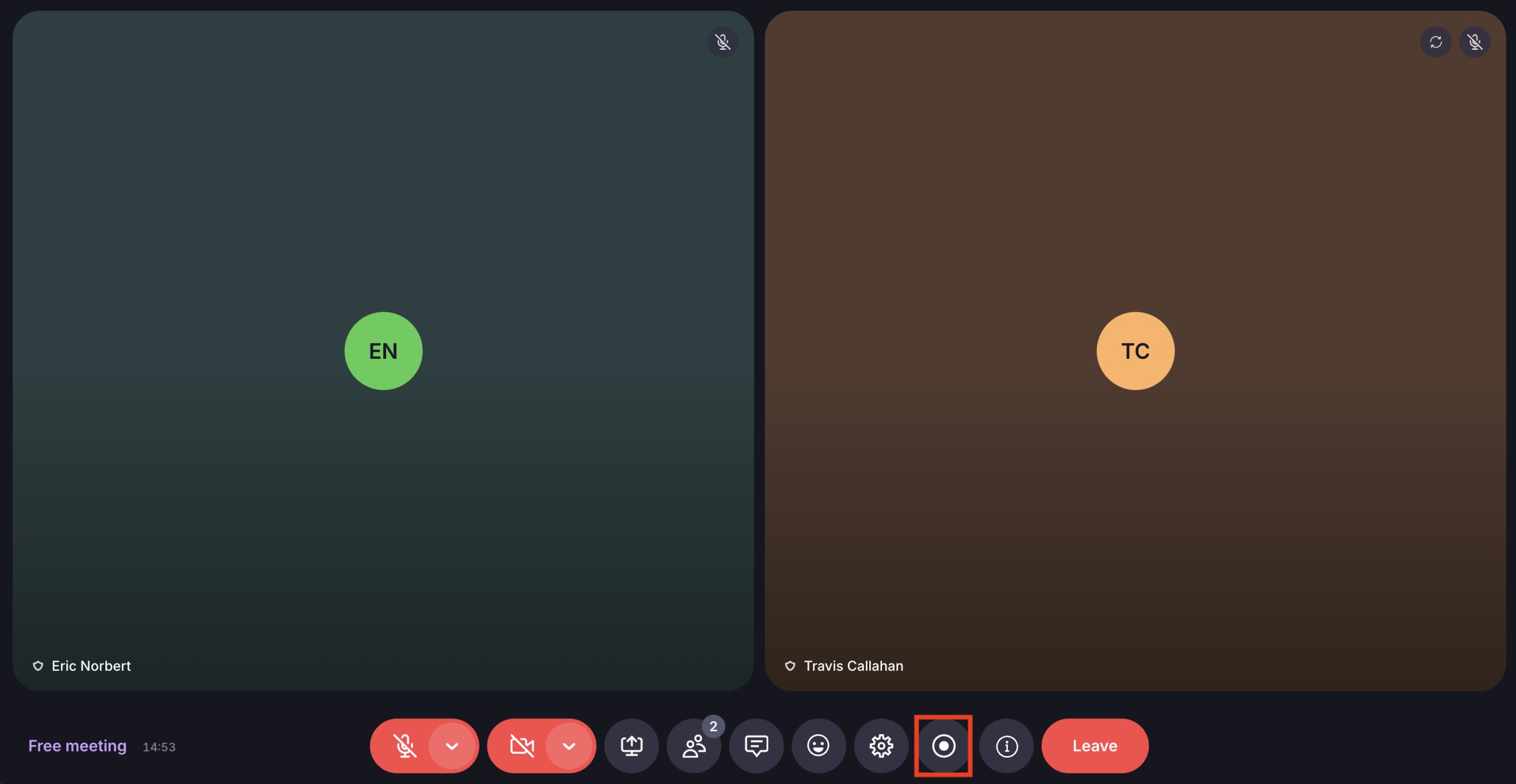
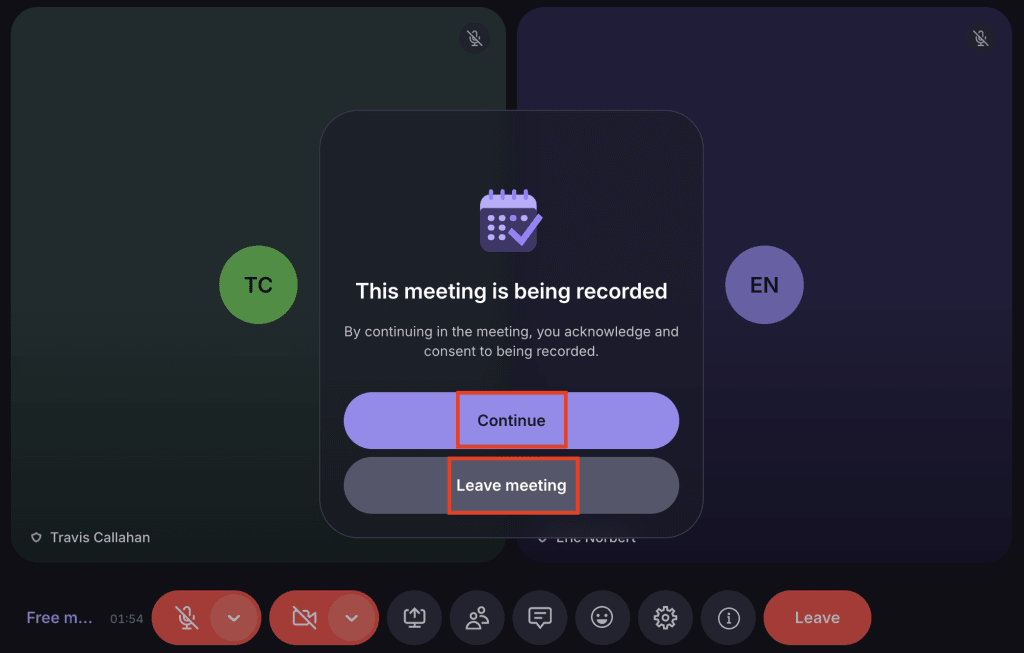
Proton Meet capturera tout ce qui est visible dans la fenêtre de réunion. Les autres participants seront informés que l’enregistrement a débuté et auront la possibilité de continuer ou de quitter la réunion.
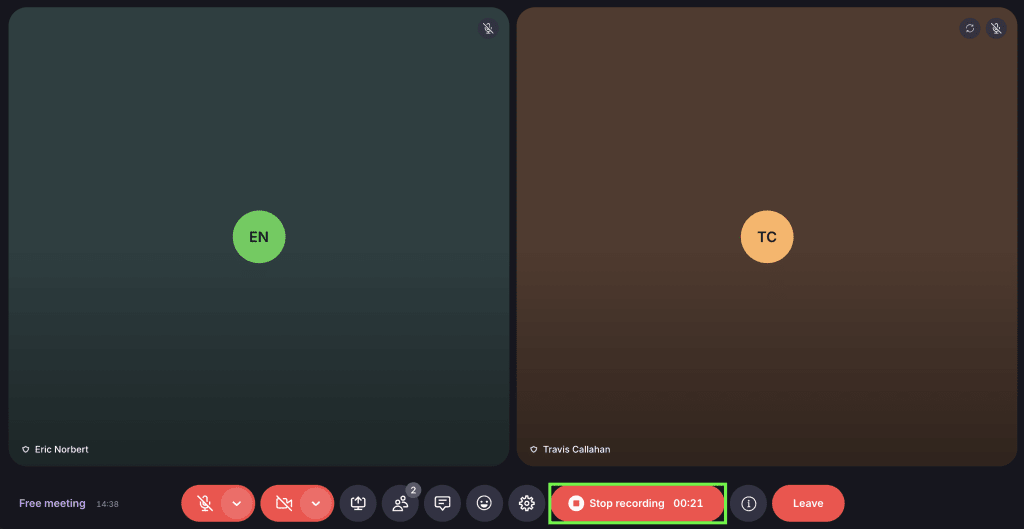
Pour arrêter un enregistrement, sélectionnez Arrêter l’enregistrement.
Votre enregistrement sera enregistré localement au format MP4 :
- Application web : Votre navigateur utilisera son emplacement de téléchargement par défaut ou vous demandera de choisir où enregistrer le fichier, en fonction de vos paramètres de navigateur.
- Applications de bureau : Vous serez invité à choisir un emplacement d’enregistrement et un nom de fichier.
Si vous découvrez notre application de visioconférence, consultez notre guide pour bien débuter avec Proton Meet.