
Utiliser l’application web Proton Meet
- Lecture
- 6 minutes
- Catégorie
- Proton Meet
Grâce à l’application web Proton Meet, vous pouvez rejoindre, héberger et planifier des appels vidéo sécurisés directement depuis votre navigateur, sans installer d’applications.
Proton Meet est également disponible sur les plateformes bureau et mobile (Windows, macOS, Linux, Android et iOS). Pour une expérience optimale, nous vous recommandons de télécharger Proton Meet sur vos appareils.
Dans cet article
- Accéder à Proton Meet depuis votre navigateur
- Rejoindre une réunion
- Fonctionnalités et paramètres d’appel
Accéder à Proton Meet depuis votre navigateur
Proton Meet fonctionne sur la plupart des navigateurs modernes, dont :
- Mozilla Firefox
- Google Chrome
- Microsoft Edge
- Brave
Pour une expérience optimale, gardez votre navigateur à jour et autorisez les autorisations de Microphone, Caméra, et partage d’écran lorsque vous y êtes invité.
Pour ouvrir l’application web Proton Meet, allez sur meet.proton.me(nouvelle fenêtre).
Utiliser l’application web
Pour utiliser la plupart des fonctionnalités de Proton Meet, vous devrez Se connecter à votre compte Proton sur account.proton.me/signin.
Une fois connecté, vous verrez le tableau de bord(nouvelle fenêtre).

De là, vous pouvez :
Début d’un appel
- Cliquez sur Créer une réunion, puis sélectionner une Option du Menu :
- Démarrer une réunion instantanée : Comment héberger une réunion et Inviter des Participants
- Planifier une réunion : Définir une Date et un Temps, Ajouter des participants, et envoyer une invitation à l’avance. Comment planifier une réunion
- Créer une salle : Générer un espace de réunion personnel que vous pouvez réutiliser à tout moment avec le même Lien. Comment utiliser les salles de réunion

Rejoindre une réunion
Sélectionnez Rejoindre via lien pour saisir une réunion en utilisant un lien Proton Meet.

Afficher et gérer les réunions planifiées
Allez dans Mes réunions pour voir les appels à venir.
- Pour entrer dans une réunion, cliquez sur Rejoindre
- Pour copier et partager un lien de réunion avec des participants, cliquez sur Copier 📋
- Pour modifier le nom d’affichage d’une réunion, cliquez sur Modifier ✏️
- Pour retirer une réunion de votre agenda, cliquez sur Supprimer 🗑️

Afficher et créer des salles de réunion
Dans Mes salles, vous trouverez votre salle de réunion personnelle et toutes les salles que vous avez créées.
- Votre Salle de réunion personnelle est toujours disponible. Vous pouvez Rejoindre, Copier 📋 le lien, ou Modifier ✎ son URL.
- Pour les salles existantes, vous pouvez Rejoindre, Copier 📋 le lien, Modifier ✎ le Nom, ou Supprimer 🗑️ la salle.
- Cliquez sur Créer une nouvelle salle pour configurer un nouvel espace de réunion réutilisable pour votre équipe ou vos clients.
Vous pouvez également rechercher des réunions et les trier par prochaines ou nouvellement créées pour trouver rapidement ce dont vous avez besoin.

Rejoindre une réunion
Avant de vous connecter à (ou de démarrer) un appel, vous avez l’option de :
- Modifier votre Nom d’affichage
- Demandez à Proton Meet de se souvenir de votre Nom sur l’appareil actuel afin qu’il soit automatiquement rempli lors des prochaines réunions
- Activer votre Microphone et Caméra et sélectionner les Appareil audio et vidéo qu’ils doivent utiliser
- Activer le Flou d’arrière-plan
- Désactiver la Suppression du bruit (activée par défaut)

Lorsque vous êtes prêt, cliquez sur Démarrer la réunion.
Fonctionnalités et paramètres d’appel
Une fois que vous êtes connecté à un appel Proton Meet, vous avez accès à une gamme de Paramètres et de fonctionnalités de visioconférence.
Commandes principales
- Commandes Vidéo : Cliquez sur Caméra 📷 pour activer ou désactiver la caméra vidéo. Cliquez sur le chevron ⬇️ pour gérer votre Appareil vidéo.
- Contrôles Audio : Cliquez sur Microphone 🎙️ pour activer ou désactiver votre micro. Cliquez sur le chevron ⬇️ pour gérer votre Appareil audio. Comment utiliser la Caméra et le Microphone
- Partage d’écran : Cliquez sur Partager l’écran 🖥️ pour présenter. Comment fonctionne le Partage d’écran
- Chat de la réunion : Cliquez sur Chat 💬 pour Afficher et envoyer des messages en direct. Comment fonctionne le Chat

- Réactions : Cliquez sur Emoji 🙂 pour réagir en temps réel pendant la réunion.
- Enregistrer la réunion : Cliquez sur Enregistrer ⏺️ pour commencer l’enregistrement de l’appel. Comment fonctionne l’enregistrement
- Quitter l’appel : Cliquez sur Quitter pour Quitter la salle de réunion. Les hôtes ont la possibilité de simplement Quitter la réunion ou de la terminer pour tout le monde.
- Afficher les participants : Sélectionnez Participants 👥 pour voir tous les participants. Si vous êtes l’hôte (hosting), vous pouvez également modérer la réunion ici.

Paramètres supplémentaires
Pour plus de contrôles, cliquez sur Paramètres ⚙️. Depuis le panneau des paramètres, vous pouvez :
- Verrouiller la réunion (hôtes uniquement) : Empêche les nouveaux participants de rejoindre la réunion une fois qu’elle a débuté.
- Flou d’arrière-plan : Adoucit tout ce qui se trouve derrière vous tout en vous gardant au centre de l’attention.
- Désactiver la vidéo entrante : Masque les flux vidéo des autres participants. Cela peut réduire l’utilisation de la bande passante.
- Masquer soi-même : Vous empêche de voir votre propre flux vidéo, tout en laissant votre Caméra activée pour les autres participants.
- Mode image dans l’image : Lorsque vous basculez vers un autre onglet, votre appel Proton Meet restera visible dans une petite fenêtre flottante (activé par défaut).
- Suppression du bruit : Réduit les sons d’arrière-plan tels que la frappe au clavier, les ventilateurs ou le trafic (activé par défaut).

Utiliser les effets de Caméra et de Microphone sur macOS
Sur macOS, vous pouvez voir des commandes de Caméra et de Microphone supplémentaires dans la barre de Menu du Système (icône de caméra verte) lors de l’utilisation de Proton Meet.
À partir de là, vous pouvez accéder à des fonctionnalités telles que Lumière studio, Réactions, ou appliquer un effet ou une image d’arrière-plan, ainsi qu’ajuster les modes de Microphone (tel que l’isolation vocale) en utilisant vos Paramètres du Système (par exemple, FaceTime HD Camera).
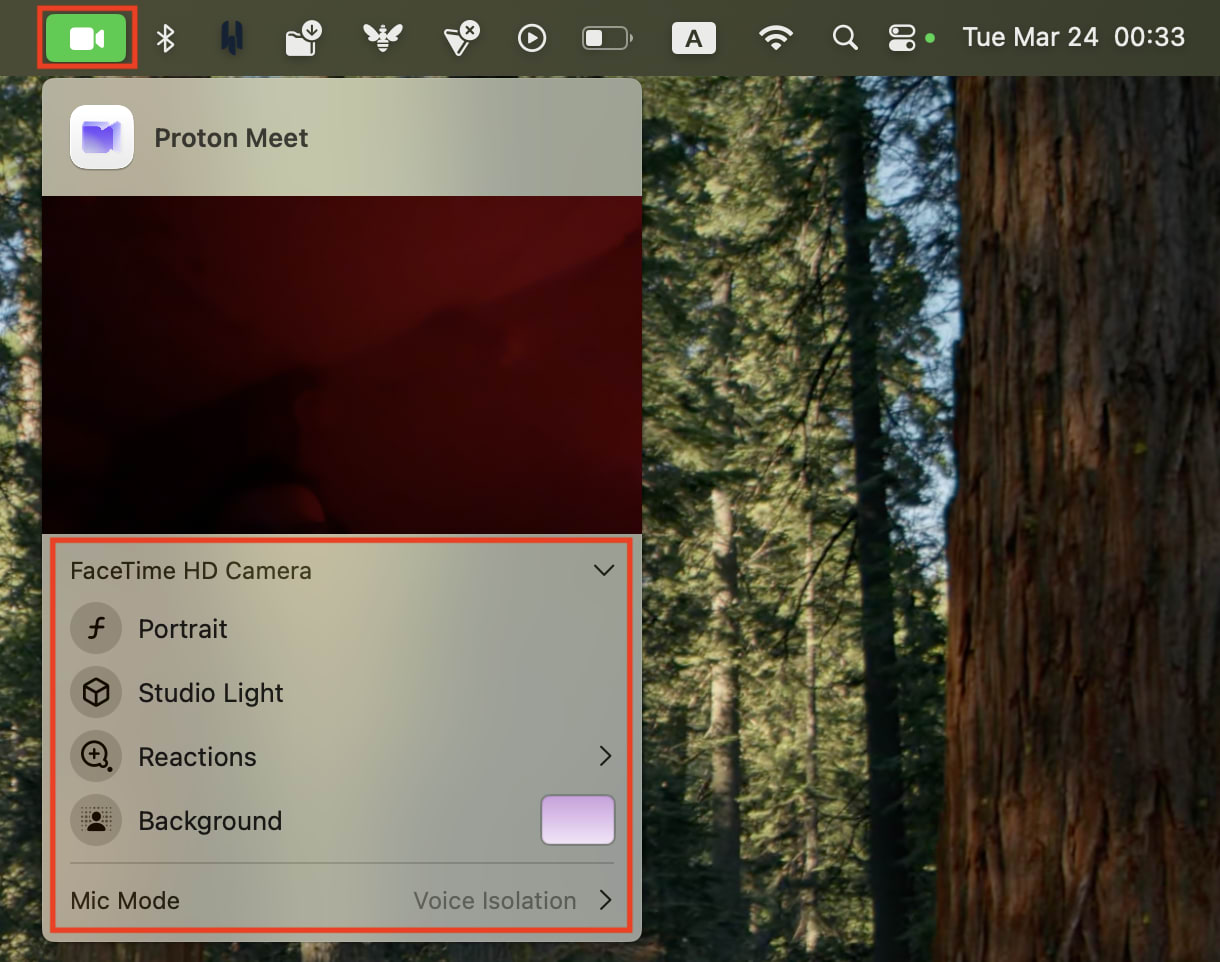
Ces commandes sont gérées par macOS, pas par Proton Meet, et peuvent varier en fonction de votre appareil.
Si vous découvrez notre application de visioconférence, consultez notre guide pour bien débuter avec Proton Meet.