
Utilisation de Proton Meet sur mobile
- Lecture
- 4 minutes
- Catégorie
- Proton Meet
Proton Meet est une application de visioconférence sécurisée et chiffrée de bout en bout. Avec nos applications iOS et Android, vous pouvez rapidement organiser et rejoindre des réunions, créer des salles, partager votre écran (iOS uniquement) et discuter par chat avec d’autres participants.
- Télécharger Proton Meet pour mobile
- Démarrer une réunion instantanée
- Créer une salle de réunion
- Utiliser votre salle de réunion personnelle
- Rejoindre une réunion à l’aide d’un lien
- Planifier une réunion
- Fonctionnalités de visioconférence
Télécharger Proton Meet pour mobile
Vous pouvez télécharger Proton Meet depuis notre site web.
Une fois téléchargée, vous pouvez utiliser Proton Meet en mode invité, ou vous connecter à votre compte Proton pour accéder à plus de fonctionnalités.
Démarrer une réunion instantanée
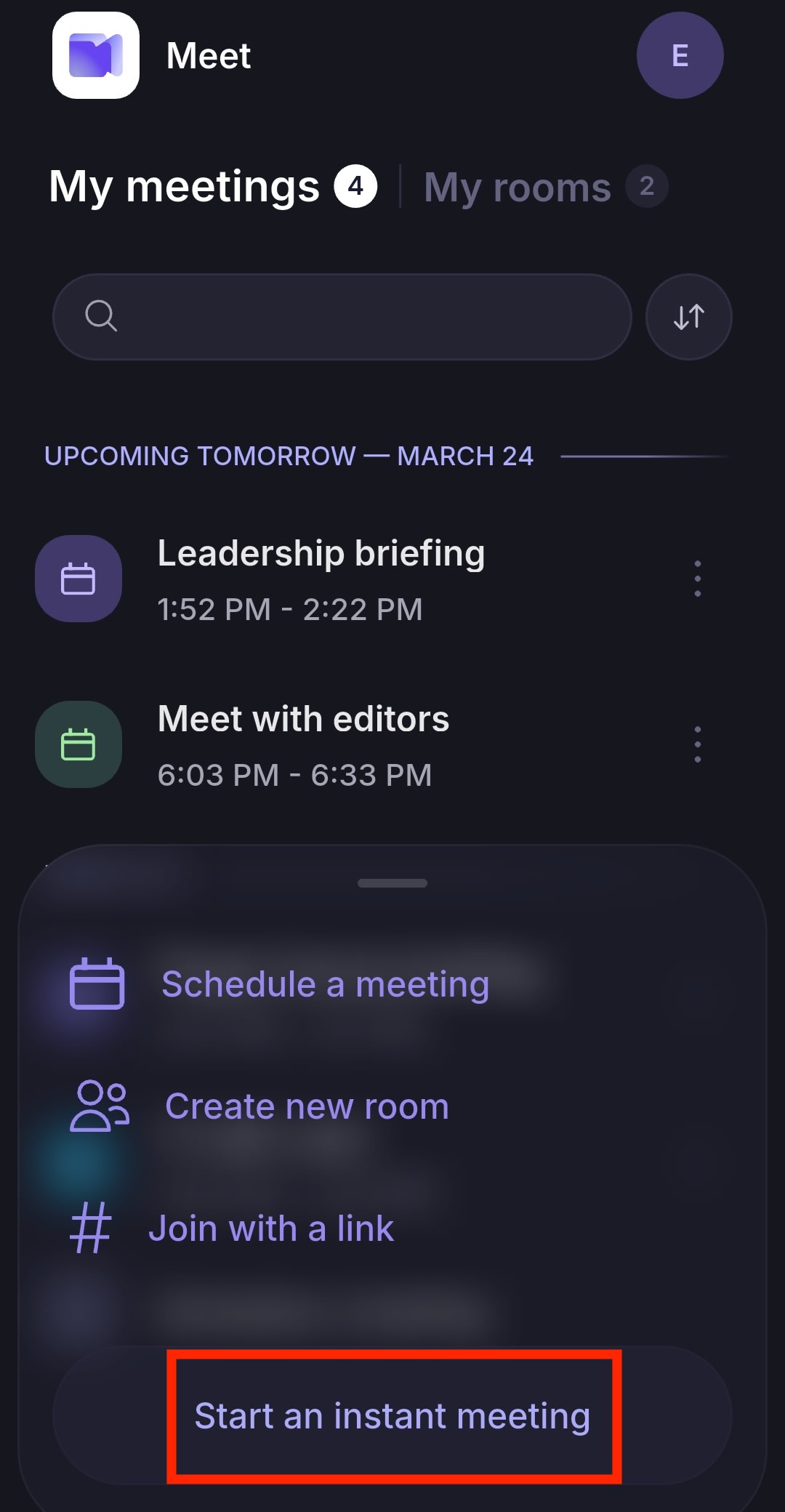
Appuyez sur Créer une réunion → Démarrer une réunion instantanée.
Créer une salle de réunion
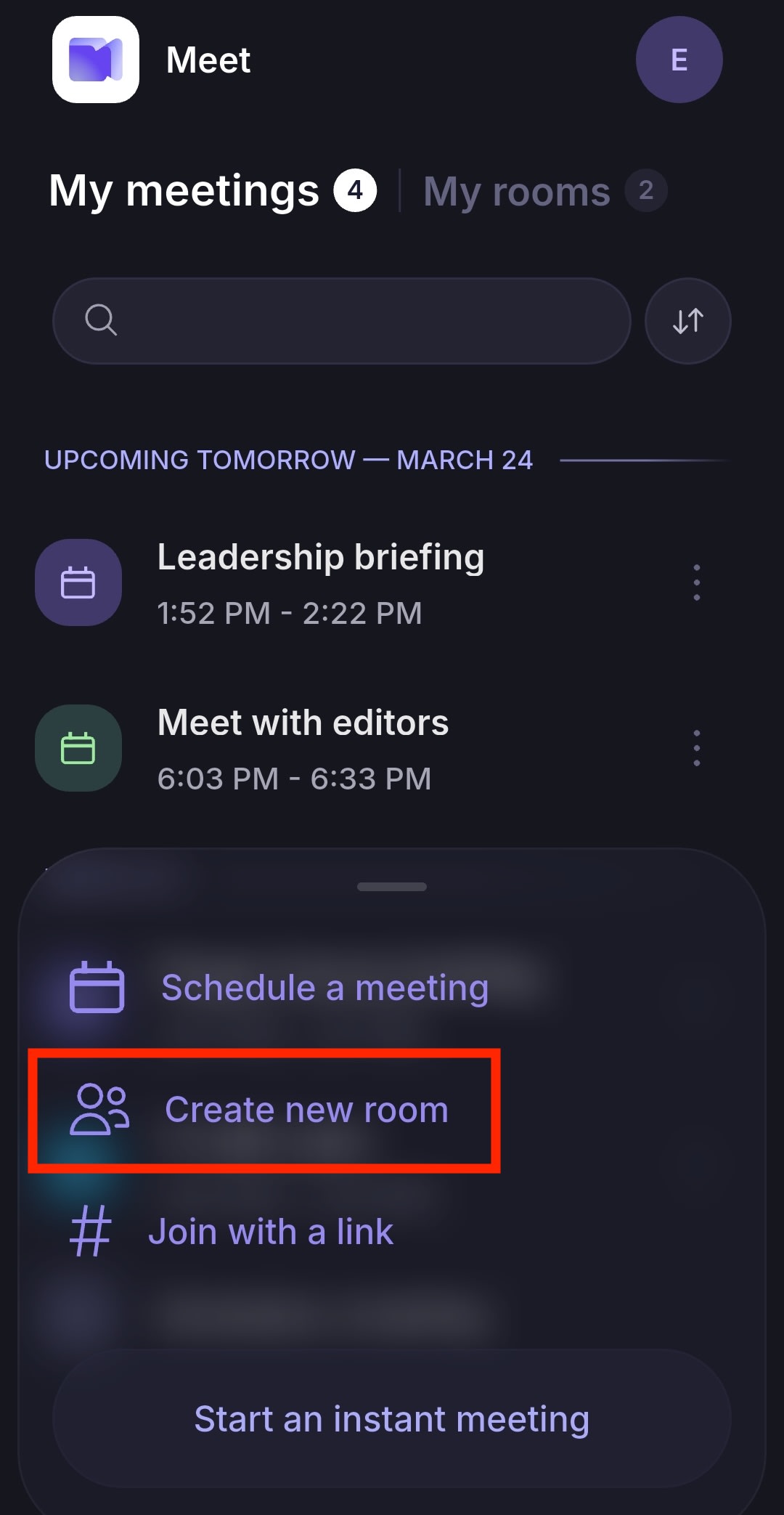
- Appuyez sur Créer une réunion → Créer une nouvelle salle.
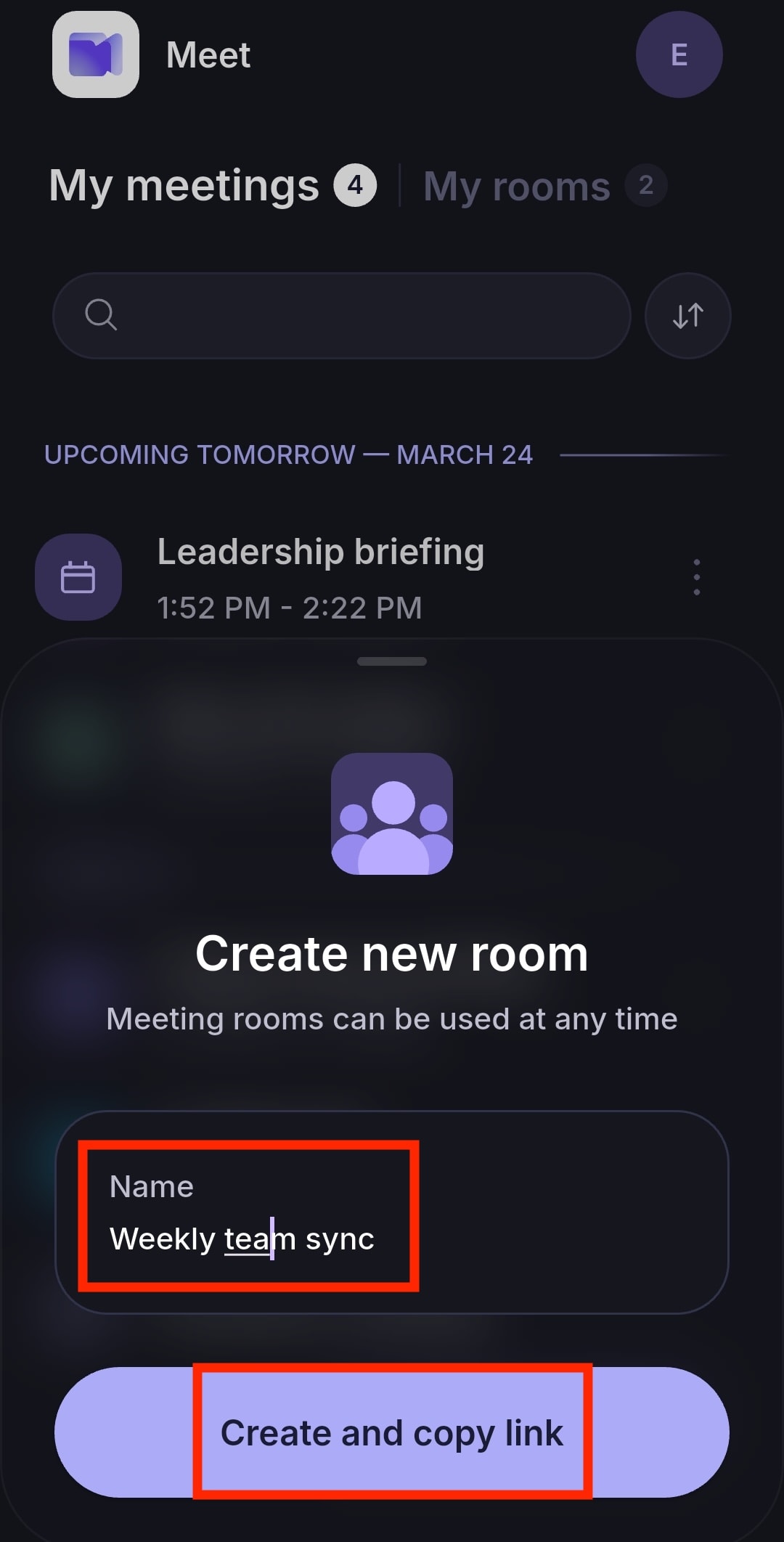
- Saisissez un nom de salle et appuyez sur Créer et copier le lien. Vous pouvez désormais partager le lien de la réunion afin que d’autres personnes puissent la rejoindre.
- Appuyez sur la salle de réunion et sélectionnez Se connecter à la réunion.
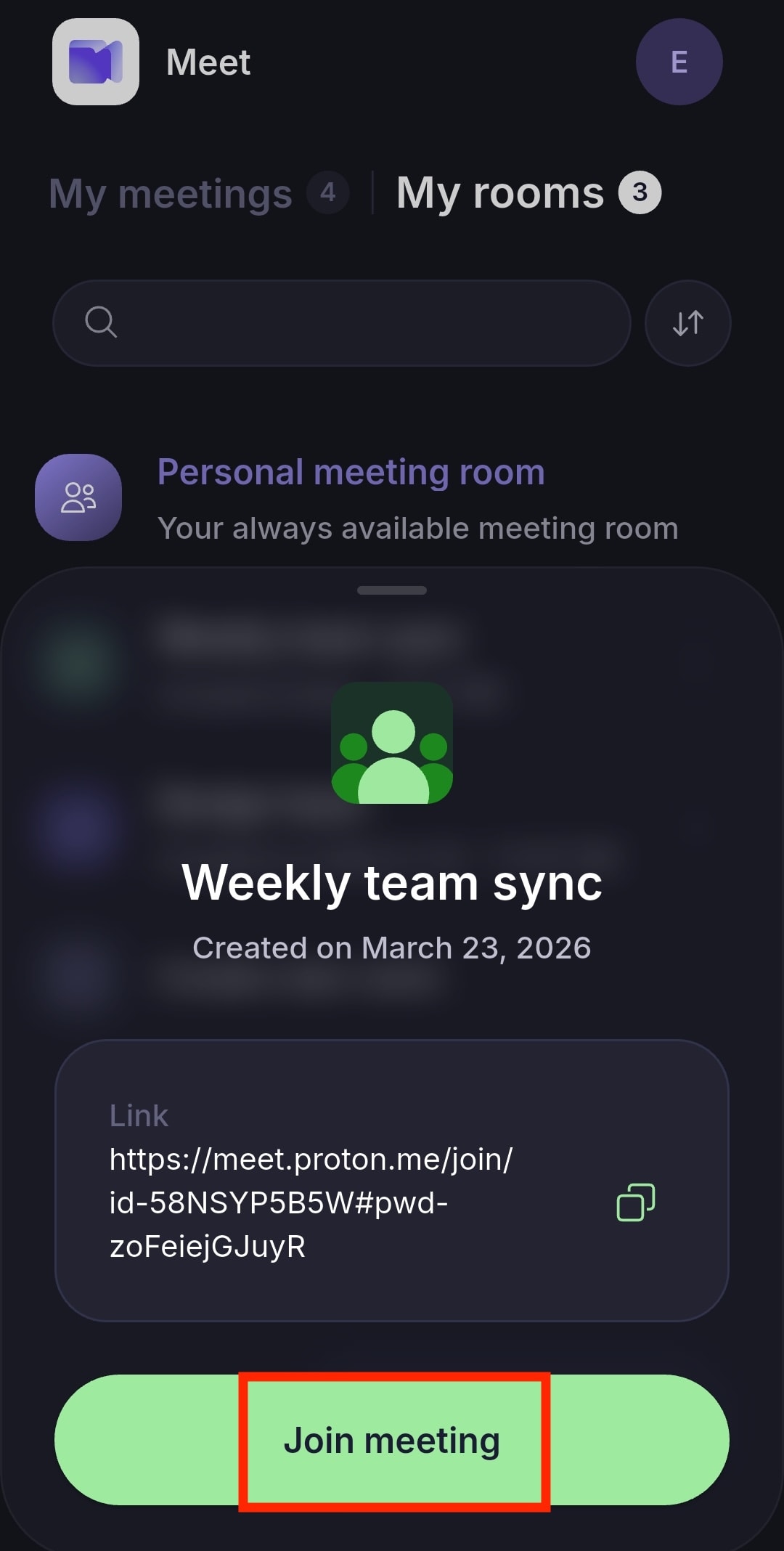
Vous pouvez également appuyer sur Copier 📋 pour copier le lien de la réunion et le partager avec d’autres personnes.
Si vous ne supprimez pas la salle, les participants peuvent réutiliser le même lien pour de futures réunions. Supprimer une salle de réunion retire définitivement son lien.
Utiliser votre salle de réunion personnelle
Votre salle de réunion personnelle est toujours disponible, et tous ceux qui ont le lien peuvent y accéder.
Appuyez sur Mes salles → Salle de réunion personnelle → Se connecter à la réunion.
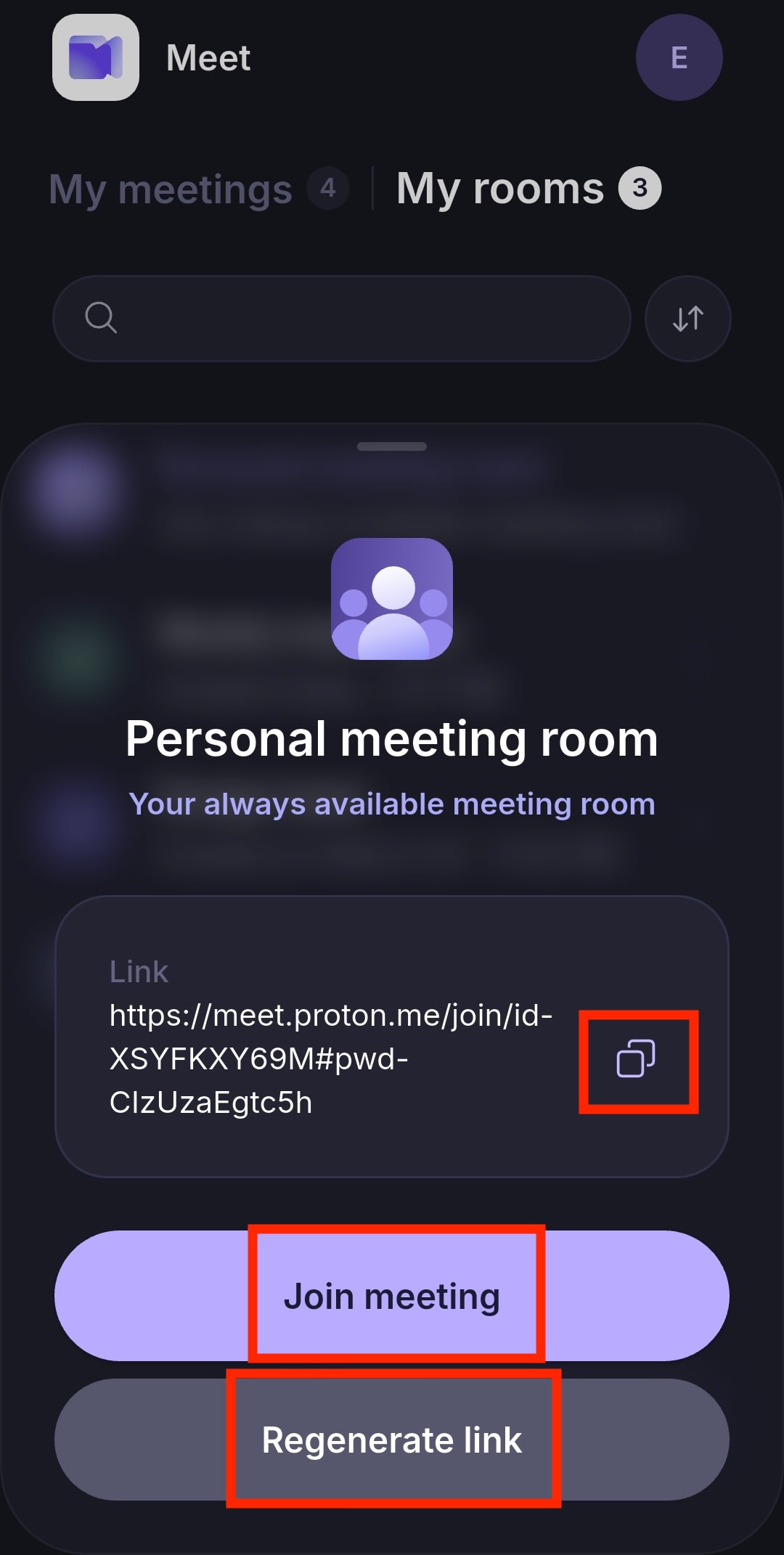
Vous pouvez appuyer sur Copier 📋 pour copier votre lien de réunion personnelle et le partager avec d’autres personnes.
Contrairement à une salle de réunion classique, votre salle de réunion personnelle ne peut pas être supprimée. Vous pouvez modifier le lien une fois par jour en sélectionnant Régénérer le lien.
En savoir plus sur les salles de réunion
Rejoindre une réunion à l’aide d’un lien
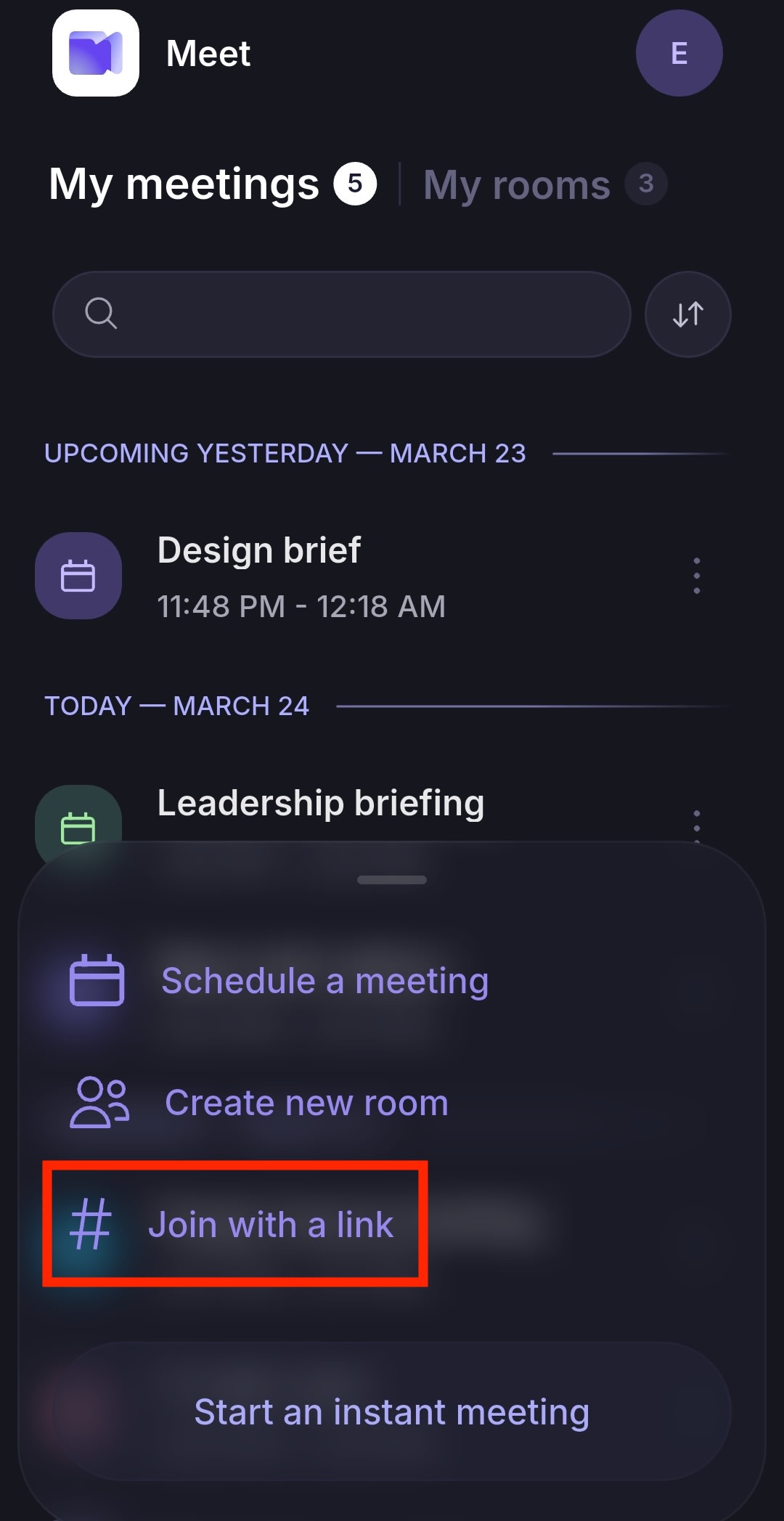
- Appuyez sur Créer une réunion.
- Sélectionnez Se connecter avec un lien.
- Collez le lien de la réunion et appuyez sur Se connecter à la réunion pour participer immédiatement à une visioconférence.
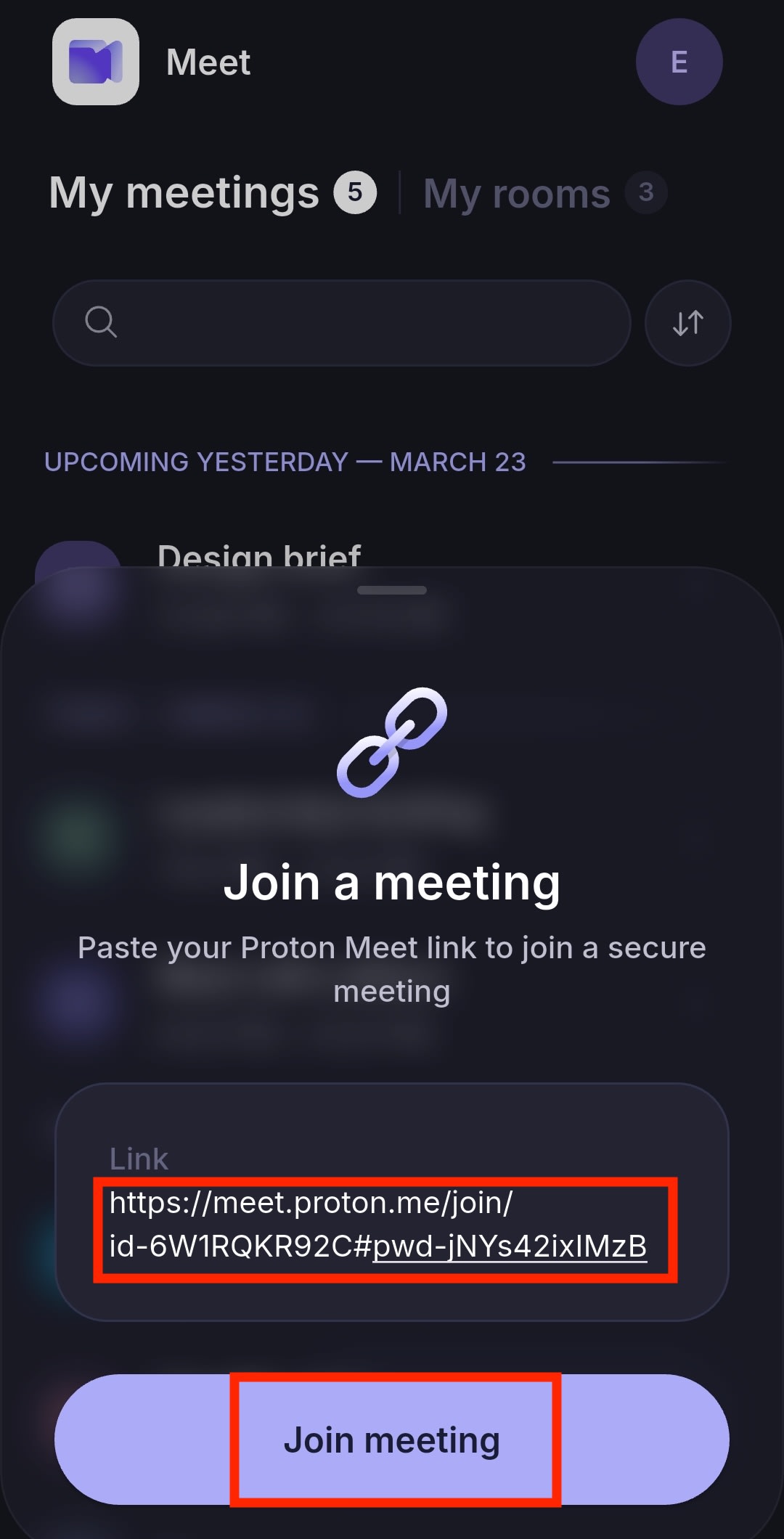
Lorsque vous appuyez sur un lien Proton Meet, l’application s’ouvre et vous redirige automatiquement vers l’écran de connexion.
Planifier une réunion
- Appuyez sur Créer une réunion → Planifier une réunion.

- Renseignez les informations de la réunion :
- Titre
- Date et heure
- Durée
- Fuseau horaire
- Récurrence
- Cliquez sur Enregistrer.
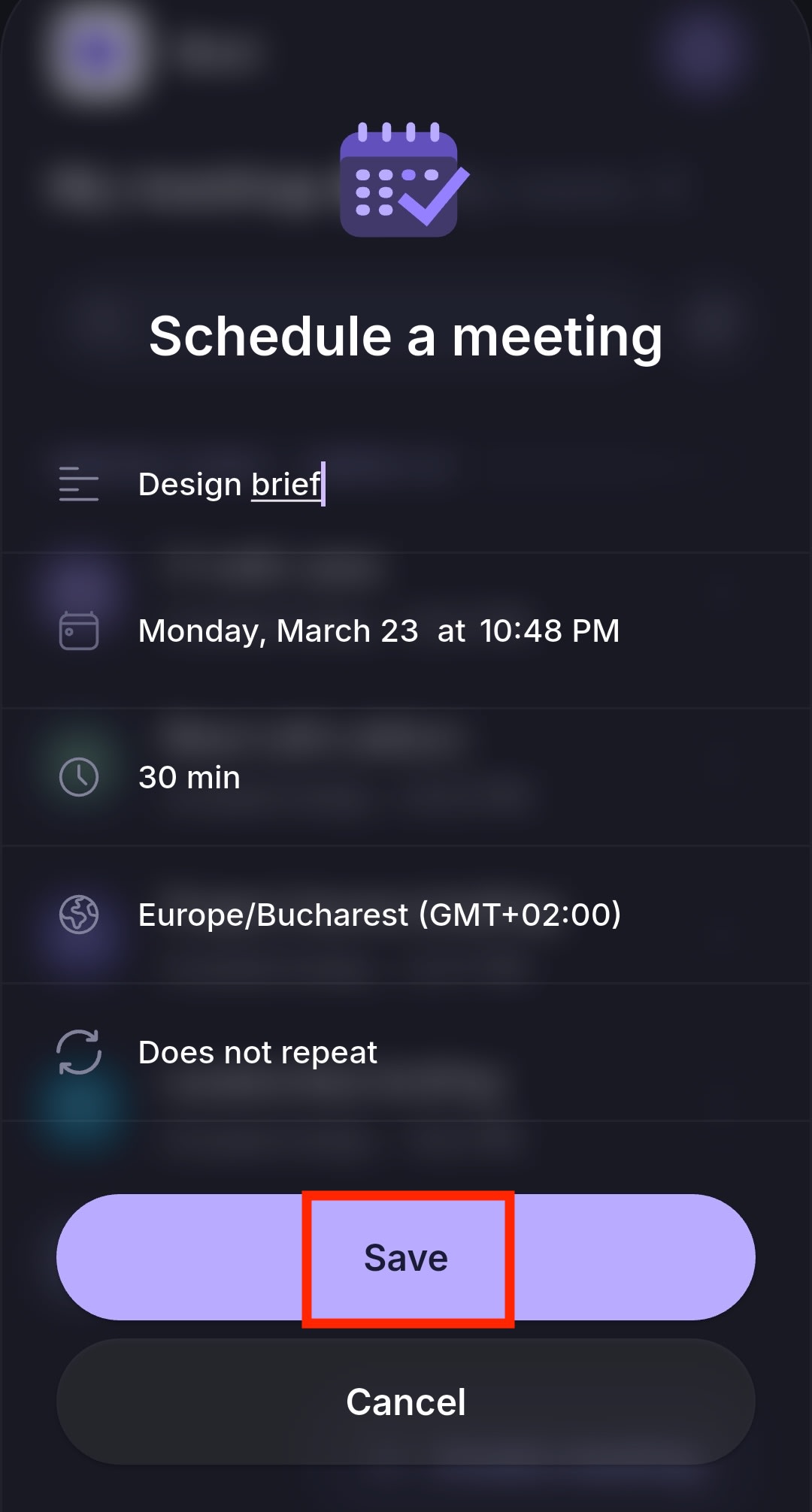
Cela crée une entrée dans Mes réunions et génère automatiquement un lien de réunion sécurisé.
Ensuite, vous pouvez :
- Appuyez sur Copier 📋 pour copier le lien et le partager avec d’autres personnes
- Terminé pour finaliser la configuration et revenir à l’écran d’accueil
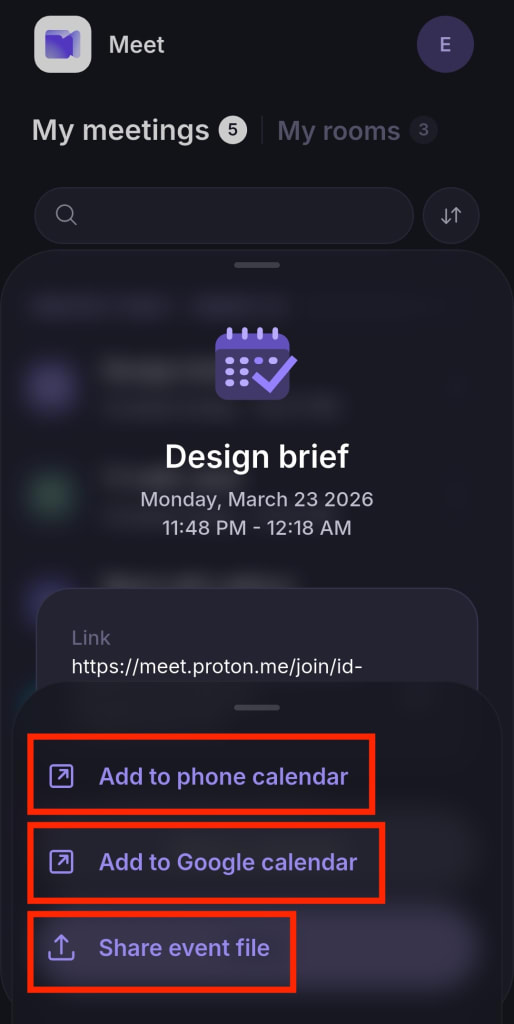
- Ajouter au calendrier et choisissez entre :
- Ajouter au calendrier du téléphone pour ajouter la réunion au calendrier de votre appareil
- Ajouter à Google Calendar pour ajouter la réunion à Google Calendar
- Partager le fichier de l’événement pour partager le fichier de calendrier ICS que vous ou d’autres personnes pouvez importer dans une application de calendrier
Vous pouvez également planifier une réunion dans l’ application web Proton Meet, l’ application de bureau Proton Meet ou l’ application Proton Calendar, et envoyer automatiquement des invitations par e-mail aux utilisateurs Proton et non-Proton. Les invités peuvent participer même s’ils n’ont pas de compte Proton.
Fonctionnalités de visioconférence
Une fois connectés, tous les participants ont accès aux fonctionnalités de visioconférence telles que le partage d’écran et le chat de la réunion. Les organisateurs de l’appel ont également accès à l’enregistrement vidéo et à des fonctionnalités de modération supplémentaires.
- Comment utiliser votre caméra et votre microphone
- Comment partager votre écran (iOS uniquement)
- La fonctionnalité de chat de Proton Meet expliquée
- Outils d’organisation et de modération de Proton Meet
- Enregistrer une réunion
Si vous découvrez notre application de visioconférence, consultez notre guide pour commencer à utiliser Proton Meet.