
Utiliser votre microphone et votre caméra dans Proton Meet
- Lecture
- 5 minutes
- Catégorie
- Proton Meet
Proton Meet vous permet de contrôler le fonctionnement de votre caméra et de votre microphone avant et pendant chaque appel. Vous pouvez choisir les appareils à utiliser, gérer les autorisations et ajuster vos paramètres pour les adapter à votre environnement.
Si quelque chose ne fonctionne pas comme prévu, vous pouvez également résoudre rapidement les problèmes courants liés à l’accès aux appareils et aux autorisations.
- Autoriser l’accès à la caméra et au microphone
- Sélectionner des appareils audio et vidéo
- Tester votre caméra et votre microphone
- Activer ou désactiver votre caméra et votre microphone
- Changer de mode de caméra sur mobile
- Dépannage
Autoriser l’accès à la caméra et au microphone
Lorsque vous rejoignez ou hébergez une réunion pour la première fois, il peut vous être demandé d’autoriser Proton Meet à utiliser votre caméra et votre microphone.

- Sélectionnez Autoriser pour activer l’audio et la vidéo.
- Si vous choisissez Bloquer ou si vous ignorez l’invite, vous ne pourrez pas activer votre caméra et/ou votre microphone pendant les appels.
Accorder l’accès à la caméra et au microphone ultérieurement
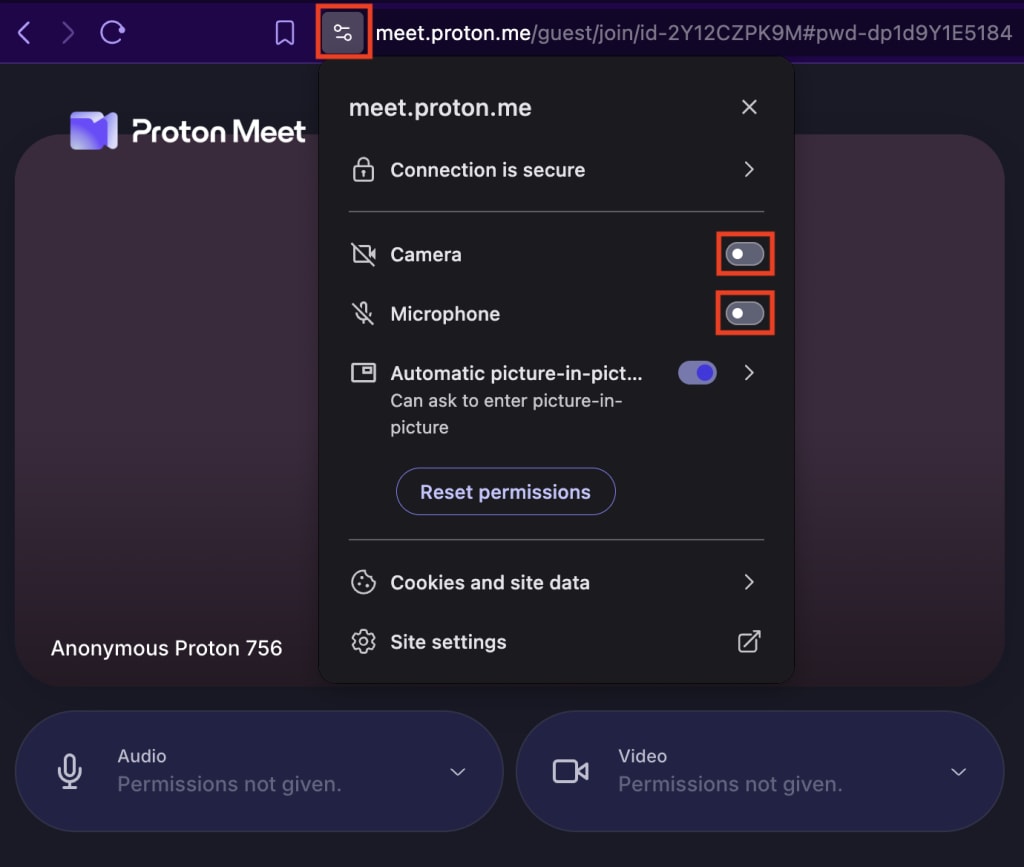
Si vous n’avez pas autorisé l’accès à la caméra et au microphone lors de votre premier appel, vous pouvez l’activer dans les paramètres de votre navigateur :
- Cliquez sur Afficher les informations du site (icône 🔒, ℹ️ ou similaire) à côté de la barre d’adresse de votre navigateur.
- Activez les paramètres Caméra et Microphone.
- Actualisez la page pour que les modifications prennent effet.
Sélectionner des appareils audio et vidéo
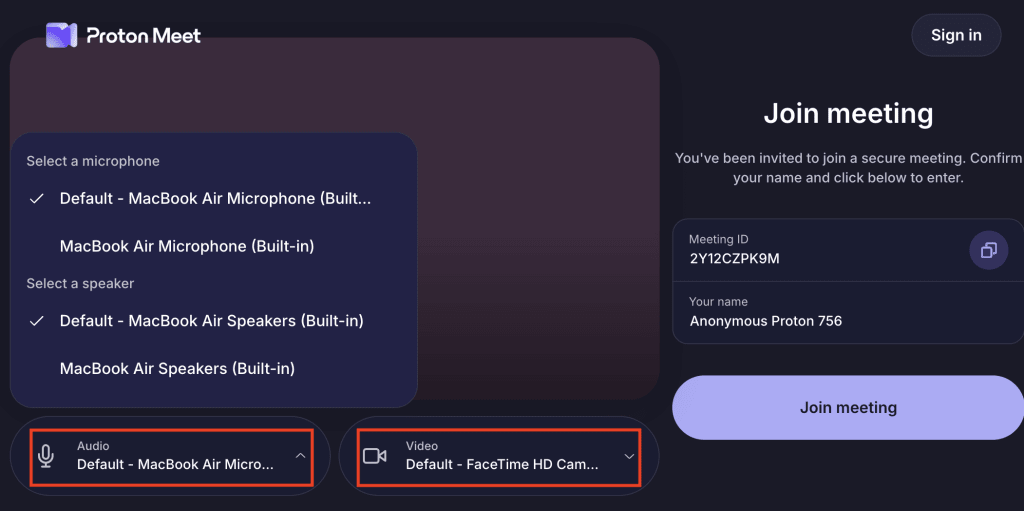
Avant de rejoindre une réunion, les panneaux Audio et Vidéo indiquent quelle caméra et quel microphone seront utilisés pendant l’appel.
- Cliquez sur Audio pour passer à un autre microphone.
- Cliquez sur Vidéo pour passer à une autre caméra.
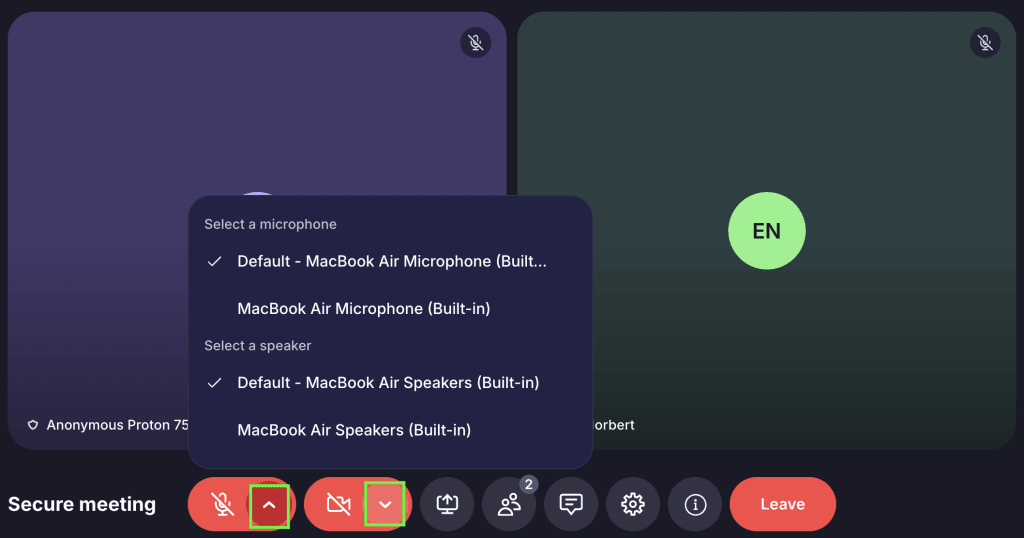
Vous pouvez changer votre caméra, votre microphone ou votre haut-parleur à tout moment pendant un appel. Rouvrez simplement les menus Audio 🎙️ ou Vidéo 📹 et sélectionnez un nouvel appareil.
Conseil : Si les participants ne peuvent pas vous entendre ou vous voir, assurez-vous que votre navigateur a la permission d’accéder à vos appareils et que le microphone ou la caméra correct(e) est sélectionné(e). Par exemple, sur Mac, vous devez autoriser l’accès au navigateur dans les Paramètres système.
Tester votre caméra et votre microphone
Pour vérifier le son et l’image avant de rejoindre l’appel, activez le Microphone 🎙️ et la Caméra 📹.
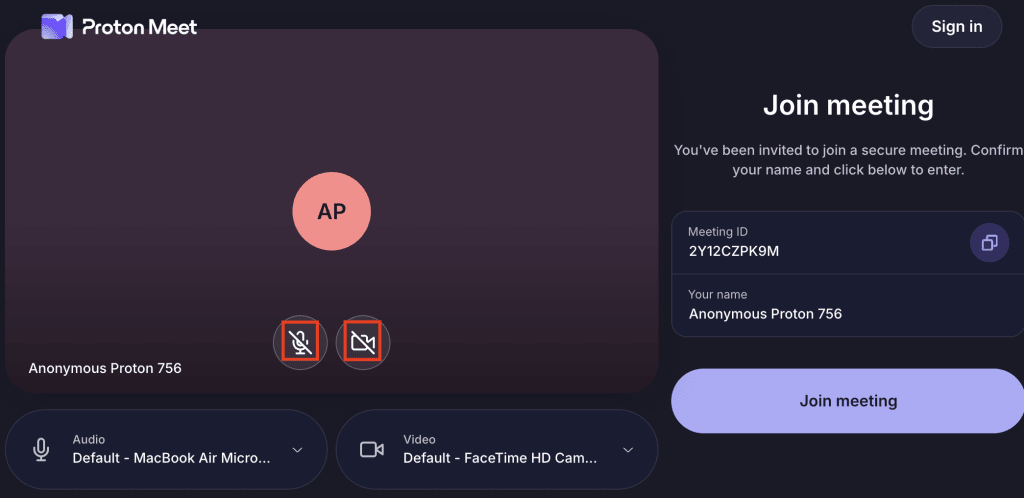
Si vous ne souhaitez pas partager la vidéo et l’audio dès votre arrivée, gardez votre caméra et votre microphone désactivés avant de cliquer sur Démarrer la réunion.
Activer ou désactiver votre caméra et votre microphone
Pour protéger votre vie privée et confidentialité, l’audio et la vidéo sont désactivés par défaut au début d’une réunion. Pour les activer avant de rejoindre un appel, cliquez sur Microphone 🎙️ et Caméra 📹.
Pendant un appel, utilisez les mêmes boutons dans la barre de navigation pour activer ou désactiver votre microphone et votre caméra.
Changer de mode de caméra sur mobile
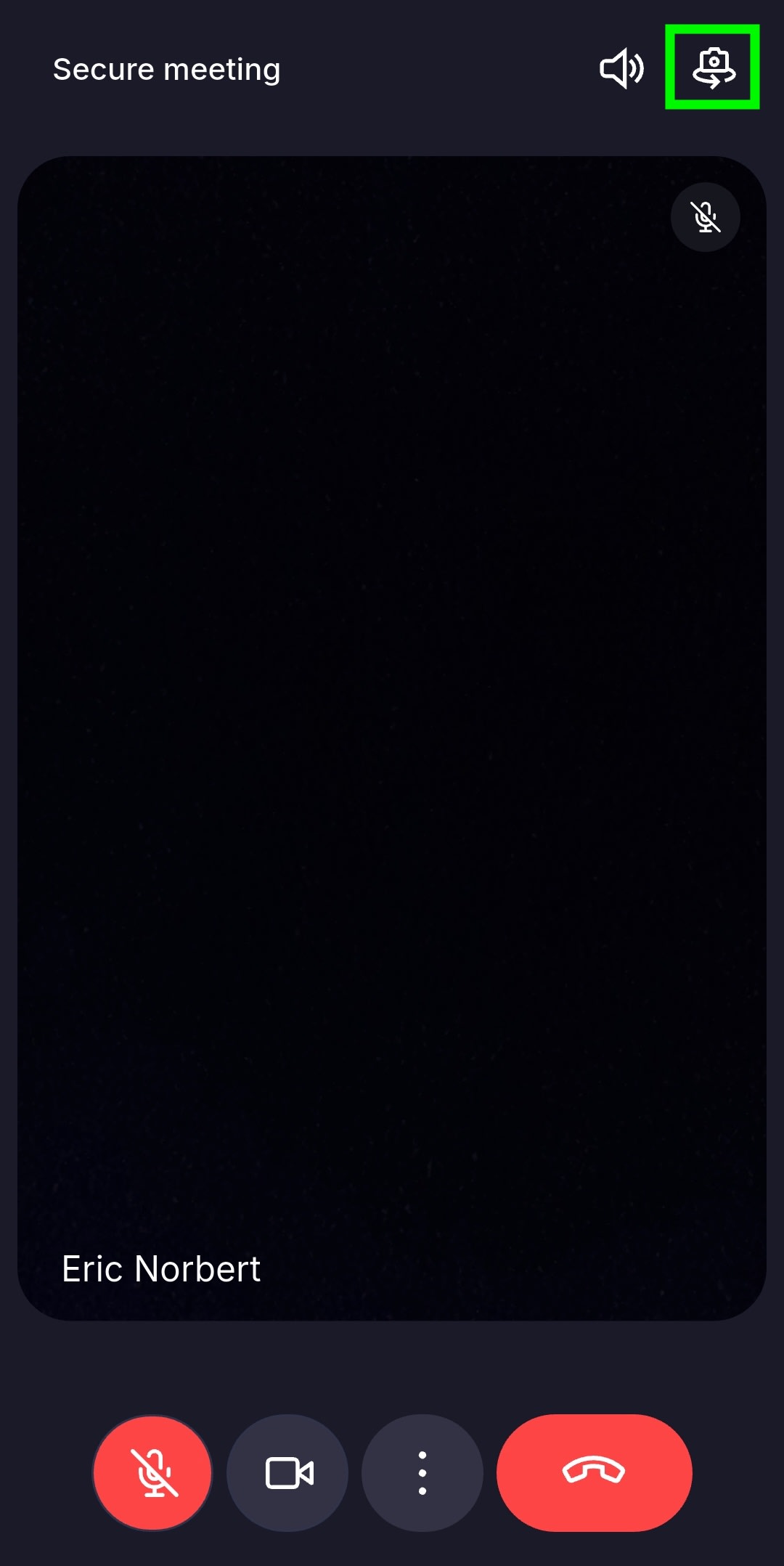
Sur mobile, vous pouvez basculer entre la caméra avant et arrière en appuyant sur le bouton de basculement de caméra.
Avant de rejoindre une réunion, ce bouton apparaît à côté du bouton Caméra 📹.
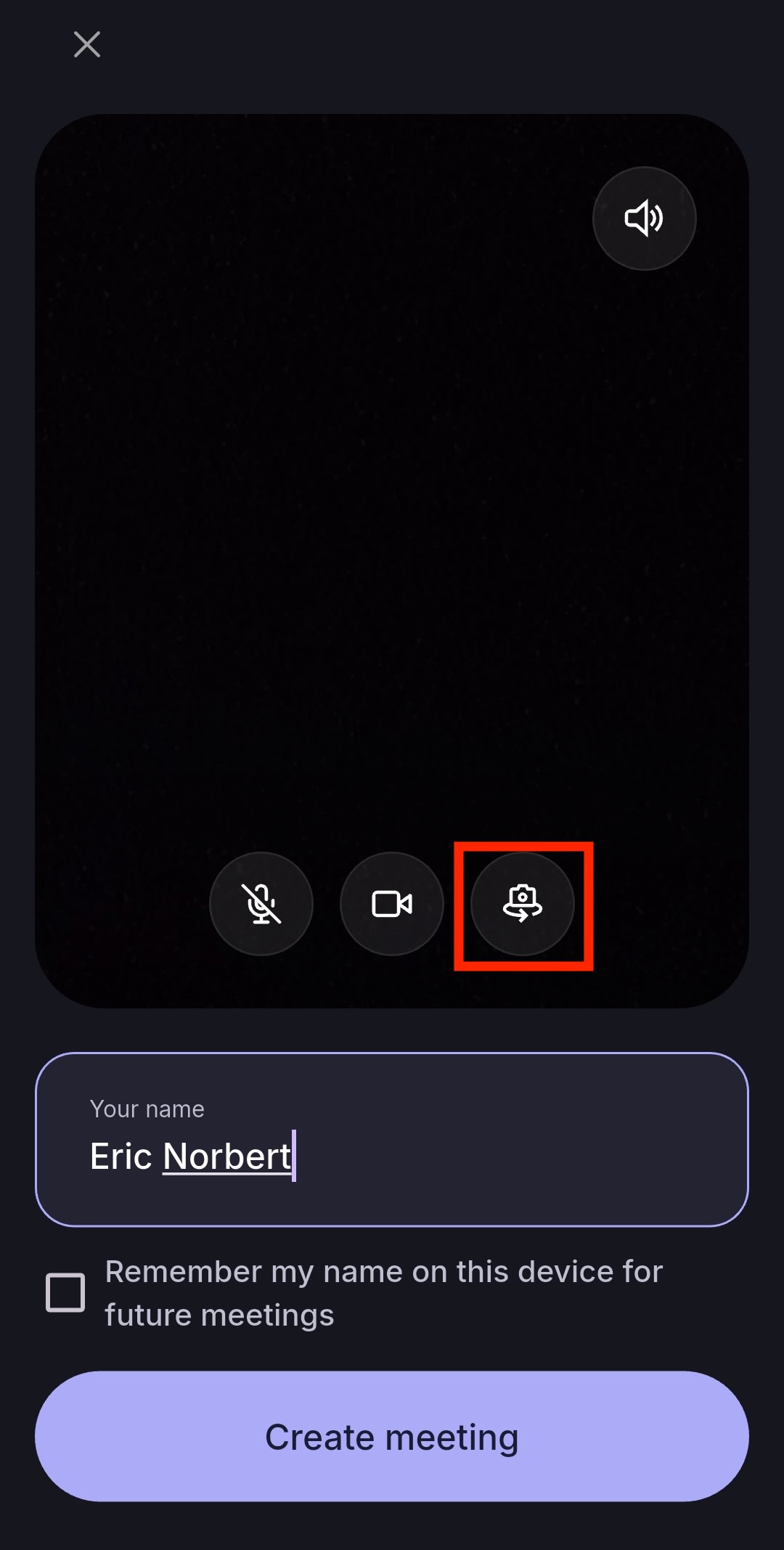
Pendant une réunion, vous le trouverez dans le coin supérieur droit.
Dépannage
Vous rencontrez des problèmes avec votre caméra ou votre microphone ? Découvrez comment résoudre les problèmes liés aux appareils et aux autorisations dans Proton Meet.
Vérifier les autorisations du navigateur
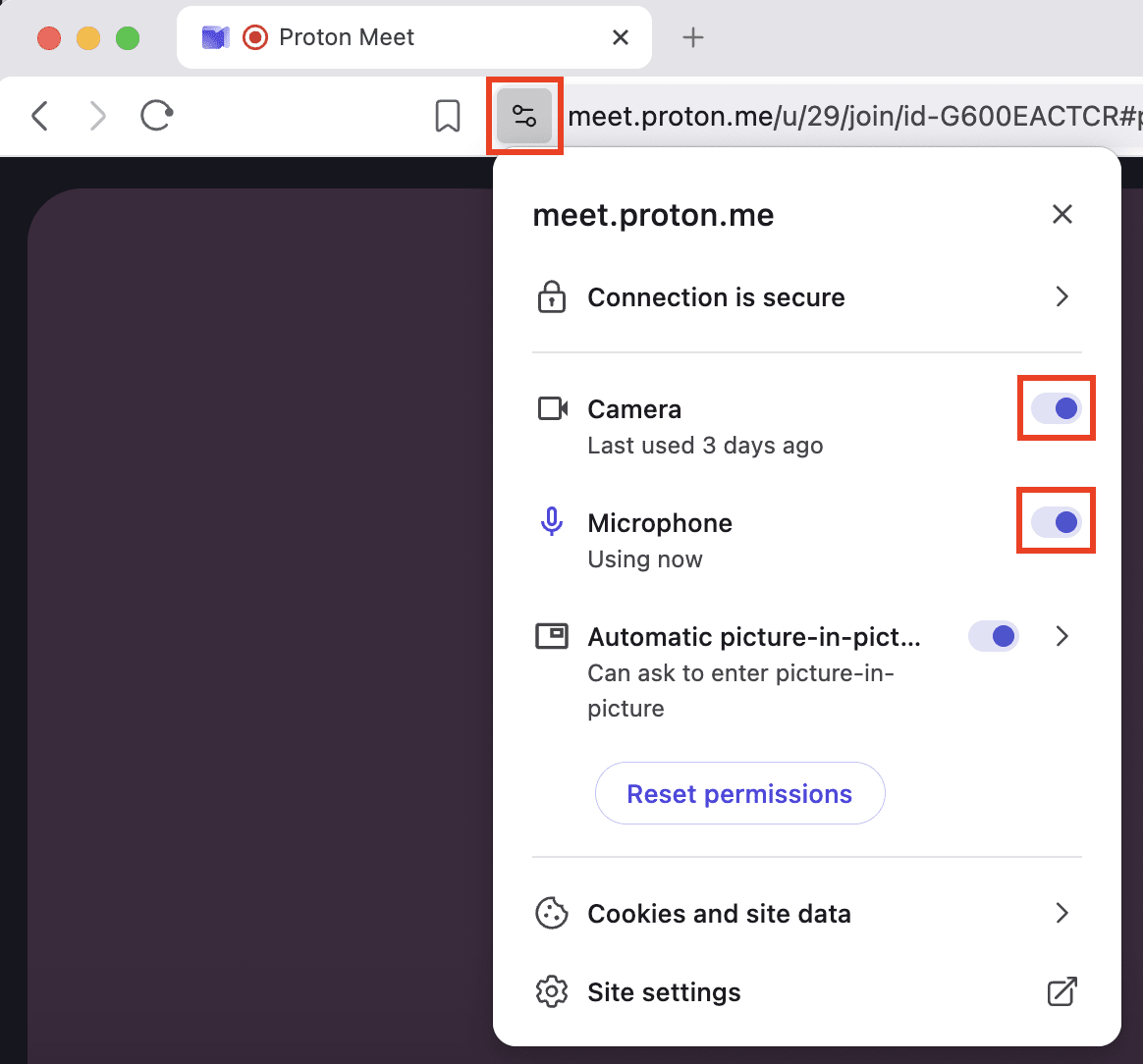
Lorsque vous rejoignez une réunion, votre navigateur doit demander l’accès à votre caméra et à votre microphone. Par exemple, il le demande toujours lorsque vous démarrez une réunion pour la première fois en mode de navigation privée.
Si vous ne voyez pas d’invite ou si vous l’avez refusée par erreur :
- Cliquez sur l’icône de verrouillage dans la barre d’adresse de votre navigateur.
- Activez la Caméra et le Microphone.
- Actualisez la page.
Vérifier les autorisations du site dans votre navigateur
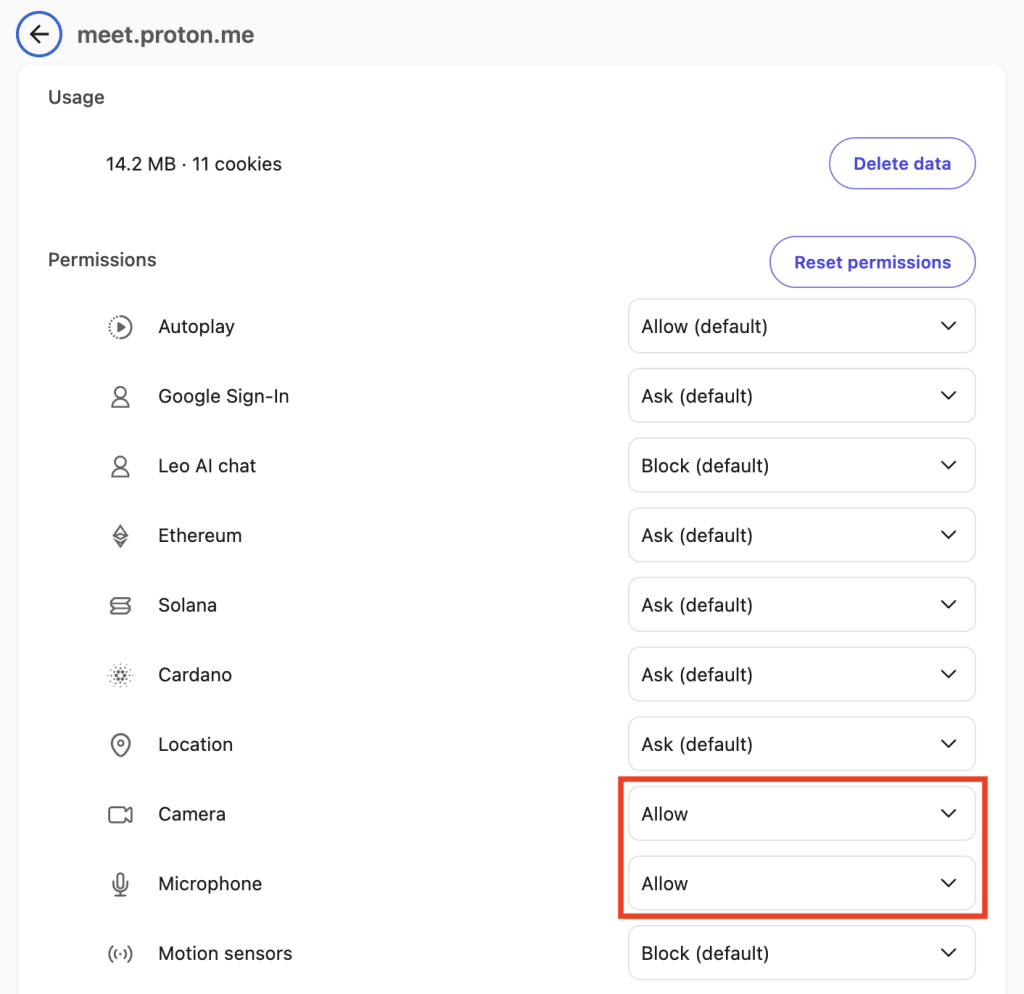
Si votre caméra ou votre microphone ne peut pas être activé, votre navigateur bloque peut-être l’accès au niveau du site.
Ouvrez les paramètres de votre navigateur et examinez les autorisations pour Proton Meet, puis assurez-vous que la Caméra et le Microphone sont réglés sur Autoriser. Après avoir mis à jour les paramètres, actualisez la page.
Effacer les données de navigation
Si les autorisations semblent correctes mais ne fonctionnent toujours pas, effacez les données du site (cookies et espace de stockage) pour Proton Meet. Ensuite, rechargez la page et autorisez à nouveau les autorisations.
Vérifiez les autorisations du système
Votre système d’exploitation peut bloquer l’accès même si votre navigateur ou l’application Proton Meet l’autorise.
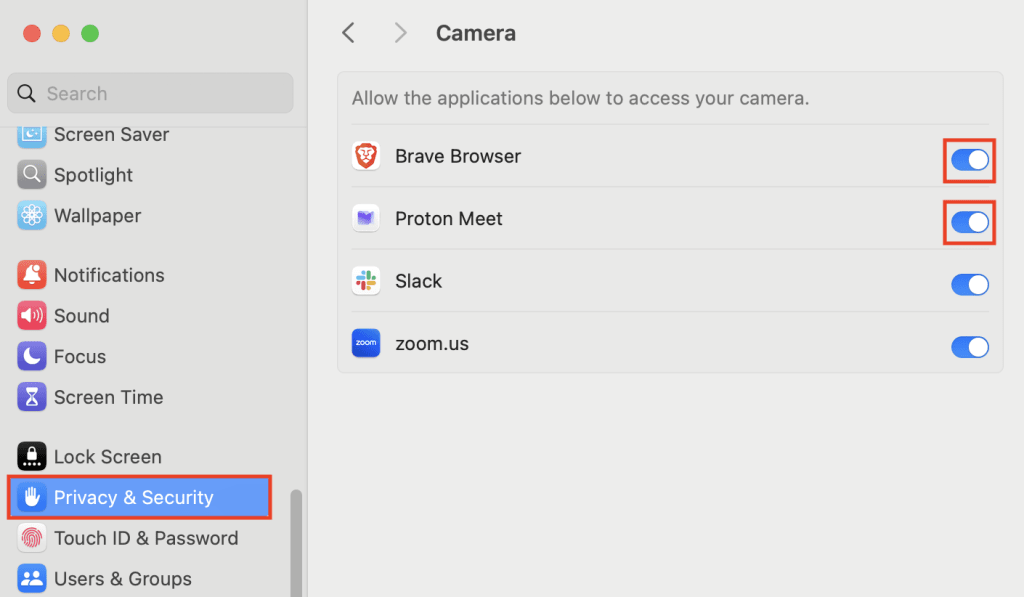
Sur macOS :
- Allez dans Réglages Système → Vie privée et confidentialité.
- Sélectionnez Caméra et activez l’accès pour l’application Proton Meet ou votre navigateur.
- Sélectionnez Microphone et activez l’accès pour l’application Proton Meet ou votre navigateur.
- Redémarrez l’application Proton Meet ou votre navigateur.
Sur Windows :
- Allez dans Paramètres → Vie privée et confidentialité → Caméra.
- Activez Accès à la caméra et Autoriser les applications à accéder à votre caméra.
- Assurez-vous que votre navigateur ou l’application Proton Meet est autorisé(e).
- Allez dans Microphone et répétez les mêmes étapes.
Sur Linux :
L’accès à la caméra et au microphone dépend de votre distribution et de votre configuration.
- Assurez-vous que votre navigateur dispose des autorisations nécessaires pour utiliser votre caméra et votre microphone.
- Assurez-vous qu’aucune autre application n’utilise vos appareils.
- Redémarrez votre navigateur après avoir effectué les modifications.
Vérifiez vos appareils et votre configuration
- Vérifiez que votre microphone n’est pas utilisé par une autre application.
- Assurez-vous que le microphone et le haut-parleur corrects sont sélectionnés.
- Essayez de débrancher et de rebrancher les appareils externes (comme les écouteurs).
- Déconnectez les périphériques que vous n’utilisez pas actuellement, comme les clés USB.
- Redémarrez votre ordinateur.
- Passez à un autre navigateur.
Si vous découvrez notre application de visioconférence, consultez notre guide pour bien débuter avec Proton Meet.