
Comment animer un appel Proton Meet
- Lecture
- 3 minutes
- Catégorie
- Proton Meet
Avec Proton Meet, vous pouvez créer des salles de réunion et organiser des appels chiffrés de bout en bout avec vos amis ou collaborateurs. Outre les fonctionnalités de conférence classiques comme le partage d’écran et le chat de la réunion, les hôtes peuvent mettre fin aux réunions, couper le micro des autres participants et retirer des participants des appels.
Toute personne qui crée un appel en devient automatiquement l’hôte.
Dans cet article
Démarrer un appel et inviter des Participants
- Allez sur meet.proton.me/dashboard(nouvelle fenêtre) et sélectionnez Créer une réunion → Démarrer une réunion instantanée.

- Définir les autorisations du Microphone et de la Caméra.
- Saisir votre Nom et cliquer sur Démarrer la réunion.

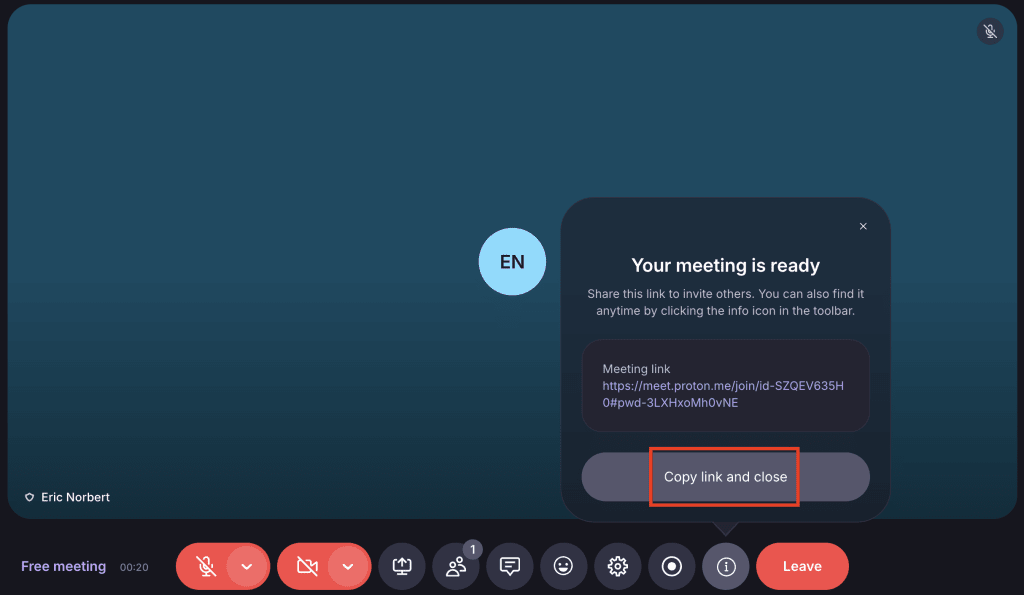
- Une fois la réunion démarrée, un lien de réunion sécurisé sera automatiquement généré. Sélectionnez Copier le lien et fermer, et vous pourrez ensuite partager le lien avec vos Participants. Tous ceux qui ont le lien peuvent rejoindre, même s’ils n’ont pas de Compte Proton.
Terminer un appel
Pour mettre fin à une réunion, allez dans la barre de navigation et sélectionnez Quitter. En tant qu’hôte, vous avez deux Options :
- Mettre fin à la réunion : Fermer la salle de réunion et met fin à l’appel pour tous les Participants.
- Quitter la réunion : Permet de quitter l’appel sans fermer la salle de réunion. Les autres Participants resteront dans l’appel.

Si vous Quitter une réunion par erreur ou si vous changez d’avis, vous pouvez la rejoindre en cliquant sur Rejoindre la réunion.

Modérer un appel
Les hôtes peuvent utiliser les fonctionnalité d’appel pour contrôler qui peut rejoindre une réunion et comment les Participants interagissent. Cela aide à garder les réunions privé, concentré, et sans perturbation.
Verrouiller la réunion
Sélectionnez Paramètres ⚙️ et activez Verrouiller la réunion.

Une fois la réunion verrouillée, toute personne essayant de rejoindre la réunion verra un Message indiquant qu’elle doit contacter l’hôte pour rejoindre. L’hôte peut toujours Quitter et rejoindre même si la réunion est verrouillée.
Seuls les Utilisateurs connectés peuvent Verrouiller la réunion et Déverrouiller les réunions.
Déverrouiller une réunion
Pour autoriser de nouveaux participants à rejoindre à nouveau, retournez dans les Paramètres ⚙️ et désactivez Verrouiller la réunion. Les nouveaux arrivants pourront entrer dans la réunion immédiatement.
Seuls les hôtes peuvent verrouiller ou Déverrouiller une réunion.
Couper le son d’un Participant ou désactiver sa Caméra
- Allez dans la barre de navigation et Sélectionnez Participants 👥
- Cliquez sur les points de suspension verticaux ⋮ à côté du Nom d’une personne.
- Sélectionnez Couper le son du participant ou Désactiver la vidéo.

Seul l’hôte de la réunion peut couper le micro des autres Participants.
Pour des raisons de respect de la vie privée, les hôtes ne peuvent pas activer le micro des Participants ni allumer leur Caméra.
Retirer un Participant d’une réunion
- Ouvrir Participants 👥.
- Cliquez sur les points de suspension verticaux (⋮) à côté du Nom d’une personne.
- Sélectionnez Retirer [participant].

Retirer un Participant le déconnecte immédiatement de l’appel. Mais si votre salle de réunion n’est pas verrouillée, il pourrait revenir. Pour empêcher les Participants indésirables de revenir, n’oubliez pas de verrouiller votre salle de réunion.
Les hôtes disposant d’un abonnement payant Proton Meet peuvent également enregistrer les réunions.
Si vous découvrez notre application de visioconférence, consultez notre guide pour bien débuter avec Proton Meet.