
Slik bruker du Proton Pass på Android
- Lesetid
- 6 min
- Kategori
- Slik bruker du Proton Pass
Proton Pass er en ende-til-ende-kryptert åpen kildekode(nytt vindu)-passordapp som lar deg beskytte din påloggede identitet. Den er en del av Proton-personvernpakken som inkluderer Proton Mail, Proton VPN, Proton Drive og Proton Calendar. I denne guiden forklarer vi hvordan du bruker Proton Pass på din Android-enhet.
- Slik konfigurerer du Proton Pass for Android
- Slik logger du på manuelt
- Slik logger du på ved hjelp av autofyll
- Proton Pass-elementer
- Hvordan legge til nye elementer manuelt
- Hvordan legge til nye elementer ved bruk av automatisk lagring
- Slik viser du et elements historikk
Denne veiledningen ble opprettet ved hjelp av en Samsung One UI-enhet. Detaljer for bruk av Proton Pass på Android kan variere, avhengig av hvilken versjon av Android du bruker.
Slik konfigurerer du Proton Pass for Android
Før du bruker Proton Pass på Android, må du konfigurere det:
1. Registrer deg for Proton Pass. Du kan registrere deg for et frittstående Proton Pass Free- eller Pass Plus-abonnement, eller få alle premiumfunksjonene til Pass — og alle andre Proton-tjenester — med vårt Proton Unlimited-abonnement.
2. Last ned(nytt vindu) og installer Android-appen.
3 (valgfritt). Importer data fra din forrige passordapp. Hvis du har brukt en passordapp før, vil du sannsynligvis importere dine lagrede passord til Proton Pass. For å gjøre dette må du bruke vår nettleserutvidelse.
Finn ut hvordan du importerer til Proton Pass
Du er nå klar til å begynne å bruke Proton Pass.
Hvordan logge på med Proton Pass
Når du lagrer påloggingsdetaljer til Proton Pass, kan du logge på nettsteder manuelt eller ved hjelp av autofyll.
Slik logger du på manuelt
1. Besøk påloggingssiden for nettstedet eller appen du ønsker å logge på.
2. Åpne Proton Pass-appen, velg riktig påloggingselement, og trykk på feltet Brukernavn eller e-postadresse. Brukernavnet blir kopiert til utklippstavlen din.

3. På påloggingssiden til nettstedet eller appen, lim inn brukernavnet fra utklippstavlen din i riktig felt. For å gjøre dette på de fleste versjoner av Android, trykk lenge på inndatafeltet → Lim inn.

4. Gjenta denne prosessen for passordet.
Merk at av sikkerhetsmessige årsaker vil enhetens utklippstavle tømmes etter 60 sekunder. For å justere denne innstillingen, åpne Proton Pass-appen og gå til Profil → Innstillinger → Utklippstavle.
Hvordan logge på med autofyll
Denne veiledningen forutsetter at Proton Pass er satt som din standard passordapp for autofyll. Dette kan konfigureres når du først installerer Proton Pass-appen, eller du kan aktivere det når som helst ved å åpne appen og gå til Profil → Autofyll.
1. Besøk påloggingssiden for nettstedet eller appen du ønsker å logge på.
2. Trykk på enten brukernavn- eller passordfeltet. Androids autofyll-tjeneste vil foreslå relevante innlogginger som er lagret i Proton Pass. Sveip gjennom alternativene og trykk på riktig innlogging for å autofylle brukernavn og passord.

Alternativt kan du sveipe til du ser Åpne Proton Pass og trykke på det.

Velg innloggingen du ønsker å bruke, og velg om du vil Bruk alltid eller Bruk en gang for dette nettstedet eller denne appen.

Proton Pass vil automatisk returnere deg til innloggingssiden og autofylle brukernavn- og passordfeltene.
Proton Pass-elementer
Et Proton Pass-element kan være en pålogging, et hide-my-email-alias, et kredittkort, et sikkert notat eller et passord. Elementer lagres i hvelv.
Finn ut mer om hvelv i Proton Pass
Pålogging
En pålogging inneholder brukernavnet ditt, passordet, nettadressen til nettstedet (eller nettstedene) påloggingen gjelder for, 2FA-koder og eventuelle notater du har lagret for denne påloggingen. Når du er ferdig med å opprette et element, trykker du på Opprett pålogging.
Tittel: Trykk på feltet og begynn å skrive for å redigere det.
Brukernavn eller e-postadresse: Trykk på feltet. For å angi en e-postadresse eller et annet brukernavn manuelt, er det bare å begynne å skrive. Alternativt vil Proton Pass tilby å autofylle feltet ved å bruke din standard Proton Mail-e-postadresse eller generere et Hide my email-alias. Trykk på det alternativet du foretrekker.

Lær hvordan du bruker et e-postalias i Proton Pass

Passord: Trykk på feltet og begynn å skrive for å angi et passord manuelt, eller trykk på feltet → Generer et nytt passord for å la Proton Pass opprette et tilpassbart, sterkt passord for deg.

2FA-hemmelighet (2FA): Proton Pass kan sikkert generere TOTP-koder for nettsteder du har lagret påloggingsdetaljer for.
Lær hvordan du bruker 2FA-koder i Proton Pass
Nettsted: Trykk på feltet for å legge til eller redigere en nettadresse tilknyttet dette påloggingselementet.
Notat: Trykk på feltet for å legge til et tekstnotat til påloggingselementet.
+ Legg til felt: For å opprette et ekstra Tekst-, 2FA-kode (TOTP)-, Dato– eller Skjult-felt, trykk på + Legg til felt og velg typen egendefinert felt du vil opprette.
Lær mer om å opprette egendefinerte felt i Proton Pass

Kredittkort
Du kan legge til kredittkortdetaljene dine i Proton Pass for enkel tilgang når du handler på nett.
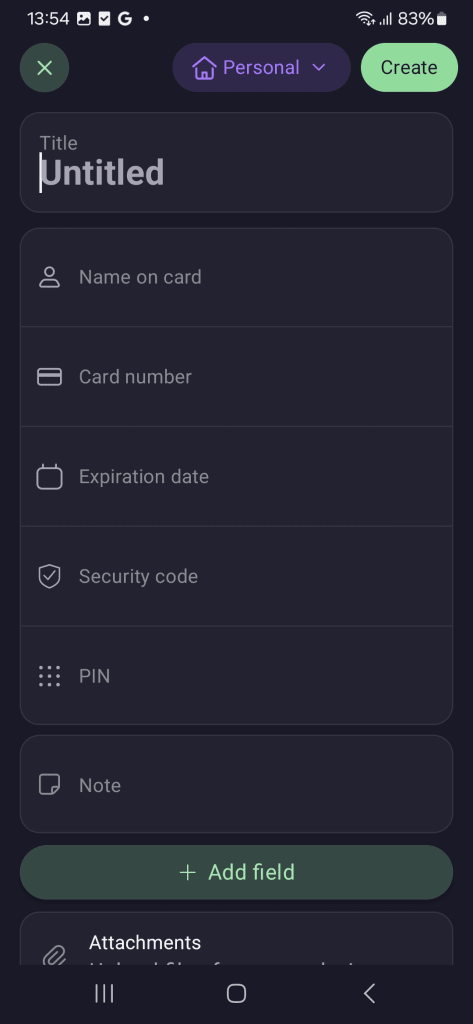
Disse detaljene inkluderer:
- Kortholders navn
- Kortnummer
- Utløpsdato
- Sikkerhetskode (CVV)
- PIN-kode
Autofyll er ennå ikke tilgjengelig for kredittkortdetaljer. For å bruke lagrede kortdetaljer må du kopiere detaljene fra Proton Pass og deretter lime dem inn i kassen.
For å redigere detaljene til et kredittkort du allerede har lagt til, velg ganske enkelt kortet du vil ha → Rediger.
Andre elementer
Du kan også opprette frittstående elementer for aliaser, passord og notater som ikke er tilknyttet et påloggingselement.
For å redigere eksisterende elementer, åpner du bare Proton Pass-nettleserutvidelsen og velger elementet → Rediger.

Hvordan legge til nye elementer
Du kan legge til nye elementer manuelt, eller legge til innloggings- og alias-elementer ved hjelp av automatisk lagring.
Hvordan legge til elementer manuelt
1. Åpne Proton Pass-appen og trykk på +
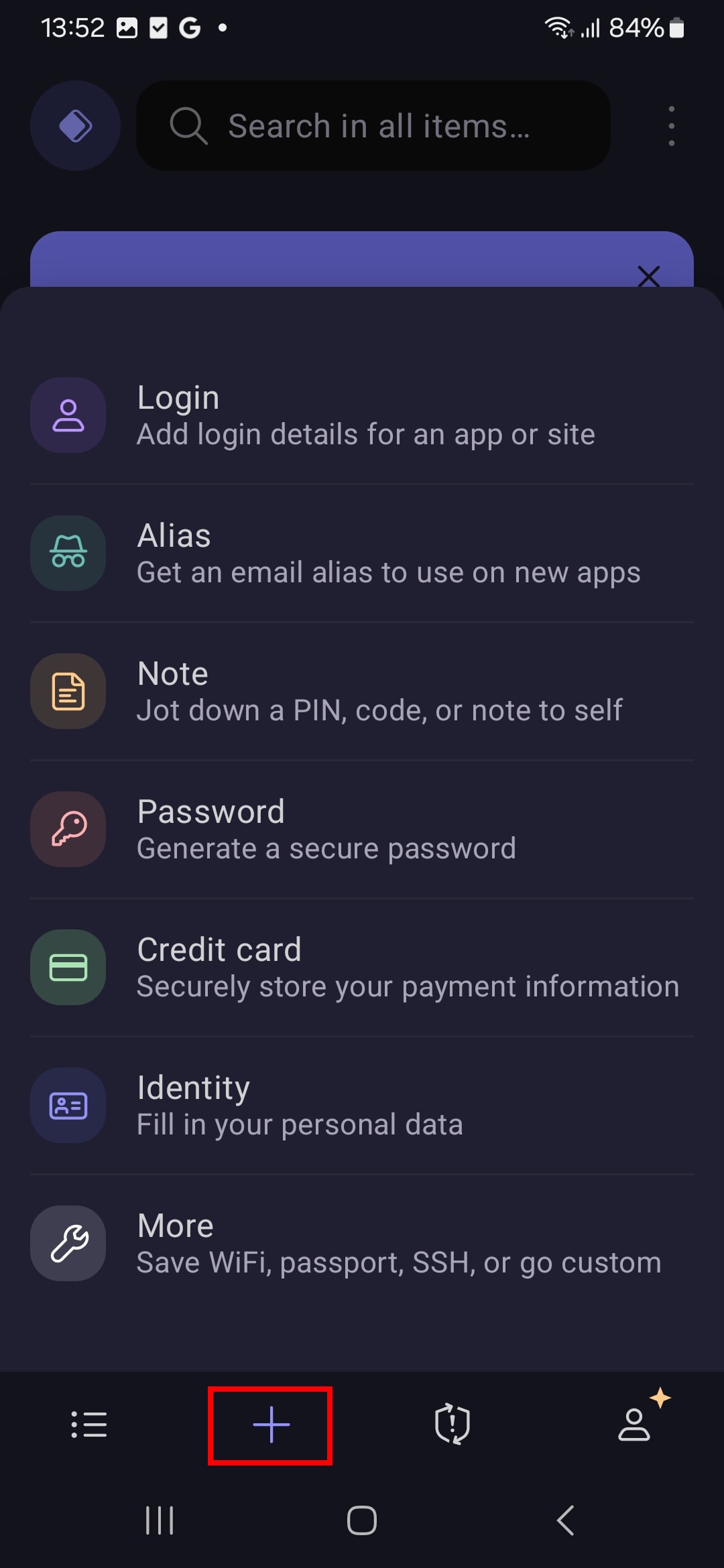
2. Avhengig av hvilket element du valgte, fyll ut feltene med den aktuelle informasjonen.
Slik legger du til elementer ved hjelp av automatisk lagring
Når du logger på et nettsted eller en app som du ikke har en Proton Pass-innlogging for, vil Proton Pass tilby å lagre innloggingsdetaljene dine automatisk for fremtidig bruk. Trykk på Lagre for å godta.

Når du oppretter en ny konto, kan Proton Pass også opprette og lagre en innlogging eller et alias for den:
1. Trykk på Åpne Proton Pass

2. Trykk på +.

3. Velg om du vil opprette et påloggingselement eller et alias-element (se ovenfor).

4. Trykk på Opprett pålogging/alias når du er ferdig. Proton Pass returnerer deg til påloggingssiden og autofyller detaljene dine ved hjelp av påloggingen eller aliaset du nettopp opprettet. Når du oppretter den nye kontoen, vil Proton Pass tilby å lagre påloggingsdetaljene dine automatisk.
Slik ser du et elements historikk
Hvis du har en betalt Proton Pass-konto, kan du se hvert elements historikk. For å gjøre dette:
1. Velg et element for å se historikken, inkludert gjeldende versjon, når siste autofyll ble utført, når det ble opprettet, og hver gang det har blitt endret.

2. For å finne mer informasjon om hver endring, trykk på Vis elementhistorikk.

3. Trykk på den relevante Opprettet– eller Endret-oppføringen i tidslinjen.
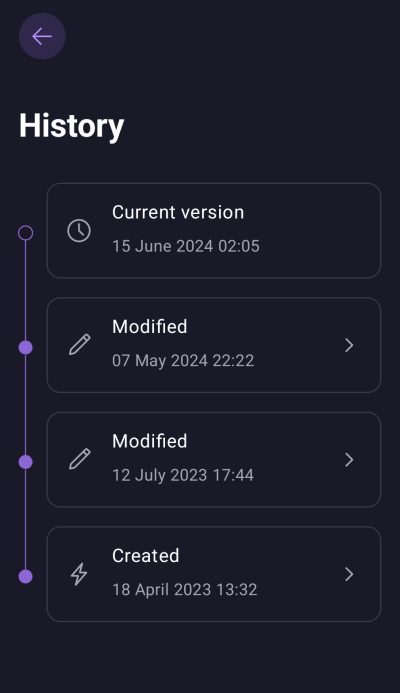
4. Du kan nå se et øyeblikksbilde av endringen som ble gjort på den valgte datoen. For å gjenopprette den valgte eldre versjonen av et element (det vil si å gjøre det til gjeldende versjon), trykk på Gjenopprett
