
Uwierzytelnianie dwustopniowe (2FA)
- Odczytywanie
- 4 min
- Kategoria
- Uwierzytelnianie dwustopniowe (2FA)
Uwierzytelnianie dwustopniowe (2FA) dodaje dodatkową warstwę zabezpieczeń do Twojego konta Proton, co utrudnia włamanie się potencjalnemu atakującemu. Możesz skonfigurować 2FA za pomocą aplikacji uwierzytelniającej lub fizycznego klucza bezpieczeństwa U2F lub FIDO2.
Uwierzytelnianie dwustopniowe jest dostępne we wszystkich usługach i aplikacjach Proton, zarówno w darmowych, jak i płatnych planach. Zdecydowanie zalecamy jego skonfigurowanie w celu dodatkowego zabezpieczenia konta.
- Przewodniki dotyczące konfiguracji i użytkowania 2FA
- Co zrobić, jeśli zgubisz urządzenie do uwierzytelniania dwustopniowego (2FA)
- Czym jest uwierzytelnianie dwustopniowe?
Przewodniki po konfiguracji i użyciu 2FA
Te artykuły zawierają szczegółowe instrukcje, jak włączyć uwierzytelnianie dwustopniowe, zarządzać urządzeniami i zalogować się do Proton za pomocą urządzenia 2FA. Znajdziesz tu również wskazówki dotyczące rozwiązywania typowych problemów.
- Jak skonfigurować 2FA za pomocą aplikacji uwierzytelniającej
- Jak skonfigurować 2FA za pomocą klucza bezpieczeństwa
Jeśli zgubisz urządzenie 2FA
Jeśli nie masz swojego urządzenia 2FA (lub jeśli przestało ono działać), oto jak odzyskać dostęp do swojego konta Proton:
Użyj innego urządzenia 2FA
Każde z Twoich urządzeń 2FA pozwoli Ci zalogować się do Proton. Jeśli więc stracisz dostęp do jednego urządzenia 2FA, a masz włączone inne, spróbuj użyć tego drugiego.
Możesz powiązać wiele urządzeń 2FA ze swoim kontem Proton. Możesz także mieć jednocześnie włączone 2FA z aplikacją uwierzytelniającą oraz 2FA z kluczem bezpieczeństwa.
Po zalogowaniu pamiętaj o wyłączeniu zgubionego urządzenia 2FA, aby nikt inny nie mógł go użyć.
Użyj kodu odzyskiwania 2FA
Podczas konfiguracji 2FA dla konta Proton udostępniamy kilka jednorazowych kodów odzyskiwania.
Jeśli zgubisz urządzenie, możesz zalogować się, wpisując zamiast tego jeden z tych kodów.
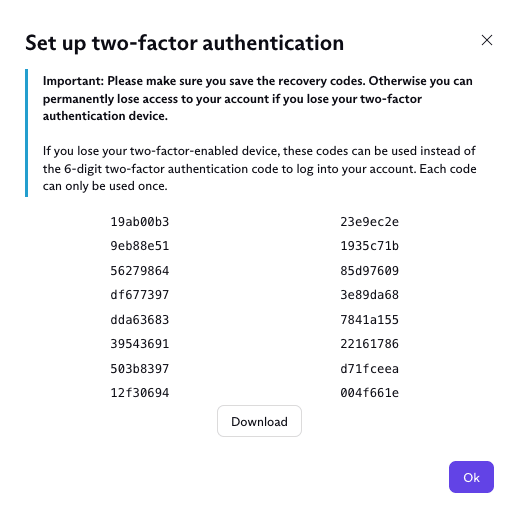
Po zalogowaniu pamiętaj o wyłączeniu zgubionego urządzenia 2FA, aby nikt inny nie mógł go użyć.
Użyj metody odzyskiwania
Jeśli nadal jesteś zalogowany
Możesz wyłączyć 2FA w ustawieniach swojego konta za pomocą metody odzyskiwania hasła. Ten proces wyłącza tylko 2FA, więc nie musisz zmieniać hasła ani odzyskiwać danych konta.
- Otwórz ustawienia konta Proton w dowolnej aplikacji internetowej Proton (Ustawienia ⚙️ → Wszystkie ustawienia).

Jeśli jesteś zalogowany w jednej z naszych aplikacji mobilnych lub desktopowych, użyj logowania kodem QR, aby przenieść sesję do przeglądarki.
- Wybierz Konto i hasło z paska bocznego. Przewiń do Uwierzytelnianie dwustopniowe i kliknij Nie masz dostępu do urządzenia z uwierzytelnianiem dwustopniowym?

- Zobaczysz wyskakujące okno Wyłączyć uwierzytelnianie dwustopniowe? Kliknij Kontynuuj.

4. Wybierz metodę odzyskiwania i kliknij Kontynuuj.
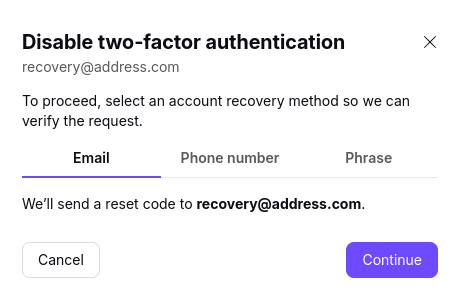
5. Zweryfikuj się za pomocą wybranej metody odzyskiwania.
- Jeśli korzystasz z hasła odzyskiwania, wpisz swoje 12-cyfrowe hasło i kliknij Kontynuuj.
- Jeśli korzystasz z weryfikacji przez e-mail lub SMS, wpisz kod weryfikacyjny wysłany na Twój adres pomocniczy lub numer telefonu. Kliknij Zweryfikuj konto.
2FA jest teraz wyłączone. Zalecamy skonfigurowanie innego urządzenia 2FA, aby zachować bezpieczeństwo konta.
Jeśli jesteś wylogowany
Jeśli jesteś wylogowany ze swojego konta, możesz poprosić o kod odzyskiwania 2FA za pomocą zapisanej metody odzyskiwania.
Po prostu zaloguj się za pomocą poprawnej nazwy użytkownika i hasła, a następnie wybierz Nie mam dostępu do urządzenia z uwierzytelnianiem dwustopniowym → Nie mam kodu odzyskiwania.
Po odzyskaniu konta możesz ponownie włączyć 2FA i sparować nowe urządzenie 2FA.
Czym jest uwierzytelnianie dwustopniowe (2FA)?
2FA chroni Cię, wymagając dwóch oddzielnych form weryfikacji podczas logowania do konta online. Będziesz potrzebować:
- Coś, co znasz: Twoje hasło
- Coś, co masz: Fizyczny klucz bezpieczeństwa lub dostęp do powiązanej aplikacji uwierzytelniającej
Gdy 2FA jest włączone, za każdym razem podczas logowania do konta zostaniesz poproszony o obie formy weryfikacji.
Oznacza to, że poznanie Twojego hasła nie wystarczy, aby zagrozić bezpieczeństwu konta. Nawet jeśli atakujący zna Twoje hasło, nie będzie mógł się zalogować — chyba że posiada również Twój klucz bezpieczeństwa lub ma dostęp do Twojej aplikacji uwierzytelniającej.