
Autenticación de dos factores (2FA)
- Lectura
- 4 min
- Categoría
- Autenticación de dos factores (2FA)
La autenticación de dos factores (2FA) añade una capa adicional de seguridad a tu cuenta de Proton, por lo que resulta más difícil para los atacantes acceder a ella. Puedes configurar la 2FA con una aplicación de autenticación o con una clave de seguridad física U2F o FIDO2.
La 2FA está disponible en todos los servicios y aplicaciones de Proton, tanto en los planes gratuitos como en los planes de pago. Te recomendamos encarecidamente que la configures para disfrutar de una mayor seguridad en tu cuenta.
- Guías de configuración y uso de la 2FA
- Qué hacer si pierdes tu dispositivo de 2FA
- ¿Qué es la autenticación de dos factores?
Guías de configuración y uso de la 2FA
Estos artículos ofrecen instrucciones detalladas sobre cómo activar la autenticación de dos factores, administrar tus dispositivos e iniciar sesión en Proton con tu dispositivo de 2FA. También encontrarás consejos de resolución de problemas para incidencias comunes.
- Cómo configurar la 2FA con una aplicación de autenticación
- Cómo configurar la 2FA con una clave de seguridad
Si pierdes tu dispositivo de 2FA
Si no tienes tu dispositivo de 2FA (or si deja de funcionar), te explicamos cómo recuperar el acceso a tu cuenta de Proton:
Utiliza un dispositivo de 2FA alternativo
Cualquiera de tus dispositivos de 2FA te permitirá iniciar sesión en Proton. Por tanto, si pierdes el acceso a un dispositivo de 2FA y tienes otro activado, prueba con ese en su lugar.
Puedes vincular varios dispositivos de 2FA a tu cuenta de Proton. También puedes tener activadas al mismo tiempo la 2FA por aplicación de autenticación y la 2FA por clave de seguridad.
Una vez que hayas iniciado sesión, recuerda desactivar el dispositivo de 2FA perdido para que nadie más pueda utilizarlo.
- Cómo desactivar la 2FA por aplicación de autenticación
- Cómo desactivar la 2FA por clave de seguridad
Utiliza un código de recuperación de 2FA
Cuando configuras la 2FA para tu cuenta de Proton, te proporcionamos varios códigos de recuperación de un solo uso.
Si pierdes tu dispositivo, puedes iniciar sesión introduciendo uno de estos códigos en su lugar.
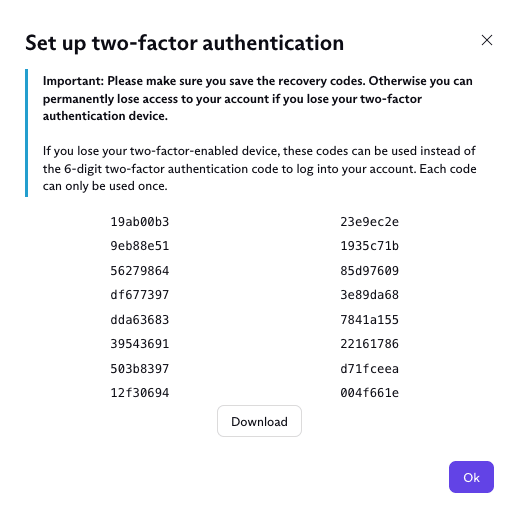
Una vez que hayas iniciado sesión, recuerda desactivar el dispositivo de 2FA perdido para que nadie más pueda utilizarlo.
Utiliza un método de recuperación
Si aún tienes la sesión iniciada
Puedes desactivar la 2FA desde los ajustes de tu cuenta utilizando un método de recuperación por restablecimiento de contraseña. Este proceso solo desactiva la 2FA, por lo que no necesitarás cambiar tu contraseña ni recuperar los datos de tu cuenta.
- Abre los ajustes de tu cuenta de Proton en cualquier aplicación web de Proton (Ajustes ⚙️ → Todos los ajustes).

Si tienes la sesión iniciada en una de nuestras aplicaciones móviles o de escritorio, utiliza el inicio de sesión con código QR para transferir tu sesión a la web.
- Selecciona Cuenta y contraseña en la barra lateral. Desplázate hasta Autenticación de dos factores y haz clic en ¿Has perdido el acceso a tu dispositivo 2FA?

- Verás un elemento emergente que dice ¿Desactivar la autenticación de dos factores? Haz clic en Continuar.

4. Selecciona un método de recuperación y haz clic en Continuar.
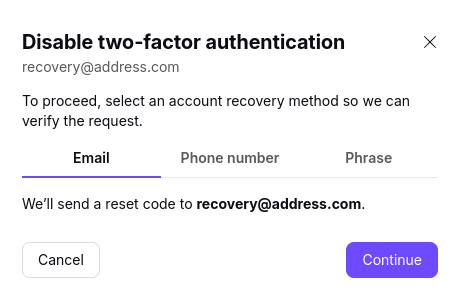
5. Verifica tu identidad con el método de recuperación elegido.
- Si utilizas una frase de recuperación, introduce tu frase de 12 palabras y haz clic en Continuar.
- Si utilizas la verificación por correo electrónico o SMS, introduce el código de verificación que se ha enviado a tu correo electrónico de recuperación o número de teléfono. Haz clic en Verificar cuenta.
La 2FA ya está desactivada. Te recomendamos configurar otro dispositivo de 2FA para mantener tu cuenta segura.
Si has cerrado sesión
Si has cerrado sesión en tu cuenta, puedes solicitar un código de recuperación de 2FA a través de tu método de recuperación guardado.
Solo tienes que iniciar sesión con tu nombre de usuario y contraseña correctos y seleccionar No tengo mi dispositivo de 2FA →No tengo mi código de respaldo.
Después de recuperar tu cuenta, puedes volver a activar la 2FA y emparejar un nuevo dispositivo de 2FA.
Cómo recuperar tu cuenta de Proton
¿Qué es la autenticación de dos factores (2FA)?
La 2FA te protege al requerir dos formas distintas de verificación cuando inicias sesión en una cuenta en línea. Necesitarás:
- Algo que sabes: tu contraseña
- Algo que tienes: una clave de seguridad física o acceso a una aplicación de autenticación vinculada
Cuando la 2FA está activada, se te pedirán ambas formas de verificación cada vez que inicies sesión en tu cuenta.
Esto significa que obtener tu contraseña no basta para comprometer tu cuenta. Incluso si un atacante conoce tu contraseña, no podrá iniciar sesión, a menos que también tenga tu clave de seguridad o acceso a tu aplicación de autenticación.