
Создание и изменение документа в Proton Docs
- Чтение
- 0 мин.
- Категория
- Использование Proton Drive
Proton Docs — это редактор документов для совместной работы, встроенный в Proton Drive, который защищает вашу конфиденциальность с помощью сквозного шифрования. В этой статье рассматриваются основы создания и редактирования документов с помощью Proton Docs.
Создание и именование документа
В веб-версии
Чтобы создать документ, войдите в Proton Drive и выберите Новый → Новый документ.

Это откроет для вас пустой документ. Чтобы изменить название документа, нажмите на название по умолчанию в левом верхнем углу и выберите Переименовать документ.

Примечание: В настоящее время максимальный размер документа, который можно создать или изменить в Proton Drive, составляет 25 МБ.
На Android и iOS
Чтобы создать документ:
- Откройте Proton Drive на Android(новое окно) или iOS(новое окно).
- Перейдите во вкладку Файлы.
- Нажмите + в правом верхнем углу.
- Выберите Создать документ. Proton Docs создаст новый пустой документ в текущей папке.

Чтобы переименовать документ:
- Нажмите на горизонтальное многоточие … (на iOS) или вертикальное многоточие ⋮ (на Android) рядом с именем документа.
- Выберите Переименовать.

- Введите новый документ Имя и подтвердите его.
Изменение вашего документа
Docs в Proton Drive позволяет добавлять различные форматированный текст и изображения, сохраняя при этом весь ваш контент конфиденциальным и безопасным.
Все функции ниже легко доступны с панели инструментов.
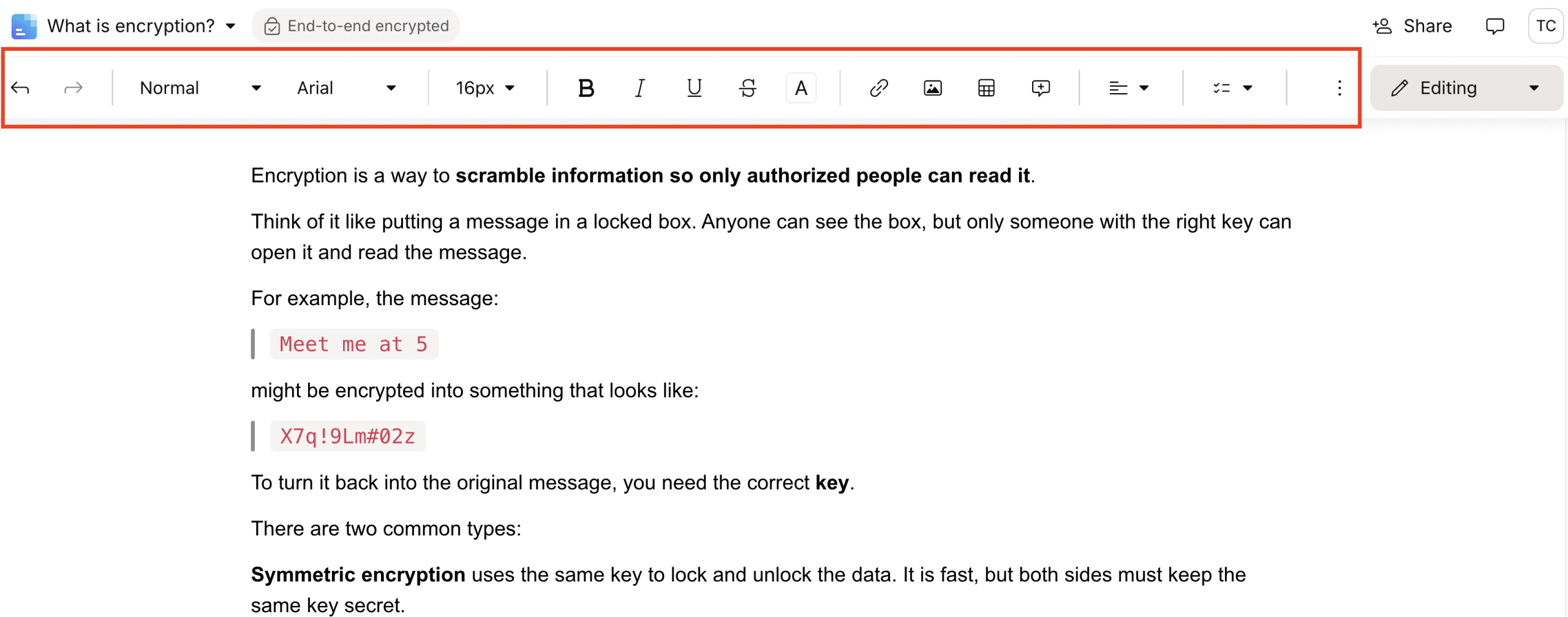
Функции форматирования Текст
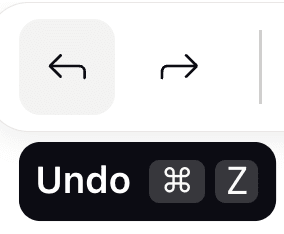
Отменить/Вернуть: быстро отмените или повторите свои последние Действия, чтобы оптимизировать Изменение.
Стили: Выбирайте из различных стилей текста для форматирования документа, что позволяет легко применять единообразные заголовки, абзацы и другие элементы текста.

Шрифт и размер: Настройте внешний вид вашего текста, выбирая разные шрифты и регулируя размер шрифта.
Форматирование текста: Примените Полужирный, курсив и подчеркивание, чтобы выделить ключевые моменты в вашем документе.
Цвет и выделение текста: Измените цвет текста или выделите текст, чтобы привлечь внимание к важным разделам.
Блок кода: Вставьте фрагменты кода и блоки, сохраняя их форматирование для технической документации.

Выравнивание текста: Выровняйте ваш текст по левому краю, по центру или по правому краю для структурированного и профессионального вида.
Списки: Создать упорядоченные (нумерованные), неупорядоченные (маркированные) или чек-листы для четкой организации вашего контента.

Цитата: Вставить цитаты, чтобы выделить важные утверждения или отрывки, делая их заметными в вашем документе.
Разделитель: Вставить горизонтальную линию или разделитель для визуального разделения разделов вашего документа и улучшения читаемости.
Отступ и очистить форматирование: Увеличить или уменьшить отступ Текст и очистить форматирование для эффективной структуризации ваших абзацев и Список.
Добавление Комментарий
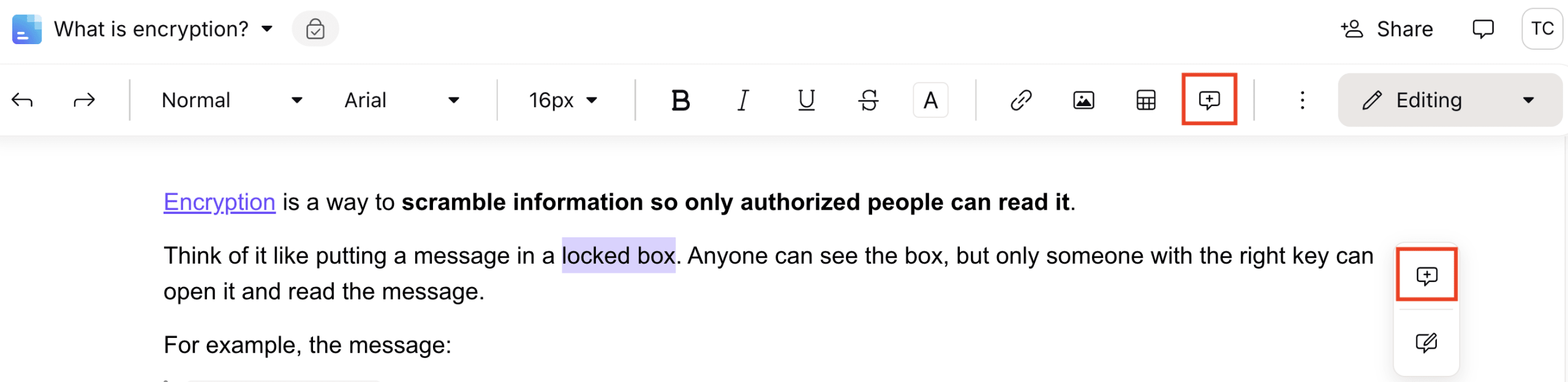
Чтобы Добавить Комментарий, выделите Текст, который хотите прокомментировать, и нажмите на параметр Комментарий на панель инструментов или во всплывающем Меню, которое появится.
Введите ваш Комментарий и отправьте его.
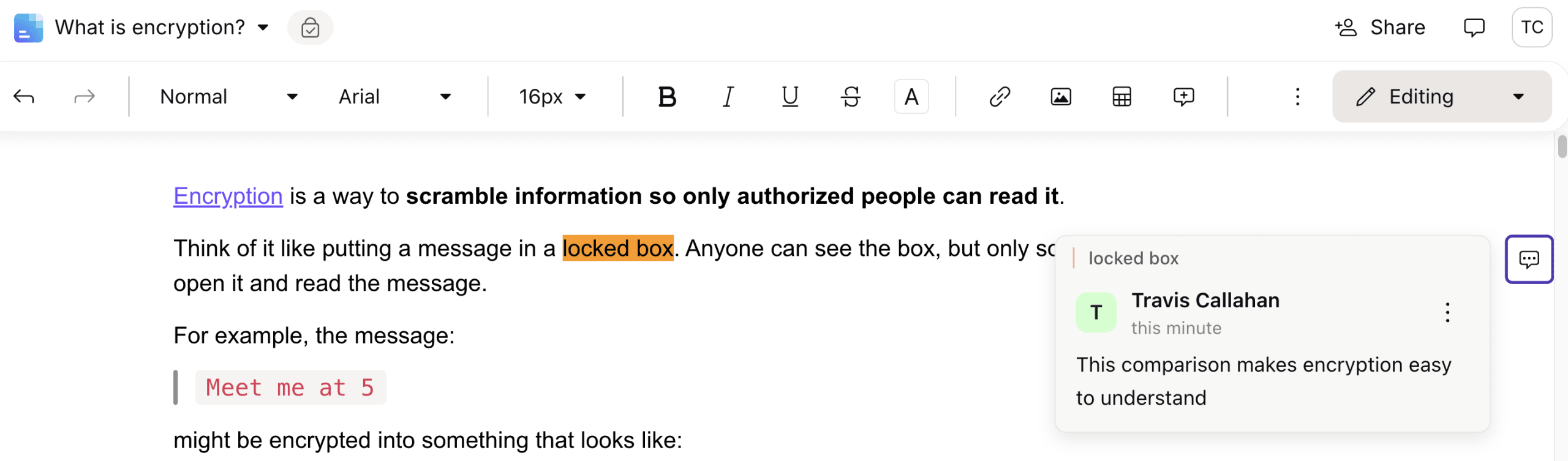
Вы можете использовать Комментарии в Документах, чтобы Оставить Заметки для себя или работать совместно с другими, сохраняя конфиденциальность и безопасность вашего документа. Например, вы можете задавать вопросы, Рекомендации изменить, предоставлять обратная связь или обсуждать определенные части документа, не изменяя основное содержимое.
Вставить и управлять таблицами
Вы можете Создать и Настроить таблицы, чтобы эффективно организовать данные и информацию в Документах.
Сначала вставьте таблицу в документ, переместив курсор в нужное место и нажав Вставить таблицу на панель инструментов.

По умолчанию строка заголовок выделена. Однако вы также можете выделить или снять выделение со строки заголовок или столбца, нажав на любую ячейка и выбрав раскрывающийся список Параметры.

Дополнительные Параметры включают возможность дублировать и Удалить таблицу в один клик.

Добавить строки и столбцы, а также Другое функциональные возможности
Также легко добавить ещё строки и столбцы и отформатировать содержимое таблицы.

Чтобы Добавить ещё строки или столбцы, наведите курсор на последнюю строку или столбец в таблице, пока не появится знак + . Нажатие на него позволит Добавить в таблицу еще одну строку или столбец.
Вы также можете вносить дополнения между существующими строками или столбцами, дублировать их, очистить содержимое и удалить строки или столбцы, наведя курсор на любую ячейка и нажав на значок Grid.
Нажатие на него предлагает дополнительные Параметры:

Кроме того, вы можете Добавить цвет к Текст и фону таблицы.
