
Modo de dos contraseñas
- Lectura
- 4 minutos
- Categoría
- Contraseñas
Con el modo de dos contraseñas, puede proteger su cuenta de Proton con dos contraseñas en lugar de una.
El modo de dos contraseñas es una función heredada. Ahora contamos con otras funciones de seguridad de autenticación que son más fáciles de usar y más seguras.
En este artículo
- Cómo funciona
- Cómo activar el modo de dos contraseñas
- Cómo desactivar el modo de dos contraseñas
- Por qué recomendamos el modo de una contraseña
- Alternativas al modo de dos contraseñas
Cómo funciona
Cuando el modo de dos contraseñas esté activado, deberá ingresar dos contraseñas independientes para iniciar sesión en su cuenta de Proton.
Técnicamente, las dos contraseñas tienen propósitos diferentes:
- Contraseña principal (de inicio de sesión): Verifica su identidad
- Segunda contraseña (del buzón): Descifra su buzón y los datos de su cuenta
Pero en la práctica, su cuenta se comportará de la misma manera que en el modo de una contraseña. Se requieren ambas contraseñas para iniciar sesión y, si pierde cualquiera de ellas, deberá recuperar su cuenta.
Cómo activar el modo de dos contraseñas
- Inicie sesión en account.proton.me y abra los ajustes de su cuenta (Ajustes ⚙️ → Todos los ajustes).

- Seleccione Cuenta y contraseña en la barra lateral y active el interruptor de Modo de dos contraseñas.
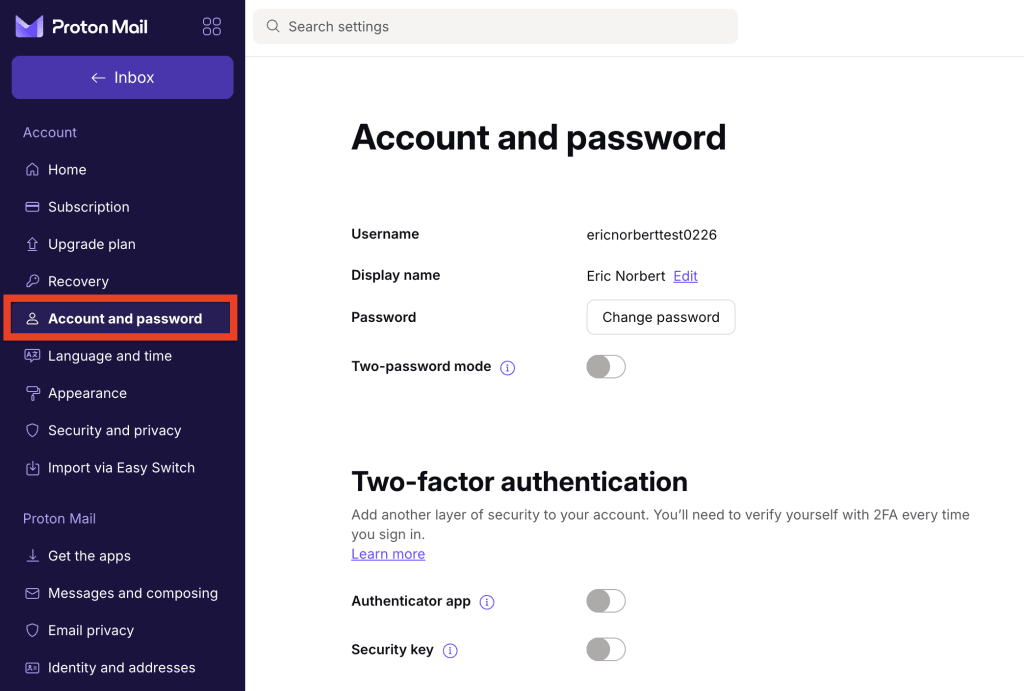
Se le pedirá que ingrese su contraseña actual para continuar.
- Cree una contraseña principal ingresándola en los campos Contraseña nueva de inicio de sesión y Confirmar contraseña de inicio de sesión. Haga clic en Guardar para confirmar.

También puede hacer clic en Generar contraseña para que Proton cree una contraseña segura para usted. En cualquier caso, es importante establecer dos contraseñas seguras.
4. Ahora cree una segunda contraseña ingresándola en los campos Nueva segunda contraseña y Confirmar la segunda contraseña .
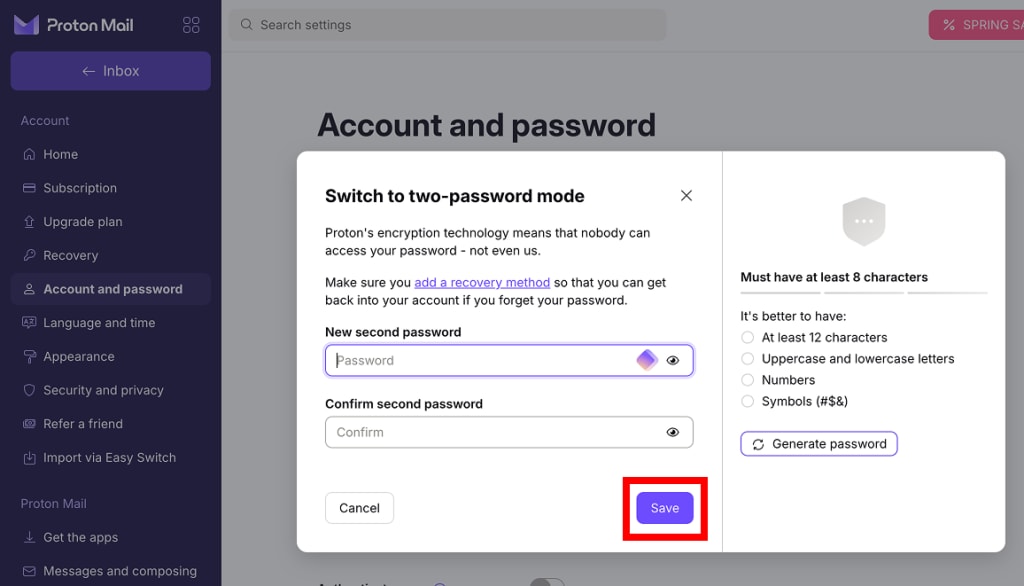
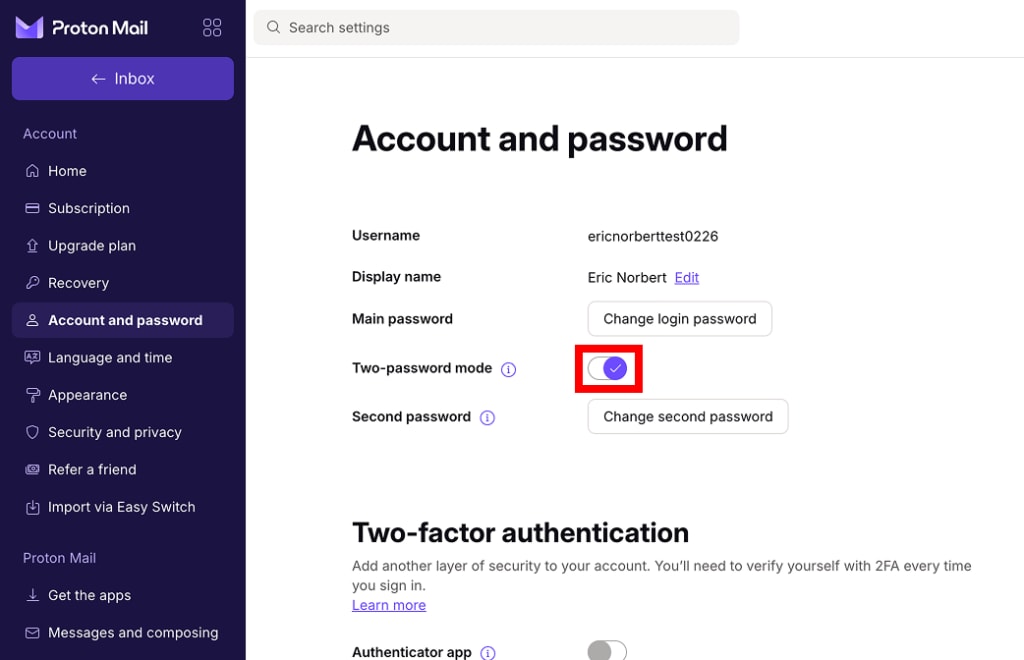
Ahora se encuentra en el modo de dos contraseñas. La próxima vez que inicie sesión, deberá ingresar ambas contraseñas para acceder a su cuenta.
Aprenda a almacenar y gestionar sus contraseñas de forma segura
Cómo desactivar el modo de dos contraseñas
- Inicie sesión en account.proton.me y abra los ajustes de su cuenta (Ajustes ⚙️ → Todos los ajustes).
- Seleccione Cuenta y contraseña en la barra lateral y desactive el interruptor de Modo de dos contraseñas.
Se le pedirá que ingrese su contraseña principal para continuar.
3. Cree una contraseña nueva ingresándola en los campos Contraseña nueva y Confirmar contraseña. Haga clic en Guardar para confirmar.

También puede hacer clic en Generar contraseña para que Proton cree una contraseña segura para usted.
Ahora se encuentra en el modo de una contraseña. La próxima vez que inicie sesión, solo se le pedirá una contraseña.
Por qué recomendamos el modo de una contraseña
Cuando se lanzó Proton Mail por primera vez, el modo de dos contraseñas estaba activado por defecto para todas las cuentas. Sin embargo, desde entonces, nuestro equipo de investigación desarrolló una manera de ofrecer el mismo nivel de cifrado con una contraseña única.
El modo de una contraseña ha sido la opción por defecto para todas las cuentas nuevas desde diciembre de 2016, y no es menos seguro.
Hemos mantenido el modo de dos contraseñas disponible para quienes deseen usarlo, pero por lo general no lo recomendamos. Estas son las razones:
- Dos contraseñas son más difíciles de recordar y almacenar de forma segura (especialmente si son contraseñas seguras).
- Otras funciones de seguridad de la cuenta, como la autenticación de dos factores, son más fáciles de usar y ofrecen mayores beneficios de seguridad.
Alternativas al modo de dos contraseñas
Autenticación de dos factores
Requiere dos formas diferentes de verificación para iniciar sesión en su cuenta de Proton:
- Algo que sabe (su contraseña).
- Algo que tiene (una clave de seguridad o una aplicación de autenticación).
Cómo configurar la autenticación de dos factores
Bloqueo automático
Proteja su aplicación de Proton Mail, Proton Drive o Proton Pass con un código PIN o datos biométricos.