La autenticación multifactor (MFA) ya no es solo una recomendación de seguridad para las grandes empresas. Es una de las formas más prácticas para que las empresas reduzcan el riesgo de toma de control de cuentas y hagan que las contraseñas robadas sean menos útiles. A medida que el acceso a los sistemas empresariales se extiende a través de aplicaciones en la nube, equipos remotos, dispositivos compartidos y plataformas de terceros, la MFA se está convirtiendo en una herramienta más útil.
Pero durante la implementación, los administradores de TI se enfrentan al reto de evaluar si la MFA es útil o eficaz. Conseguir que la MFA funcione en toda una organización requiere tomar muchas decisiones: ¿Qué cuentas la necesitan primero? ¿Qué métodos de MFA se deben permitir? ¿Cómo evitas el rechazo de los empleados? ¿Cómo te aseguras de que la MFA se aplique de verdad, no solo que se recomiende?
Esta guía está escrita para ayudar a que la implementación de la MFA en tu empresa sea un éxito. Explica qué es la MFA, por qué las contraseñas por sí solas ya no son suficientes, cómo se comparan los métodos comunes de MFA para su uso empresarial y cómo implementar la MFA de manera que tu equipo pueda adoptarla. También muestra cómo un gestor de contraseñas empresarial con soporte integrado para 2FA puede hacer que las prácticas de autenticación más sólidas sean más fáciles de administrar a gran escala.
¿Qué es la autenticación multifactor?
Por qué las contraseñas por sí solas ya no son suficientes
Tipos de MFA y pros y contras para las empresas
Dónde falla la implementación de la MFA
El problema de la resistencia de los empleados
Cómo implementar la MFA en tu empresa
Cómo Proton Pass for Business hace que la MFA sea fácil de administrar
¿Qué es la autenticación multifactor?
La MFA es un proceso de seguridad que requiere más de un tipo de verificación de identidad para acceder a una cuenta. En lugar de confiar únicamente en una contraseña tradicional, la MFA solicita un factor adicional que dificulta el acceso no autorizado.
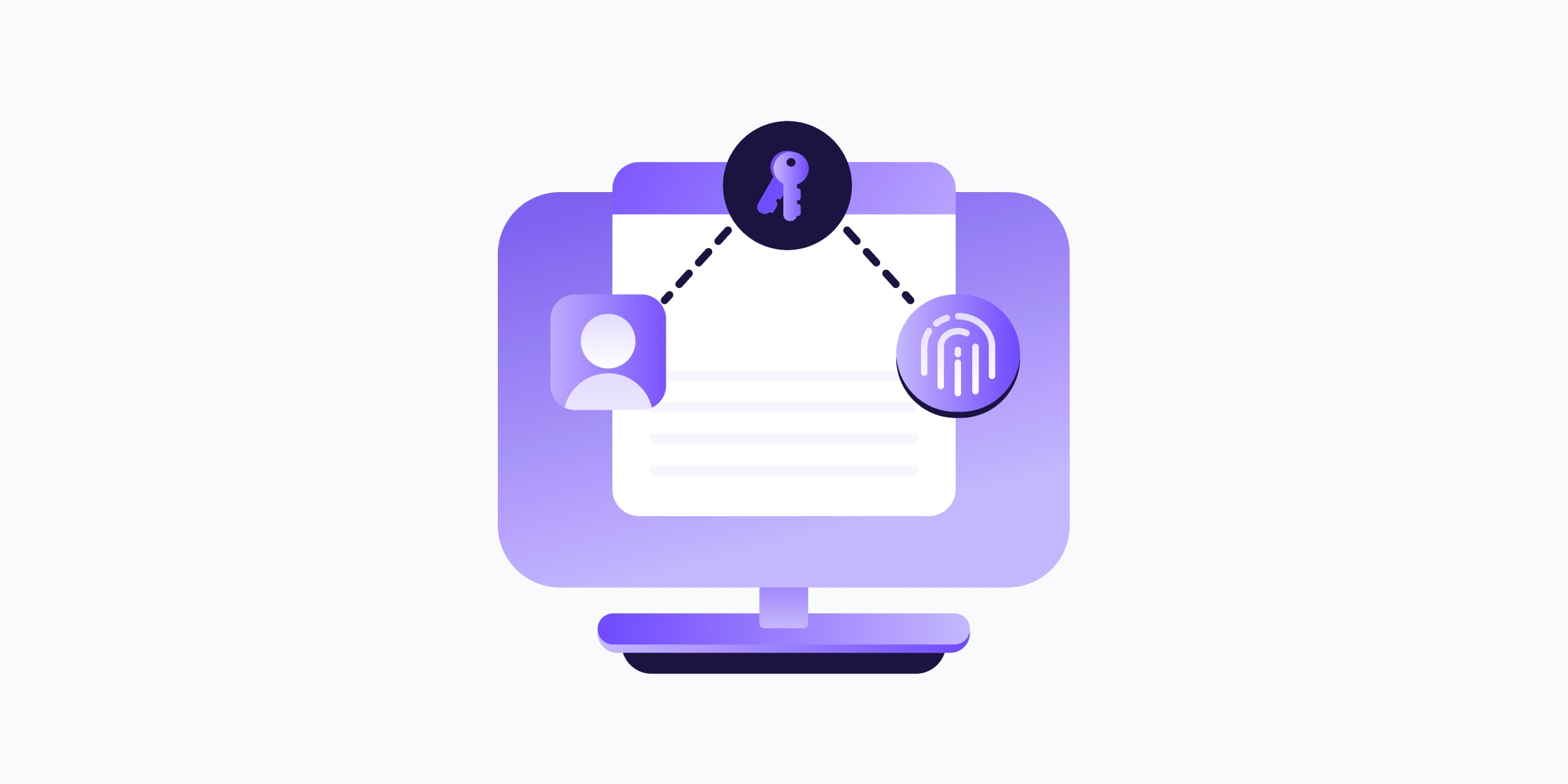
Los tres factores de autenticación comunes son:
- Algo que sabes, como una contraseña o un PIN.
- Algo que tienes, como un teléfono, una aplicación de autenticación, una llave de seguridad de hardware o un dispositivo de confianza.
- Algo que eres, como una huella digital o el reconocimiento facial.
En la práctica, la MFA suele significar que un empleado ingresa una contraseña y luego verifica el inicio de sesión a través de otro método, como un código de un solo uso basado en el tiempo (o TOTP), una aprobación push, una llave de acceso o una llave física. El objetivo es simple: si una contraseña es robada, adivinada, obtenida por suplantación o reutilizada, el atacante seguirá necesitando otro factor para entrar.
Autenticación multifactor en entornos empresariales
Para las empresas, implementar la MFA es una forma de reforzar la seguridad de las cuentas con un control de acceso adicional, no solo de reemplazar las contraseñas. En los entornos empresariales, el reto consiste en decidir dónde se necesitan más esos métodos y cómo desplegarlos de manera uniforme en diferentes sistemas, roles y niveles de riesgo.
No obstante, no todos los métodos de MFA son igual de robustos. Un código enviado por SMS es mejor que solo una contraseña, pero no ofrece la misma protección que una llave de seguridad física o una llave de acceso bien implementada. La elección correcta depende del riesgo, la usabilidad, el acceso a los dispositivos, las necesidades de cumplimiento y de cuánto control administrativo pueda mantener tu empresa.
Por qué las contraseñas por sí solas ya no son suficientes
Las contraseñas seguras siguen siendo importantes, pero ya no son suficientes por sí solas. Los empleados administran más cuentas que nunca, y los atacantes saben que el acceso a las empresas a menudo comienza con una sola credencial comprometida.
Una contraseña puede quedar expuesta a través de suplantación, malware(ventana nueva), vulneraciones de datos, relleno de credenciales, reutilización de contraseñas o un uso compartido poco seguro. Una vez que los atacantes tienen un nombre de usuario y una contraseña válidos, su actividad puede parecer un intento de inicio de sesión normal a menos que se requiera otra capa de verificación.
Por eso la protección contra vulneraciones de datos para empresas debe incluir controles de credenciales, seguridad para puntos de conexión y formación para los empleados. Una política de contraseñas sólida ayuda, pero no puede evitar que cada contraseña robada se pruebe en el correo electrónico, el almacenamiento en la nube, las herramientas financieras, los portales de administración o los sistemas de los clientes.
Lo que está en juego económicamente es mucho. El Informe sobre el coste de las vulneraciones de datos de 2025 de IBM(ventana nueva) sitúa el coste medio mundial de una vulneración de datos en 4,4 millones de dólares. La MFA no puede eliminar el riesgo de vulneraciones, pero reduce una de las rutas de acceso más comunes a los sistemas empresariales: el acceso no autorizado a través de credenciales comprometidas.
La MFA es especialmente importante para las cuentas que controlan otras cuentas. El correo electrónico, los proveedores de identidad, los gestores de contraseñas, las consolas de administración, las plataformas de desarrolladores, las herramientas de nómina y los sistemas financieros deben considerarse de alta prioridad porque obtener acceso a ellos puede abrir la puerta a más accesos en otros lugares.
Tipos de MFA y pros y contras para las empresas
Una buena implementación de la MFA comienza por elegir los métodos adecuados. La mejor opción no siempre es la misma para todas las empresas, equipos o sistemas. Los administradores de TI, por ejemplo, deben equilibrar la robustez de la seguridad, la usabilidad para los empleados, la disponibilidad de los dispositivos, la carga administrativa y las necesidades de soporte.
Contraseñas de un solo uso por SMS
Las contraseñas de un solo uso (OTP) por SMS envían un código a un número de teléfono durante el inicio de sesión. Este es uno de los métodos de MFA más fáciles de entender para los empleados, y puede ser útil cuando no se dispone de mejores opciones.
El inconveniente es la seguridad. El SMS puede ser vulnerable al duplicado de SIM (SIM swapping), la interceptación, la ingeniería social y los ataques de recuperación de números de teléfono. También genera problemas operativos cuando los empleados cambian de número, viajan al extranjero, tienen mala cobertura o utilizan teléfonos personales para el trabajo.
Para las empresas, lo mejor es tratar las OTP por SMS como una opción de respaldo en lugar de como el método de MFA preferido. Sigue siendo mejor que usar solo contraseñas, pero no debería ser la opción por defecto para cuentas de alto riesgo.
Aplicaciones de autenticación y códigos TOTP
Los empleados abren una aplicación de autenticación, como Proton Authenticator, copian el código generado para el servicio en el que están iniciando sesión y luego lo ingresan durante el inicio de sesión.
Esto suele ser más seguro que el SMS porque el código se genera en el dispositivo y no depende de la red móvil. Además, es ampliamente compatible con las herramientas empresariales, lo que lo convierte en una base práctica para muchas implementaciones de MFA.
El inconveniente es la usabilidad y la recuperación. Los empleados deben configurar la aplicación correctamente, mantener el acceso a su dispositivo y comprender cómo funciona la recuperación si pierden o reemplazan el teléfono. Los equipos de TI también deben crear políticas claras para los códigos de copia de seguridad, los cambios de dispositivo y la salida de empleados.
Las TOTP funcionan bien como método general de MFA para empresas, especialmente cuando se combinan con una gestión sólida de contraseñas y procesos de administración claros.
Llaves de seguridad de hardware
Las llaves de seguridad de hardware, como las YubiKeys, proporcionan una autenticación sólida porque el empleado debe poseer físicamente la llave para acceder a las cuentas de la empresa. Muchas llaves de seguridad también protegen contra la suplantación porque verifican que el sitio web en sí sea legítimo antes de completar la autenticación.
Para los roles de alto riesgo, las llaves físicas pueden ser una de las opciones de MFA más sólidas. Son especialmente útiles para administradores, ejecutivos, equipos financieros, desarrolladores y cualquier persona que tenga acceso a sistemas sensibles.
El inconveniente es la complejidad de la implementación. Las empresas deben comprar las llaves, distribuirlas, formar a los empleados, administrar las copias de seguridad y gestionar los dispositivos perdidos o dañados. Una estrategia de llaves de hardware también necesita un proceso de recuperación que no debilite el beneficio de seguridad.
Llaves de acceso
Las llaves de acceso utilizan la autenticación criptográfica en lugar de una contraseña tradicional. En muchos casos, los empleados desbloquean la llave de acceso con una huella digital, reconocimiento facial, PIN o la aprobación del dispositivo. La clave privada permanece en el dispositivo, lo que hace que las llaves de acceso sean más resistentes a la suplantación que muchos métodos de autenticación más antiguos.
Para las empresas, las llaves de acceso pueden mejorar tanto la seguridad como la usabilidad. Reducen la dependencia de secretos compartidos y pueden agilizar el inicio de sesión para los empleados. El principal desafío es la preparación del ecosistema. No todas las herramientas empresariales admiten aún llaves de acceso, y los equipos de TI necesitan políticas para el registro de dispositivos, la recuperación, las estaciones de trabajo compartidas y la salida de empleados.
Para muchas organizaciones, la solución práctica es un modelo híbrido: usar llaves de acceso donde sean compatibles, mantener contraseñas seguras y MFA donde sigan siendo necesarias, y administrar ambas cosas mediante políticas de acceso claras.
| Método de MFA | Robustez de la seguridad | Idoneidad para empresas | Mejor escenario de uso |
| OTP por SMS | Básico | Fácil de adoptar, pero más débil que otros métodos de MFA | Opción de respaldo cuando no hay un MFA más sólido disponible |
| Aplicaciones de autenticación | De moderado a fuerte | Opción por defecto práctica para muchos equipos | Cuentas de empresa cotidianas y herramientas SaaS |
| Llaves de seguridad de hardware | Muy fuerte | Ideal para roles de alto riesgo, pero requiere administración de dispositivos | Administradores, ejecutivos, equipos de finanzas y sistemas sensibles |
| Llaves de acceso | Muy fuerte | Seguro y fácil de usar donde tenga soporte | Aplicaciones modernas, flujos de trabajo sin contraseña y acceso resistente a la suplantación |
Dónde falla la implementación de MFA
El MFA puede seguir fallando incluso cuando una empresa lo ha implementado. De hecho, la calidad de la implementación importa tanto como el propio método de MFA. Algunas de las razones del fallo pueden ser:
- Recuperación débil. Si los empleados pueden eludir el MFA mediante una recuperación de cuenta sencilla, atajos del servicio de asistencia o códigos de copia de seguridad mal protegidos, los atacantes pueden centrarse en el proceso de restablecimiento en lugar de en la pantalla de inicio de sesión.
- Aplicación inconsistente. El MFA puede estar activado para algunas herramientas pero dejarse como opcional para el correo electrónico, las cuentas de administrador, los sistemas financieros, las cuentas operativas compartidas o ciertos empleados. En esa situación, el MFA se convierte en una aspiración más que en un control, y los atacantes aún pueden buscar la ruta disponible más débil.
- Usabilidad deficiente. Si los empleados sufren interrupciones constantes, bloqueos o no tienen claro qué deben aprobar, pueden frustrarse y ser más propensos a cometer errores. La fatiga por notificaciones push es un ejemplo: las solicitudes de aprobación repetidas pueden acostumbrar a las personas a aceptar peticiones sin pensar.
Un despliegue de MFA sólido necesita aplicación, monitorización y soporte. Debería ser fácil para los empleados hacer lo correcto y difícil dejar cuentas importantes desprotegidas.
El problema de la resistencia de los empleados
La resistencia de los empleados es una de las mayores barreras para el despliegue de MFA. Los empleados pueden verlo como un paso adicional, un obstáculo para la productividad o una regla de seguridad más añadida sin contexto.
Esta reacción es comprensible, especialmente cuando el MFA se introduce de forma abrupta o con instrucciones poco claras. La resistencia a menudo se debe a una mala implementación, no a la oposición a la seguridad en sí.
La solución a este problema es hacer que el MFA sea predecible y fácil de seguir. Explica a los empleados que protege las cuentas de la empresa incluso si roban una contraseña, empieza con herramientas familiares como el correo electrónico y las plataformas empresariales compartidas, proporciona pasos de configuración claros y apoya a los empleados durante los cambios de dispositivo.
Evita plantear el MFA como un castigo o una señal de desconfianza. Debe sentirse como una salvaguarda práctica para la empresa, sus clientes y las propias cuentas de trabajo de los empleados.
Una política de trae tu propio dispositivo (BYOD) también ayuda. Si los empleados usan dispositivos personales para trabajar, unas reglas claras para las aplicaciones de autenticación, la seguridad de los dispositivos, el reporte de dispositivos perdidos y la revocación de acceso facilitan el despliegue del MFA.
Cómo implementar el MFA en tu empresa
Un despliegue de MFA exitoso es un proyecto de gestión del cambio. Los responsables de TI deben decidir qué se protege primero, cómo funcionará la aplicación, cómo se gestionarán las excepciones y cómo se medirá la adopción.
Paso 1: Mapea tus cuentas y niveles de riesgo
Empieza con un inventario de accesos. Identifica los sistemas de los que depende tu empresa y las cuentas que presentan el mayor riesgo si se ven comprometidas.
Prioriza:
- Cuentas de correo electrónico y de proveedores de identidad.
- Cuentas de administrador y roles privilegiados.
- Cuentas de gestores de contraseñas.
- Herramientas de finanzas, nóminas y facturación.
- Almacenamiento en la nube e intercambio de archivos.
- Sistemas de desarrollo, infraestructura y producción.
- Plataformas de datos de clientes y CRM.
Esto crea una secuencia de despliegue para tu empresa que se basa en el riesgo en lugar de en la comodidad.
Paso 2: Elige métodos de MFA aprobados
Decide qué métodos de MFA permitirá tu empresa. Para muchos equipos, las aplicaciones de autenticación o las llaves de acceso pueden convertirse en la opción por defecto, mientras que las llaves de seguridad físicas se reservan para roles de alto riesgo. El SMS puede seguir siendo una opción de respaldo donde sea necesario, pero no debería ser el método preferido para sistemas sensibles.
Documenta la decisión de forma clara. Los empleados deben saber qué métodos están aprobados, cuáles no se recomiendan y qué hacer si pierden un dispositivo.
Paso 3: Realiza una prueba piloto antes de aplicarlo en todas partes
Realiza una prueba piloto con TI, operaciones, finanzas, dirección u otro grupo que pueda proporcionar comentarios útiles. El objetivo es probar el proceso de configuración, la documentación de soporte, los flujos de recuperación y los ajustes de la política antes de que el despliegue llegue a toda la organización.
Una prueba piloto también ayuda a identificar dónde las solicitudes de MFA son demasiado frecuentes, dónde necesitan los empleados instrucciones más claras y qué sistemas requieren una gestión especial.
Paso 4: Exige MFA primero para las cuentas de alto riesgo
Recomendarlo no es suficiente para los sistemas críticos. Una vez finalizada la prueba piloto, exige MFA para las cuentas que supongan el mayor riesgo.
Esto incluye cuentas de administrador, correo electrónico, sistemas de identidad, gestores de contraseñas y herramientas financieras. Si estas cuentas siguen siendo opcionales, los atacantes aún podrían encontrar una ruta de entrada a la empresa.
La clave es exigir su uso ofreciendo soporte. Proporciona a los empleados un aviso previo, guías de configuración, horarios de atención y de consultas, e instrucciones de recuperación. La aplicación obligatoria funciona mejor cuando no pilla a la gente por sorpresa.
Paso 5: Amplía el despliegue al resto de la organización
Una vez protegidas las cuentas de alto riesgo, amplía el MFA al resto de herramientas de la empresa. Esto se puede hacer por departamentos, por categorías de herramientas o por niveles de riesgo.
Haz un seguimiento de la adopción a medida que avanzas:
- ¿Qué cuentas tienen activada la MFA?
- ¿Qué empleados no se han registrado?
- ¿Qué sistemas permiten aún el acceso solo con contraseña?
- ¿Qué excepciones están abiertas y quién es su responsable?
Un gestor de contraseñas para empresas puede servir de apoyo en este proceso al ofrecer a los equipos visibilidad sobre qué cuentas ya tienen activada la MFA y cuáles siguen necesitando una autenticación más sólida.
Aquí es donde muchos despliegues se estancan o fracasan. La MFA requiere una gestión continua después de la fecha de despliegue.
Paso 6: Revisa las excepciones y las rutas de recuperación
Cada excepción debe tener un responsable, un motivo y una fecha de expiración. Si no se puede activar la MFA para una herramienta, documenta el motivo y decide si es necesario un control de compensación.
La recuperación también merece una revisión periódica. Los códigos de copia de seguridad, los flujos de recuperación de cuentas, las anulaciones del administrador y el restablecimiento de dispositivos pueden convertirse en puntos débiles si no se controlan. La implementación de la MFA debe hacer que la recuperación sea segura, no simplemente cómoda.
Cómo Proton Pass for Business hace que la MFA sea fácil de administrar
El despliegue de la MFA resulta más sencillo cuando la gestión de credenciales ya está bajo control. Si las contraseñas se reutilizan, se comparten de manera informal, se almacenan en navegadores o se dispersan en hojas de cálculo, resulta más difícil exigir el uso de la MFA de manera constante.
Un gestor de contraseñas para empresas como Proton Pass for Business ayuda yendo más allá de reforzar la capa de contraseñas. También puede servir de soporte directo para el segundo factor. Al contar con soporte integrado para 2FA, los equipos pueden almacenar códigos TOTP de forma segura y utilizar el propio gestor de contraseñas como dispositivo MFA, lo que hace que una autenticación más sólida sea más fácil de adoptar y de compartir de forma segura cuando sea necesario. Los empleados pueden generar contraseñas seguras y únicas, guardarlas en cajas fuertes cifradas, rellenar automáticamente los inicios de sesión, utilizar el soporte de 2FA integrado para códigos TOTP y gestionar llaves de acceso en los sistemas compatibles.
Esto también mejora la visibilidad. Los administradores necesitan saber no solo si los empleados tienen contraseñas seguras, sino también qué cuentas ya tienen activada la 2FA y cuáles siguen dependiendo del acceso solo con contraseña. Proton Pass puede ayudar a los administradores de TI a mostrar esa información, lo que facilita el seguimiento de la adopción de la MFA en toda la organización.
Las llaves de acceso también son un factor clave. A medida que las empresas avanzan hacia una autenticación más sólida y resistente a la suplantación, un gestor de contraseñas compatible con llaves de acceso como Proton Pass ayuda a los equipos a gestionar tanto los flujos de MFA tradicionales como los nuevos métodos sin contraseña en un solo lugar. Esto hace que el despliegue sea más práctico en entornos mixtos donde algunos sistemas todavía utilizan contraseñas y TOTP, mientras que otros ya están listos para las llaves de acceso.
Para los equipos de TI, Proton Pass for Business ofrece soporte para la gestión centralizada, las políticas, el uso compartido seguro y la visibilidad a través de informes y registros. Esto hace que la MFA sea más viable desde el punto de vista operativo, ya que los equipos pueden reducir la dispersión de contraseñas al mismo tiempo que facilitan el despliegue y el control de una autenticación más sólida en toda la organización.
Un gestor de contraseñas para empresas no sustituye a la MFA. Hace que la MFA sea mucho más fácil de implementar porque refuerza el primer factor, sirve de soporte para el segundo y ofrece a la empresa una ruta más fácil de administrar hacia una autenticación más sólida en general.