
Slik laster du ned, tilpasser eller betaler fakturaer
- Lesetid
- 1 min
- Kategori
- Betalinger og fakturaer
Hvis du har et betalt Proton-abonnement, vil du motta en ny faktura når abonnementet ditt blir aktivert eller fornyet.
Du kan laste ned, tilpasse eller betale fakturaer på kontoen din i Proton Mail(nytt vindu) sin nettapp. Det er ikke mulig å administrere fakturaer i mobilappene for iOS eller Android.
Last ned en faktura
1. Logg på account.proton.me på en datamaskin, og åpne kontoinnstillingene dine.
2. Velg Abonnement fra sidemenyen, og rull ned til Fakturaer.
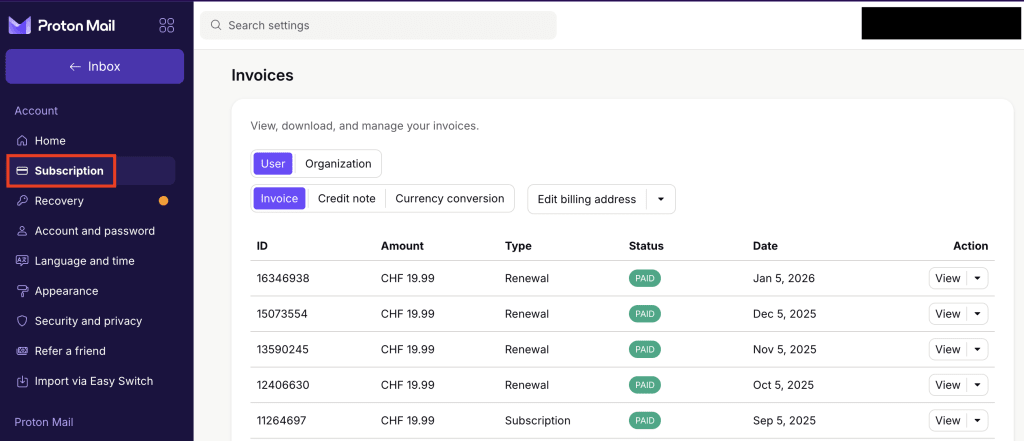
3. I Handling-kolonnen klikker du på ⌄ ved siden av en faktura og velger Last ned.

PDF-fakturaen lastes ned til enheten din og viser fakturaens status, tidsperiode, hvilket abonnement kontoen din har, kostnaden og eventuelle rabatter eller kampanjer du har lagt til på kontoen din.
For å se en faktura klikker du på Vis i Handling-kolonnen. Dette vil åpne PDF-filen i en forhåndsvisning. Herfra kan du laste ned, skrive ut eller rulle mellom fakturaer.
Betal en faktura
Fakturaer leveres på den siste dagen av abonnementet ditt. Fakturaer som ikke har blitt betalt, blir markert som Ubetalt, og må gjøres opp innen 14 dager.
- Logg på account.proton.me på en datamaskin, og åpne kontoinnstillingene dine.
- Velg Abonnement fra sidemenyen, og rull til Fakturaer. Se etter fakturaer merket som Ubetalt.
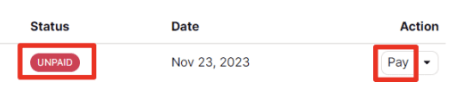
3. Klikk på Betal-knappen i fakturaens Handling-kolonne, og følg instruksjonene for å fullføre betalingen.
Tilpass en faktura
For å legge til navn, adresse eller annen informasjon på fakturaene dine:
- Logg på account.proton.me på en datamaskin, og åpne kontoinnstillingene dine.
- Velg Abonnement fra sidemenyen, og rull ned til Fakturaer.

3. Herfra kan du:
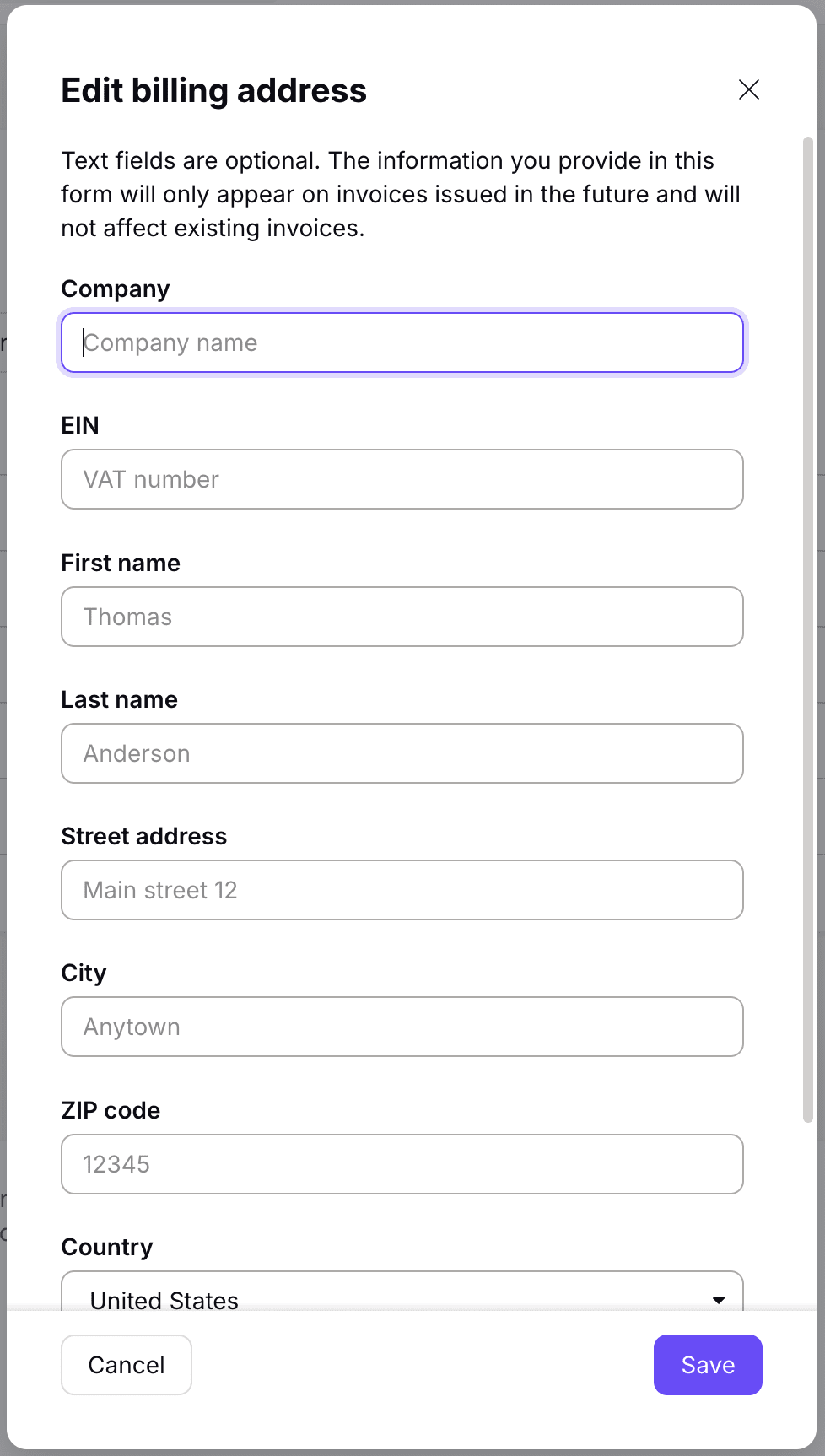
- Rediger faktureringsadresse: Legg til detaljer som vil vises på fremtidige fakturaer, som:
- Selskapsopplysninger, som bedriftsnavn og MVA-nummer.
- Fornavn og etternavn.
- Kontaktdetaljer, som gateadresse, poststed, postnummer, land og fylke/delstat.
- Rediger fakturanotat: Legg til informasjon som betalingsbetingelser, spesielle instruksjoner eller ytterligere detaljer.
