
How to download, customize, or pay invoices
- Reading
- 3 mins
- Category
- Payments and invoices
If you have a paid Proton plan, you’ll receive a new invoice when your subscription is activated or renewed.
You can download, customize, or pay invoices in your account in the Proton Mail(new window) web app. It’s not possible to manage invoices in the iOS or Android mobile apps.
Download an invoice
1. Sign in to account.proton.me on a desktop and open your account settings.
2. Select Subscription from the sidebar and scroll to Invoices.

3. In the Action column, click ⌄ next to an invoice and select Download.

The PDF invoice will be downloaded to your device, showing the invoice’s status, time period, the plan your account is on, the cost, and any discounts or promotions you have applied to your account.
To view an invoice, click View in the Action column. This will open the PDF in a preview. From here you can download, print, or scroll between invoices.
Pay an invoice
Invoices are delivered on the last day of your subscription. Invoices that haven’t been paid are marked as Unpaid, and must be settled within 14 days.
- Sign in to account.proton.me on a desktop and open your account settings.
- Select Subscription from the sidebar and scroll to Invoices. Look for any invoices marked as Unpaid.
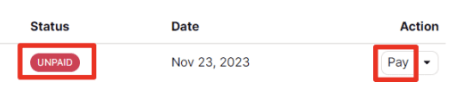
3. Click the Pay button in the invoice’s Action column, and follow the instructions to make your payment.
Customize an invoice
To add your name, address, or other information to your invoices:
- Sign in to account.proton.me on a desktop and open your account settings.
- Select Subscription from the sidebar and scroll down to Invoices.
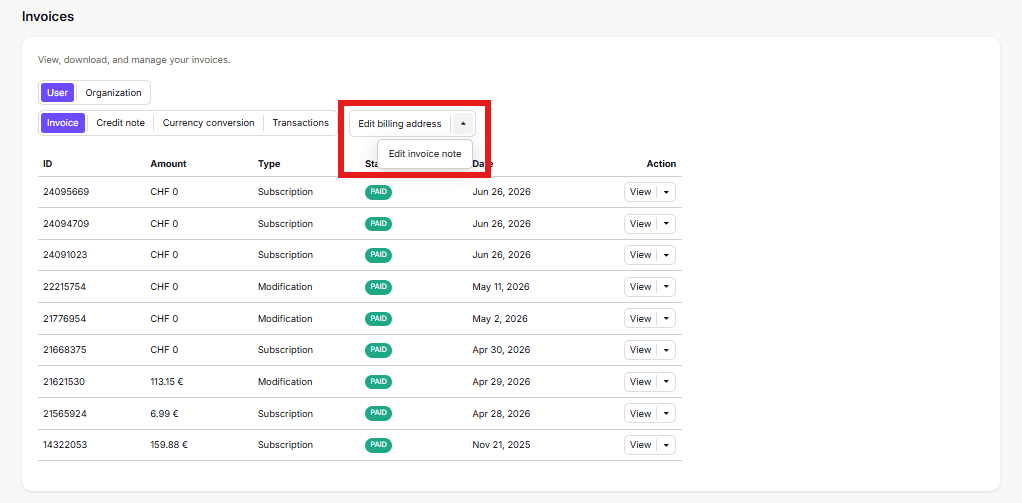
3. From here, you can:
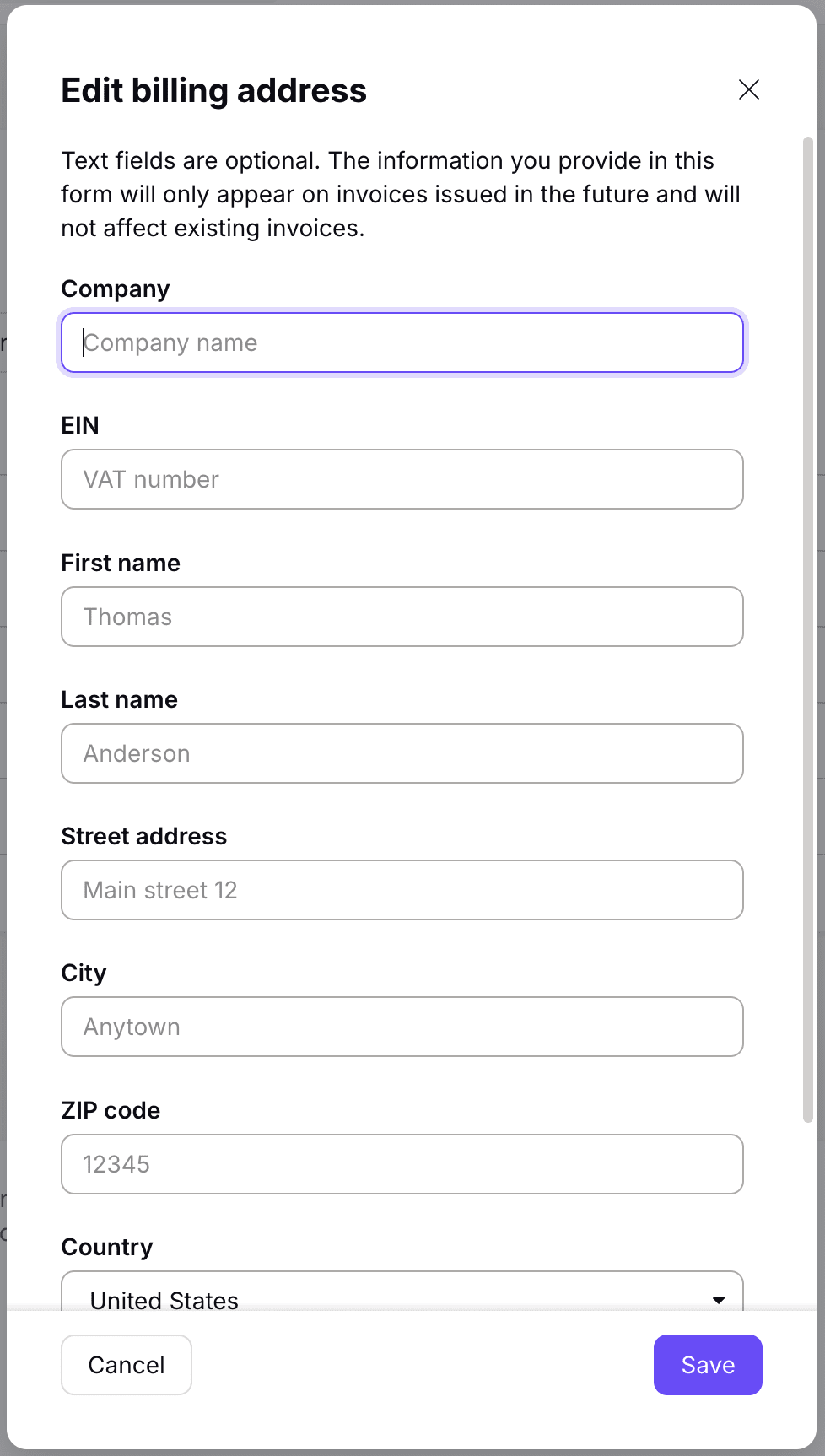
- Edit billing address: Add details that will appear on future invoices, like:
- Company information such as business name and VAT number.
- First and last name.
- Contact details such as street address, city, ZIP code, country, and state.
- Edit invoice note: Add information such as payment terms, special instructions, or additional details.
