Przeniesienie dokumentów do chmury może uprościć sposób, w jaki Twój zespół przechowuje, znajduje i udostępnia pliki. Ale bez odpowiedniej konfiguracji możesz szybko zauważyć, że proces ten staje się chaotyczny.
Zduplikowane pliki, niejasna struktura własności i przestarzałe uprawnienia są przenoszone z Twoich dotychczasowych systemów.
W tym poradniku dowiesz się, czym jest zarządzanie dokumentami w chmurze i jakie są najlepsze praktyki organizowania dokumentów w chmurze, aby Twój zespół mógł efektywniej znajdować i udostępniać pliki oraz kontrolować dostęp do nich.
Jeśli zastanawiasz się, czym ogólnie jest zarządzanie dokumentami, zapoznaj się z naszym przewodnikiem po zarządzaniu dokumentami.
Co to jest zarządzanie dokumentami w chmurze?
Zarządzanie dokumentami w chmurze to system, który nadaje strukturę i zapewnia kontrolę nad Twoją przestrzenią dyskową w chmurze.
Biznesowe usługi chmurowej przestrzeni dyskowej, takie jak Proton Drive, Dropbox i Google Drive, dają Ci miejsce do przechowywania i konsolidacji plików online. Proces definiowania reguł określających sposób przechowywania, udostępniania, nazywania dokumentów oraz pracy nad nimi sprawia, że te systemy zarządzania dokumentami są tak skuteczne.
Bez jasnej struktury i silnej kontroli Twój zespół spędza więcej czasu na szukaniu plików, ryzykuje udostępnieniem niewłaściwych informacji i traci wgląd w to, kto ma dostęp do poufnych danych.
Dlaczego firmy potrzebują systemu zarządzania dokumentami w chmurze?
Efektywne zarządzanie dokumentami w środowisku chmurowym umożliwia Ci:
- Praca z dowolnego miejsca: gdy dokumenty są przechowywane w chmurze, pracę można kontynuować nawet wtedy, gdy kogoś nie ma przy biurku lub nie korzysta z odpowiedniego urządzenia. Dzięki temu Twój zespół może pracować wydajnie i nikt nie jest blokowany przez oczekiwanie na przekazany dalej plik.
- Dbanie o bezpieczeństwo i zgodność poufnych danych: zcentralizowany system w chmurze pozwala na stosowanie spójnych zasad kontroli dostępu, szyfrowania i rejestrowania logów audytowych w odniesieniu do wszystkich zasobów – od wewnętrznych zasad HR po dane finansowe klientów. Taka spójność jest tym, czego szukają audytorzy i czego oczekują organy regulacyjne.
- Skalowanie w miarę wzrostu potrzeb: liczba dokumentów ma tendencję do nieprzewidywalnego wzrostu, gdy wprowadzane są nowe produkty lub zbliżają się audyty. Systemy chmurowe pozwalają na skalowanie bez płacenia za pojemność, której jeszcze nie używasz, ani bez konieczności wdrażania nowej infrastruktury.
- Współpraca na tej samej wersji: systemy chmurowe często oferują edytory dokumentów online, które umożliwiają zespołom wspólną pracę nad jednym plikiem. Eliminuje to zamieszanie związane z wersjami i ryzyko, że ktoś będzie pracować na nieaktualnej umowie.
Uwaga na temat przedkładania bezpieczeństwa nad wygodę
Firmy przenoszą dokumenty do chmury, aby ułatwić do nich dostęp i ich udostępnianie. Jednak zbyt często bezpieczeństwo staje się drugorzędną kwestią, co może prowadzić do ujawnienia danych lub ryzyka niezgodności z przepisami.
Sprawdź, jak Twój dostawca obsługuje szyfrowanie i gdzie przechowywane są dane. Jest to szczególnie ważne, jeśli przechowujesz dokumentację finansową, dane klientów lub poufne umowy – i pozwala Ci to zapewnić zgodność z GDPR oraz regulacjami branżowymi.
Jeśli Twój dostawca ma dostęp do Twoich plików, naruszenie bezpieczeństwa po jego stronie może narazić Twoje dane na ujawnienie. Wybierz dostawcę, który stosuje szyfrowanie end-to-end (co oznacza, że tylko Ty masz dostęp do swoich plików).
6 najlepszych praktyk w zakresie zarządzania dokumentami w chmurze
Po wybraniu rozwiązania możesz skonfigurować jasne zasady i procesy, aby Twój zespół mógł bezpiecznie i spójnie zarządzać dokumentami.
- Uczynienie chmury domyślnym obszarem roboczym Twojego zespołu
Jeśli Twój zespół nadal przechowuje pliki lokalnie, wysyła załączniki e-mail lub traktuje chmurę jako kopię zapasową, tracisz wgląd w dokumenty i kontrolę nad nimi.
Wprowadź zasadę, że praca odbywa się w chmurze. Twórz i edytuj tam pliki, udostępniaj linki zamiast załączników i przechowuj dokumenty w udostępnionych folderach, a nie na urządzeniach lokalnych.
Wdrażając nowych członków zespołu, od pierwszego dnia kieruj ich do chmury i pokaż im, gdzie mogą znaleźć, przechowywać i udostępniać dokumenty. Sprawdź nasze listy zadań wdrożeniowych, aby dowiedzieć się więcej o tym, jak zapewnić nowym pracownikom bezproblemowe wdrożenie od pierwszego dnia i upewnić się, że wiedzą, jak działa Twój chmurowy system zarządzania dokumentami.
Uczynienie chmury domyślnym obszarem roboczym sprawia, że Twój zespół przestrzega spójnych procesów, usprawnia współpracę i dba o bezpieczeństwo dokumentów.
- Zrozumienie, jak Twój zespół tworzy dokumenty i współpracuje
Twój system zarządzania plikami powinien odzwierciedlać sposób pracy Twojego zespołu, a nie zmuszać go do dostosowania się do niego.
Zacznij od zidentyfikowania kilku typowych rodzajów dokumentów, takich jak umowy, faktury czy raporty wewnętrzne. Dla każdego z nich określ:
- Gdzie jest tworzony
- Kto potrzebuje dostępu na każdym etapie
- Jak jest sprawdzany i zatwierdzany
- Gdzie jest przechowywany po sfinalizowaniu
Wykorzystaj to do skonfigurowania folderów, uprawnień i reguł nazewnictwa, które odzwierciedlają sposób pracy Twojego zespołu.
- Stworzenie struktury folderów i wytycznych, które są przyjazne dla użytkownika i łatwe do wykorzystania
Skuteczna struktura zarządzania plikami pomaga Twojemu zespołowi szybko znaleźć odpowiednie dokumenty, ogranicza błędy i chroni poufne informacje.
Zacznij od prostej, przewidywalnej struktury opartej na sposobie pracy Twojego zespołu – według działów, projektów lub klientów – czyli tak, jak pracownicy naturalnie szukają plików.
Stosuj jasne, spójne nazewnictwo folderów, aby było jasne, co gdzie pasuje. Na przykład:
Klient–Projekt–Typ dokumentu–Wersja–Data
AcmeCorp–WebsiteRedesign–Contract–v2–2026-04-20
Spisz kilka podstawowych zasad, np. gdzie przechowywać szkice, a gdzie wersje ostateczne oraz jak nazywać pliki. Udostępnij te wytyczne swojemu zespołowi i konsekwentnie je stosuj.
- Zachowaj spójną kolejność we wszystkich plikach
- Używaj jasnych, opisowych nazw (unikaj skrótów, chyba że są powszechnie zrozumiałe)
- Używaj numerów wersji (v1, v2) zamiast określeń „ostateczny” lub „najnowszy”
- Używaj formatu daty ISO (RRRR-MM-DD), aby pliki były poprawnie sortowane
- Używaj szablonów dokumentów w odpowiednich przypadkach
- Traktowanie historii wersji jako ścieżki audytu
Bez historii wersji tracisz wgląd w to, kto zmienił dokument, co zostało zmienione i kiedy. Utrudnia to poprawianie błędów, rozstrzyganie sporów lub wykazanie zgodności z przepisami.
Włącz historię wersji domyślnie dla kluczowych folderów i unikaj pobierania plików w celu ich lokalnej edycji, ponieważ przerywa to rejestrowanie zmian.
Zrób krok dalej i zostawiaj komentarze lub notatki do wersji (jeśli są dostępne), aby wyjaśnić istotne zmiany. Pomoże Ci to zrozumieć, dlaczego wprowadzono aktualizacje, a nie tylko to, co się zmieniło.
- Regularne kontrolowanie dostępu
Zgodnie z badaniem przeprowadzonym przez Proton na temat praktyk bezpieczeństwa arkuszy kalkulacyjnych w MŚP, 61% pracowników w USA twierdzi, że otwierało dokumenty z poprzedniej pracy, projektu lub zespołu.
Uprawnienia dostępu często kumulują się z czasem. Ktoś zostaje dodany do folderu i stopniowo byli pracownicy, podwykonawcy czy zewnętrzni współpracownicy – wszyscy zyskują dostęp do poufnych danych.
Aby uniknąć dostępu widmo:
- Otwórz swoją przestrzeń dyskową w chmurze i przejdź do udostępnionego folderu lub pliku
- Sprawdź ustawienia Udostępniania lub Dostępu
- Sprawdź, kto ma dostęp i na jakim poziomie (podgląd, komentowanie, edycja)
- Usuń każdą osobę, która nie potrzebuje już dostępu
- Przejrzyj aktywne udostępnione linki i wyłącz lub ustaw termin wygaśnięcia dla tych, które nie są już potrzebne
Od samego początku skonfiguruj uprawnienia oparte na rolach, aby pracownicy mieli dostęp tylko do tego, czego potrzebują. Następnie zaplanuj regularne przeglądy (na przykład raz w miesiącu lub na koniec każdego projektu).
Regularne przeglądy dostępu pomagają Ci zachować kontrolę nad wrażliwymi danymi i zmniejszyć ryzyko nieautoryzowanego dostępu.
Bezpiecznie zarządzaj swoimi dokumentami biznesowymi dzięki Proton Drive
Proton Drive to biznesowa przestrzeń dyskowa w chmurze(nowe okno) stworzona, aby dać Ci narzędzia, których potrzebujesz, bez uszczerbku dla bezpieczeństwa i bez konieczności powierzania dostępu do Twoich plików.
Dzięki domyślnie włączonemu szyfrowaniu end-to-end(nowe okno) masz pewność, że dostęp do Twoich plików masz tylko Ty i osoby, którym je udostępniasz.
Proton nie ma do nich dostępu, więc nie mamy czego nikomu przekazywać. Siedziba Proton znajduje się również w Szwajcarii, co oznacza, że Twoje dane będą chronione przez jedne z najsilniejszych przepisów dotyczących prywatności na świecie.
Proton Drive posiada również certyfikat ISO 27001(nowe okno) i wspiera zgodność z normami HIPAA(nowe okno) oraz GDPR(nowe okno).
Korzystanie z Proton Drive do przechowywania dokumentów w chmurze oznacza, że możesz:
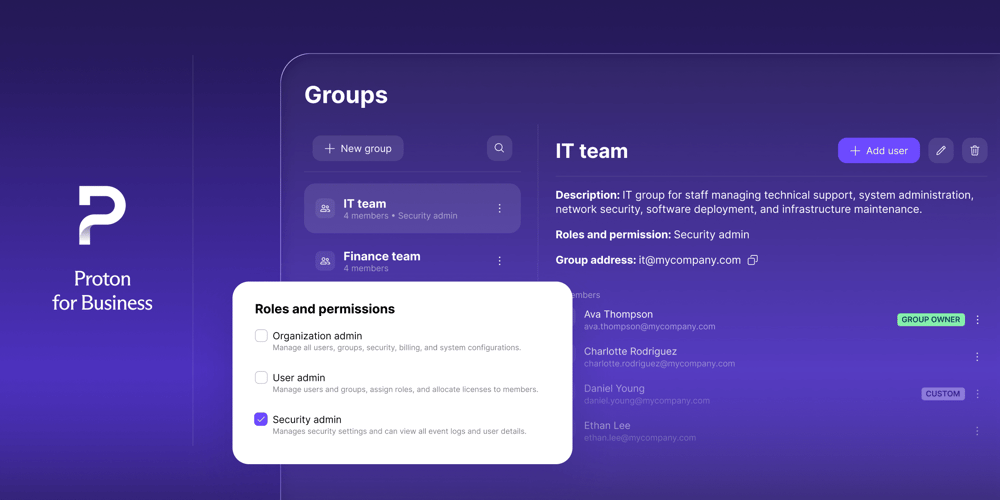
- Ustawiać uprawnienia na poziomie pliku lub folderu i zarządzać dostępem swojego zespołu z centralnego panelu administratora.
- Śledzić wersje plików przez nawet 10 lat, co zapewnia długoterminową ścieżkę audytu wymaganą do zachowania zgodności.
- Udostępniać pliki dowolnym osobom za pomocą linków chronionych hasłem(nowe okno), ustawiać daty wygaśnięcia i cofać dostęp w dowolnym momencie.
- Tworzyć i edytować dokumenty(nowe okno) oraz arkusze kalkulacyjne(nowe okno) wraz z zespołem w czasie rzeczywistym, korzystając z Proton Docs i Sheets.
- Uzyskiwać dostęp do swoich plików z dowolnego urządzenia dzięki łatwym w użyciu aplikacjom(nowe okno).
Zacznij budować swój bezpieczny system zarządzania dokumentami w chmurze z Proton Drive(nowe okno).